

ConfigureDefender
About ConfigureDefender
ConfigureDefender exposes the settings of Microsoft Defender that the normal security interface keeps out of sight. The built-in antivirus has a cloud protection level, a set of attack surface reduction rules, network protection and controlled folder access.
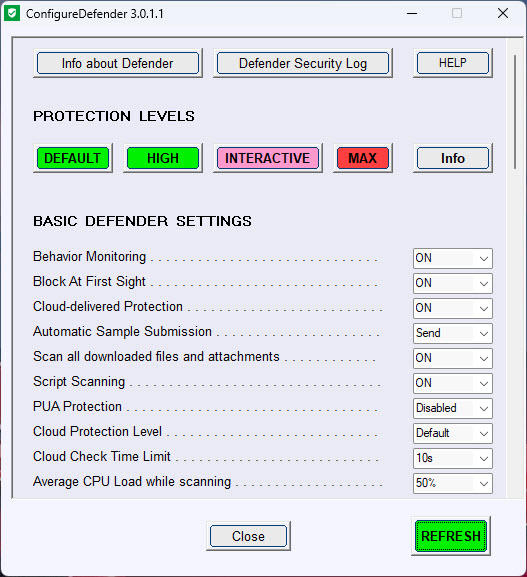
On an ordinary home machine, most of those can only be changed through PowerShell commands or policy templates. This portable tool puts all of them on one screen with drop-downs, plus four preset protection levels that apply a whole configuration at once.
The point is that the antivirus already installed on the machine is far stronger than its default settings suggest.
Switching the cloud level to its highest setting, enabling the ransomware folder protection and turning on the attack surface rules turns a default install into something closer to what businesses deploy. No second security product is needed.
Four presets, from default to maximum
The quickest route is a preset. Default returns everything to the factory configuration, which doubles as an undo button. High enables network protection, most of the attack surface reduction rules and a higher cloud protection level. It leaves out the three rules and the folder protection most likely to cause false positives. It is the setting recommended for most people.
Interactive applies the High configuration but sets every attack surface rule to warn instead of block, so you see a prompt and can let a legitimate program through. Max turns on every rule, sets the cloud level to block and switches SmartScreen from warn to block.
ConfigureDefender describes Max as requiring more knowledge and more maintenance, and the forum threads around it are full of people discovering that firmware updaters and old installers trip the rules. Every preset needs a reboot to take full effect.
The settings underneath
Below the presets sit the individual controls, which is where ConfigureDefender earns its name. Cloud protection level goes from default through high and highest to block, with a cloud check time limit that decides how long a suspicious file waits for a verdict before it runs. Potentially unwanted application protection, behaviour monitoring, script scanning and the average processor load allowed during scans are each a drop-down.
Turning the unwanted application setting on catches the bundled toolbars and adware that a dedicated adware cleaner would otherwise have to remove later.
The attack surface reduction section lists every rule by its plain description, such as blocking executable content from email clients or stopping credential theft from the system security subsystem, each settable to off, block or warn.
Controlled folder access protects document folders from unauthorised programs, and network protection blocks connections to known malicious domains. Change what you like, press the Refresh button, and the tool reports any setting that was blocked from changing.
Tamper Protection and what it blocks
Tamper Protection in Microsoft Defender prevents security settings from being lowered by software, and ConfigureDefender respects it rather than fighting it. With Tamper Protection on, a few basic settings cannot be switched off from here, among them behaviour monitoring and the scanning of downloaded files, which no sensible user wants off anyway. Everything that raises protection still applies normally.
That design is deliberate. The program only strengthens or restores the built-in antivirus and never disables it, which separates it from tools that exist to switch the antivirus off. Two settings should stay untouched regardless of what else you change. Cloud-delivered protection must remain on and sample submission set to send, because block at first sight and the cloud protection level stop working without them.
Privacy settings outside the antivirus, such as telemetry, are a separate job for a dedicated privacy tool.
Living with stricter rules
A stricter configuration means occasional false positives, and ConfigureDefender helps with that too. Its log view shows what the antivirus blocked and which rule did it, so when a program fails to start, you can find the rule responsible and set it to warn or off rather than guessing. Starting from High and moving individual rules towards Max as you confirm nothing breaks is the sensible path.
The tool runs without installation and needs administrator rights. It changes nothing by itself until you press Refresh. For people who want default-deny protection beyond what the built-in antivirus offers, an application whitelisting tool is a different approach.
Conclusion
ConfigureDefender suits anyone relying on the built-in antivirus who wants the stronger configuration businesses use, without PowerShell and without a second security product. The High preset alone makes a meaningful difference, and the individual controls and log view let careful users go further.
Stricter rules bring false positives, and the Max preset is for people willing to manage them. Used from High upward, it is the most direct way to get the most out of the protection already on the machine.
Pros & Cons
- Exposes cloud level, attack surface rules and folder protection that the normal interface hides
- Four presets apply a complete configuration with one click and a reboot
- Default preset restores factory settings as an undo
- Warn mode on rules lets you spot false positives before blocking
- Log view shows which rule blocked which program
- Portable, with no changes until Refresh is pressed
- Max preset produces false positives with updaters and older installers
- Some settings cannot be changed while Tamper Protection is on
- Changing presets requires a reboot
Frequently asked questions
High for most people. It raises protection considerably while leaving out the rules most likely to block legitimate programs. Move towards Max rule by rule once you are sure nothing breaks.
Yes. Tamper Protection only prevents a few basic settings from being switched off, and the tool reports any change that was blocked. All settings that increase protection apply normally.
No. It is built to strengthen or restore the built-in antivirus, and the Default preset returns every setting to factory values.


