

Logitech Connection Utility
About Logitech Connection Utility
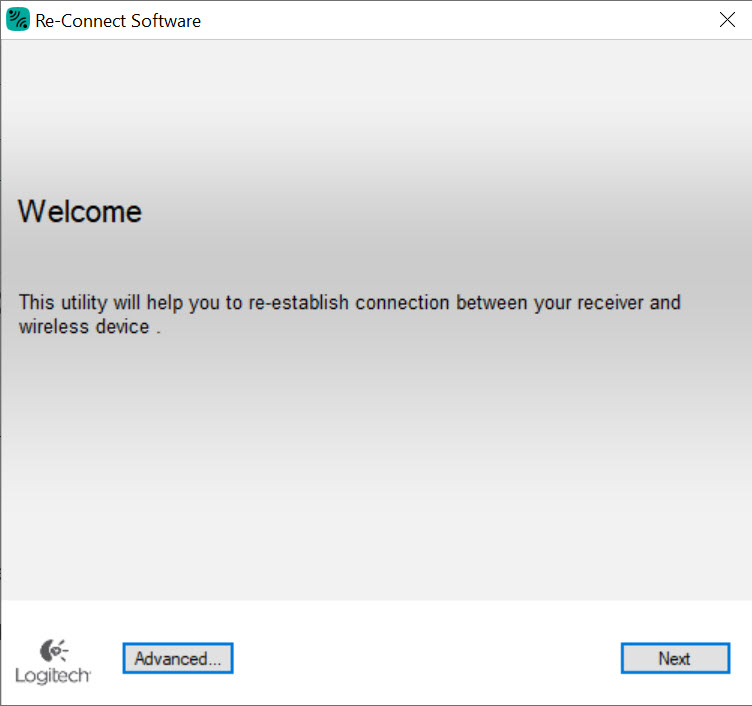
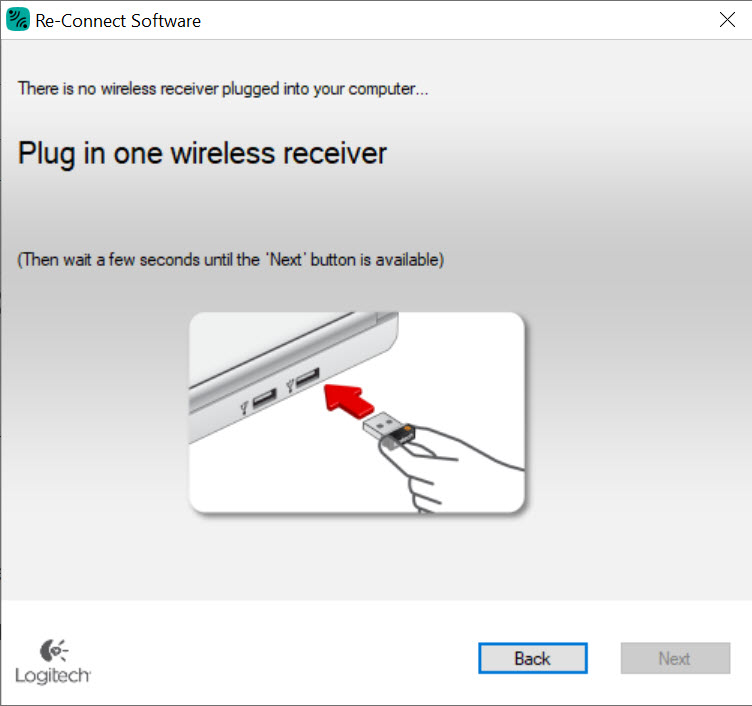
Logitech Connection Utility solves a specific problem that owners of Logitech G wireless gaming peripherals run into when their original receiver dongle gets lost, broken, or paired to a different device. The utility runs as a small executable, asks you to plug in the new receiver and the peripheral that needs to be paired with it, and handles the re-pairing process through the USB connection.
Within a few clicks, your wireless gaming mouse or keyboard talks to the receiver again, and you can use it normally without the original dongle that came in the box.
The application targets a narrow but real use case. Logitech G wireless peripherals using the Lightspeed protocol pair to specific receivers at the factory, with each mouse or keyboard linked to one specific dongle out of the box. Replace that dongle (because the original got lost, broken, or you bought a peripheral without one), and the new receiver doesn’t automatically work with your existing peripheral.
The Connection Utility bridges this gap, providing the re-pairing capability that normal plug-and-play doesn’t include. Supported devices include the G900, G903, G703, G502 Lightspeed, G915, G613, G733, G935, and various other Logitech G wireless products that use the Lightspeed protocol or its variants.
For users buying replacement receivers, swapping peripherals between receivers, or recovering from receiver loss, the utility is essentially required infrastructure. The application doesn’t replace G HUB or Logitech Options for general configuration. It only handles the specific receiver-pairing operation that those broader applications don’t address.
How the re-pairing process works
The utility’s central operation reads simply enough. Connect both the receiver dongle and the peripheral you want to pair to your computer. The peripheral connects through its USB cable (most Logitech G wireless peripherals can also operate as wired devices when plugged in directly).
The utility detects both devices, verifies they’re compatible with the pairing operation, and triggers the firmware-level pairing process that normally happens at the factory.
The actual pairing exchange takes a few seconds. The utility communicates with both devices, generates the cryptographic pairing keys that the Lightspeed protocol uses for secure communication, and writes those keys to both the receiver and the peripheral. Once complete, the peripheral remembers the receiver’s identity and the receiver remembers the peripheral’s identity.
Disconnect the USB cables, and the wireless connection works as if the peripheral had been paired to that receiver from the factory.
The process is largely automatic from the user perspective. Click through the prompts, wait for the pairing to complete, and the operation finishes without manual configuration of pairing modes, security keys, or other technical parameters.
For users who don’t want to think about wireless pairing protocols, this automation matches the expectation that pairing should “just work” without elaborate procedures.
Supported devices and what isn’t covered
The supported device list covers most Logitech G wireless products from recent years, but not all Logitech wireless products. The Lightspeed protocol used by gaming peripherals is distinct from the Unifying protocol used by Logitech’s office and productivity wireless peripherals (the M510, M705, K360, and many others with the orange Unifying logo).
Unifying peripherals use a different application called Logitech Unifying Software for their pairing, with the two utilities being incompatible despite both coming from the same company.
Bolt is the newer Logitech wireless protocol for office peripherals that’s gradually replacing Unifying. Bolt receivers and peripherals also pair through their own application rather than the Connection Utility. For users with mixed Logitech wireless ecosystems, the practical implication is needing different applications for different peripheral categories rather than one universal pairing tool.
Within the gaming category, the supported list extends to most major Lightspeed products but excludes a few outliers. Some older G-series wireless products use legacy protocols not supported by the current Connection Utility version.
The very newest releases sometimes lag behind in utility support until updates add them. Users uncertain whether their specific peripheral is supported should check the supported device list before assuming the utility will work for their hardware.
When you actually need this utility
The practical scenarios where users reach for the Connection Utility are limited but specific. Replacement receiver purchase is the most common scenario, where the original dongle has been lost or damaged and a new replacement needs to be paired to existing peripherals. Logitech sells replacement receivers through their support channels, and these replacements ship unpaired, requiring the utility to make them work with whatever peripheral you’re recovering.
Buying peripherals without their original receivers is another scenario. Used markets occasionally have Logitech G wireless peripherals listed without the original dongles. Pair them to a spare receiver you already have, and the peripheral becomes usable rather than worthless.
The utility makes this kind of mix-and-match possible, which produces practical value for users who buy used peripherals or who want to consolidate multiple peripherals onto fewer receivers.
Receiver-to-multiple-peripherals scenarios sometimes apply. Some Lightspeed receivers support pairing with multiple peripherals (a mouse and keyboard sharing one receiver, for instance), and managing which peripherals are paired to which receivers requires the utility’s pairing operations. For users with substantial Logitech G ecosystems, this management capability matters.
For users who never lose their original receivers and only use single peripherals with their original dongles, the utility provides no practical value. The factory pairing already covers your situation, and you can ignore the application entirely.
The utility is essentially insurance that becomes valuable only when something breaks the original pairing relationship.
Compatibility with G HUB and Logitech Options
The Connection Utility runs alongside G HUB without conflicts. G HUB handles the broader configuration of Logitech G peripherals (DPI settings, button mapping, RGB lighting, profiles), while the Connection Utility handles only the receiver-pairing operation. Both applications can be installed simultaneously, with each handling its specific concern without stepping on the other.
Logitech Options (and the newer Logitech Options+) handles configuration for non-gaming peripherals that use Unifying or Bolt. These applications have their own built-in pairing functionality that doesn’t require a separate Connection Utility, with the utility being specifically scoped to the gaming-peripheral pairing scenario that Options doesn’t address.
For users running the full Logitech ecosystem, the practical division is to use Connection Utility when receiver-pairing for gaming peripherals is needed, G HUB for everything else gaming-related, and Options/Options+ for office peripherals.
The applications coexist without conflicts, with users only opening each one when its specific functionality is needed.
Single-purpose simplicity
The utility’s interface reflects its narrow scope. There’s no elaborate menu structure, no extensive configuration options, no profile management. Open the application, follow the prompts to pair a receiver and peripheral, and close it again when done. The whole experience takes a few minutes including the brief learning curve of figuring out which cables to plug in.
For users coming from configuration software like G HUB with its substantial feature depth, the simplicity here can feel almost startling. The utility does one thing and only that one thing, which fits the actual use case but contrasts dramatically with the general trend toward feature-packed configuration applications.
The simplicity also produces robustness. Single-purpose utilities have less surface area for bugs, fewer edge cases, and shorter learning curves than complex multi-purpose applications. When you need to pair a replacement receiver, the utility starts up quickly and completes the operation without elaborate setup, which is exactly what the situation calls for.
Connection requirements during pairing
The pairing process requires the peripheral to be connected via USB cable to the same computer running the utility. Most Logitech G wireless peripherals include a USB cable in the box (used for charging the battery) that can also serve as the connection cable for pairing. The peripheral’s USB port handles both charging and the pairing communication, with no separate connection point needed.
For peripherals that have lost their original USB cable, any compatible cable works. The Logitech G wireless peripherals use standard USB connections (typically Micro-USB on older models, USB-C on newer ones), with no Logitech-specific cable required. Users who replaced lost cables with third-party alternatives don’t lose the ability to pair through the utility.
The receiver dongle also needs to be plugged into a USB port on the same computer, which means you need at least two available USB ports during the pairing operation (one for the receiver, one for the peripheral cable).
For users with limited USB connectivity, a USB hub solves the connection requirement without affecting pairing functionality.
Considerations and limitations
The utility’s scope is genuinely narrow. Users wanting general Logitech configuration, button remapping, sensitivity adjustment, lighting control, or profile management need G HUB rather than this utility. Users with non-gaming Logitech wireless peripherals need the Unifying Software or Bolt application instead. The utility handles only its specific receiver-pairing operation.
Some users encounter pairing failures that the utility doesn’t fully resolve. Hardware issues with damaged receivers or peripherals, firmware version mismatches that prevent compatible pairing, USB port issues that interrupt the pairing communication, all produce failures that simply retrying through the utility doesn’t fix. For persistent failures, support channels can provide additional troubleshooting beyond what the utility itself offers.
Newer products occasionally lag behind in utility support until updates add them. The very newest Logitech G releases sometimes don’t appear in the supported device list immediately, requiring updated utility versions before the new products can be paired. For users with cutting-edge hardware, verifying utility compatibility with current versions before assuming pairing will work prevents some frustration.
The utility’s single-purpose design limits its usefulness for users who haven’t lost their original receivers. The application provides no value for users whose factory pairing still works, with installation being unnecessary unless the specific receiver-pairing scenario applies. Most Logitech G peripheral owners never actually need this utility despite owning compatible hardware.
Conclusion
For users who’ve lost their original Logitech G wireless receiver, bought peripherals without receivers, or need to swap peripherals between receivers, Logitech Connection Utility delivers exactly what the situation requires through a focused single-purpose application.
The utility handles the cryptographic pairing operation that factory peripherals come with already configured, providing a recovery path that’s otherwise unavailable for Lightspeed-protocol gaming peripherals.
The application has no value for users whose factory pairing still works, with most Logitech G peripheral owners never needing it across the lifetime of their hardware. For the specific scenario where receiver replacement or peripheral consolidation is required, the utility provides the only practical solution since the pairing process can’t be completed through G HUB or any other Logitech application.
The narrow scope produces a tool that does exactly what it says without trying to expand into adjacent territory, which fits the use case well even if the specific use case applies infrequently.
Pros & Cons
- Re-pairs Logitech G wireless gaming peripherals with new or replacement receivers
- Supports the major Lightspeed-protocol gaming peripherals including G900, G903, G502, G915, G613, G733
- Single-purpose interface keeps the operation simple without elaborate menus
- Pairing process takes a few minutes from start to finish
- Works alongside G HUB without conflicts for users running the broader Logitech ecosystem
- Produces durable factory-equivalent pairing that persists across reboots
- Provides recovery path for receivers that have been lost, broken, or repurposed
- Scope is narrow with no value for users whose original receivers still work
- Doesn't handle Unifying or Bolt pairing for non-gaming Logitech peripherals
- Newest products sometimes lag behind in utility support until updates add them
- Some pairing failures require support beyond what the utility itself can resolve
- No general configuration features (button mapping, sensitivity, lighting) requiring separate G HUB installation
Frequently asked questions
This software is a single-purpose pairing utility that re-pairs Logitech G wireless gaming peripherals with their Lightspeed receivers when the original factory pairing has been lost or replaced. It handles cases where a receiver dongle is lost or broken and you need to pair a replacement to your existing peripheral, where you've bought peripherals without original receivers, or where you want to repair an existing peripheral with a different compatible receiver.
The utility communicates with both a Logitech G wireless peripheral and a Lightspeed receiver simultaneously, generating the cryptographic pairing keys that the Lightspeed protocol uses for secure wireless communication, and writes those keys to both devices. After the pairing completes, the peripheral and receiver remember each other's identities and communicate wirelessly as if they had been paired at the factory.
Connect the Lightspeed receiver to a USB port on your computer. Connect the wireless peripheral to a different USB port using its included cable (used normally for charging). Run the utility, follow the prompts to identify which devices you want to pair, and the utility handles the cryptographic exchange that establishes the pairing. The whole operation takes a few minutes, after which you can disconnect the USB cables and use the peripheral wirelessly.
The supported list covers most Logitech G wireless gaming peripherals using the Lightspeed protocol, including the G900, G903, G703, G502 Lightspeed, G915, G613, G733, G935, and various other Logitech G wireless products. It does not support Logitech Unifying peripherals (which use a different protocol and the separate Logitech Unifying Software), Logitech Bolt peripherals, or non-Logitech wireless products. The supported product list expands as Logitech adds support for new releases.
Receiver recognition issues typically come from a few common causes. The USB port might have insufficient power for the receiver, especially if you're using an unpowered USB hub. The receiver might be physically damaged. The peripheral might be too far from the receiver for the initial pairing exchange. The peripheral might need to be in a specific pairing mode that requires button presses described in the peripheral's manual. The receiver and peripheral might be from incompatible product generations that don't pair with each other regardless of utility version.
G HUB handles the broader configuration of Logitech G peripherals including button mapping, DPI settings, RGB lighting, profile management, and various other features. The Connection Utility handles only the specific receiver-pairing operation that G HUB doesn't include. Both applications can be installed simultaneously without conflicts, with each handling its specific concern. For users wanting full peripheral configuration, G HUB is the appropriate tool. For users needing receiver pairing specifically, this utility covers that scenario.
Logitech Unifying Software handles pairing for office and productivity peripherals that use the Unifying protocol (identifiable by the orange Unifying logo on the receiver and peripheral). The Connection Utility handles pairing for gaming peripherals that use the Lightspeed protocol. The two protocols are fundamentally different, and the two applications are not interchangeable. Users with both gaming and office Logitech wireless peripherals need both applications for their respective pairing operations.
Some Lightspeed receivers support pairing with multiple peripherals simultaneously, allowing a mouse and keyboard to share one receiver dongle. Other receivers are designed for single-peripheral pairing only. The utility handles whichever configuration your specific receiver supports, with the limitations being hardware-imposed rather than software-imposed. Check the receiver model's specifications to determine whether multi-device pairing is supported on your specific hardware.
Replacement receivers are available through Logitech's support channels for most Lightspeed-compatible peripherals. After purchasing a replacement receiver, run the Connection Utility to pair the new receiver with your existing peripheral. The pairing operation completes the same way as if you were pairing a new peripheral, with the peripheral working normally afterward. The original receiver, if found later, won't automatically work without re-pairing because the peripheral remembers only the most recent pairing.


