

Gamma Panel
About Gamma Panel
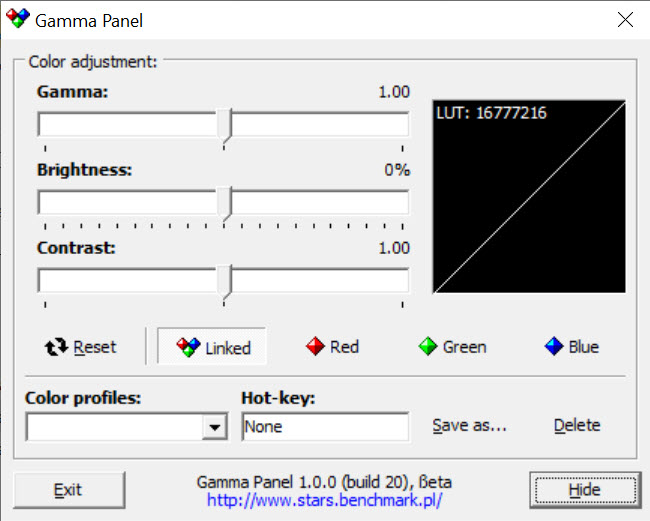
Gamma Panel adjusts screen gamma, brightness, and contrast through software, sitting in the system tray and letting you change those three sliders from a small floating panel or through keyboard shortcuts. It manipulates the graphics card’s gamma ramp directly rather than talking to the monitor over DDC/CI, which means it works on every display the OS can drive, including ancient panels that don’t expose any controls to the operating system.
The tool fills a specific gap. Built-in display controls are often clumsy, OSD menus require fumbling with hardware buttons, and modern Windows offers brightness sliders only for laptops or DDC/CI-compatible desktop monitors.
Gamma Panel sidesteps all of that by working at the GPU output stage, applying corrections before the signal reaches the cable.
How software gamma adjustment actually works
The mechanism is worth understanding because it explains both what the application does well and where it falls short. Gamma Panel modifies the gamma lookup table inside the GPU, a small array of values that maps the colors your software produces to the colors the graphics card sends out. Adjusting brightness through this LUT brightens the entire output signal. Adjusting gamma reshapes the curve that determines how midtones translate.
This is different from changing the monitor’s actual brightness. The backlight on an LCD or the OLED pixel power remains untouched. What changes is the digital signal feeding into the panel. The practical consequence is that lowering “brightness” through software loses contrast detail at the dark end (the panel still emits the same light, but the low values get crushed), while raising it can wash out highlights.
Real backlight control through DDC/CI does this more cleanly, but it requires monitor cooperation. Tools like Monitorian and Twinkle Tray use DDC/CI to talk to compatible monitors and adjust the actual backlight, which is the right approach when your hardware supports it.
The case for software gamma adjustment is when DDC/CI isn’t available, when you want per-application color profiles, or when you’re tweaking gamma specifically rather than brightness, since gamma curve shaping isn’t exposed by most monitors anyway.
Profiles, hotkeys, and per-application tweaks
The profile system is where the utility earns most of its keep. You configure named profiles with specific gamma, brightness, and contrast values, then bind each to a hotkey. Switch from a daytime profile to a darkened-room profile by pressing Ctrl+Shift+1. Snap back to default with another shortcut. The configurations live in a plain text config file that can be backed up or copied between machines.
The hotkey assignment supports modifier combinations and works globally, including inside fullscreen games and video players, which is the main differentiator from native Windows display settings that require navigating away from your current task. For users who do photo work in a graphics application during the day and watch movies at night, the ability to swap calibrations instantly without touching menus is genuinely useful.
Per-application profiles aren’t automatic, but the practical workflow gets close: assign hotkeys to your common scenarios, then trigger them as you change tasks.
A more polished workflow can pair this with a calibration setup using something like DisplayCAL for proper ICC profiles and then layer Gamma Panel on top for quick adjustments outside of color-critical work.
Multi-monitor behavior and limitations
Multi-monitor support is one of the rougher edges. The gamma ramp affects the entire graphics card output by default, so adjustments hit all connected monitors equally. On a single-GPU multi-display setup, you can’t dim one screen while leaving the other untouched. Some advanced settings let you target specific outputs depending on the driver and the GPU vendor, but the behavior isn’t consistent across configurations.
For users running two monitors of very different brightness characteristics (a bright primary and a dim secondary, or different panel technologies), this is the main reason to look at DDC/CI alternatives instead. Per-monitor control of actual backlight requires per-monitor communication, and that’s a problem Gamma Panel isn’t built to solve. For laptops with a single internal display, this limitation doesn’t matter and a small system tray slider like BrightnessTray might be enough on its own. For desktops with one monitor and no DDC/CI, Gamma Panel covers the gap.
Practical use cases beyond brightness
Where the tool shows its strengths is in less obvious applications. Older games that ship with broken gamma settings or no in-game gamma slider become tolerable when you can force a sensible curve from outside. Movies with crushed blacks open up when gamma drops to 0.8 or so, exposing shadow detail the original encoding intended to be visible. Workflows that need a quick shift in calibration (switching between a photo editing profile and a video review profile) benefit from instant hotkey-driven changes.
There are scenarios where the application is the wrong tool entirely. Color-critical photo and print work needs proper ICC profile management and a calibrated workflow, not real-time gamma tweaking. Reading at night is better served by warm-color-temperature shifts (the kind that change the white point toward red) than by raw gamma reduction.
Gamma Panel offers minor color temperature influence through gamma manipulation of individual RGB channels, but it isn’t a true color temperature shifter and won’t match dedicated blue-light reduction software for that purpose.
Conclusion
Gamma Panel is a niche utility that solves a specific set of problems for a specific user. People with desktop monitors that lack DDC/CI, anyone needing to override stubborn gamma settings inside old games, users who want instant hotkey-driven calibration swaps, and tinkerers who care about gamma curve shape rather than just panel brightness will find it useful.
It’s the wrong choice for users who already have DDC/CI-compatible monitors (where backlight control through a dedicated tool gives cleaner results), for color-critical workflows that need real ICC profile management, or for anyone whose primary goal is reducing blue light at night. For its narrow purpose, however, the application does the job with minimal overhead and a workflow that holds up after the initial configuration is in place.
Pros & Cons
- Works on any display the operating system can drive, including monitors without DDC/CI
- Tiny memory footprint and minimal CPU usage
- Profile system with global hotkeys allows instant switching between calibrations
- Independent control of red, green, and blue gamma channels gives some color tinting flexibility
- Adjustments persist or revert on exit depending on configuration
- Software brightness reduction loses contrast detail rather than dimming the actual backlight
- Per-monitor control is unreliable on multi-display setups
- Interface looks dated and won't win any design awards
- Not a substitute for proper calibration when color accuracy matters
- Lacks true color temperature shifting for blue-light reduction
Frequently asked questions
It adjusts screen gamma, brightness, and contrast in real time by modifying the GPU's gamma lookup table. Changes apply to the signal sent to the monitor rather than to the monitor's actual backlight.
Windows brightness controls only work on laptops with internal panels or on desktop monitors that support DDC/CI. The application works on any display because it operates at the GPU output stage, not at the monitor level.
No. The physical backlight stays the same. What changes is the digital signal feeding into the panel. Real backlight control requires DDC/CI communication with a compatible monitor.
Limited. The gamma ramp adjustment hits the entire GPU output by default. Targeting individual displays depends on the driver and GPU vendor and isn't reliable across configurations.
Brightness shifts the entire output signal up or down. Gamma reshapes the curve that maps midtones, which is what controls how bright or dark medium-gray values appear without changing pure white or pure black.
Yes. Global hotkeys trigger profile changes even when a fullscreen application has focus, which makes the tool useful for fixing games with poor in-game gamma controls.
Partially. You can dim the perceived output and warm the color tone by adjusting individual RGB channels, but the tool isn't a true color temperature shifter. Dedicated blue-light reduction software handles that purpose better.


