

Quick Picture Viewer
About Quick Picture Viewer
Opening a photo should not involve a loading animation. Yet the default photo apps of the modern desktop manage to make double-clicking a JPEG feel like launching a game, which is the entire reason a category of fast, minimal viewers exists.
Quick Picture Viewer is one of the cleanest entries in that category, an open-source viewer that opens instantly, shows the picture without ceremony, and adds a few quietly clever tools, a floating picture-in-picture mode chief among them, without ever drifting toward bloat.
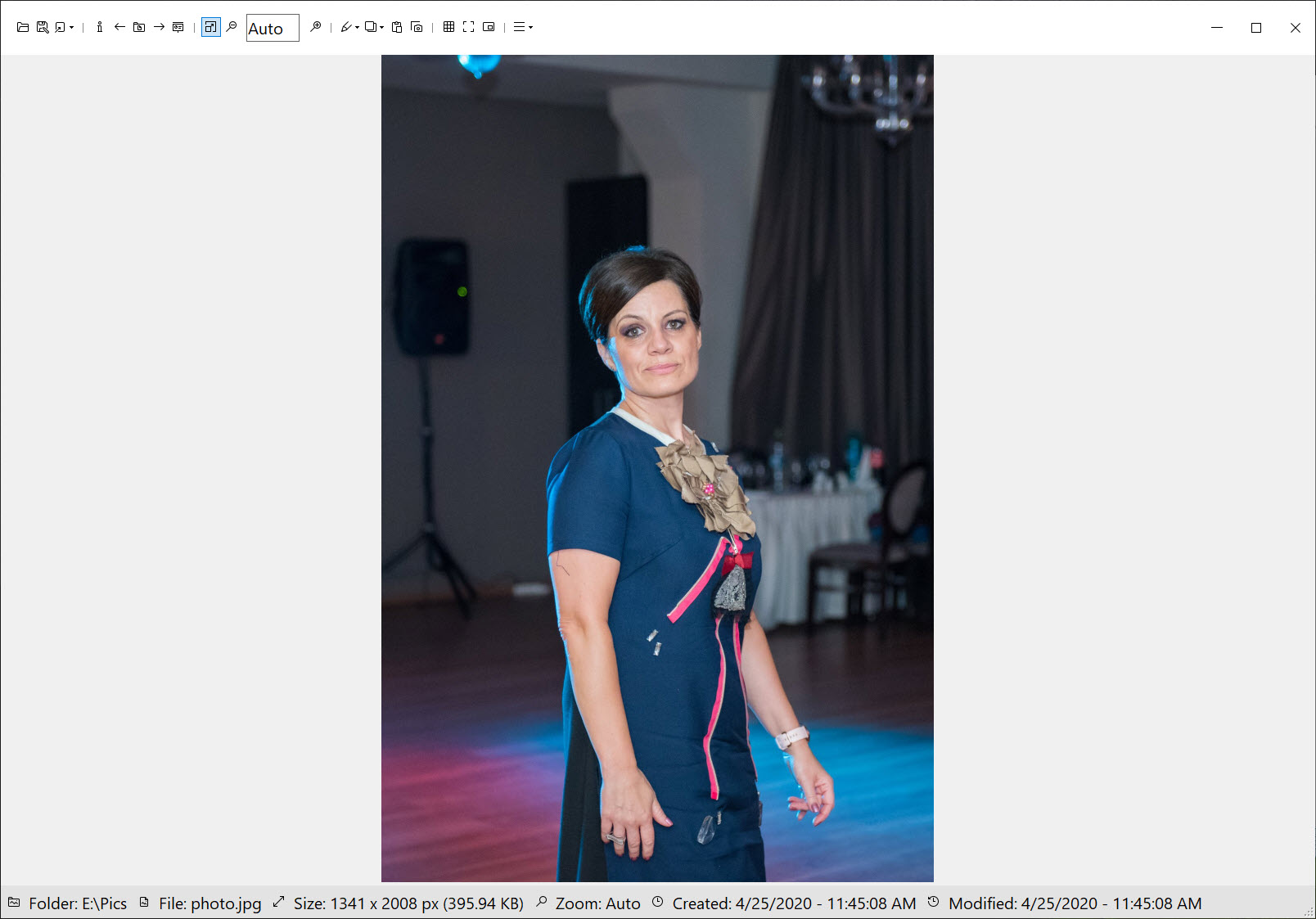
The philosophy is visible in the window itself. The image gets almost all of it, a slim toolbar covers the essentials, and everything responds at the speed of the keypress.
For the person who opens dozens of images a day and wants each one on screen now, that responsiveness is the product.
Opens before you finish clicking
Speed is the headline and it holds. The application starts cold in a blink, loads the common formats, JPEG, PNG, animated GIF, BMP, TIFF, WebP, ICO, without hesitation, and steps through an entire folder with arrow keys, deleting and moving files along the way.
Transparency renders on a proper checkerboard, zoom runs smooth from fit-to-window down to individual pixels, and pixel-level inspection stays crisp rather than blurry, a small mercy for anyone checking icons, sprites, or screenshots up close.
Formats beyond the everyday arrive through a plugin system, so RAW previews and other exotics are an optional add rather than permanent weight. It’s a sensible trade, the base viewer stays tiny for the majority who never need more, and the minority installs exactly what they need.
Picture-in-picture, the feature you didn’t know you wanted
Here’s the distinctive trick. One click collapses the viewer into a compact, always-on-top floating panel, a picture-in-picture window that sits over whatever you’re working on. Artists keep a reference image hovering beside the canvas, developers keep a design mockup floating over the editor, and anyone transcribing from a screenshot keeps it pinned in the corner, no window juggling, no alt-tab rhythm.
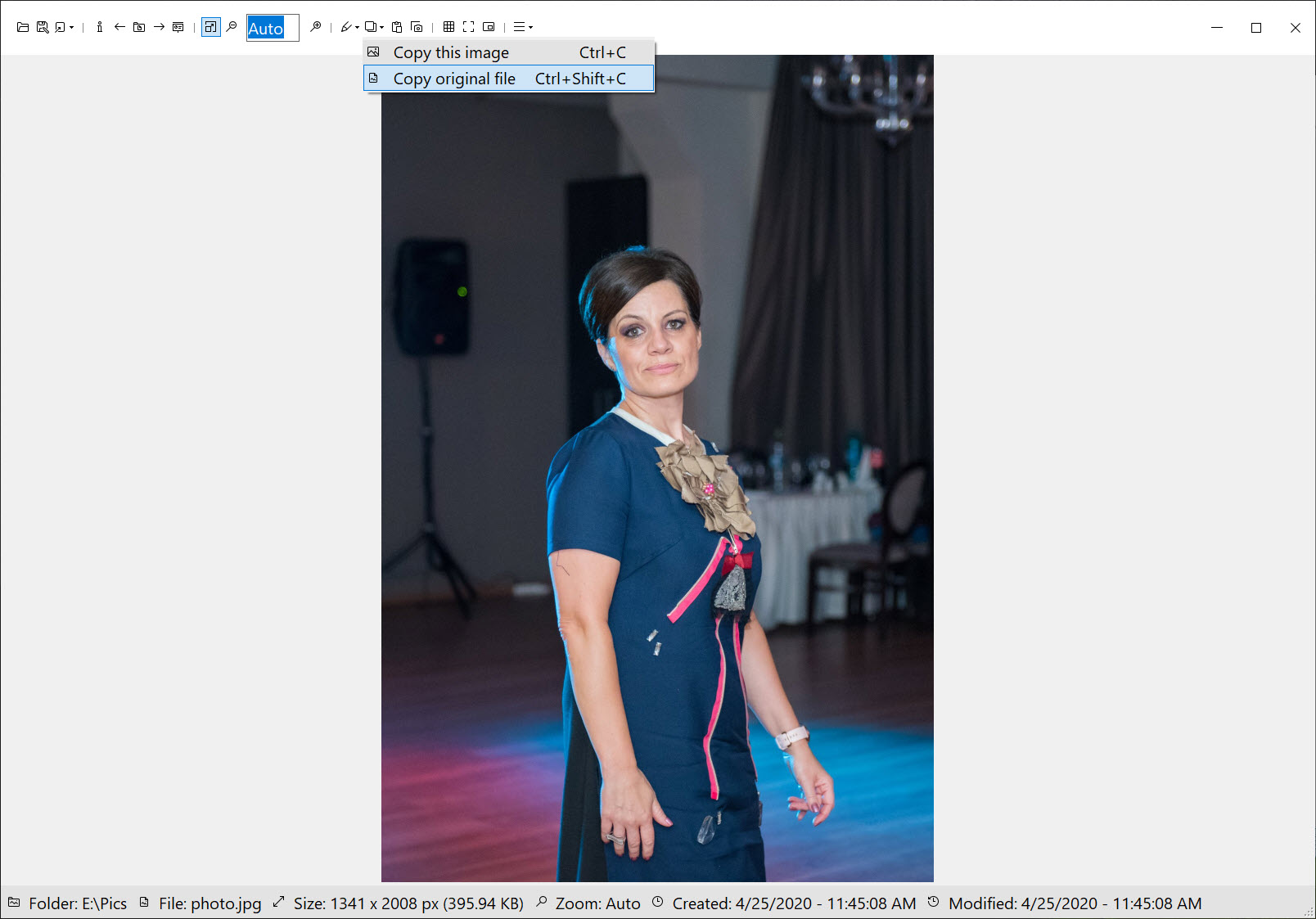
The clipboard integration feeds the same workflow. An image copied from anywhere opens directly from the clipboard, screenshot to floating reference in two gestures, and the always-on-top option works in the normal window too for bigger references.
It’s a small set of decisions that adds up to a specific superpower, keeping one image visible while you work in something else, and no heavyweight viewer does it this gracefully.
The small edits that cover most days
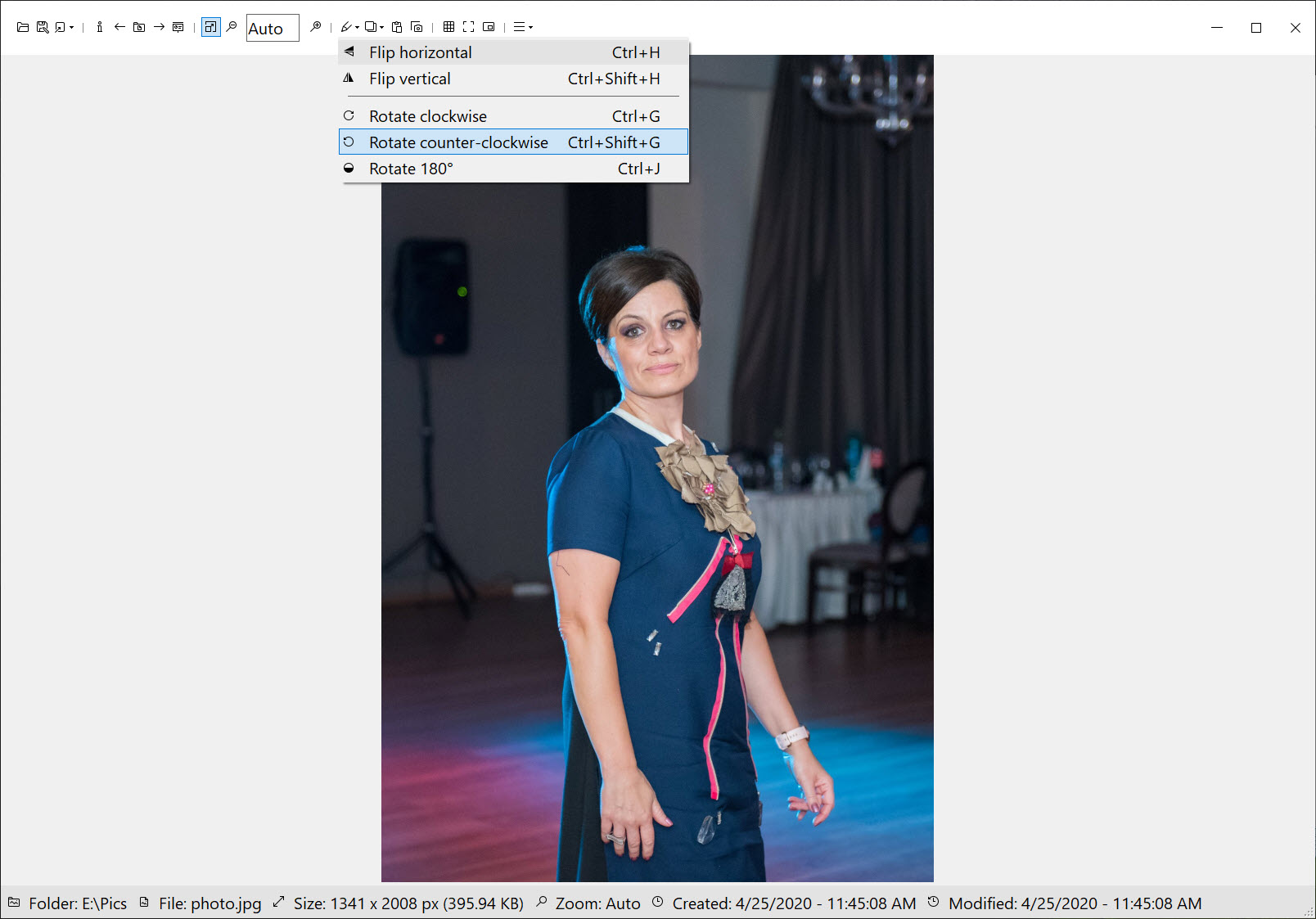
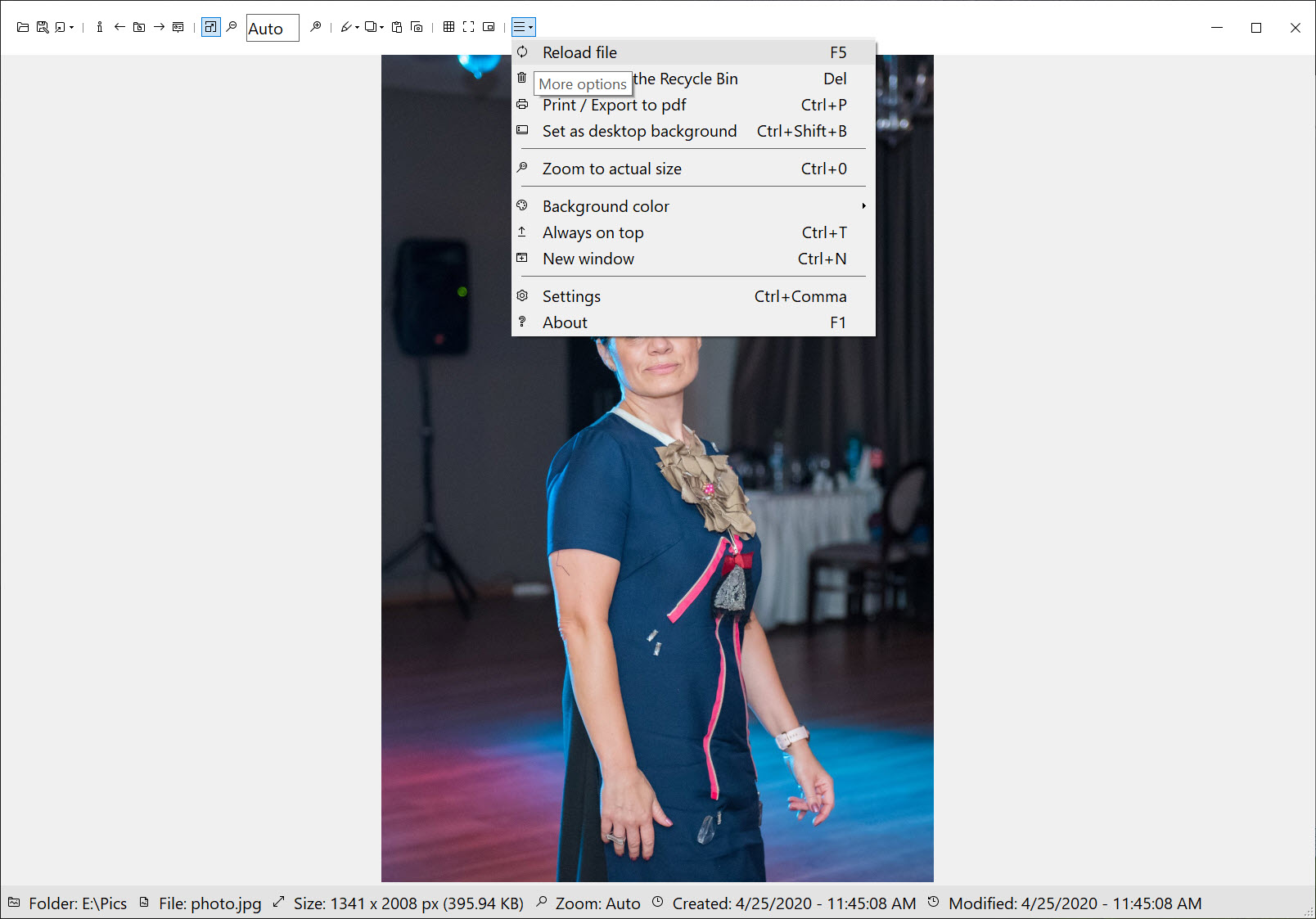
Editing stays deliberately shallow and usefully so. Crop, rotate, flip, set as wallpaper, print, and save into a different format cover the fixes people actually make between viewing and sharing, the crooked phone photo, the screenshot with too much desktop around it.
A file info panel reports dimensions and details, slideshow mode handles the casual browse-through, and themes including a proper dark mode keep the frame from fighting the picture.
The boundary is equally deliberate. There’s no batch conversion, no color correction, no resize pipeline for a hundred files, and pretending otherwise would misdescribe the tool. When a folder needs mass surgery, a veteran workhorse like IrfanView does the batch work, and this viewer goes back to what it was built for, which is exactly how the pairing should run.
Where it sits among the fast viewers
The minimal-viewer niche has honest competition, and the differences are temperamental. ImageGlass covers similar ground with a broader format list out of the box and a more configurable frame, at the cost of a slightly heavier presence.
The classic full-featured managers bring libraries, tagging, and editing suites, and correspondingly bigger footprints, with a complete manager like FastStone representing that fuller philosophy.
Quick Picture Viewer wins on the specific combination of instant startup, the picture-in-picture reference mode, and an interface that never grows past its purpose. It loses wherever the requirement is breadth, and its plugin system only partially closes that gap.
Choosing within this niche is choosing which images you open and why, and for the see-it-now, pin-it-there pattern, this is the sharpest tool on the shelf.
Conclusion
Quick Picture Viewer is for the person whose images are part of their work. The designer pinning references, the programmer checking assets, and everyone who opens pictures constantly and resents every loading spinner will feel the difference on day one. The speed, the floating mode, and the clipboard trick form a workflow no bloated gallery app replicates.
Photo collectors who need libraries and batch tools should pick a bigger instrument and keep this one beside it. As the default double-click for simply seeing an image, it’s about as close to frictionless as the job gets.
Pros & Cons
- Instant cold start and immediate loading of everyday formats
- Picture-in-picture mode floats an always-on-top reference over any work
- Opens images straight from the clipboard
- Pixel-crisp zoom with proper transparency rendering
- Crop, rotate, wallpaper, and format conversion cover the daily fixes
- Plugin system adds exotic formats only when needed
- No batch processing or mass conversion of any kind
- Less common formats require installing plugins first
- No library, tagging, or organization features
- Editing stops at the basics by design
Frequently asked questions
A compact, always-on-top floating window holding your image above other applications, built for keeping references, mockups, and screenshots visible while you work elsewhere.
JPEG, PNG, animated GIF, BMP, TIFF, WebP, and ICO out of the box, with additional formats such as RAW previews available through its plugin system.
Yes, copied images open directly without saving to a file first, which pairs naturally with screenshots and the floating reference workflow.
Lightly. Cropping, rotating, flipping, format conversion, wallpaper setting, and printing are built in, while batch work and color editing are intentionally left to fuller tools.
Yes, zoom stays sharp down to individual pixels instead of smearing, and transparency shows on a checkerboard, which suits icons, sprites, and interface work well.


