

Optimizer
About Optimizer
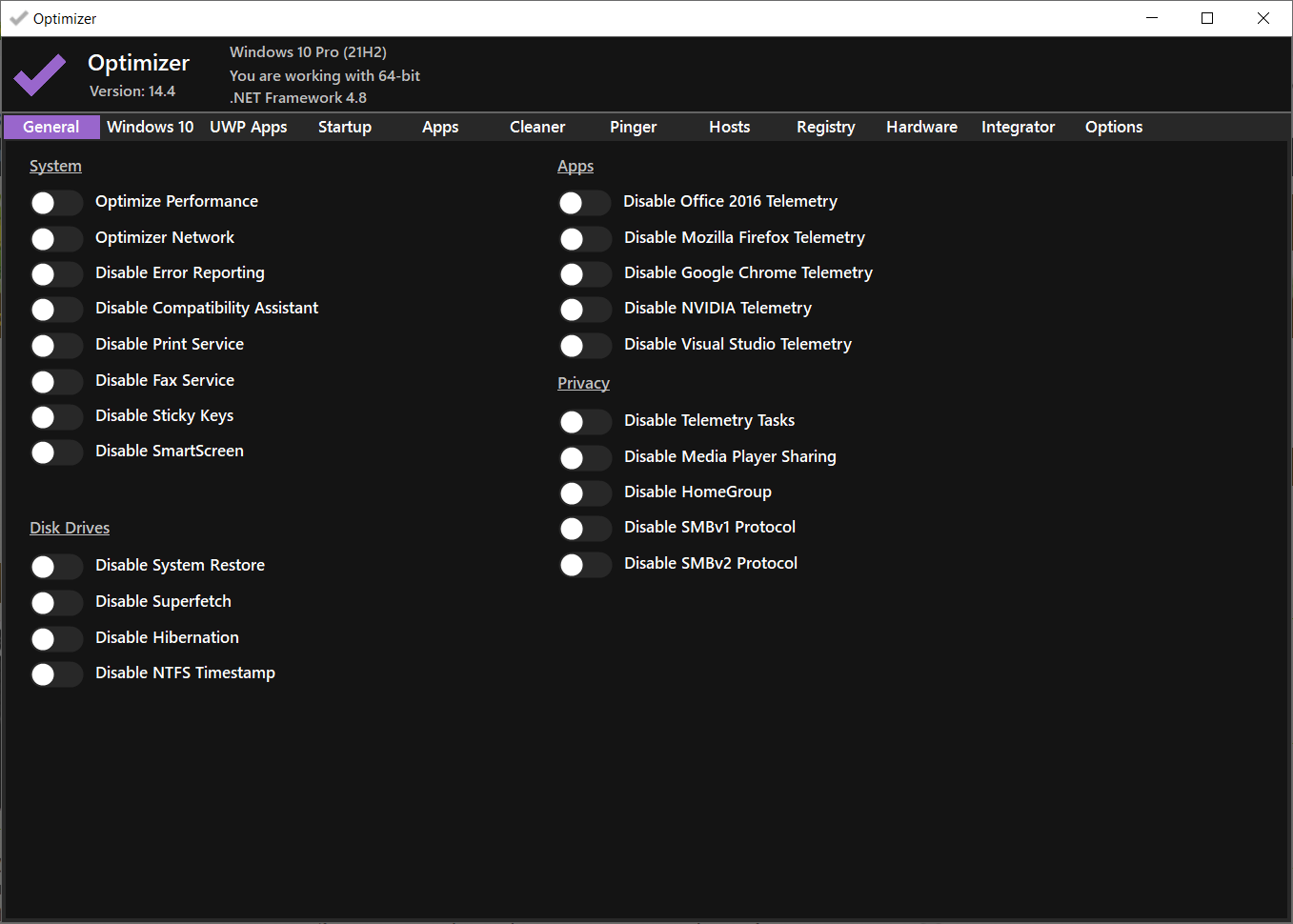
Optimizer is a portable tweaking tool that gathers the privacy switches, service toggles and cleanup jobs people normally hunt for across settings pages, registry keys and forum posts, and puts them in one window with checkboxes. Telemetry, voice assistants, automatic updates, the AI assistant and recall features, preinstalled store apps, startup programs, the hosts file and a handful of network tools all sit in tabs down the left side.
It is aimed at the hour after a fresh installation, when the machine is clean and you want it to stay quiet and private before loading it with work. The same tabs serve just as well on a long-lived PC that has accumulated junk, as long as you read what each switch does before ticking it, because some of them remove protections you may want to keep.
Privacy switches, from telemetry to the AI assistant
The Universal tab holds the switches that apply across system versions. Telemetry collection, error reporting, advertising identifiers, location tracking, the voice assistant, cloud clipboard and feedback prompts can each be turned off with one tick, and the newer entries disable the built-in AI assistant and its activity recall feature. Office telemetry gets its own switch for installations that have it.
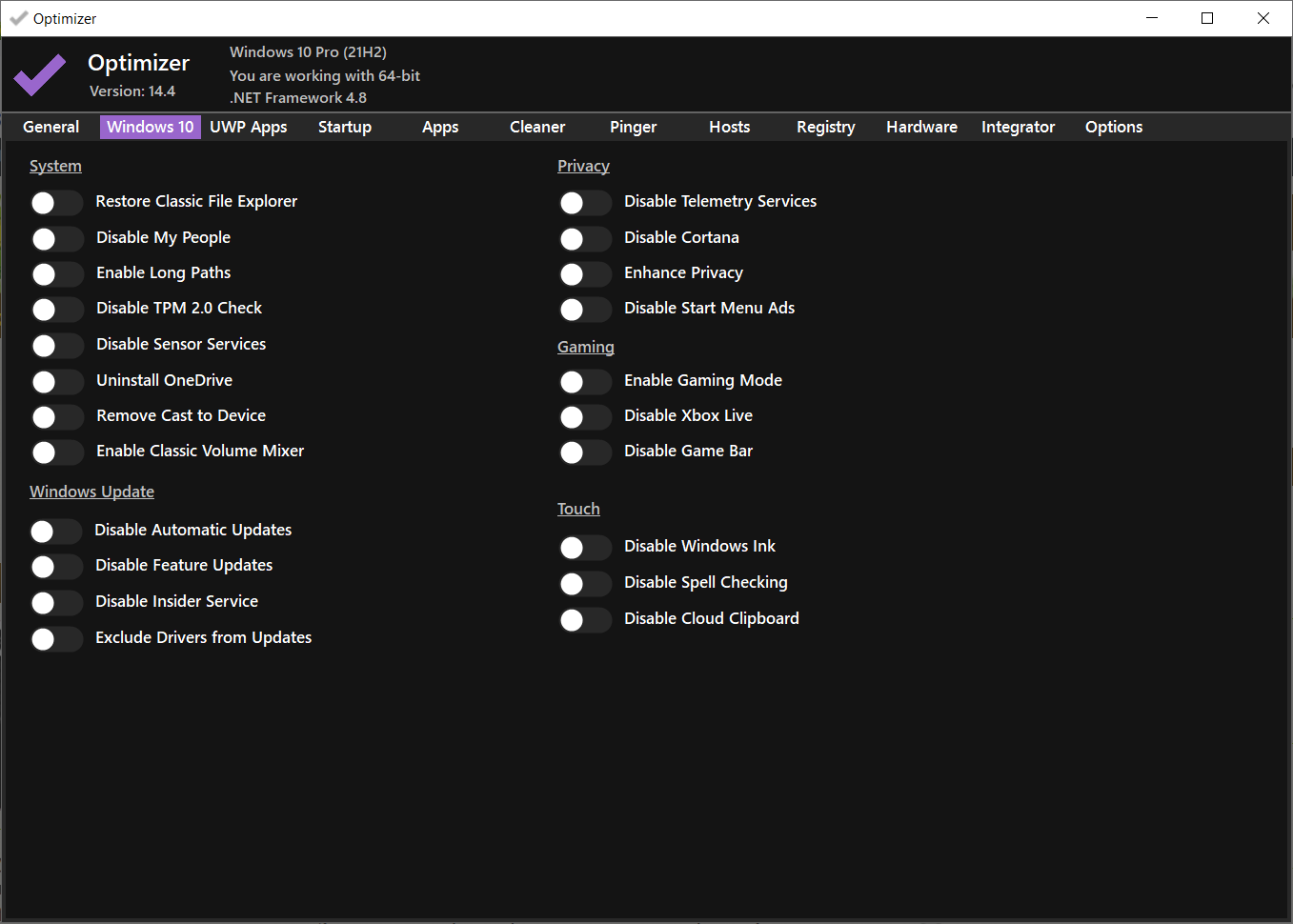
A separate tab holds options specific to the current system generation, such as start menu advertising, store update downloads and the phone link suggestions, plus deeper tweaks like disabling the modern standby sleep mode and switching the clock to UTC for machines that dual boot.
Optimizer applies the changes immediately and most take effect after a restart, with a confirmation prompt before it reboots. For a privacy tool that explains every switch at length before you flip it, ShutUp10 is the more cautious choice.
The switches that deserve a second look
Two options stand apart from the rest. One disables automatic system updates, and one disables the built-in antivirus. Both are listed plainly, both do exactly what they say, and both leave the machine less protected than it was. Turning off the antivirus even requires a restart into safe mode or a special switch, because the system’s tamper protection resists it.
The honest position is that these exist for specific situations, such as a test machine, an offline workstation or a PC where a different security product takes over. On an everyday computer, leave them alone. The same caution applies to the service toggles.
Disabling the wrong one can break printing, search or network discovery. Each change can be reversed with the matching enable switch, and the documentation recommends creating a restore point first.
Startup, store apps and leftovers
The Startup tab in Optimizer lists everything that launches at logon, from registry entries to task scheduler jobs, and lets you remove or disable items in a click. The UWP Apps tab lists preinstalled store apps, including the ones the normal uninstaller refuses to touch, and removes the ones you select in bulk. Clearing out the weather and news apps on a new machine takes about a minute.
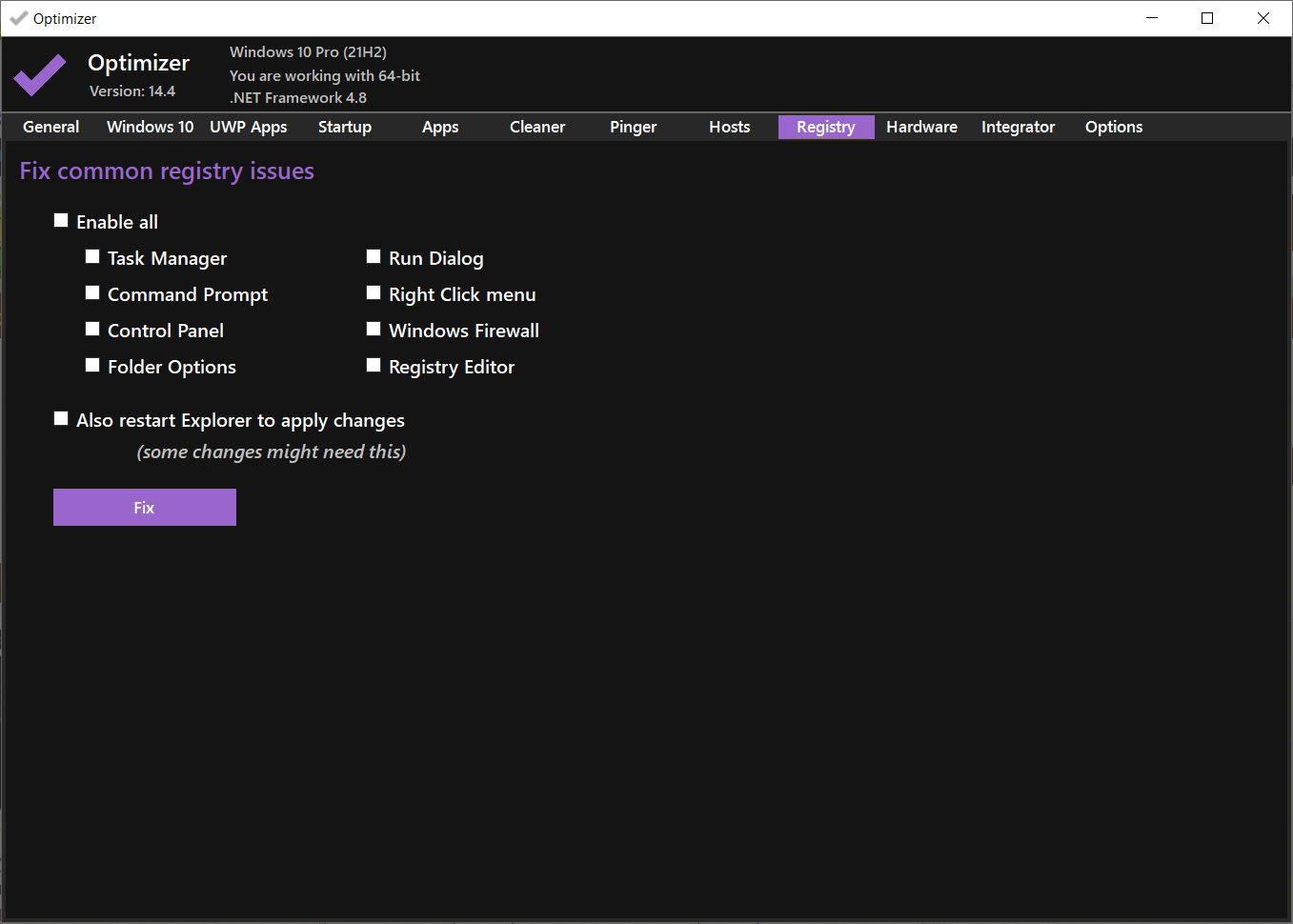
The Cleaner removes temporary files and browser profile leftovers, and a registry tool scans for broken entries and fixes them. Neither is as thorough as a dedicated cleaner, but they cover the common cases without installing anything else. For a far deeper view of what runs at startup, including drivers and shell extensions, a complete startup inspector remains the reference tool.
Hosts, DNS and the pinger
The Hosts tab in Optimizer edits the system’s hosts file directly, adding and removing entries with their www variants handled automatically, which is a quick way to block a tracking domain or redirect a hostname for testing.
Large blocklists with thousands of entries are better handled by a dedicated hosts file manager, which updates them automatically. The Pinger measures latency to any address, flushes the DNS cache and switches the system’s DNS servers from a list of public providers or to a custom pair.
Those network tools make the program useful for support work beyond tweaking. A technician can check whether a slow connection is a DNS problem, swap the resolver, and test again, without opening a console.
The integrator tab goes a step further, adding custom entries to the desktop right-click menu, defining commands for the run dialog, editing system path variables and even changing the default interface font.
Installing the usual programs in one go
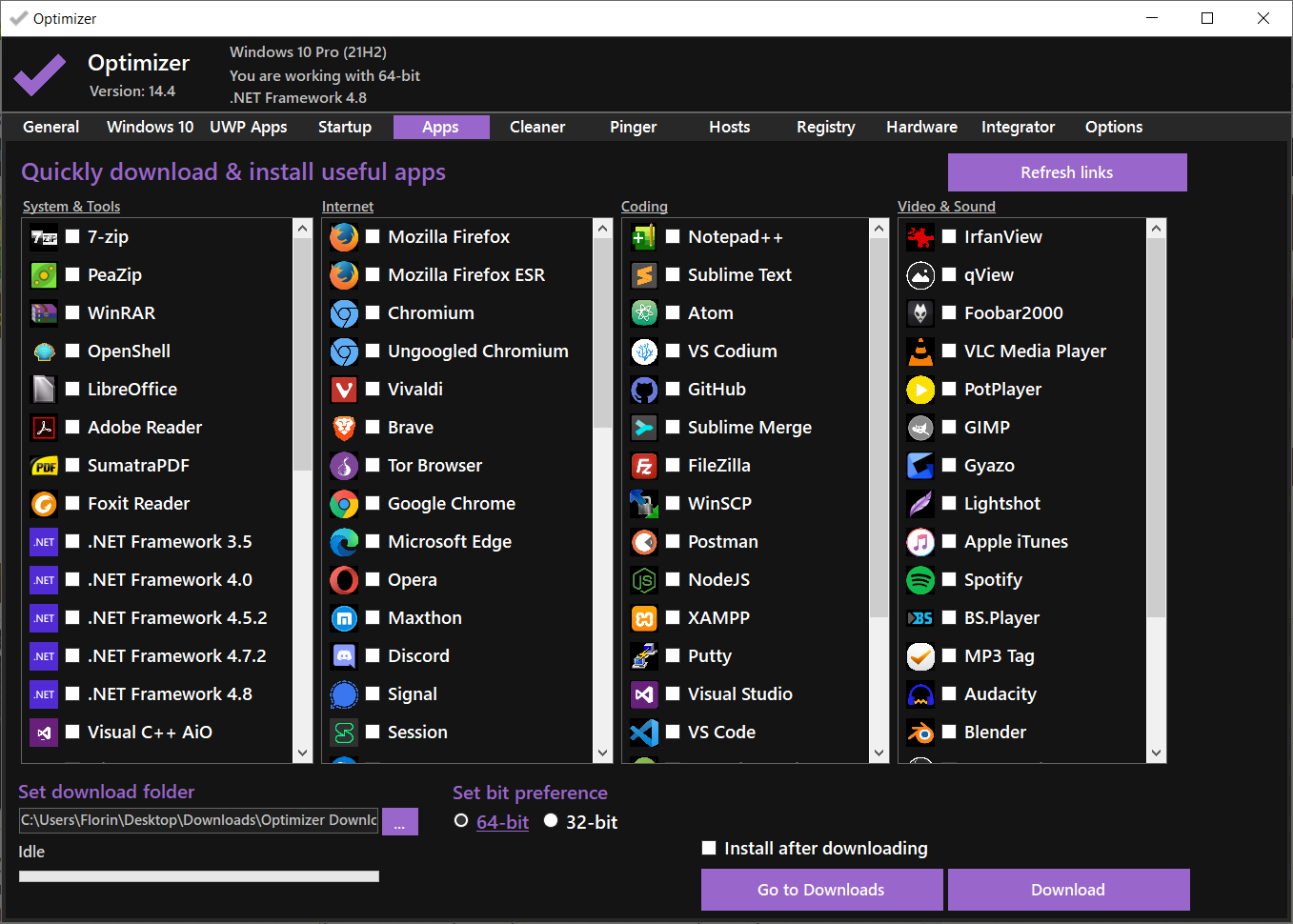
An Apps tab lists common programs by category, browsers, media players, archivers, remote access tools and the like, and downloads and installs the ones you tick in a single batch. On a fresh machine that replaces twenty separate downloads with one checklist, and the download folder can be set wherever you like.
The list is curated rather than exhaustive, so niche tools still need installing by hand.
Templates for silent runs
Everything the tabs can do, a template file can do silently. Optimizer exports its configuration to a file, and running the program with that template applies the same set of switches without any clicks, which suits anyone who sets up several machines the same way. Command-line switches cover the common jobs individually, such as disabling hibernation or the high-precision event timer.
A hardware inspection tool lists the main components in one place, and a file lock finder identifies which process is holding a file open and can terminate it. Both are small conveniences that otherwise need a separate utility each.
Conclusion
Optimizer suits people who set up fresh installations and want telemetry, assistants, preinstalled apps and startup clutter dealt with in one sitting, and technicians who appreciate the hosts, DNS and template tools. Everything sits in one portable window with a reverse switch for each change.
The same window makes it easy to switch off updates or the antivirus with a careless tick, so it belongs with users who read before they click. Used with that care, it saves an hour of hunting through settings on every new machine.
Pros & Cons
- One window for telemetry and service switches
- Removes preinstalled store apps the normal uninstaller refuses
- Hosts editor, DNS switcher and pinger built in
- Templates and command-line switches for silent, repeatable setups
- Portable, with matching enable switches to reverse every change
- Can disable automatic updates and the built-in antivirus, which weakens protection
- Some service toggles break features without warning
- Cleaner and registry tools are basic next to dedicated utilities
- Needs an older runtime component enabled on some systems
Frequently asked questions
It depends on an older runtime component that some systems leave disabled. Enable it in the optional features and the program launches normally.
Yes. Every disable switch has a matching enable switch, and a restore point created before tweaking covers anything unexpected.
Only if you explicitly use that option, which requires a restart into safe mode or a special switch. It is meant for test machines or PCs with another security product, not for everyday use.
Yes. Export a template after configuring one machine, then run the program with that template on the others for a silent, identical setup.


