

File Recovery
About File Recovery
File Recovery is a small program for getting files back from a disk that has lost them. It reads FAT and NTFS drives below the level of the file system and lists the deleted and lost files it finds in a folder tree that looks like an ordinary file manager. Then it copies the ones you choose to another disk, with their original names and timestamps where it can. Three tools cover three disasters. One finds files deleted by mistake or lost to a quick format. One finds a whole drive whose boot sector or file table was wiped. One hunts for files by their content when nothing else is left.
It is also an old program. File Recovery, listed in older guides as PC Inspector File Recovery, has not been updated in a very long time, and its design shows it. The interface confuses first-time users, scans are slow beside current tools, drives larger than two terabytes can misbehave, and the content search knows a short list of formats.
It still runs, and on the cases it was built for it still works, which is why it keeps a place on rescue sticks. The sections below cover the three tools, the one rule it enforces, and the honest answer to what it is still good for.
Finding deleted and lost files
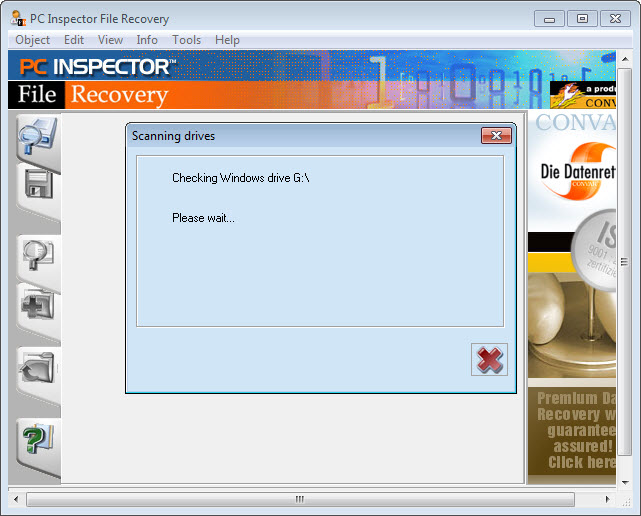
Open a drive in File Recovery and the program scans it, then shows a tree with a Deleted folder for files whose directory entries still exist and a Lost folder for data found without them. Deleted files come back with their names and dates, and their folders, intact, because the directory entry is still on the disk with a marker saying the space is free. Lost data comes back with less, since the entries that described it are gone.
Find Lost Data is the deeper search. It can be limited to a range of sectors, which speeds a scan of a large drive when you know roughly where the files sat, and its results land in the Lost folder. A quick format leaves most of a drive’s contents in place, so this is also the tool for a drive formatted by mistake.
Preview a file before saving it to confirm it is whole. For deleted files on a healthy drive, a modern undelete tool does the same job with a wizard and a clearer window.
Finding a lost drive
When a partition has disappeared because its boot sector or its file allocation table was damaged or erased, File Recovery can still find it. Select the physical disk rather than a drive letter, press Find Logical Drives, and it scans for the structures that mark a partition’s start, optionally within a sector range. A found drive opens like any other, and its files can be copied off.
That works on FAT drives. On NTFS the partition detection is far weaker, which the program’s own documentation admits, so an NTFS volume that has vanished needs a different tool. TestDisk finds and rewrites partition tables for both file systems and is the right next step when this one comes up empty.
Special Recovery, the content search
The third File Recovery tool ignores directories entirely and reads the disk for the headers that mark the start of known file types, then copies out whatever follows. The list is short and old. Documents and spreadsheets, the common images, a few sound and video formats, archives and executables are covered. The newer formats that current cameras and office suites produce are not.
Files found this way have no names and no folders, only a type and a number, so a hundred recovered pictures arrive as a hundred numbered files. It is the last resort within the program, and it works best on the plain formats it knows.
The one rule
Never install or run File Recovery on the drive you are recovering from, and never save recovered files back to it. Every write to that drive can overwrite the very sectors that still hold your files. The program insists on this, and it is right to. Run it from a second drive or a stick, and save to a different disk or to a network share, which it supports.
Stop using the affected drive the moment you notice the loss, for the same reason. The sooner the scan runs, the more comes back.
What it is still good for
Here is the plain answer. It is still good for FAT drives, which means memory cards, USB sticks and the older external drives, where its deleted-file tree and its lost-drive search both work well. For a camera card specifically, a photo recovery wizard covers the same ground with thumbnails. It is still good for an old machine or a rescue stick where a small program that needs nothing else earns its place. And it is still good as a second opinion when a modern tool has found less than you hoped, since its scan reads the disk its own way.
It is not good for large modern drives, for NTFS partitions that have vanished, or for the newer file formats. A current recovery tool handles those, and this one should be the quick first try on a small drive rather than the last hope on a big one.
Conclusion
File Recovery suits anyone with a FAT drive, card or stick that has lost files or vanished, and technicians who want a small recovery tool on a rescue stick for old machines. The deleted-file tree, the lost-drive search and the sector-range scans still do their jobs on those disks.
It is old and slow, weak on NTFS partitions and on large drives, and it should be the first quick try rather than the only one. Run it from a separate drive, save elsewhere, and move to a partition tool or a modern recovery program when it finds less than you need.
Pros & Cons
- Deleted files come back with their original names and dates, in their folders
- Finds lost FAT drives whose boot sector or file table was erased
- Scans can be limited to a sector range to save time on large drives
- Preview before saving, and saving to another disk or a network share
- Small program that runs from a stick and needs nothing else
- Not updated in a very long time, with an interface that confuses newcomers
- Weak at finding lost NTFS partitions
- Slow scans, and unstable on drives over two terabytes
- Content search knows a short, old list of formats
Frequently asked questions
Yes, after a quick format, which leaves most of the contents in place. Use Find Lost Data and look in the Lost folder.
Its partition detection works well on FAT drives and poorly on NTFS. A partition recovery tool is the right next step for a vanished NTFS volume.
No. Installing or saving to that drive can overwrite the files you want back. Run it from another drive and save to a different disk.
A content search that reads the disk for the headers of known file types and copies out what follows. Files come back without names or folders, and only a short, old list of formats is recognised.


