

Synology Assistant
About Synology Assistant
Network-attached storage devices have become genuinely common in homes and small businesses over the past decade, and Synology has emerged as one of the dominant players in that space. Their DiskStation lineup powers home media servers, small office file shares, and personal cloud setups for users who want to keep their data on hardware they own rather than scattered across various cloud services.
Synology Assistant is the desktop utility that complements those NAS devices, providing the bridge between your Windows PC and the Synology hardware on your local network for the kind of administrative tasks that don’t fit naturally into the web interface.
This tool handles a specific set of operations that benefit from running on the client computer rather than through the NAS itself. Initial discovery of newly-connected devices, mapping network drives, configuring Wake-on-LAN, monitoring resource usage across multiple units, and similar tasks all benefit from a desktop application that can scan the local network and present results in a coherent interface.
Network discovery as the starting point
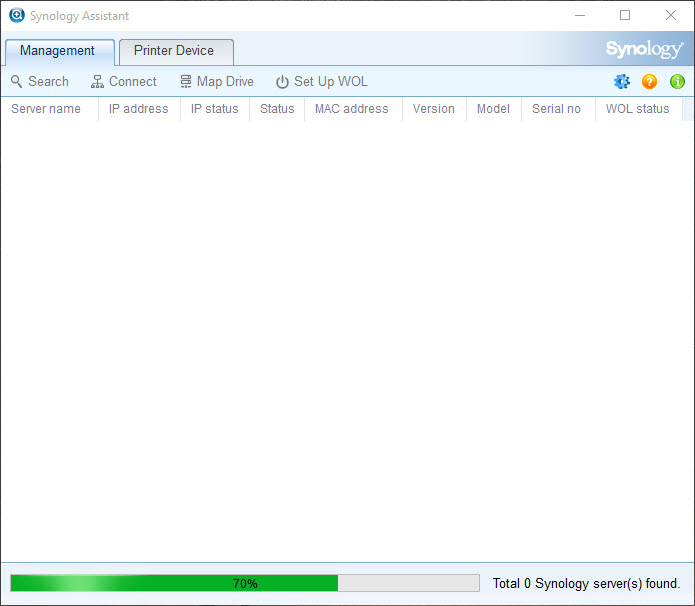
The defining feature of Synology Assistant is the ability to discover Synology devices on your local network. When you first connect a new DiskStation or RackStation, it appears with a default IP address that you might not know, and finding it through your router’s interface or through manual network scanning is more work than it should be. Launching the application and clicking Search produces a list of every Synology device on the network, complete with model name, IP address, MAC address, and current status.
This discovery capability matters more than it sounds like it does because it eliminates the chicken-and-egg problem of needing to know a device’s address before you can configure it. New devices get found automatically through the scanning process, even when their default network configuration doesn’t match your subnet. From there, you can launch the web interface, configure network settings, or perform initial setup operations through the unified interface.
For users with multiple Synology devices on the same network, the discovery view shows everything in one consolidated list rather than requiring you to remember individual IP addresses. Adding a new unit becomes a matter of plugging it in and refreshing the search, with the new device appearing automatically alongside existing ones.
Wake-on-LAN configuration without router diving
Wake-on-LAN is the feature that lets you power on a sleeping NAS by sending a specific network packet (the “magic packet”) from another device. For users who put their NAS to sleep when not actively in use to save power, having the ability to wake it remotely matters substantially. The configuration involves both enabling the feature on the NAS itself (through DSM’s Control Panel) and configuring whatever client will send the wake-up signal.
The application handles the client side cleanly. From the Wake on LAN tab, you add the MAC address of the NAS you want to wake, give it a friendly name, and then waking it up is a single click whenever needed. The MAC address comes from the network discovery view, so you don’t need to manually look it up through router interfaces or device labels.
For users who shut down their NAS overnight or during extended absences, this combination of NAS-side configuration and client-side wake capability transforms the device from “always on, always consuming power” to “available when needed, sleeping otherwise.”
The power savings matter for environmental and economic reasons, particularly with NAS units that include multiple spinning drives that consume real wattage during idle operation.
Resource Monitor for tracking multiple devices
For users with multiple Synology devices, the Resource Monitor tab consolidates real-time performance information across the entire fleet into a single view. CPU usage, memory consumption, disk activity, and network throughput appear for each connected device, updated continuously while you watch.
This consolidated monitoring helps when troubleshooting performance issues that affect multiple devices or when planning capacity across a small infrastructure. Rather than logging into each unit’s web interface separately to check resource usage, you see everything at once and can identify problems or imbalances at a glance.
For home users with a single device, the resource monitor is less essential since DSM itself provides similar information through its web interface. For small businesses or technicians managing multiple installations, the consolidated view across many devices is a real efficiency gain over checking each one individually.
Network drive mapping that handles the protocol details
Mapping a network drive to a Synology share through Windows Explorer works, but configuring it properly with the right authentication, mount points, and reconnection behavior involves several steps that can go wrong in subtle ways. Synology Assistant handles network drive mapping through its own interface, taking care of the protocol details and presenting a simpler user experience.
Through the application, you select which device to connect to, choose which shared folder to map, specify a drive letter, and provide credentials if needed. The mapping persists across reboots, reconnects automatically when the network becomes available, and handles the various edge cases around authentication and permission consistency that the standard Windows mapping flow can struggle with.
For users who frequently access NAS shares throughout their workday, this consolidated mapping interface saves the friction of doing the same configuration through Windows directly. The mapped drives behave the same way they would through standard mapping, but the setup process is more straightforward and more reliable.
Photo Backup utility for moving images to the NAS
The Photo Backup component handles automatic transfer of images from your computer to designated folders on the NAS. You configure source folders to monitor, choose destination locations on the NAS, and the utility handles the ongoing transfer of new images as they appear. For users who use their NAS as a photo archive, this automation eliminates the manual copy operations that would otherwise be needed.
The feature handles file organization, duplicate detection, and metadata preservation through reasonable defaults, with options to customize behavior for users who have specific organization preferences.
For home users with growing photo libraries from cameras, phones, and screenshots, having the backup happen automatically rather than requiring manual attention makes the protection actually consistent rather than something that gets forgotten.
Initial setup of new devices
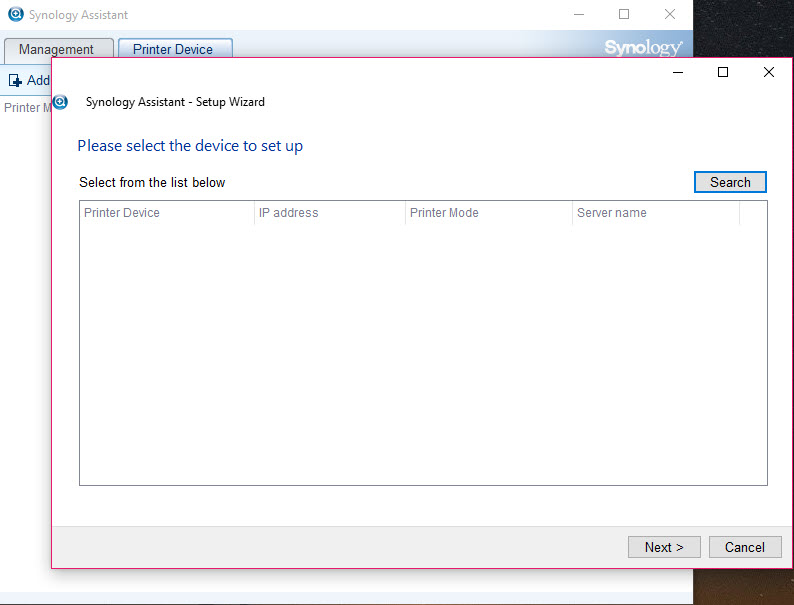
When you first plug in a new Synology device, the device starts with default settings that need to be configured before it becomes useful. The application launches the appropriate setup workflow when you select a newly-discovered uninitialized device, walking you through the choice of operating system installation, administrative account creation, and initial configuration options.
The setup process happens through the device’s web interface but is launched and coordinated through this software’s discovery flow. For users setting up their first NAS, this guided process is much less intimidating than figuring out the right initial steps from documentation alone.
The application identifies that the device needs setup, prompts you to start the process, and hands off to the web interface at the right point.
Considerations and limitations
Recent versions of DSM (Synology’s NAS operating system) have added more capabilities directly to the web interface, reducing the unique value of the desktop application for some scenarios. Users running modern DSM versions may find that they rarely need this software once their NAS is initially configured and connected, since most ongoing administration happens through the web UI.
The application focuses specifically on Synology hardware and provides no value for NAS devices from other vendors. Users with mixed environments containing both Synology and competing brands need separate tools for each vendor’s devices, which fragments the management experience.
Some advanced features available through DSM’s web interface aren’t replicated in the desktop application, requiring you to switch to the web for those operations. The desktop tool covers the common scenarios well but isn’t a complete replacement for the web interface, more a complement that handles the operations that benefit from local network access and desktop integration.
The interface design feels somewhat dated compared to modern desktop software, with a layout that has evolved gradually over years rather than receiving comprehensive redesigns. For the focused administrative tasks the tool handles, the interface is functional and clear, but users expecting modern visual polish may find it lacking in that regard.
Conclusion
Synology Assistant has earned its place as a useful complement to Synology NAS hardware by handling the specific scenarios that benefit from desktop-side operation rather than living entirely in the device’s web interface. For initial setup, network discovery, Wake-on-LAN management, and consolidated monitoring across multiple units, the application provides genuine value through a focused interface that addresses these tasks directly.
It’s not essential, with DSM’s web interface handling most administrative work for users with stable single-device installations. But for users who frequently work with new devices, manage multiple units, or want desktop-side capabilities like simplified network drive mapping and Wake-on-LAN, Synology Assistant delivers exactly what’s needed without competing with the web interface that handles ongoing administration.
Pros & Cons
- Network discovery finds Synology devices automatically without requiring known IP addresses
- Wake-on-LAN configuration through a clean interface for waking sleeping NAS units
- Resource Monitor shows performance across multiple devices in one view
- Network drive mapping handles protocol details more cleanly than standard Windows mapping
- Photo Backup utility automates ongoing image transfers to designated NAS folders
- Initial device setup guided through discovery and web interface handoff
- Free utility from Synology with no licensing restrictions
- Lightweight footprint runs without significant resource impact
- Value diminishes once devices are configured and accessible through DSM directly
- Specifically targets Synology hardware and provides no value for other vendors
- Some advanced operations still require the web interface rather than this software
- Interface design feels visibly dated compared to modern desktop applications
- Updates have become less frequent as DSM web capabilities have expanded
Frequently asked questions
This software is a desktop utility for managing Synology NAS devices on your local network. It handles network discovery to find devices automatically, configures Wake-on-LAN for waking sleeping units, monitors resource usage across multiple devices, maps network drives to shared folders, and assists with initial setup of new devices. It complements the web-based DSM interface by handling tasks that benefit from running on the client computer.
Open the application and click Search on the main interface. The tool scans the local network for Synology devices and displays whatever it finds, including model names, IP addresses, MAC addresses, and status. This works even for newly-connected devices with default network configurations that wouldn't be findable through normal IP-based access. For devices that don't appear in the search, network configuration issues are usually responsible.
Yes, the Wake on LAN tab handles client-side configuration for waking sleeping NAS devices. After enabling Wake-on-LAN on the NAS itself through DSM's Control Panel under Hardware & Power, you add the device's MAC address to this software's wake list and use it to send wake packets whenever needed. The MAC address comes from the network discovery view, eliminating manual lookup work.
The tool works with essentially all current and recent Synology NAS models including the DiskStation home models, FlashStation all-flash units, and RackStation rack-mount enterprise models. Compatibility extends back through many generations of hardware, with the application handling protocol differences between newer and older devices automatically. For very old discontinued models, some specific features may not be available depending on what the hardware supports.
DSM (DiskStation Manager) is the operating system running on the NAS itself, accessed through a web browser to manage everything about the device. This desktop application is a separate tool that runs on your Windows PC and handles operations that benefit from local network access, like discovery and Wake-on-LAN. The two work together rather than competing, with the desktop tool covering specific scenarios while DSM handles ongoing administrative work.
Yes, the Resource Monitor consolidates performance information across all discovered Synology devices into a single view, showing CPU usage, memory consumption, disk activity, and network throughput for each unit simultaneously. For users with multiple devices on the same network, this consolidated monitoring saves the work of checking each one separately through its individual web interface.


