

Input Director
About Input Director
If you’ve ever found yourself with two or three computers on the same desk and a tangle of keyboards and mice that you keep accidentally reaching for the wrong one, you’ve experienced the small but persistent frustration that Input Director was built to solve. Instead of physically rotating between input devices, this software lets a single keyboard and mouse control multiple computers across your local network, with the cursor smoothly crossing from one screen to the next as if they were all part of one machine.
Originally developed by Shane Brookes and freely available for personal use, this tool sits in the category often called software KVM (keyboard, video, mouse), although it doesn’t share video, just input.
For users with home offices, multi-PC gaming setups, or work stations involving more than one computer at the same time, it offers a practical alternative to physical KVM switches that cost money and add cable clutter.
How it actually works in practice
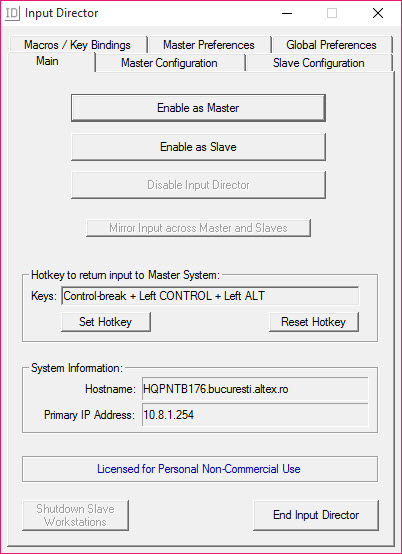
The setup involves designating one computer as the “master” (the one with the physical keyboard and mouse you want to use) and the others as “slaves” (the ones you want to control remotely). Each computer runs the same application but in different modes. Once configured and connected, moving the mouse cursor off the edge of the master screen causes it to appear on a slave system, and your keyboard input is automatically redirected to whichever computer is currently active.
It feels almost magical the first time it works. The cursor glides between monitors that aren’t even connected to the same machine, applications respond as if you’re sitting in front of them directly, and the whole thing happens with no perceptible lag on a typical local network.
For users who have spent years fighting with physical KVM switches or constantly swapping cables, this approach is genuinely transformative.
Layout configuration that matches your physical setup
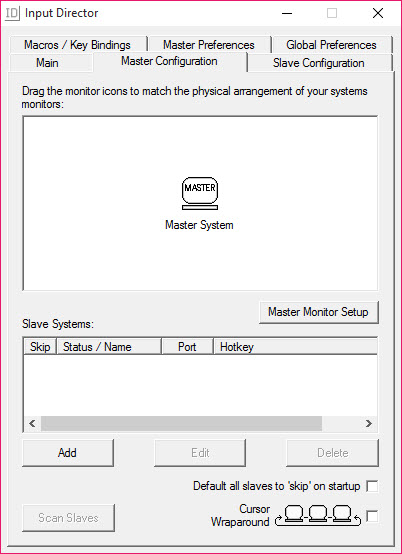
A particularly useful aspect of Input Director is the ability to define exactly how your monitors are arranged spatially across multiple computers. You can specify that the slave computer is to the right of the master, above it, below it, or any combination, and the cursor crosses between systems through the corresponding screen edges.
Multi-monitor setups on each computer are handled correctly as well, with the tool understanding which physical edges of which monitors should connect to which other systems. For complex setups involving, say, a laptop on one side of the desk and a desktop PC with three monitors on the other, this flexibility ensures the cursor moves where your hand expects it to go.
Shared clipboard between machines
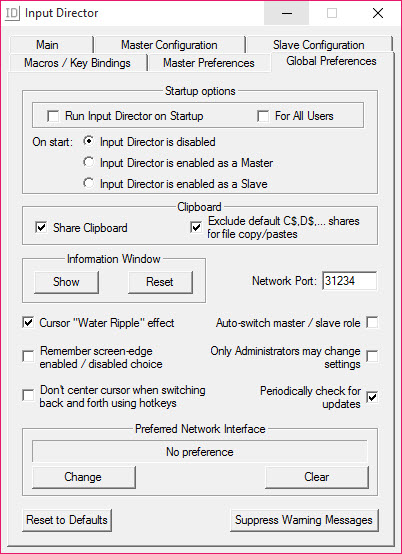
Beyond just controlling input, this software synchronizes the clipboard between connected computers, which turns out to be one of those features you don’t realize you need until you’ve used it for a week. Copy text, files, or other data on one machine and paste them on another, all without setting up shared drives, network folders, or cloud services for what should be a simple operation.
For developers debugging code on multiple systems, designers reviewing assets across different machines, or anyone who works with data flowing between several computers, the shared clipboard alone justifies installing the tool.
Hotkey-based switching for power users
If you don’t want to rely solely on cursor movement to switch between computers, this tool supports configurable hotkeys to instantly jump control between systems. Pressing a defined key combination immediately takes you to the next computer, regardless of where the cursor currently is.
This is particularly useful for situations where you want predictable switching behavior, like during presentations or in scenarios where accidentally moving the cursor off-screen would be disruptive. Power users typically configure these hotkeys to match their workflow once and then rely on them as muscle memory, which feels noticeably more controlled than cursor-based switching for fast-paced work.
Encryption and security options
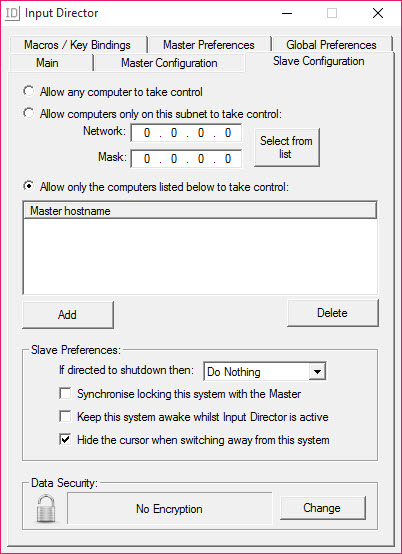
For users running this software on networks that might include other people, the encryption options ensure that input data and clipboard contents transmitted between computers are protected from network sniffing. The default settings are reasonable for trusted home or office networks, but the encryption can be enabled for added protection in less controlled environments.
It’s worth noting that this tool is designed for use on local area networks rather than across the internet, so the security model assumes a trusted local network rather than truly hostile environments. For genuine remote access across the internet, dedicated remote desktop tools remain the appropriate choice rather than this kind of input-sharing utility.
Mouse capture, scaling, and edge behavior
The behavior of the mouse cursor as it crosses between computers can be tuned in detail. You can configure how aggressively the cursor jumps to a different system, whether it should stop briefly at screen edges before crossing, how it behaves when monitors of different resolutions are involved, and what happens when one of the computers loses its network connection during a session.
These details matter more than they might sound. On setups where monitor resolutions differ between computers, or where one slave system is significantly slower to respond than others, the tunability prevents the cursor behavior from becoming unpredictable in ways that disrupt workflow.
Comparison with alternatives like Synergy and Mouse Without Borders
This tool exists in a small but competitive category alongside Synergy, Mouse Without Borders, and ShareMouse. Each has its own strengths and quirks, and the right choice depends on your specific needs.
Synergy was historically the most popular option but has shifted to a paid model in recent years. Mouse Without Borders is Microsoft’s own free entry, simpler but less configurable. ShareMouse offers more features but costs more for commercial use. Input Director sits in an attractive position by being free for personal use, more configurable than Mouse Without Borders, and functionally similar to Synergy without the licensing changes that drove away some of its former users.
For most home users with a couple of computers to manage, this software covers the bases well, and the configuration depth available rewards users willing to spend a few minutes setting things up properly.
Real-world quirks worth knowing
No software in this category is completely without quirks. Sometimes the cursor gets temporarily “stuck” on one system after a network hiccup. Sometimes a hotkey combination conflicts with an application running on one of the connected machines. Occasionally specific games or fullscreen applications don’t play well with input redirection.
These issues aren’t unique to this tool, since they’re inherent to the challenge of synthesizing input across operating systems through network connections. But knowing they exist helps set expectations realistically, and the troubleshooting documentation in the application’s help files covers the common scenarios that users typically run into during initial setup or daily use.
Conclusion
Input Director solves a specific problem with the kind of focused competence that makes it easy to recommend. For users juggling multiple Windows computers on the same desk, the seamless cursor movement and shared clipboard turn what would otherwise be a constant low-level annoyance into something that simply works.
It’s not the flashiest tool in its category, and the interface won’t win design awards, but for the practical task of controlling several PCs from a single keyboard and mouse, Input Director delivers exactly what it promises.
And for home users in particular, doing so without cost makes it an easy choice over more expensive alternatives that don’t necessarily offer meaningfully better functionality.
Pros & Cons
- Software KVM functionality replaces physical KVM switches without cable clutter
- Smooth cursor transitions between computers feel natural after brief acclimation
- Shared clipboard between systems eliminates the need for file sharing setups
- Configurable hotkeys offer predictable switching for fast-paced workflows
- Detailed layout configuration matches almost any physical monitor arrangement
- Free for personal use without artificial limitations on core functionality
- Encryption support protects input data on shared or less trusted networks
- Setup requires some networking knowledge and multiple correctly configured systems
- Designed for local network use rather than internet-based remote control
- Specific games and fullscreen applications occasionally have compatibility issues
- Cursor behavior can become unpredictable after network interruptions
- Interface design feels dated compared to more modern utilities in this space
Frequently asked questions
This software lets a single keyboard and mouse control multiple computers across your local network. The cursor moves smoothly between screens connected to different machines, and your keyboard input goes to whichever computer is currently active, which makes managing multiple PCs feel like working with one.
Remote desktop tools display the entire screen of a remote computer on your local one, while this tool only shares input. Each computer keeps its own monitor and displays its own content normally, with this software simply redirecting your keyboard and mouse to whichever machine you're currently controlling.
The clipboard sharing handles standard clipboard data including text, images, and other content that Windows treats as clipboard items. File copying between computers may require additional configuration, since copying actual files involves more than just clipboard data and depends on shared network access between systems.
This software is designed for local network use, so direct internet connections aren't supported in the typical configuration. Users who need similar functionality across the internet generally combine the tool with VPN solutions that make remote computers appear as if they're on the same local network.
Network hiccups occasionally cause the cursor to lose track of which computer it should be on. Most cases resolve themselves quickly, but persistent issues usually point to network reliability problems between the computers, which can be improved by switching to wired connections or troubleshooting the network configuration.
Yes, the application includes options to disable input direction temporarily, which returns control of each computer to its own physical keyboard and mouse. This is useful for situations where you want to use the computers independently for a while without removing the configuration.
Most games work fine with this tool active, but specific titles using anti-cheat systems or aggressive fullscreen modes occasionally cause issues. The hotkey-based switching often works better for gaming scenarios than cursor-based switching, since it provides more predictable behavior during gameplay.
This tool supports a primary master computer controlling multiple slave systems simultaneously. The practical limit depends on network performance and how many monitors you can keep visible at once, but typical setups involve two to four computers without performance concerns.


