

Ultra Virus Killer
About Ultra Virus Killer
If you’ve ever taken a friend’s computer infected with malware to clean it up, you’ve probably done a sequence of mostly the same steps each time. Run an antivirus scan, check the startup entries for suspicious items, look at running processes, fix the registry damage left behind, clean the temp files, repair the broken file associations.
Each step needs a different tool, and after enough cleanups you start wishing for one application that handles the whole sequence. Ultra Virus Killer is exactly that: a Windows repair and malware removal toolkit built specifically for technicians and advanced users who do this kind of work regularly enough to want it consolidated.
UVK has built a reputation in the IT support community as one of the more comprehensive technician tools available. The feature list runs to over 200 fixes and tweaks, ranging from malware-specific detection and removal to general Windows maintenance and optimization. For users who service multiple machines, the consolidated approach saves real time compared to maintaining separate tools for each task.
Built around the actual workflow technicians use
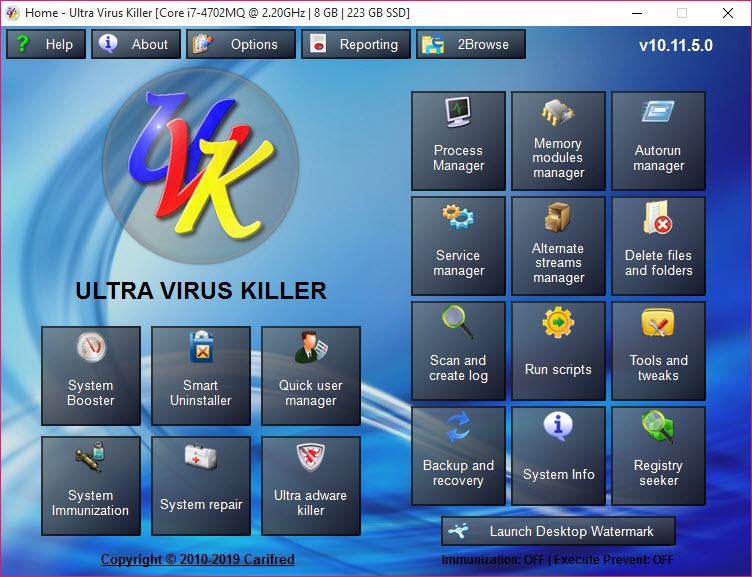
The defining strength of Ultra Virus Killer is how it organizes capabilities around the way malware cleanup and system repair actually work in practice. Rather than treating each function as a separate utility, the interface presents the related tools together: process management, startup entry inspection, file analysis, and removal options all coexist in a workflow that mirrors what a technician does mentally when investigating a problem system.
You start by scanning the system, which generates a report of startup entries, running processes, browser helper objects, and other items where malware typically establishes persistence.
From this report you can investigate suspicious items, verify their digital signatures, search them online for community context, and either kill processes, delete files, or quarantine items as needed.
For technicians who work through this same investigation flow on every infected machine, having the tools laid out in this connected way is genuinely faster than bouncing between Process Explorer, Autoruns, and various other separate utilities. The information stays in one place rather than requiring you to mentally combine results from different tools.
Process and autorun management
The process management section shows running processes with the kind of detail that helps identify malicious behavior. Beyond just process names and resource usage, the application shows file paths, digital signature status, parent process information, and various other metadata that helps distinguish legitimate system activity from malware.
The autorun manager covers the various places Windows lets programs configure themselves to start automatically: registry run keys, scheduled tasks, services, browser extensions, shell extensions, and many other persistence locations.
Malware loves these locations because they ensure reinfection if the user just reboots, so being able to inspect and clean them comprehensively matters for thorough cleanup.
For each item, you can verify file signatures against the reported publishers, search Google or VirusTotal for community context, or just remove it directly if you’ve already identified it as unwanted.
The combination of inspection tools and removal options in the same interface is exactly what investigation work needs.
System repair and optimization beyond malware
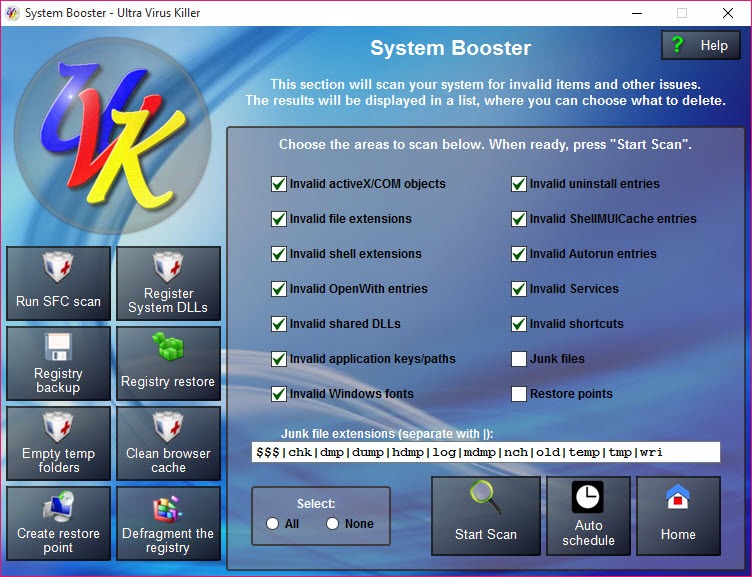
While malware removal is the headline use case, the system repair functionality covers a much broader range of Windows maintenance tasks. Registry fixes address corruption that causes various errors, file association repair restores broken file types, temp file cleanup recovers disk space, Windows settings reset returns various configurations to defaults, and performance optimization tweaks adjust various system parameters.
The “System repair” module specifically packages many of these fixes into automated repair sequences that can run unattended. For technicians dealing with the common cluster of issues that affect long-neglected Windows installations (slow performance, weird errors, broken Windows features), running these automated repairs often resolves multiple problems at once without manual intervention.
For non-malware-related complaints (computer is slow, programs won’t open, Windows isn’t behaving correctly), the repair module is often the right starting point before diving into more specialized investigation.
Scripting and automation for repeat scenarios
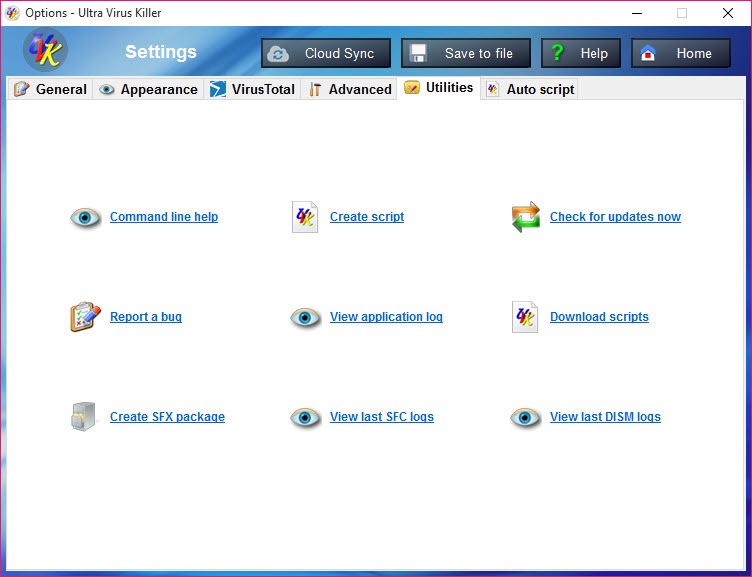
A particularly useful feature for serious technicians is the scripting capability that lets you create custom repair scripts running multiple operations in sequence. You can build a script that runs your specific combination of cleanup steps, registry fixes, and third-party tool launches, then run that whole sequence on each computer you service.
For repair shops dealing with similar issues across many customer machines, this automation transforms what would be hours of manual work into a single script execution. The scripts can run third-party applications too, integrating tools you already trust into the same workflow rather than running them separately.
The scripting interface isn’t quite as elaborate as PowerShell or batch files, but it’s specifically designed for the system repair use case in ways that make sense for the audience.
Building a custom script for your typical cleanup workflow is straightforward enough that even technicians without programming background can usually figure it out.
System immunization for prevention
Beyond reactive cleanup, the application includes preventive measures grouped under “system immunization.” These tweaks block common malware behaviors at the system level, modify hosts file entries to block known malicious domains, configure security settings, and apply various other hardening measures.
For users who hand their computers back to family members or non-technical clients after cleanup, applying these immunization measures provides some protection against future infections without requiring the user to be more careful or knowledgeable about security.
It’s not a replacement for proper antivirus protection, but it raises the bar for casual reinfection scenarios.
Branding and Pro features for professional use
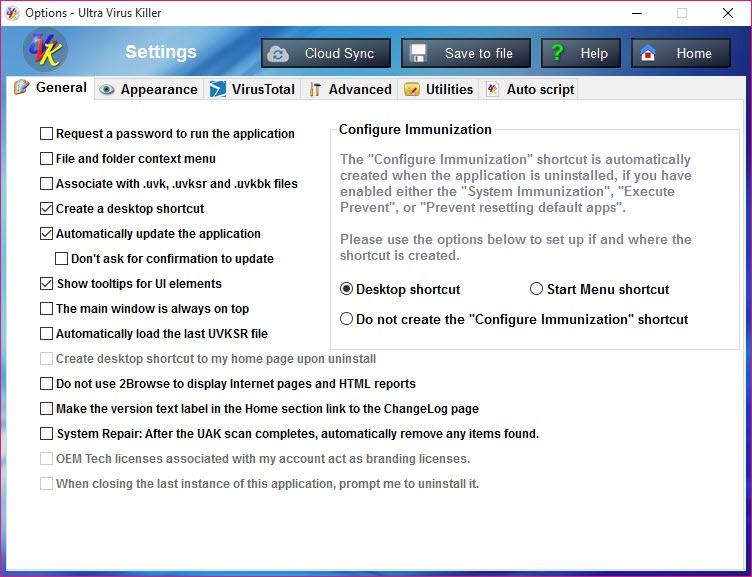
For technicians running a repair business, the Pro version adds capabilities aimed specifically at professional contexts. Branding options let you add your company logo to the interface, which helps when running the application on customer machines as part of your service. Password protection prevents customers from changing settings or running unauthorized operations on their own.
These commercial-context features matter for repair shops that want to integrate the tool into their service offering rather than just using it as one technician’s personal toolkit.
The professional polish around the technical capabilities helps justify the tool’s place in a paid service workflow.
Online lookups and verification
A useful detail throughout the application is the integration with online resources for verification and identification. Suspicious files can be searched on VirusTotal directly from the interface, processes can be looked up in various online databases, and digital signature verification connects to certificate authorities for validation.
This integration matters because identifying whether a particular file or process is actually malicious often requires more context than the local system can provide. Being able to look things up in one click without copying names to a browser saves the small but recurring time cost that adds up across hundreds of investigations.
Suitable for serious users, not casual cleanup
It’s worth being clear that this software is genuinely aimed at advanced users and technicians rather than casual users wanting to clean up their own systems. The interface assumes familiarity with Windows internals (services, registry, processes, persistence mechanisms), and the breadth of options can be overwhelming for users who don’t already understand what each tool does.
For users wanting consumer-friendly malware removal without technical depth, simpler tools like Malwarebytes are typically better matched to their needs. For technicians, IT support staff, and advanced users who actually understand what they’re looking at, the depth available here is exactly the appeal.
Conclusion
Ultra Virus Killer has earned its niche as a serious technician tool by addressing the actual workflow that experienced users follow when investigating and cleaning Windows systems.
The combination of malware analysis, system repair, automation, and prevention in a single application matches the breadth of work that a typical repair scenario actually involves, eliminating the friction of bouncing between separate tools.
It’s not for everyone, and the learning curve genuinely deters casual users who would be better served by simpler alternatives. But for technicians, IT support staff, and advanced users who want a consolidated toolkit that respects their expertise rather than dumbing down the interface, Ultra Virus Killer delivers exactly that, with the kind of depth that pays back the initial investment of learning across thousands of repair scenarios over a technician’s career.
Pros & Cons
- Consolidated workflow combining malware investigation and system repair in one interface
- Process and autorun managers cover the locations where malware actually establishes persistence
- 200+ fixes and tweaks address a wide range of Windows issues beyond just malware
- Scripting capability automates repetitive technician workflows
- System immunization measures help prevent reinfection on cleaned systems
- Online lookup integration speeds up suspect file investigation
- Pro version branding suits professional repair business use
- Active development by a developer focused on the technician audience
- Steep learning curve for users without technical background
- Interface presents many options without much hand-holding for newcomers
- Free version has fewer features than the Pro edition
- Some advanced features assume knowledge of Windows internals that casual users lack
- Can be overwhelming when used as a first malware-cleanup tool
Frequently asked questions
This software is a comprehensive Windows repair and malware removal toolkit that combines process management, startup analysis, system repair, file investigation, and automation in a single interface. It's designed for technicians and advanced users who do this kind of work regularly and want consolidated capabilities rather than maintaining separate tools.
Not really. The interface assumes familiarity with Windows internals like services, registry entries, processes, and persistence mechanisms. Casual users wanting to clean up their own systems are better served by simpler tools like Malwarebytes, while this software targets technicians and advanced users who already understand what they're looking at.
Standard antivirus is automated protection that runs continuously and uses signature-based detection plus heuristics to identify known threats. This software is investigation and repair tooling that helps you analyze, identify, and remove problems manually with much greater visibility into what's happening on the system. The two approaches complement rather than replace each other.
Yes, the feature list does include over 200 specific fixes, tweaks, and tools spanning malware removal, system repair, optimization, file management, and various other categories. Not every user needs every feature, but for technicians dealing with a wide variety of computer problems, the breadth ensures appropriate tools are available for whatever issue arises.
Antivirus scanning compares files against signature databases of known threats. This software's scanning generates reports of startup entries, processes, browser objects, and other items where malware establishes persistence, regardless of whether they match known signatures. This makes it useful for finding novel malware or suspicious behavior that signature scanners miss.
The core functionality works offline, including scanning, process management, and system repair operations. Some features specifically benefit from internet access, including the VirusTotal integration for file verification, online searches for suspicious items, and digital signature validation against certificate authorities.
Yes, the scripting capability lets you create custom sequences of repair operations that run together, including launching third-party tools as part of the workflow. For technicians who work through similar cleanup steps across many machines, this automation transforms repetitive manual work into single script executions.
System immunization applies preventive measures that make systems more resistant to reinfection, including hosts file modifications to block malicious domains, security setting hardening, and various other protective tweaks. It's not a replacement for antivirus protection, but it raises the bar against casual reinfection scenarios.
No, this is investigation and repair tooling rather than real-time protection, so it doesn't conflict with running antivirus software. You can use it alongside whatever antivirus you have installed, with the antivirus handling continuous protection while this tool handles deeper investigation and repair when issues arise.
The developer provides tutorials covering the interface and major features, and the community has produced various walkthroughs across the years. Effective use requires both familiarity with the interface and underlying knowledge of how Windows systems and malware actually work. Spending time on a few practice systems helps build the practical experience that documentation alone doesn't provide.


