

Vidiot
About Vidiot
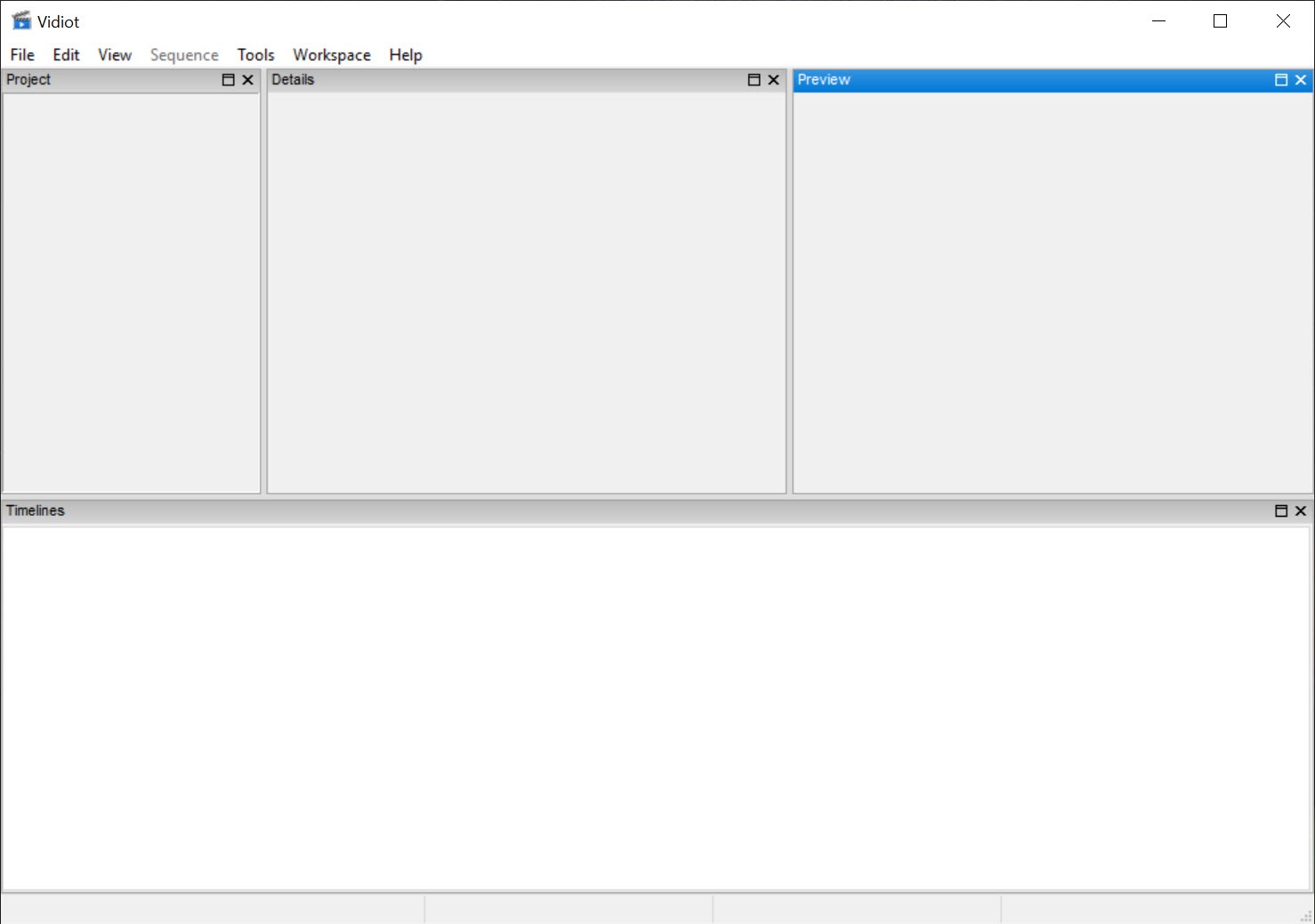
Vidiot is a video editor for home footage that stops where the professional tools begin. Drop clips onto a timeline, trim them, slide them about and overlap two for a crossfade. Add a still photo or a title, animate position and scale with keyframes, change the speed, and render the result to an ordinary MP4. There are no colour tools, no effects rack and no plugins. The whole program fits in one window with a project tree, a preview and the timeline, and the help file explains every key.
It sits below Shotcut and the other open-source timeline editors, which do everything here and a great deal more, and above the plain cutters that only trim. Vidiot exists for the person who found the bigger editors bewildering and wants a holiday video assembled from clips and photos by the end of the evening.
That is a real audience, and the program serves it with fewer distractions than anything else in the category.
The timeline and the basic cuts
Clips go into the project tree, and a folder on disk can be added as an autofolder so that new files appear in the project as they land. Drag a clip to the timeline and it takes a video track and a linked audio track. Trim by dragging an end, split at the cursor, and move clips with the mouse, with a toggle for whether later clips shift to close the gap or stay put. Press one key to unlink the audio from the video, so a music track can replace the camera’s sound, and another to link them again.
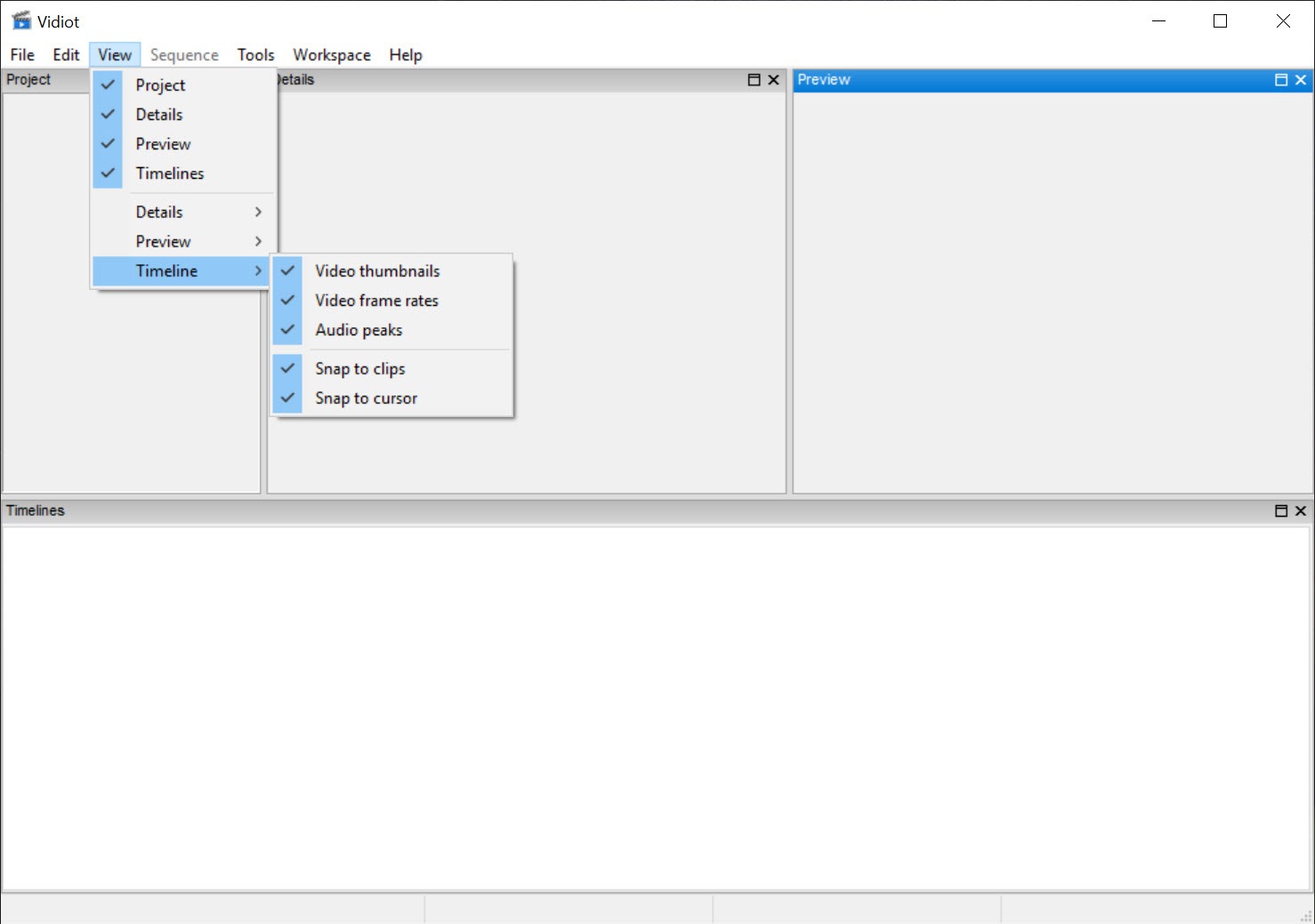
The preview in the corner plays the sequence and drops frames when the machine falls behind rather than freezing, which is the right choice for a home editor. Snapping to clip edges and the cursor keeps joins tidy.
It is a small set of operations, and the two-hour learning curve of the larger editors becomes twenty minutes.
Compositing and keyframes
Select a clip and the Vidiot Details pane shows its position and scale, rotation and opacity, crop and audio volume. Each can be set for the whole clip or keyed at points along it. A photo can drift and zoom across its duration, a second clip can shrink into a corner as a picture-in-picture, or a shot can fade out. Speed is a percentage per clip, for the time-lapse of a sunset or a slowed dive into a pool.
Transitions are dragged onto the join between two clips, with a crossfade as the default and a handful of wipes, and their length is adjustable. Titles are plain text with a font, a size and a colour, positioned like any other clip.
That is the extent of the creative tools. For chroma key, blur, colour correction or animated text, an editor with an effects library and keyframed filters is the next step up, with a considerably steeper interface.
Rendering and project settings
Project properties set the frame size, frame rate, audio sample rate and channel count, and clips that differ are scaled to fit. Render Settings in Vidiot takes an output file and a format from a list built on FFmpeg, with MPEG-2, MPEG-4, H.264 and several others. Either the whole sequence or a selected interval renders. Output is what the codec produces, and H.264 at a sensible bitrate plays anywhere a phone video plays.
Projects save as Vidiot files that reference the source clips rather than copying them, so moving the footage breaks the project and the program says which file it cannot find. Autosave runs in the background.
Where it shows its size
A few operations crash on unusual files, the help is a single document rather than a tutorial series, and updates arrive slowly. Very high frame rates and very long clips can misbehave in the timeline. None of this matters much for a ten-minute holiday film from a phone, which is the case it was built for.
All of it matters for anything longer or stranger. For cutting clips without any re-encoding at all, a cutter that trims by copying the stream is faster still and produces no quality loss, and this editor is the step after it.
Conclusion
Vidiot is for the person with a folder of phone clips and photos from a trip who wants them in order and set to music by tonight. They have usually bounced off a bigger editor before. It does that job without asking anything it does not need to know.
Anyone who wants colour grading, effects or animated titles has outgrown it before opening it and should go straight to a fuller editor. For the family film, this is enough, and the shortness of the feature list is why.
Pros & Cons
- Timeline editing with trimming and splitting, learned in minutes
- Keyframed position, scale, rotation, opacity, volume per clip
- Crossfades and wipes by dragging onto a join, plus speed changes
- Autofolders bring new footage into the project automatically
- Renders to H.264 and other common formats through FFmpeg
- No colour correction, effects or plugins
- Titles are plain text only
- Occasional crashes on unusual files
- Slow development and a single help document
Frequently asked questions
Yes. Select the clip, press the unlink key to separate its audio track, delete or mute that track and drag a music file onto the audio track beneath the video.
Drop the image on the timeline, set its duration, then in the Details pane add a keyframe at the start and another at the end with a larger scale. The preview shows the movement as it plays.
H.264 in an MP4 container at a moderate bitrate plays on phones and televisions and web services. Use MPEG-2 only if the target is a DVD authoring tool.


