

MediaInfo
About MediaInfo
MediaInfo tells you what is inside a video or audio file. Drop a file onto its window and it reports the container, the video codec with its profile, resolution, frame rate, bit rate, colour space, chroma subsampling, bit depth and scan type, every audio track with its codec, channels, sample rate and language, every subtitle track, the chapters, the encoding software that wrote the file and the tags it carries. It reads the file’s own structure rather than guessing from the extension, so a file called .mp4 that holds something else is reported as what it is, and a stream that refuses to play is explained by the line that shows the codec nobody has installed.
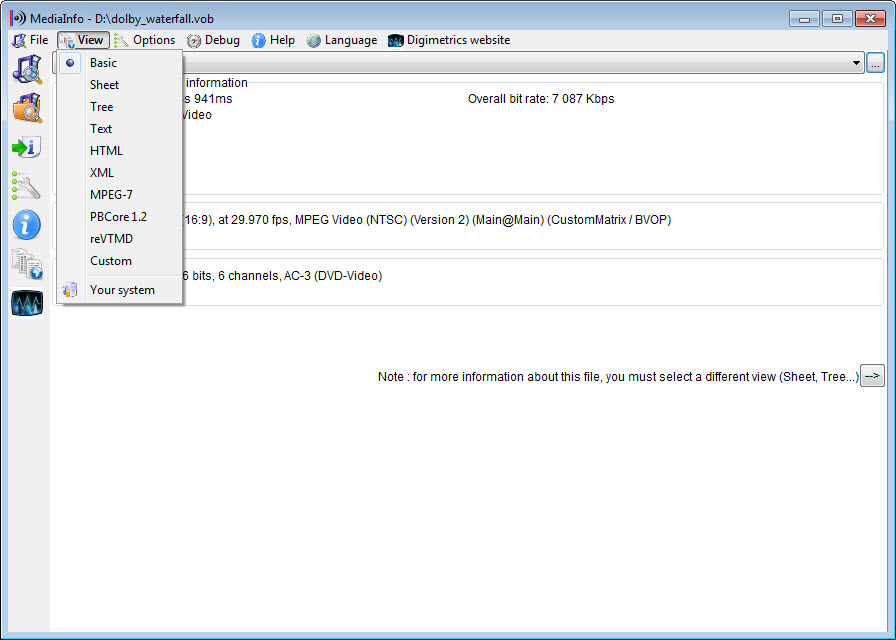
The view can be as brief or as exhaustive as the moment needs. A basic sheet gives the lines most people want, the tree view unfolds every field the file exposes, a text view lays it out as a plain report, and an HTML view formats it for pasting into a forum post or a ticket.
The same engine runs from the command line and as a library, so a script can inspect a thousand files and write a spreadsheet, and the right-click menu puts a report one click from any file. MediaInfo is the reference tool for this job, the one whose output other people recognise and the one that video forums ask for before answering a question.
Reading the report
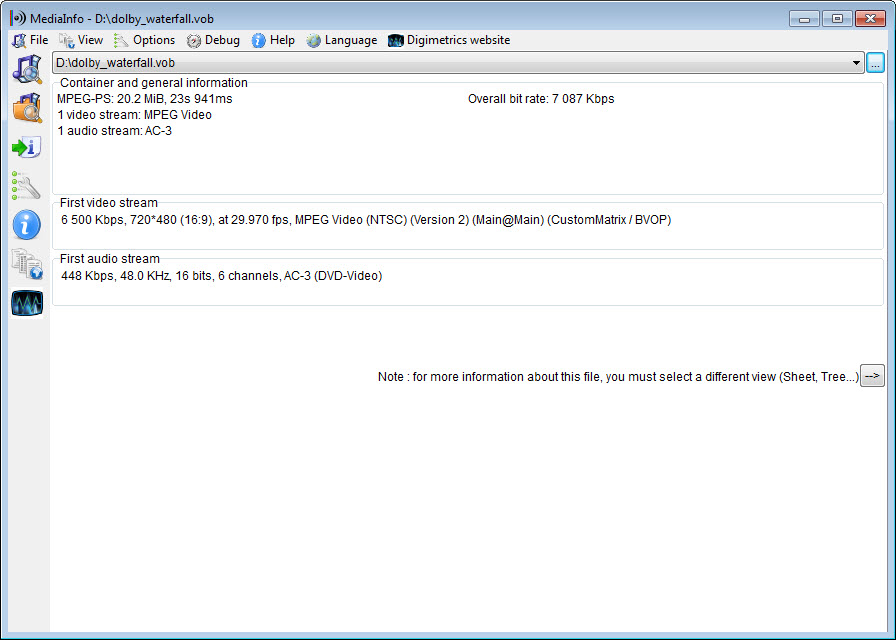
The default MediaInfo view groups the report by stream. General covers the container, its duration, overall bit rate, file size and the application and library that wrote it. Video covers the codec and its profile and level, the dimensions and aspect ratio, the frame rate and whether it is constant or variable, the bit rate and its mode, colour primaries, transfer characteristics and matrix, chroma subsampling, bit depth and scan type. Audio lists each track with its codec and commercial name, its channel count and layout, and its sample rate, bit depth, bit rate, compression mode and language. Text lists subtitle tracks with format and language, and Menu lists the chapters with their timestamps.
Those fields answer the practical questions. Why does this file stutter, because it is 10-bit HEVC at a bit rate the player cannot decode in software. Why is the audio quiet, because the track is a surround mix with no stereo downmix. Why did the editor refuse the clip, because the frame rate is variable. Reading the report becomes quick once the stream groups are familiar, and the tree view is there when a field is missing from the sheet.
HDR, Dolby Vision and the newer formats
HDR metadata gets its own lines in MediaInfo. An HDR Format entry names HDR10, HDR10+, Dolby Vision with its profile and layer structure, or HLG, alongside the mastering display colour volume and the maximum light level figures that players and televisions read. For anyone sorting a collection or checking that an encode preserved its HDR, these lines are the test, since the file either carries the metadata or it does not, and the report does not flatter.
Container support reaches across the common consumer formats, MP4, QuickTime, AVI, WebM and the Matroska files that MKVToolNix assembles, into the broadcast and production world, MXF, GXF, LXF and the transport and program streams of discs and television, plus the professional audio formats. Codec support follows, from the everyday AVC, HEVC, AV1, VP9, AAC, AC-3 and their relatives to the production codecs, the lossless audio formats and the subtitle and caption standards used in broadcasting.
Views and export templates
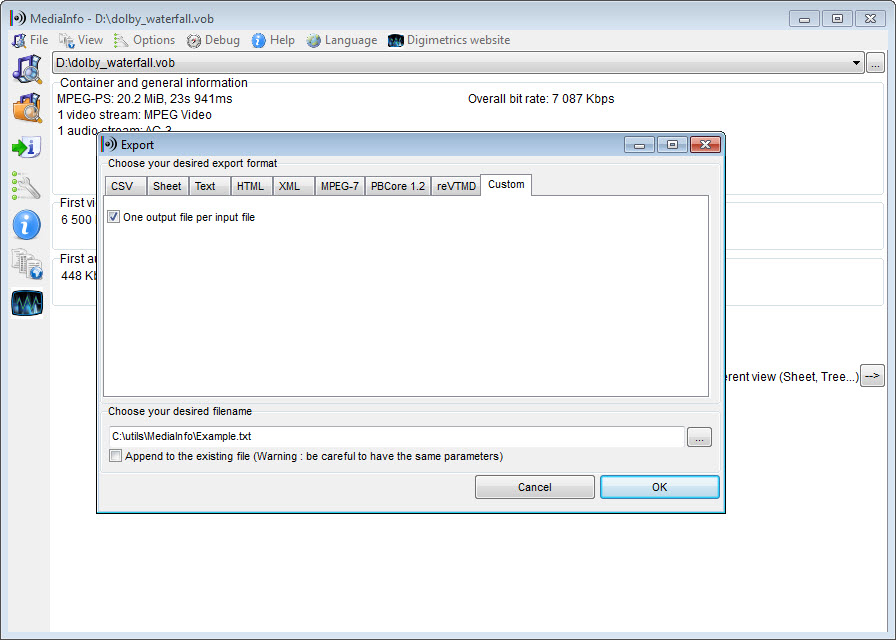
Four views ship in the MediaInfo window, and more exist as templates. Text, HTML, the sheet and the tree are the everyday ones, with the HTML view gaining a dark mode. Export writes the report as text, CSV, HTML, XML or JSON, and a set of specialised templates produces the structured metadata formats that archives and broadcasters exchange, which is why the tool appears in the workflows of libraries and television stations as well as on home desks.
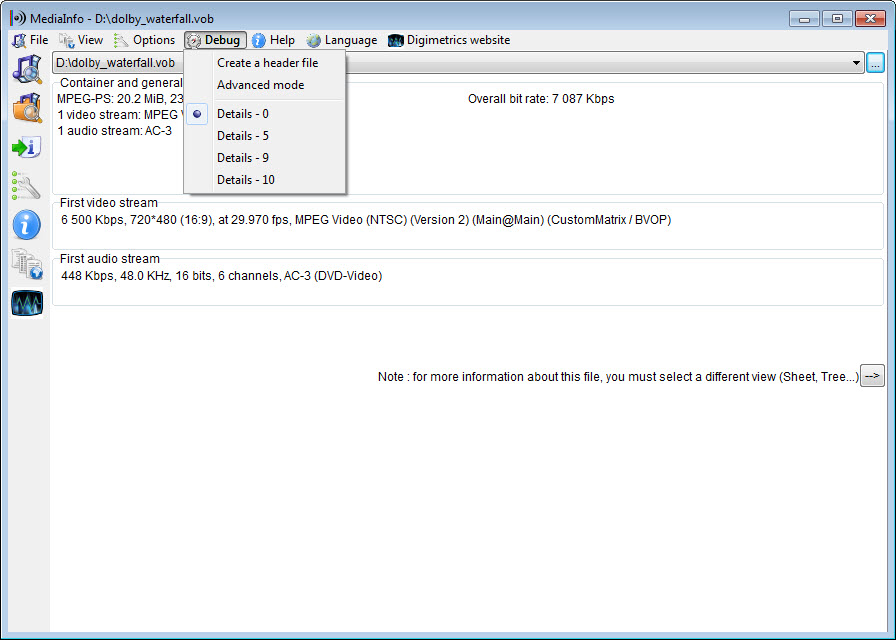
The views themselves can be customised, so a report that shows only the five fields you care about, in your order, is a template away. Options add the software version and a timestamp to a text report, which matters when a report is attached to a bug or a delivery, and the whole thing is translated into dozens of languages with every field name localised. A saved template travels between machines.
The command line and batch work
The MediaInfo command-line build takes a file or a folder and prints the report, with switches for the output format, the template and the fields, and it reads from standard input for piping. Point it at a directory and every file inside is analysed, with CSV output turning a collection into a spreadsheet of codecs and bit rates in one run, and the results feed straight into a batch of FFmpeg commands when something needs re-encoding. That is how an archive gets audited, how a batch of encodes gets checked before delivery and how a renaming script learns the resolution to put in the file name.
The library form embeds the same engine in other software, which is how a good many media players and converters show their file information, often without the user knowing which engine is doing the reading.
Where it stops
MediaInfo reads and reports, and it changes nothing, so a wrong tag or a missing flag is found here and fixed elsewhere. The tree view is overwhelming on first sight, with hundreds of fields whose names come from the standards rather than from plain language, and the sheet view is the one to learn first. Encrypted discs are not read. The report is only as good as the file’s own metadata, so a mislabelled stream is reported as the file labels it, with the real content visible only in fields such as the codec identifier.
For a visual inspection of what the frames actually look like, a media player with a statistics overlay complements the report.
Conclusion
MediaInfo suits anyone who needs to know what a media file actually contains, from a viewer whose film will not play to an archivist auditing a shelf of masters to an encoder checking that HDR survived the pipeline. The per-stream report answers the question in seconds, the HDR lines settle arguments about what a file really carries, and the command-line build scales the same answer to a whole collection.
It fixes nothing, and its full tree takes patience, but that is the shape of a diagnostic tool. Learn the sheet view, keep the right-click entry, and reach for the tree when a field is missing, and it will explain every stubborn file before another tool is opened.
Pros & Cons
- Reports codec and resolution, frame rate and bit rate, plus colour and audio details per stream
- HDR Format lines identify HDR10, HDR10+, Dolby Vision profiles and HLG
- Container and codec coverage from consumer formats to broadcast and production
- Text, sheet, tree and HTML views, with export to CSV, XML and JSON
- Command-line build analyses whole folders and pipes into scripts
- Right-click integration and translation into dozens of languages
- Reads only, with no way to fix what it finds
- Tree view is dense and uses standards vocabulary
- Reports what the file claims, so mislabelled streams need a closer look
- Encrypted discs are not read
Frequently asked questions
The container and every stream inside it, with codec and resolution, frame rate, bit rate, colour details, audio channels and sample rate, subtitles, chapters, and the software that wrote the file.
Yes. An HDR Format line names HDR10, HDR10+, Dolby Vision with its profile, or HLG, along with the mastering display and light level metadata.
Yes. The command-line build takes a folder and reports every file, and CSV output turns the results into a spreadsheet.
No. It reads and reports only. Fixing a container or re-encoding a file is a job for other tools once the report has shown the problem.


