

Shutter Encoder
About Shutter Encoder
There’s a particular kind of software that exists specifically because somebody who needed it couldn’t find what they wanted in the existing options and decided to just build it themselves. Paul Pacifico, a broadcast video editor working in French television, found himself constantly running terminal commands to FFmpeg for the conversion, transcoding, and processing tasks that made up substantial parts of his daily workflow.
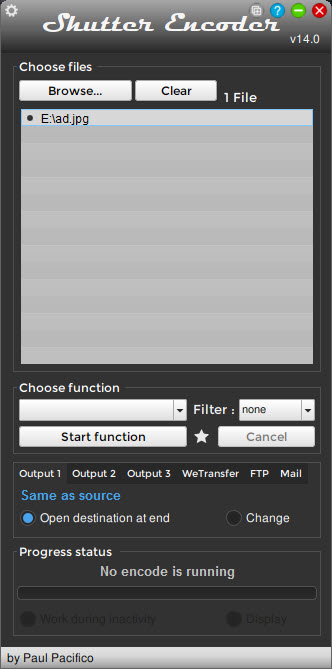
The command-line interface worked, but it wasn’t pleasant, and certainly wasn’t accessible to colleagues who didn’t want to memorize syntax. Shutter Encoder is the result, a graphical front-end for FFmpeg designed by an editor for editors, which has grown into one of the most capable free media conversion tools currently available.
The software is built on top of FFmpeg, the foundational open-source media processing library that powers essentially every video tool you’ve ever used (whether you knew it or not). Building on FFmpeg means Shutter Encoder inherits the entire range of formats, codecs, and processing capabilities that decades of FFmpeg development have produced.
Wrapping it in a clean graphical interface designed around how editors actually work transforms FFmpeg from “a powerful tool you’d use if you could remember the right command” into something you’d actually reach for during a normal editing session.
Conversion capabilities that cover essentially everything
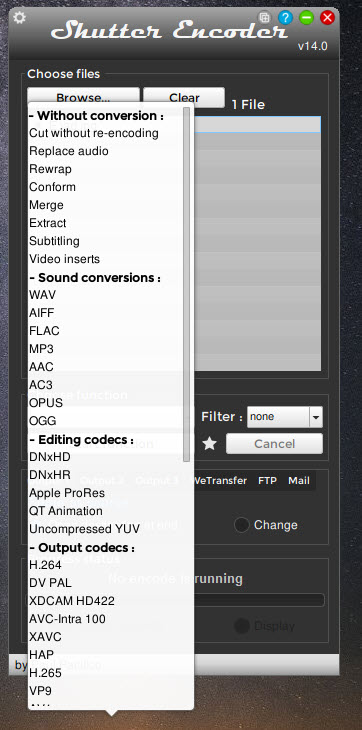
The format support list reads like a comprehensive inventory of every codec and container you might encounter in professional or amateur video work. Output options include H.264, H.265 (HEVC), VP8, VP9, AV1, MPEG-1, MPEG-2, ProRes (in all its flavors), DNxHD, DNxHR, MJPEG, GoPro CineForm, and many more. Container options span MP4, MKV, MOV, AVI, MXF, WebM, and various broadcast-specific formats.
For audio, the supported list covers WAV, AIFF, FLAC, MP3, AAC, OGG, AC3, and additional formats including broadcast-specific options.
This breadth matters because real editing work doesn’t stay neatly inside any single ecosystem. Footage arrives from cameras shooting in various formats, needs to be transcoded to editing-friendly codecs for cutting, then exported in formats appropriate for distribution channels with their own particular requirements.
Having one tool that handles all these conversions through a consistent interface eliminates the fragmentation of using different applications for different format pairs.
For users who need specific quality controls, the application exposes the parameters that matter for serious work. Bitrate targets, encoding presets, color space handling, chroma subsampling, and dozens of other settings are accessible through the interface rather than buried in command-line arguments.
Defaults work well for typical scenarios, while the depth is there for users who need it.
Hardware acceleration that actually delivers
Modern GPUs include dedicated video encoding hardware that produces substantial speed improvements over CPU encoding for supported codecs. Shutter Encoder uses hardware acceleration through NVIDIA NVENC, AMD AMF, and Intel Quick Sync where available, with automatic detection of what your specific hardware supports and appropriate option exposure for the supported codecs.
For users encoding large volumes of footage, the speed difference between CPU and GPU encoding is dramatic. A two-hour video that might take an hour through pure CPU encoding can complete in under fifteen minutes with proper hardware acceleration on capable hardware.
The application handles the various complications around hardware encoding (codec compatibility, parameter mapping, fallback behavior) so users get the speed benefits without needing to understand the underlying hardware specifics.
The trade-off is that hardware encoders generally produce slightly lower quality output than top-tier CPU encoding at equivalent bitrates. For most use cases this difference is invisible to viewers, with the speed gains far outweighing the marginal quality reduction. For situations where absolute maximum quality matters (archival masters, high-end deliverables), the CPU encoding option remains available for users willing to trade time for quality.
Editing functions beyond simple conversion
Despite primarily being positioned as an encoder, the application includes a range of editing functions that handle common tasks without requiring a full editing application. The Cut function lets you select specific portions of a video to keep, with frame-accurate selection and the option to operate without re-encoding when the cuts align with keyframes.
The Merge function combines multiple files into one, useful for joining clips that should play as a continuous video.
Audio extraction pulls the audio track from a video file as a standalone audio file, with format and quality options for the output. The reverse operation (combining separate audio and video files) handles the common scenario of recording audio separately from video and needing to combine them at delivery time. These integrated capabilities eliminate the need for separate tools when the editing work is straightforward.
The Rewrap function deserves special mention because it solves a specific problem elegantly. Sometimes you need to change a file’s container format (MKV to MP4, for instance) without actually re-encoding the video, which would lose quality. Rewrapping copies the existing video and audio streams into a new container, which completes in seconds rather than the hours full re-encoding would require.
For users who frequently encounter this scenario, the Rewrap function alone justifies installing the software.
Batch processing for serious throughput
For workflows involving many files, batch processing capability matters substantially. Shutter Encoder handles batches naturally through its main interface, letting you queue dozens or hundreds of files with consistent settings, then walk away while the conversions run. Per-file customization is possible when needed, but the standard workflow applies the same operation to every file in the batch.
The queue management shows real-time progress on the active conversion along with the queue position of pending files. Failed conversions get logged with error details rather than silently breaking the batch, which matters when troubleshooting unusual source files.
For users encoding large quantities of footage, the batch capability transforms what would be tedious manual work into something that runs unattended overnight.
Broadcast-specific features that reflect the developer’s background
The developer’s background in broadcast television comes through clearly in the feature set. Functions like Deinterlace handle the conversion between interlaced and progressive scan formats that interlaced source material from older broadcast sources requires. Frame rate conversion includes proper Blending and Optical Flow modes for handling the visual artifacts that can appear when changing frame rates without proper handling.
Loudness normalization brings audio levels to broadcast standards (EBU R128, ATSC A/85) automatically, which matters for any content destined for distribution channels with specific loudness requirements.
Color space conversion between Rec.709, Rec.2020, and other broadcast color spaces handles the technical specifics that come up when delivering to platforms with particular requirements.
For users without broadcast backgrounds, these features may not see daily use, but their presence makes the tool genuinely useful when those scenarios arise.
Tools that only handle consumer-grade scenarios become inadequate when broadcast-quality deliverables enter the picture; this software’s broadcast-aware feature set means the same tool keeps working regardless of where on the professional spectrum your work falls.
AI tools for modern workflows
Recent versions have added AI-based capabilities that reflect how modern media work has evolved. Audio separation can extract specific elements from a mixed audio track (vocals from instrumentation, dialogue from background sounds), useful for situations where you want to use only part of a mixed track or remove unwanted elements.
Audio transcription generates text from spoken content, providing a starting point for subtitle creation or searchable content indexing.
These AI tools represent integration of capabilities that would otherwise require separate specialized applications. The quality varies by input material and language, with better results on cleaner source recordings in well-supported languages.
For users who occasionally need these capabilities, having them built into the same tool that handles their other media work eliminates the need to maintain separate AI-based applications for occasional use.
Comparison with HandBrake
The most common comparison is with HandBrake, which has been the dominant free video transcoding tool for many years. The two applications serve overlapping but distinct use cases.
HandBrake focuses primarily on conversion to consumer-friendly formats, with a polished interface optimized for the common workflow of producing playback-ready files from various source materials. Shutter Encoder offers broader format support, more professional and broadcast-oriented features, and better integration of editing functions alongside the conversion capabilities.
For users primarily ripping DVDs or producing files for general playback, HandBrake remains an excellent choice with arguably more refined output for those specific scenarios. For users with broader needs including broadcast-quality work, frequent format-switching, batch processing of varied files, and integrated editing functions, this software offers more capability across that wider range of work.
The honest comparison favors using both tools depending on the immediate need rather than treating either as a universal replacement for the other.
They share core capabilities through their underlying FFmpeg foundations, but their interfaces and feature sets target different user priorities.
Considerations and limitations
The interface has a steeper learning curve than tools designed purely for casual users. The breadth of functions and the depth of options for each function can overwhelm users who just want to convert a file from format A to format B. For those simple scenarios, more focused tools may feel more approachable, with this software’s full capability set being more relevant for users who need that depth.
Some advanced operations require understanding the underlying media concepts (codecs, containers, color spaces, bitrate calculations) to use effectively. Users without that background can certainly use the tool, but maximum effectiveness requires building familiarity with what the various options actually do. The documentation provides good explanations, but the learning takes time.
The application is large compared to minimalist alternatives. The bundled FFmpeg, AI components, hardware acceleration support, and various tools accumulate into a substantial install footprint.
For users with abundant storage this isn’t relevant, but users on constrained systems may notice the size compared to lighter alternatives.
Conclusion
Shutter Encoder has earned a strong reputation in the video editing and broadcast communities by providing genuine professional-grade capabilities through a free, open-source application with active ongoing development.
The combination of comprehensive format support, integrated editing functions, broadcast-quality features, and modern additions like AI tools delivers a tool that genuinely competes with paid alternatives while remaining freely available.
It’s not the right choice for everyone. Users with simple occasional conversion needs may find the depth overwhelming, with simpler tools feeling more approachable for those scenarios.
But for video editors, broadcast technicians, content creators, and serious users who want professional capabilities without paid software costs, Shutter Encoder delivers exactly what’s needed, with the kind of focused functionality that comes from being built by someone who actually does this work daily.
Pros & Cons
- Built on FFmpeg with comprehensive format and codec support
- Hardware acceleration through NVENC, AMF, and Quick Sync for fast encoding
- Integrated editing functions including Cut, Merge, Audio Extract, and Rewrap
- Batch processing handles large workflows efficiently
- Broadcast-quality features including Loudness normalization and proper Deinterlace
- AI tools for audio separation and transcription
- Genuinely free with no restrictions, no ads, no bundled software
- Active development with regular feature additions and improvements
- Interface complexity can overwhelm users with simple conversion needs
- Maximum effectiveness requires understanding underlying media concepts
- Substantial install size compared to minimalist alternatives
- Some advanced features assume professional video background
- AI tool quality varies by input material and language support
Frequently asked questions
This software is a media conversion and processing application that lets you convert video and audio files between formats, perform basic editing operations, batch process large numbers of files, and apply various professional-grade transformations. It's built on FFmpeg with a graphical interface designed by a working video editor, providing access to the full power of FFmpeg through a more approachable user experience than command-line operation.
Both tools handle video conversion through FFmpeg foundations, but they target somewhat different priorities. HandBrake offers a polished interface focused on consumer-friendly conversion scenarios, while this software provides broader format support, broadcast-quality features, integrated editing functions, and more depth for professional use cases. Many users have both installed and choose between them based on the specific task.
Yes, hardware acceleration works through NVIDIA NVENC, AMD AMF, and Intel Quick Sync depending on what GPU your system has. Hardware encoding produces substantial speed improvements over CPU-only encoding, with the trade-off of slightly lower quality at equivalent bitrates. The application detects available hardware automatically and exposes the appropriate options for what your specific system supports.
Absolutely. The developer's broadcast television background means features specific to professional video work are present and properly implemented, including loudness normalization to broadcast standards, proper deinterlacing for interlaced source material, color space conversion, and support for broadcast codecs like ProRes, DNxHD, and DNxHR. Professional editors and broadcast technicians use the tool regularly for serious work.
Cut is for selecting specific portions of a video to keep, producing a shorter video that contains only the selected segments. Rewrap changes the container format of a file (MKV to MP4, for example) without re-encoding the actual video and audio streams. Rewrapping completes in seconds and preserves quality perfectly since no re-encoding happens, while cutting may involve re-encoding depending on whether the cut points align with keyframes in the source.


