

WinMerge
About WinMerge
WinMerge puts two files side by side and shows you exactly what differs between them, down to the individual characters inside a changed line. Then it lets you move those differences from one side to the other, one at a time, and save the result. That is the entire job, and it does it well enough that a great many people who write code or wrangle configuration files have kept it installed for years.
It also compares folders rather than only files, walks subdirectories, opens images and CSV tables and binary data in appropriate viewers, reads inside archives, and slots in as the diff tool for a version control system.
What it does not do is edit files properly, synchronise anything on a schedule, or reach a remote server.
Two panes and the highlighting inside a line
The core view is two panels with matching scroll positions, differences shaded by block, and a bar down the right side showing the whole file in miniature so you can see where the changes cluster before you start scrolling.
The detail that matters is character-level highlighting. When a line differs, WinMerge does not just mark the line, it marks the substring that changed, so a single altered value in a long configuration line is immediately visible rather than something you hunt for. Anyone who has compared two long lines that differ by one digit understands why this is the feature that decides whether a diff tool is usable.
Syntax colouring covers the common languages, whitespace can be made visible, and the location pane doubles as a navigation control. Nothing revolutionary, all present and correctly done.
Copying differences rather than copying files
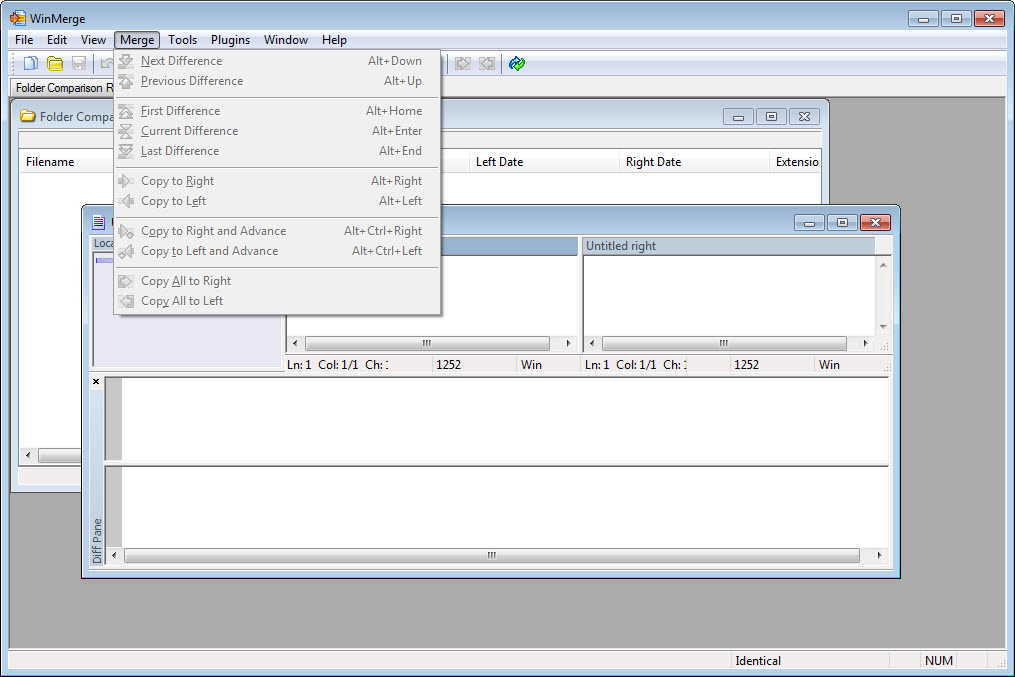
Each difference gets arrow buttons to push it left or right, and that is the operation you will use most. Step through the changes with a keystroke, accept the ones you want, ignore the rest, save the file that ended up correct.
Both panes are editable and both can be saved, and this is where honesty is needed. The editor in WinMerge is functional and no more. There is no autocomplete, no folding worth the name, no real project awareness, so treat it as a place to make a three-character correction rather than a place to work. Keep Notepad++ open for anything longer than a line.
Undo works across merge operations, which sounds obvious and is not universal among tools of this kind.
The three-pane compare for merge conflicts
Comparing three files at once is the feature that turns this from a viewer into a conflict resolver. Load a common ancestor and two divergent versions and each difference is presented with all three states visible, so you can see not only that two people changed the same line but what it originally said.
That context is the difference between resolving a conflict confidently and guessing. It is also the mode most people never open, because they discovered the two-pane view first and never went looking.
Folder comparison, and what it is not
Point WinMerge at two directories and it walks them recursively, listing files as identical, different, or present on only one side. Filters keep noise out, and the comparison method is selectable, which matters more than it appears.
Full content comparison in WinMerge is accurate and slow. Comparing by size and modification date is nearly instant and will call two files identical when a program rewrote one without changing its length, which does happen. A middle setting compares a quick digest of contents. Choose according to whether you are auditing or triaging.
You can copy files between the two sides from the folder view, and that tempts people into using it as a synchroniser. Do not. There is no scheduling, no mirroring logic, no deletion propagation, no versioning of what you overwrote.
For keeping two folders properly in step, a real synchronisation tool exists for the purpose and will not surprise you.
The ignore settings that decide what counts as a difference
Half of the frustration people have with diff tools comes from differences that are technically real and practically meaningless, and the options in WinMerge handle nearly all of them.
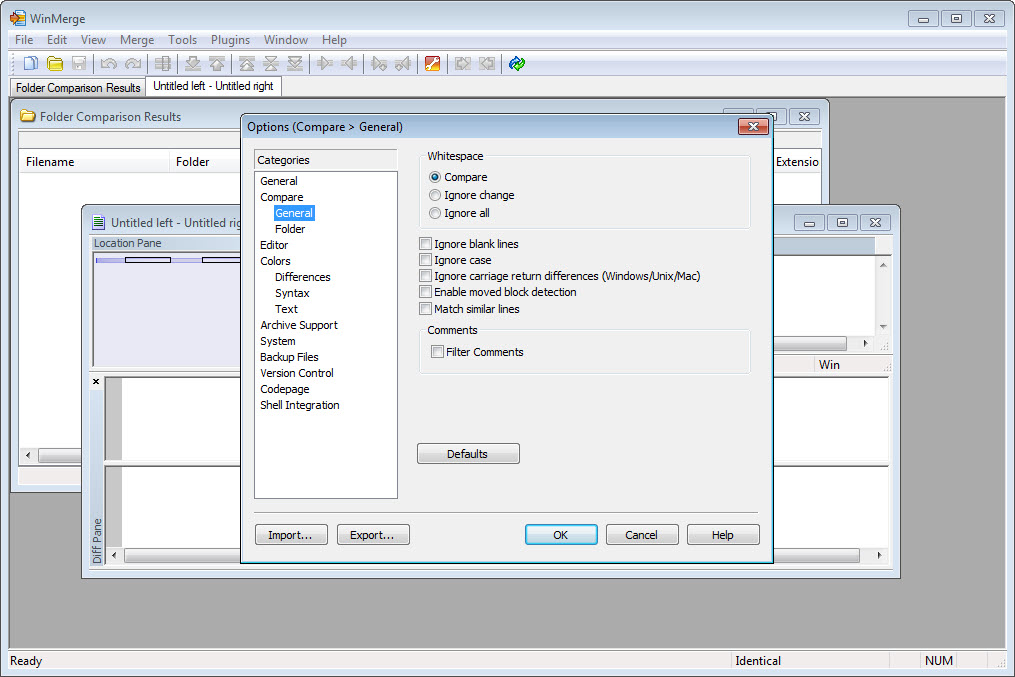
Whitespace can be ignored entirely or only where it is a change in amount. Case can be ignored. Line ending style can be ignored, which is essential the moment files have crossed between platforms and every single line reports as different. Blank lines can be dropped from consideration.
The powerful one is line filters, which take regular expressions and exclude matching lines from comparison altogether. Filter out timestamp lines and two log files become comparable. Filter out a version stamp and two generated files stop differing on a line nobody cares about. This is the feature that turns an unusable wall of red into three real changes.
Images, tables and hex, not just text
Feed WinMerge two images and it opens an image comparison instead, with several ways to visualise the difference, including overlaying one on the other so a moved element is obvious. For checking whether an asset actually changed, this beats opening both in a viewer and squinting.
CSV and TSV files can be shown as a table with aligned columns rather than as raw text, which changes the experience completely, because a shifted column no longer makes every subsequent line look different.
Binary files open in a hex editor view with the differing bytes marked. Something you need once or twice a year, and far better than the alternative of being told two files differ with no indication of where.
Plugins, archives and formats it cannot read on its own
Plugins come in two useful flavours. Unpackers convert a file into something comparable before the comparison starts, and prediffers adjust the text on the fly without changing what gets saved.
That mechanism is how it handles formats it has no native understanding of. Office documents can be compared through plugins that extract their text, with the obvious caveat that formatting and structure are lost and you are comparing words, not documents. Anyone expecting a proper tracked-changes view of two contracts will be disappointed.
Archives are handled by integration with 7-Zip, so two ZIP files or two TAR archives can be compared as though they were folders, without extracting either first. Learn that one, because it replaces a tedious manual process with a single action.
Living inside your other tools
The command line accepts the two paths plus switches for opening read-only, minimising, or labelling each side with something friendlier than a temporary path. That is what makes it configurable as the external diff and merge tool for a version control system, and pointing Git for PC at it takes two configuration lines.
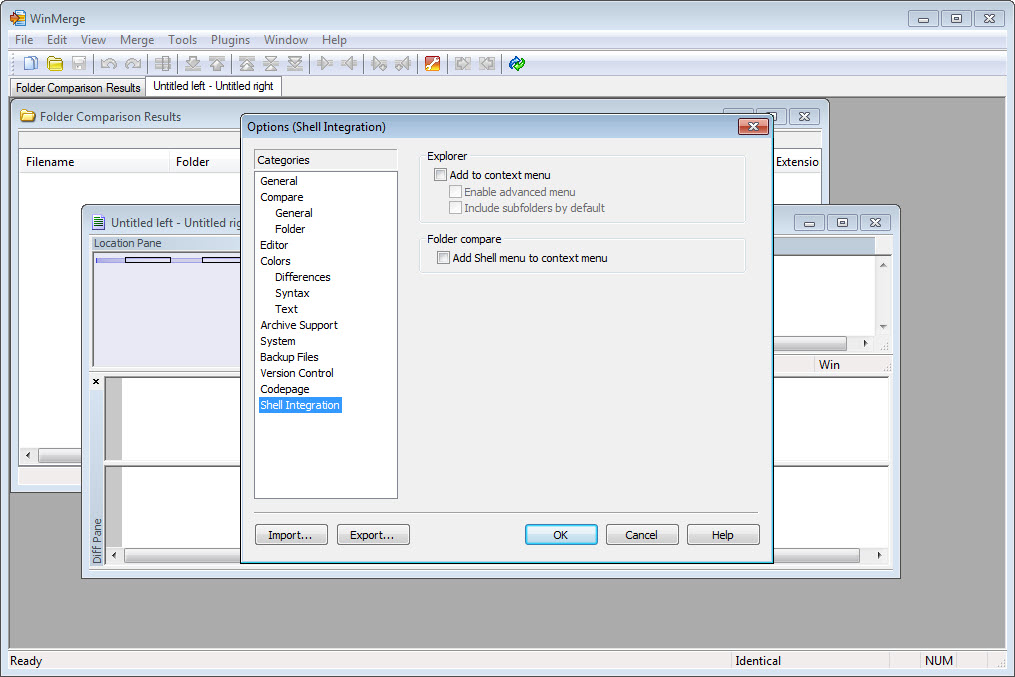
Shell integration puts a compare option on the right-click menu, so selecting two files in a file manager and comparing them takes one action. It also generates patch files in normal, context or unified format, which is how you hand a change to somebody who does not have your files, and it can export a comparison as an HTML report for the same reason.
None of this is glamorous. All of it is the reason the application stays installed after the novelty of the coloured panes wears off.
Conclusion
Anyone who compares text for a living should have this installed, and the reason is the character-level highlighting combined with line filters. Those two features together mean the tool shows you the three changes that matter instead of the ninety that do not, which is the entire value proposition of a diff tool and something a surprising number of alternatives get wrong.
Where it disappoints is anywhere outside that core. Document comparison is crude, the editor is a text box with syntax colours, and there is no remote access at all, so a file on a server has to be mounted or copied before you can look at it.
If your real need is comparing and reconciling two directory trees as a routine, a file manager with a synchronisation panel covers that ground better. For reconciling two versions of a file, nothing free does it more clearly.
Pros & Cons
- Character-level highlighting inside changed lines, not just line-level marking.
- Three-pane mode resolves conflicts with the original text visible.
- Line filters using regular expressions remove differences you do not care about.
- Selectable folder comparison method, from instant to thorough.
- Compares inside archives without extracting them.
- Image and table views turn awkward comparisons into obvious ones.
- Works as the external diff and merge tool for version control systems.
- The editor is minimal, so real editing belongs in something else.
- Copying between folders invites use as a synchroniser, which it is not.
- Office document comparison drops formatting and compares extracted text only.
- No access to remote locations, so files must be reachable as normal paths.
- Comparing by size and date will report changed files as identical.
- Plugin configuration is unintuitive and poorly signposted in the interface.
Frequently asked questions
Through plugins that extract the text, yes, but formatting and layout are discarded and you are comparing words rather than documents. For spreadsheets exported as CSV the table view is a much better experience than either alternative.
Yes, there is a three-pane mode built for merge conflicts. Load the common version alongside the two changed ones and every difference shows all three states, which is what makes an informed decision possible.
Almost always invisible characters. Different line ending styles, trailing spaces, tabs against spaces, or a different text encoding. The ignore options cover each of these, and turning on whitespace visualisation shows you which one it is.
It is designed for it. The command line takes both file paths plus switches for read-only mode and custom pane titles, which is all a version control client needs to hand it a comparison.
Yes, through its integration with an archiver, so two compressed archives can be compared like a pair of folders without unpacking either one beforehand.
No, and this is the most common misunderstanding about it. It compares folders and lets you copy files manually, with no scheduling, no mirroring rules and no record of what you overwrote. Use a synchronisation tool for that job.


