

Unlocker

 (879 votes, average: 4.04 out of 5)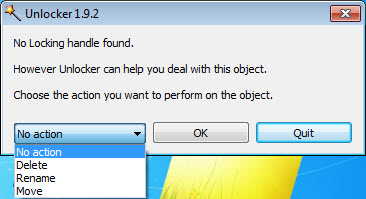
About Unlocker
There’s a particular kind of frustrating Windows experience that anyone who has used the operating system for more than a year has probably encountered. You try to delete a file. Windows refuses, with a message saying the file is in use by another process. You close the obvious applications that might be holding it, try again, and get the same error. You restart the application, try yet again, and still nothing. Eventually you reboot the machine just to escape this single locked file, which works but feels like substantial overkill for what should be a one-click operation.
Unlocker is the dedicated solution to this problem for many years, providing a focused tool that handles file locking issues directly rather than requiring users to track down which process is holding which file and figure out how to release it.
What it actually does to locked files
The defining function of Unlocker is identifying which process is holding a locked file and providing options for releasing that lock so you can perform the operation Windows was refusing. Right-click a locked file in Explorer, select Unlocker from the context menu, and the application analyzes which process has handles open on the file.
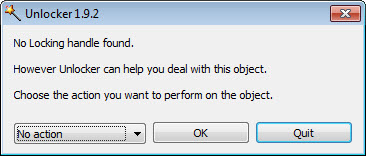
The tool then presents you with options including unlocking the file (releasing the handle without killing the process), killing the process entirely, deleting the file directly, renaming it, moving it, or copying it.
For users who just want the file dealt with without understanding which process is involved, the integrated delete/rename/move operations handle the practical scenario directly. Click Delete, the tool releases the lock and removes the file in one operation, eliminating the back-and-forth that manual handling would require. Most file-unlocking scenarios end with users wanting the file gone, and the tool optimizes for that workflow.
For users who care about the underlying details, the process information shows you exactly what’s holding the file, which can be useful diagnostic information beyond just the immediate file operation.
Sometimes the locked file reveals that an application has stopped responding to normal close requests, or that a background process is doing something you didn’t realize was running. The visibility into what’s actually happening serves a broader purpose than just unlocking files.
The Unlocker Assistant background helper
Beyond the right-click context menu integration, Unlocker includes the Unlocker Assistant, a background helper that watches for file operation failures and offers to handle them automatically. When you try to delete, rename, or move a file through normal Windows operations and Windows refuses because of a lock, the Assistant detects the failure and presents the unlocking interface immediately.
This automation matters because the manual workflow involves remembering that the unlocking tool exists and switching to it after Windows refuses an operation. The Assistant eliminates this friction, transforming what would be a multi-step manual workflow into a single integrated experience. You get the same Windows error message you would normally get, but with an immediate offer to handle it through the unlocking tool.
For users who frequently encounter file lock issues (developers, system administrators, anyone working with software that doesn’t release files cleanly), this background integration provides genuine quality-of-life improvement compared to invoking the tool manually each time. The Assistant runs minimally in the system tray, with negligible resource impact during normal use.
How it works under the hood
The technical mechanism behind file unlocking involves directly manipulating Windows internals to identify and close the file handles that processes are holding. When an application opens a file with appropriate access rights, Windows tracks that handle as a reason the file can’t be deleted or modified. Closing the handle (without killing the process that owns it) releases the lock without disrupting the application beyond losing access to that specific file.
This approach is safer than the brute-force alternative of killing processes that hold locks, since killing applications can lose unsaved work and produce other unintended consequences. Unlocker prefers handle closure when possible, falling back to process termination only when the user explicitly chooses that option or when handle closure isn’t sufficient to resolve the lock.
For files that are locked because they’re system files in use by Windows itself, the tool has more limited capabilities. Some genuinely critical system files cannot be safely unlocked while Windows is running, with the tool either declining to unlock them or providing the option to schedule the operation for the next system restart.
The scheduled approach handles cases where you want to replace or remove a system file but can only do so when Windows isn’t actively using it.
Modern alternatives in the same category
Several actively-developed alternatives now address the same file-locking problem with current code. IObit Unlocker provides similar functionality with continued updates, modern Windows compatibility, and a polished interface. The tool handles essentially the same use cases as the original Unlocker while benefiting from active development that addresses current Windows behavior properly.
Microsoft’s File Locksmith, included in PowerToys, brings the file unlocking capability directly into Microsoft’s official utility collection. The integration with PowerToys means users who already have that collection installed get this functionality alongside the various other utilities included, with Microsoft’s official maintenance handling compatibility concerns. For users who prefer first-party Microsoft solutions, this represents a particularly clean option.
LockHunter is another active alternative that takes a slightly different approach, with options for sending locked files to the recycle bin rather than just deleting them outright. The recycle bin approach provides a safety net against accidentally deleting files you actually wanted to keep, with the recovery option remaining available until you empty the bin manually.
For users encountering issues with the legacy Unlocker on current Windows versions, switching to one of these alternatives often resolves the problems while providing essentially the same core functionality.
The choice between them comes down to personal preferences around interface design, integration with other tools, and whether you prefer first-party Microsoft solutions or third-party alternatives.
Use cases that come up in practice
Several scenarios produce the kind of file lock issues this tool was built to handle. Antivirus software scanning files locks them temporarily, sometimes long enough to interfere with file operations users are trying to perform. Various backup and synchronization tools maintain file handles that prevent deletion of files those tools have indexed. Development environments sometimes hold files open after the relevant application has appeared to close, particularly when the application crashed without proper cleanup.
USB drives that “can’t be safely removed” often have locks held by Windows Explorer or other processes that have been browsing the drive contents. Closing the obvious applications doesn’t always release these locks, with the unlocking tool providing a more targeted approach to clearing the locks before drive removal.
Old installer leftovers, partially-deleted application files, and various other detritus from interrupted operations sometimes leave files in states where Windows can’t delete them through normal operations.
The unlocking tool handles these scenarios where conventional approaches fail, providing a path to clean up file system clutter that would otherwise require more drastic measures.
Considerations and limitations
The age of the original software is the primary practical limitation. While core functionality typically works on current Windows versions, the lack of active maintenance means that issues won’t be addressed and that newer Windows features may not be supported. Users seeking a long-term solution should probably consider the actively-maintained alternatives instead.
Some operations that seem like they should work require deeper integration with Windows than the tool provides. Particularly stubborn locks involving multiple processes, complex permission scenarios, or system-level files may resist the tool’s approaches even when alternatives might handle them better.
The Assistant background process, while useful, adds something running continuously in the system tray. For users who minimize background processes for performance or clarity reasons, the Assistant component represents an additional always-running element that may not justify its cost compared to invoking the main tool manually when needed.
Some advanced operations require administrator privileges and produce UAC prompts. This is appropriate behavior given the underlying system manipulation, but users who object to UAC prompts on principle will find this tool requires those prompts for substantial portions of its functionality.
Conclusion
Unlocker earned its place in the Windows utility canon by solving a specific frustrating problem (locked files preventing normal operations) better than the manual alternatives that came with Windows itself. The combination of context menu integration, the Assistant background helper, and the various resolution options provided a focused solution that addressed file lock scenarios directly rather than requiring users to chase down locking processes themselves.
It’s not the right choice for everyone today. The lack of active development since 2013 means that modern alternatives like IObit Unlocker, File Locksmith, or LockHunter often serve current users better through their continued updates and modern Windows compatibility.
But for users who specifically value the original tool’s interface, who don’t encounter the edge cases that affect newer Windows versions, or who simply prefer the focused approach of legacy freeware over modern alternatives, Unlocker continues to deliver its core capability adequately, with the kind of focused functionality that earned its reputation in the first place.
Features & benefits
Pros & Cons
- Right-click context menu integration provides direct access from File Explorer
- Multiple operation modes including unlock, kill process, delete, rename, move, copy
- Unlocker Assistant background helper detects locked-file scenarios automatically
- Process information shows exactly which application is holding the file lock
- Handle closure approach is safer than blanket process termination
- Scheduled operations option handles cases requiring next-restart execution
- Lightweight resource usage during normal operation
- Original development stopped around 2013 with no further updates
- Some edge cases may not work properly on current Windows versions
- Modern antivirus tools occasionally flag the legacy code patterns
- System tray Assistant adds another always-running background process
- Active alternatives (IObit Unlocker, File Locksmith, LockHunter) often serve better
Frequently asked questions
This software identifies which Windows process is holding a lock on a file you're trying to delete, rename, or move, and provides options to release that lock so the operation can complete. The tool integrates with File Explorer through the right-click context menu, includes a background Assistant that detects file lock situations automatically, and offers multiple resolution options including handle closure, process termination, and direct file operations.
Windows tracks which processes have files open with various access modes, preventing operations that would conflict with active use. The locking system protects against scenarios like deleting a file that an application is actively writing to, which would corrupt the operation in progress. The protection works as intended for most cases, but produces frustrating situations when a file is locked unnecessarily or when an application has stopped releasing handles properly.
Rebooting works because all processes terminate during shutdown, releasing all their file handles and clearing all locks. The unlocking tool achieves the same lock-release effect without requiring a full system restart, saving the time involved in shutting down and starting back up. For occasional file lock issues this difference is minor, but for users who encounter the problem regularly, the time savings accumulate substantially.
The Unlocker Assistant runs in the system tray and watches for file operation failures caused by locks. When you try to delete, rename, or move a file through normal Windows operations and the operation fails because of a lock, the Assistant detects this and offers to handle the unlocking automatically. This eliminates the manual workflow of remembering to invoke the unlocking tool after Windows refuses an operation.
Yes, several actively-developed alternatives address the same problem with current code. IObit Unlocker provides similar functionality with ongoing updates. Microsoft's File Locksmith, included in PowerToys, brings the capability into Microsoft's official utility collection. LockHunter offers an alternative approach with recycle bin integration for added safety. For users wanting actively-maintained software, these options often serve better than the legacy original.
The core functionality typically works on current Windows versions because the underlying Windows APIs have remained stable. Edge cases involving newer Windows security features, strict UAC configurations, or specific system file scenarios may produce unexpected results. For users encountering compatibility issues, the modern alternatives mentioned above generally address the same use cases without legacy code complications.
The tool's capabilities are more limited for genuinely critical system files in active use by Windows itself. Some such files cannot be safely unlocked while Windows is running, with the tool either declining the operation or offering to schedule it for the next system restart. The scheduled approach handles cases where the file genuinely needs replacing or removing but can only safely be operated on when Windows isn't actively using it.


Awesome!!!!!!
Fantastic tool to remove locked files and eject media etc..
Just awesome and very handy software.
Can it just unlock? Not delete? I have loads of MY FILES that Windows has decided to lock so I can’t use them, back them up or anything. No idea why it chose some not others, but it should never have done it to any of them.
There has never been another user on my computer in 3 decades fo using Windows (from Windows 3.0!!!!)
Does not seem to work on Windows 10. It will always detect no locks. Does anyone else have this problem?
Yes, it usually does not detect locks, but most of the time can still delete them.
It’s great. Haven’t had problems using it on Windows 10 nor XP. Works well!
Lots of cool and useful software can be found here. Some I recognize and have used for years. Others I definitely plan to check out.
Regards,
Mark