

TightVNC


 (3 votes, average: 3.67 out of 5)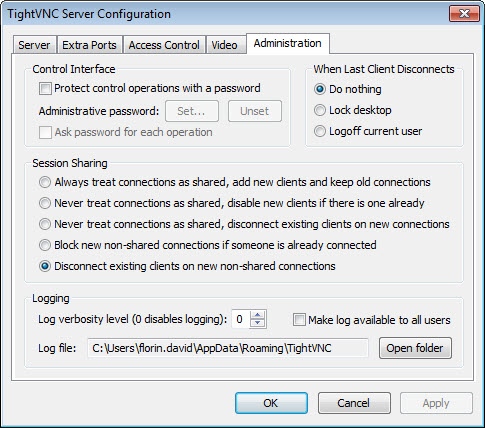
About TightVNC
TightVNC is a free, open-source remote desktop application that lets users connect to and control computers across a network or the internet. Built around the VNC protocol with custom optimizations for bandwidth efficiency, this tool has been a trusted choice for system administrators, IT support staff, and home users who need reliable remote access without the cost or complexity of commercial alternatives.
Whether you are providing technical support to family members, managing servers from another location, or accessing your home computer while traveling, this software delivers the core remote control functionality you need in a lightweight, dependable package that has been refined over many years of active development and real-world use.
Reliable remote desktop access
The core function of TightVNC is straightforward but essential: it lets you see and control another computer’s desktop as if you were sitting in front of it.
Mouse movements, keyboard input, and screen updates flow between the two machines smoothly, allowing you to run programs, manage files, configure settings, and perform essentially any task you would do locally. The protocol works across networks of varying speed, automatically adapting to available bandwidth to keep the connection usable even on slower links where heavier remote tools would struggle to remain responsive.
This reliability is the primary reason this software has retained loyal users for so long, even as flashier alternatives have appeared and disappeared over the years.
Optimized for bandwidth efficiency
A defining strength of this tool is the bandwidth optimization built into its protocol, designed to deliver responsive performance even over slow internet connections.
Custom encoding methods reduce the amount of data transmitted compared to standard VNC implementations, while still maintaining good visual quality. This efficiency makes a noticeable difference when working over consumer broadband, mobile connections, or international links where every kilobyte of saved bandwidth translates to better responsiveness.
For users who need to support computers in locations with limited connectivity, this efficiency is genuinely valuable rather than just a nice technical detail.
Cross-platform compatibility
Although the focus here is on the Windows version, TightVNC is fundamentally cross-platform compatible thanks to its adherence to the VNC protocol standard.
This means a server running on a Windows machine can be accessed by clients running on different operating systems, and vice versa. For mixed environments where users might need to access machines running various platforms, this interoperability eliminates the need for separate remote access tools per platform, which simplifies setup and reduces the licensing complexity that plagues some commercial alternatives.
Server and viewer components
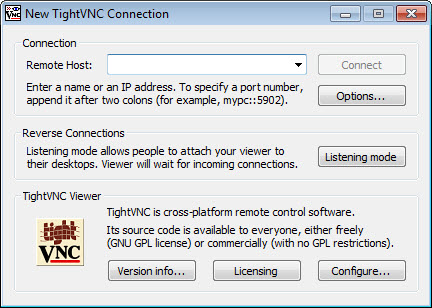
The application includes two main components that work together: the server, which runs on the computer you want to access remotely, and the viewer, which runs on the computer you are accessing from.
Both can be installed on the same machine, allowing a computer to function as either or both depending on the situation. This flexibility means a single installation handles all roles, whether you are providing remote support, accessing your own computer remotely, or letting others connect to your system, without requiring separate products or licenses for different use cases.
File transfer between machines
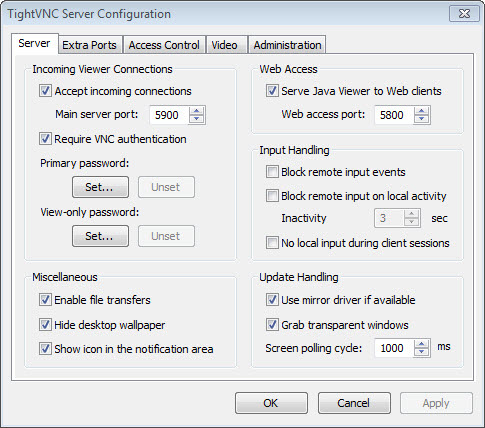
A particularly useful feature is the ability to transfer files between connected computers directly through the remote session.
Rather than requiring separate file sharing setups, network drives, or third-party tools, you can simply drag and drop files or use the built-in transfer dialog to move data between systems. This functionality saves considerable time during support sessions where moving log files, configuration data, or installation packages between machines would otherwise require additional steps and tools.
Strong access control and security
Security is taken seriously in this software through password protection, encryption options, and configurable access controls.
Connection passwords prevent unauthorized access, while view-only mode lets you let someone watch what you are doing without giving them control. For environments where security is critical, the application can be configured to require encrypted connections and integrate with broader network security policies, though achieving the strongest security may require pairing this tool with a VPN or SSH tunnel for the network transport itself.
Service-based operation
On Windows, this tool can run as a system service, meaning it starts automatically with the computer and remains available even when no user is logged in.
This is essential for remote administration scenarios where you need to access a machine that might be at the login screen or where the user has logged out. The service mode ensures the computer remains accessible regardless of its current state, which is exactly what system administrators need when managing servers or workstations they cannot physically reach.
Configurable performance and quality
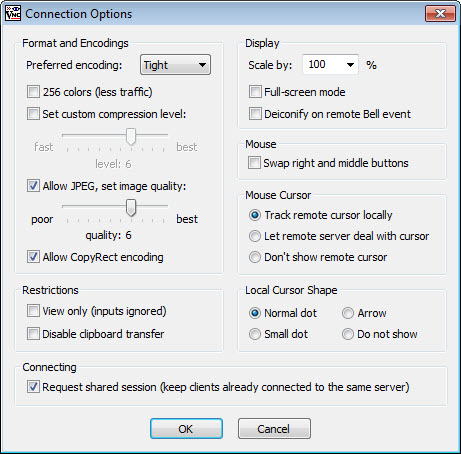
Connection settings let you balance visual quality against performance based on your specific situation.
Faster connections can use higher quality encoding for crisper graphics and smoother updates, while slower connections benefit from more aggressive compression and lower color depth that prioritizes responsiveness over visual fidelity. This flexibility means the same tool works well whether you are connecting across a fast local network or struggling with limited bandwidth on a remote connection halfway around the world.
Multiple simultaneous connections
The server component can accept multiple simultaneous viewer connections, which enables collaborative scenarios where several people watch or interact with the same desktop.
This is particularly useful for training, demonstrations, or troubleshooting situations where one person performs actions while others observe. For technical training in particular, this functionality means students can watch an instructor’s screen in real time without requiring separate streaming or screen-sharing tools.
Lightweight and free
Despite its capabilities, this software remains lightweight in terms of installation size and runtime resource usage.
The server component runs unobtrusively in the background, and the viewer launches quickly when needed. Combined with the fact that the application is free for both personal and commercial use under its open-source license, this combination of efficiency and accessibility makes it a practical choice for situations where deploying paid commercial remote access solutions would be overkill or simply impossible due to budget constraints.
Conclusion
TightVNC continues to earn its place as a dependable, no-nonsense remote desktop solution that delivers solid functionality without cost or unnecessary complexity.
Its bandwidth-efficient protocol, cross-platform compatibility, and proven stability make it particularly well suited for users who need straightforward remote access without the overhead of commercial alternatives. For system administrators, IT support providers, and home users who value reliability and openness over flashy features, TightVNC offers exactly what remote desktop access should be: simple, dependable, and always there when you need it.
Pros & Cons
- Reliable remote desktop access with strong track record of stability over many years
- Bandwidth-efficient protocol delivers good performance even on slow connections
- Cross-platform compatibility through standard VNC protocol simplifies mixed environments
- File transfer between connected computers eliminates the need for separate sharing tools
- Service-based operation enables remote access to machines without active user sessions
- Multiple simultaneous viewer connections support training and collaborative scenarios
- Free and open-source for both personal and commercial use without restrictions
- Lightweight installation and modest resource usage suit older hardware comfortably
- Default security configuration is basic and requires additional setup for sensitive use
- Performance over slow connections, while optimized, still trails behind some modern alternatives
- Interface and configuration tools feel dated compared to newer remote access products
- Lacks some advanced features like session recording or centralized management consoles
- Setting up secure access through firewalls and NAT can require technical configuration
Frequently asked questions
This software covers the essential remote control features that most users need, with the major advantages of being free and open-source. While commercial tools may offer more advanced enterprise features like centralized management or session recording, this tool handles core remote access tasks reliably and at no cost.
Yes, but doing so safely requires proper configuration of your router and firewall, and ideally using a VPN or SSH tunnel to protect the connection. Direct exposure to the internet without additional security layers is not recommended due to the basic default protection in standalone configurations.
The standard protocol provides only basic password protection rather than strong encryption by default. For sensitive use, this software should be paired with a VPN, SSH tunnel, or other secure transport layer to encrypt the connection properly between the two endpoints.
Absolutely. This tool works perfectly for local network connections without any internet involvement, which is actually the simplest and most reliable use case. Setup is straightforward when both computers are on the same network, with no port forwarding or external configuration needed.
Yes, the server component supports multiple simultaneous viewer connections. This is useful for collaborative scenarios like training or troubleshooting, where several people can observe or interact with the same desktop in real time.
File transfer is built directly into the connection between server and viewer, accessible through a transfer dialog that lets you move files between the two computers without setting up shared folders or using external tools. This is particularly handy during support sessions when you need to move logs, configurations, or software between machines.
Yes, when configured to run as a Windows service, this software remains available even when no user is logged in to the target computer. This makes it suitable for server administration where the machine may be sitting at the login screen waiting for a remote administrator to connect.
Yes, this tool supports view-only mode where remote users can see the desktop but cannot control the mouse or keyboard. This is useful for demonstrations or for letting someone observe what you are doing without giving them the ability to make changes.
Yes, but accessing a computer behind a firewall or NAT typically requires either port forwarding, a VPN connection, or an external relay service. Once these networking pieces are properly configured, the software itself handles the remote connection without issues.
The server component includes settings for configuring an access password, which any viewer must provide before connecting. Setting a strong password is essential for any installation, especially if the server might ever be accessible from outside trusted networks.


