

WinSetupFromUSB
About WinSetupFromUSB
A technician’s flash drive is prime real estate. One client machine needs a fresh Windows install, the next needs an older setup for some stubborn legacy hardware, and a third just needs a rescue disk to boot at all.
Carrying a separate stick for each job is how drives get lost. WinSetupFromUSB solves the whole category by packing multiple installers and bootable utilities onto a single USB drive, with a boot menu that lets you pick which one runs.
That’s the core difference from Rufus, the tool most people reach for first. Rufus writes one ISO per stick and wipes the drive every time you change your mind. Here, you run the program again on the same stick and it appends the new installer next to the existing ones.
The drive grows into a toolbox instead of getting reformatted into a different single-purpose key each week.
Several installers, one boot menu
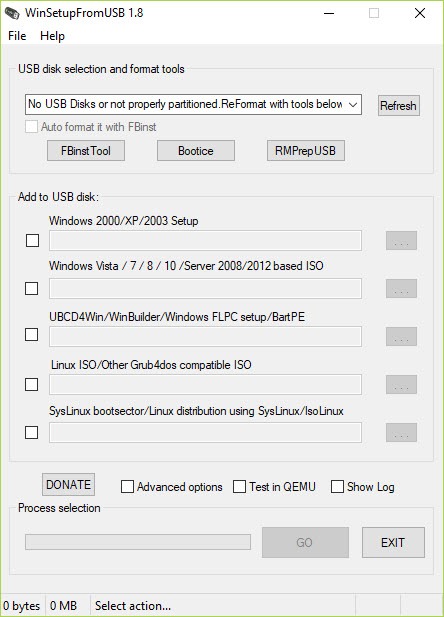
The workflow is a checklist rather than a wizard. Plug in the drive, tick the box matching your source type (a Windows setup ISO, a WinPE-based image, an antivirus rescue disk, or another bootable utility), browse to the file, and hit GO.
Behind the scenes the tool wires everything together with the Grub4dos and SysLinux bootloaders, so wildly different sources coexist on one drive and show up as separate entries in a menu when the stick boots.
The append behavior deserves repeating, because it changes how you use the drive. Adding a second or fifth source doesn’t touch the ones already there. Skip the format checkbox on later runs, or the tool will happily wipe your collection, which is the single most common way new users shoot themselves in the foot.
Read the window once before clicking. It’s dense, but it’s honest about what it’s about to do.
Test the stick without rebooting your PC
Buried in the interface is the feature that saves the most time, a built-in QEMU test. Tick it and the freshly prepared drive boots inside a window on your desktop, so you can watch the boot menu appear and confirm each entry starts, all without restarting your own machine.
Every other tool in this space makes you reboot, mash the boot-device key, and hope. Being able to verify a five-source drive in two minutes at your desk is a feature you only learn to appreciate after a stick has failed you in front of a client.
The emulation isn’t a perfect stand-in for real hardware. A source that boots in QEMU can still misbehave on some ancient laptop with a picky BIOS. But it catches the big failures (broken menu, unbootable entry, wrong format) before you’re standing at the machine that matters.
FAT32 or NTFS, and why the choice decides everything
The format dropdown is where most boot failures are born. UEFI machines, which is to say almost every computer sold in the last stretch, generally want FAT32 to boot from USB. But FAT32 can’t hold a single file larger than 4 GB, and modern Windows setup images often carry an install.wim heavier than that. NTFS takes the big files but older UEFI firmware won’t boot from it without help.
WinSetupFromUSB gives you the levers to handle this (both filesystems are supported, and the tool can split oversized images), but it won’t decide for you. If a stick refuses to boot on a modern machine, reformatting as FAT32 fixes it more often than any other single change.
This is exactly the sort of decision Ventoy hides from you by handling ISOs its own way, which makes Ventoy friendlier for casual multiboot but leaves you with less control when a source needs special treatment.
The toolbox hiding in the advanced panel
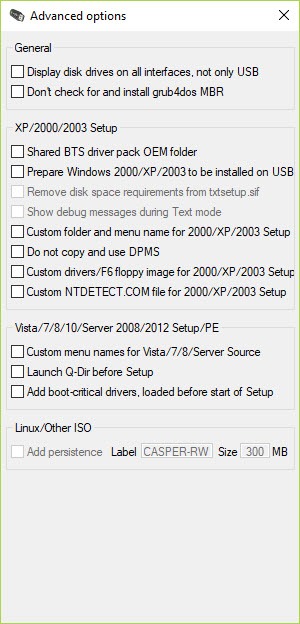
Tick the advanced options box and the window sprouts settings most users will never touch and technicians will love. The package also bundles companions that are respected utilities in their own right. Bootice handles surgery on boot records and partition flags, while RMPrepUSB covers low-level drive preparation when a stick has been mangled by previous experiments. Having them included means the odd unbootable drive can usually be revived without hunting for more software.
The honest downside is that the whole package looks and feels like an engineering tool. The window is a wall of checkboxes with terse labels, there’s no hand-holding, and a first-timer can’t tell the safe options from the destructive ones at a glance.
YUMI covers similar multiboot ground with a gentler learning curve, and complete beginners who only ever need one installer at a time will still be happier with Rufus. This tool earns its keep once your needs outgrow both.
Conclusion
WinSetupFromUSB is for the person whose flash drive is a work instrument. Repair techs, IT staff, and the household member everyone calls when a computer won’t start will feel at home here. For them, the append-friendly multiboot design, the QEMU pre-flight check, and the bundled repair utilities add up to a tool that pays for its rough interface many times over.
If you make one installer stick a year, skip it and use Rufus. If your drive needs to do five jobs, this is the one that lets it.
Pros & Cons
- Multiple installers and rescue tools coexist on one drive with a boot menu
- New sources append to the stick without wiping existing ones
- Built-in QEMU test boots the drive in a window, no restart needed
- Handles both FAT32 and NTFS, with splitting for oversized image files
- Bundles Bootice and RMPrepUSB for boot-record and drive repair work
- Dense, technical interface with no guidance for first-timers
- Forgetting to untick the format option erases the whole collection
- Legacy setup sources need extra preparation steps
- Slower to set up than Ventoy's copy-the-ISO approach
Frequently asked questions
Yes, that's its main purpose. Run the tool once per source and each installer or utility is added as a separate entry in the drive's boot menu.
No. Leave the format option unticked on later runs and the new source is appended alongside the existing ones. Ticking format erases everything already on the stick.
Yes, through the built-in QEMU option, which boots the finished stick inside a window so you can verify the menu and entries immediately.
Usually the filesystem. Most UEFI firmware expects FAT32 for USB boot, so a drive formatted as NTFS may not appear in the boot list. Recreating it as FAT32 solves the majority of these cases.
Yes. Alongside Windows setup sources, it accepts WinPE-based images, antivirus rescue disks, and other bootable utilities, all selectable from the same menu.


