

ReiBoot
About ReiBoot
When an iPhone gets stuck on the Apple logo, refuses to leave Recovery Mode, freezes mid-update, or boots into an endless restart loop, the standard advice is to plug it into iTunes and run a restore. That works, but it also wipes the device clean, taking everything you haven’t backed up to iCloud or iTunes with it.
ReiBoot is the desktop application that tries to fix the same problems while keeping your data intact, escalating to a full restore only when the lighter fixes don’t work.
The application sits in the iOS recovery space alongside iTunes itself, the various third-party device managers, and Apple’s own DFU mode procedures. What separates it isn’t a unique technical capability so much as packaging.
The fixes it performs are mostly known procedures (force restart, exit recovery mode, reinstall iOS while preserving data), but packaged into a one-click GUI that doesn’t require remembering specific button-hold sequences or navigating iTunes error messages.
What it actually fixes
The application’s repair toolkit targets the long list of iOS system problems that don’t quite warrant a factory reset but also don’t go away on their own. Stuck on the Apple logo, boot loops, screen frozen on the white or black screen of death, stuck in headphone mode, iPhone not turning on, screen unresponsive but device powered, stuck during an iOS update, recovery mode loops where the device won’t exit even after iTunes restore.
For each scenario, the application detects the device state when you plug in over USB and routes you to the appropriate repair workflow. The detection covers Recovery Mode, DFU mode, normal mode, and the various transitional states an iOS device can land in mid-update.
That auto-detection saves new users from having to figure out which mode the device is actually in, which is harder than it sounds when the screen is unhelpful.
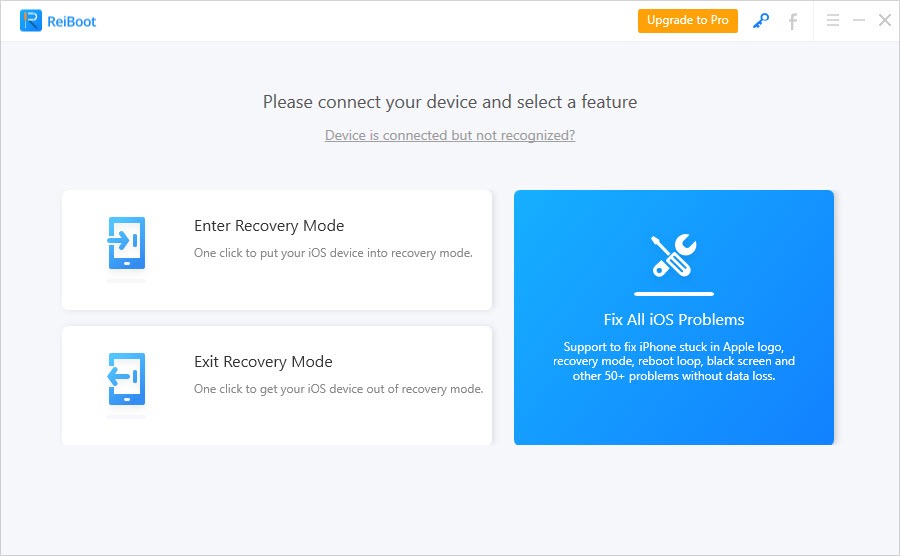
Recovery Mode entry and exit, the free tier function
Entering and exiting Recovery Mode is the one function the application provides without payment. That sounds minor until you’ve tried to put a stuck iPhone into Recovery Mode through the button-hold sequence (volume up, volume down, hold power) and gotten the timing wrong four times in a row. The application turns it into a button click on your computer.
Exiting Recovery Mode is the more common need, since devices sometimes get stuck in Recovery Mode after a failed iTunes operation and don’t respond to normal restart. The application sends the right command sequence over USB and the device boots back to normal in seconds.
For users who only need this one function and don’t care about the deeper system repair features, the free tier is genuinely useful.
Standard Repair vs Deep Repair
The system repair workflows split into two tiers. Standard Repair attempts to fix the iOS installation while preserving all user data, settings, and apps. The application downloads the matching IPSW firmware file for the device model and current iOS version, then reinstalls the OS layer on top of the existing user data partition. When it works, the device boots up exactly as it was before the problem started, just without whatever was broken.
Deep Repair is the nuclear option. It performs a full factory restore, wiping all user data and starting fresh. Functionally equivalent to a normal iTunes restore but accessible through the same interface as the standard repair, and useful when standard repair couldn’t resolve the issue or when the device damage is severe enough that the data partition itself is suspect.
The application doesn’t always succeed at Standard Repair. Some failures involve corruption at the data partition level that the OS reinstall can’t fix without touching the partition itself. In those cases the application reports the failure and Deep Repair is the next step.
The two-tier escalation matches how iOS recovery actually works at the firmware level, and it’s the right structure for a tool in this category. For users wanting to extract data before any repair attempt, iMyFone D-Back covers iOS data recovery from devices and backups.
iOS downgrade and upgrade options
The application handles iOS version changes more flexibly than iTunes does directly. You can upgrade to the latest supported iOS, or downgrade to an earlier version while it’s still being signed by Apple. The downgrade window is the practical limit, since Apple stops signing older versions a few weeks after a new release and the application can’t bypass that signature check.
The IPSW download happens through the application, with automatic version detection for what’s currently signed and available for your specific device. For users who want to manually provide an IPSW file (downloaded separately or held from a previous version), that path is also supported.
The flexibility helps when a recent iOS update has broken something on a specific device model and rolling back is the right move.
Comparison to alternatives in the iOS tool space
The category has competitors. iTunes itself handles restore and update workflows for free, but its UI is built around media management and the recovery features feel like an afterthought. The error messages are also famously cryptic (“an unknown error occurred (4013)”) without explaining what 4013 actually means or how to recover from it. The application’s value over iTunes is primarily the user experience around the same underlying operations.
Among third-party iOS tools, 3uTools covers a broader management surface (jailbreak tools, ringtone making, firmware archives, ROM signing checks) while being less focused on repair workflows specifically. iTools targets media and file management. iDevice Manager sits in a similar general-purpose space.
The application has positioned itself specifically around the repair use case, which makes it deeper on that vertical but narrower overall.
Multi-device support
The application handles iPhone, iPad, and iPod touch across most current models. Older devices that have been out of Apple’s support window for a long time are sometimes outside the supported scope, particularly devices that can’t run any currently-signed iOS version. For those devices, the application can still enter and exit Recovery Mode but can’t perform system repair since the matching firmware isn’t available.
Multiple devices can be connected simultaneously through a USB hub, though the application works on one at a time during repair operations. Switching between connected devices is straightforward through the main interface.
Where the application falls short
The marketing tone overstates what the application can do. Claims of fixing “200+ iOS issues” cover a lot of variants of the same underlying problems (boot loops, update failures, frozen screens) rather than 200 genuinely distinct fixes. Setting expectations realistically up front would serve users better than the inflated feature counts. Standard Repair works often but not always, and Deep Repair is functionally an iTunes restore with better packaging.
The paid licensing model produces friction. The free tier covers Recovery Mode entry and exit, but the actual system repair features require a paid license. Trial limitations mean you can’t fully validate that the repair will work on your specific problem before paying. For one-off recovery situations, the cost calculation depends heavily on whether the alternative (iTunes restore + data loss) is acceptable.
Performance during firmware downloads is also bounded by your internet connection and the application’s download infrastructure. The IPSW files are large (around 5-7 GB for current iOS versions) and the download can take significant time. For users with slow connections, providing an IPSW file manually is the faster path.
For users wanting to extract content from an existing iTunes backup before risking any repair, iBackup Viewer handles the backup-side examination.
The application also doesn’t address Apple ID-related lock scenarios. Activation Lock and forgotten Apple ID passwords are outside the scope. For passcode-based lockouts and similar account-level recovery, iMyFone LockWiper covers a different but related use case.
Conclusion
ReiBoot is the application to reach for when an iOS device is malfunctioning at the system level and the prospect of losing all user data through an iTunes restore is unacceptable. The Standard Repair workflow that preserves data is the genuine differentiator, and when it works, it works well enough to justify the application’s existence as a category.
The realistic audience is iPhone and iPad owners with broken devices and unbacked-up data, technicians supporting multiple iOS devices who need a faster repair workflow than iTunes provides, and users who want a clearer interface around iOS recovery operations. Users who routinely back up their devices and don’t mind data loss during recovery have less reason to use the application, since iTunes covers their needs without additional cost.
For everyone else, the trade-off between paid licensing and preserved data tilts toward this application often enough that it’s earned a place in the iOS tool category alongside the longer-established alternatives.
Pros & Cons
- One-click Recovery Mode entry and exit available in the free tier
- Auto-detects current device state including Recovery, DFU, and transitional modes
- Standard Repair preserves user data while reinstalling the OS layer
- Deep Repair functionally equivalent to iTunes restore with better packaging
- iOS downgrade supported within the Apple-signed version window
- Handles iPhone, iPad, and iPod touch across most current models
- System repair features behind a paid license, trial doesn't fully validate fixes
- Marketing claims around issue counts overstate distinct repair capabilities
- Standard Repair doesn't always succeed, sometimes forcing escalation to Deep Repair
- Activation Lock and Apple ID-related lockouts are outside the supported scope
- Firmware download size and speed are bounded by connection and infrastructure
- Older devices outside Apple's signing window can't be repaired, only mode-cycled
Frequently asked questions
It's a desktop application for fixing iOS system problems like boot loops, stuck Apple logo, frozen screens, and update failures. The Standard Repair workflow tries to preserve user data while reinstalling iOS, with Deep Repair as a full-restore fallback when the lighter fix doesn't work.
Standard Repair attempts to preserve all user data, settings, and apps by reinstalling only the OS layer. Deep Repair wipes the device and performs a full factory restore. The application tries Standard Repair first and only escalates if needed.
Yes, one-click Recovery Mode entry is available in the free tier. Exiting Recovery Mode (useful when the device is stuck in it) is also available without payment. These are the most common functions users actually need.
That's one of the main scenarios it targets. The Standard Repair workflow reinstalls iOS on top of the existing data partition, which often resolves boot loops and stuck-logo states without data loss. Deep Repair is the escalation path if Standard Repair doesn't work.
Yes, while Apple is still signing the target version. Once Apple stops signing an older iOS release (typically a few weeks after a new version ships), downgrades to that version stop working regardless of which tool you use. The application detects which versions are currently downgradable for your device.
Yes, across most current and recent models. Older devices outside Apple's signing window can have Recovery Mode entered or exited but can't be repaired via firmware reinstall since the matching firmware isn't available for download.
Standard Repair preserves the user data partition while reinstalling the OS. When the failure involves corruption inside that partition itself rather than the OS layer, Standard Repair can't resolve it and Deep Repair becomes necessary. The application reports the failure and recommends the next step.
iTunes handles iOS restore for free, but its error messages are cryptic and its workflow is built around media sync rather than recovery. ReiBoot wraps similar underlying operations in a recovery-focused interface with clearer error reporting and the Standard Repair option that iTunes doesn't directly offer.


