PS Remote Play
About PS Remote Play
The most common misunderstanding about PS Remote Play is worth clearing up before anything else. PS Remote Play does not let a computer run console games. It turns the computer into a screen and a controller for a console that is doing all the work somewhere else.
That console has to be present, powered on or resting with the feature enabled, and connected to a network. Everything you see is being rendered there, compressed, sent across a network and decompressed on your machine, with your button presses travelling back the other way.
Understanding that architecture explains every strength and every limitation that follows, because the experience is decided by the network in the middle rather than by either device at the ends.
The network decides whether this is usable
Two network properties decide PS Remote Play, and they are different things. Bandwidth determines how good the picture looks, and latency determines whether the game is playable.
A connection with plenty of bandwidth and poor latency produces a sharp image that responds late, which is worse than a slightly soft image that responds immediately. Anybody troubleshooting should treat those as separate problems with separate causes.
The single biggest improvement available to most people is a cable. A wired connection at the console and a wired connection at the computer removes the variability that makes wireless streaming frustrating, and it does more for the experience than any setting in the application.
Where wireless is unavoidable, the airspace matters, and a scanner that shows how crowded the wireless channels around you are identifies whether the problem is congestion rather than distance.
Which games survive the delay
Here is the honest PS Remote Play guidance nobody puts on the box, and it is the most useful thing to know before setting expectations.
Delay is unavoidable. Even on an excellent local network, the round trip through compression, transmission, decompression adds enough that a fast-reaction game feels wrong. Fighting games, competitive shooters and anything requiring frame-precise timing are the ones that suffer, and no configuration fixes it because the delay is inherent to the approach.
What works well is everything slower. Strategy, role-playing games, adventure, exploration, turn-based anything and most single-player experiences are entirely comfortable, because a fraction of a second between input and response goes unnoticed when nothing is trying to hit you.
The practical arrangement most people reach is playing the slower half of their library this way and sitting in front of the console for the rest, which is a sensible division rather than a compromise.
Over the internet, upload is the ceiling
Running PS Remote Play from another location introduces a constraint people consistently overlook.
The video travels out from wherever the console is, which means the upload speed at that location is the limit. Home connections typically offer far less upload than download, sometimes by a factor of ten, so a connection that downloads comfortably may struggle to send a video stream at all.
The latency added by distance compounds it. What felt responsive across a room becomes noticeably laggy across a country, and there is no setting that shortens the physical path.
Measuring rather than guessing is the way to settle whether it will work, and PingPlotter traces the route and shows where latency and packet loss actually appear, which is exactly the diagnosis this situation needs.
The controller side
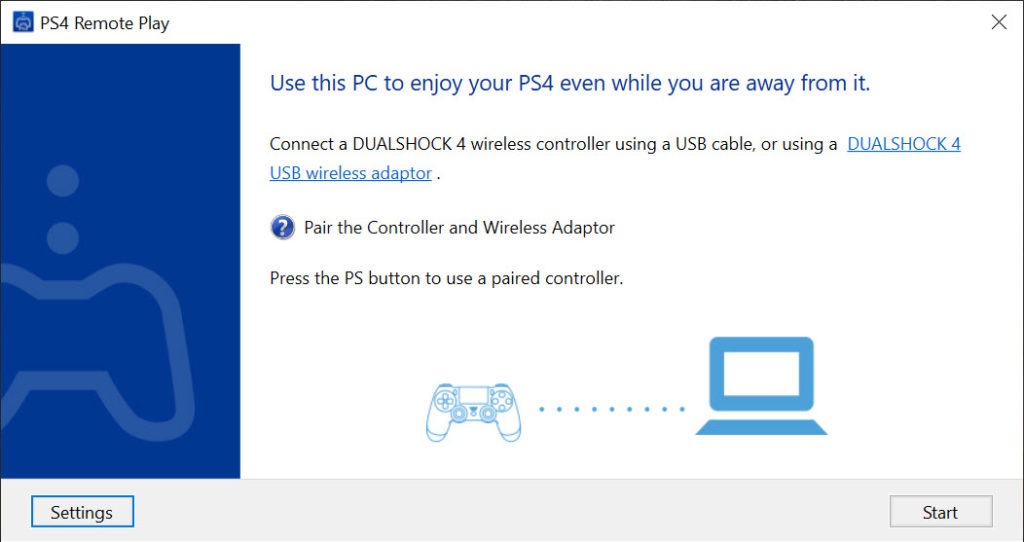
The console’s own pad is the intended PS Remote Play input and connects to the computer either by cable or wirelessly, behaving as it does on the console itself.
Keyboard control exists as a fallback and is awkward enough that it suits nothing beyond navigating menus, so treat it as a way to reach a console you need to interact with rather than a way to play.
Where a pad connects but is recognised imperfectly, DS4Windows presents it to the system properly and resolves the mapping problems that otherwise look like faults in the streaming.
Resolution, frame rate and the trade between them
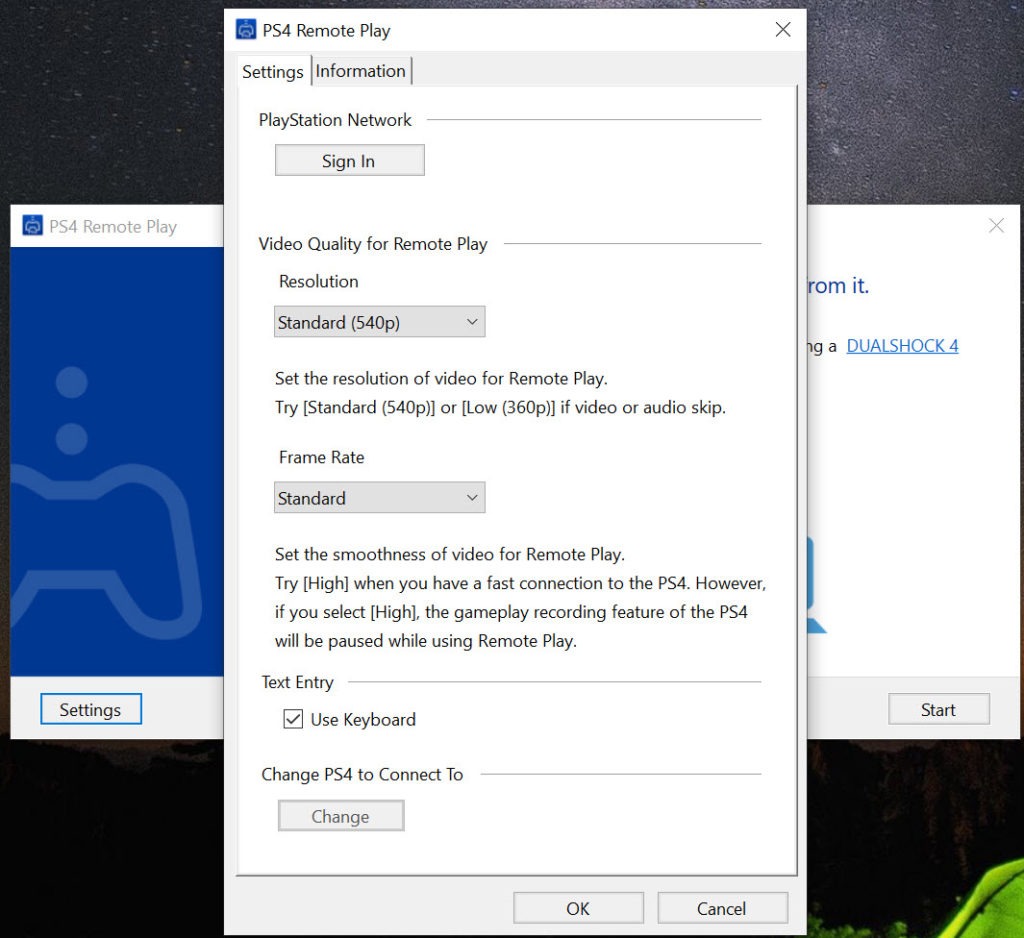
PS Remote Play makes both adjustable, and the choice is a real trade rather than a quality setting.
Higher resolution needs more bandwidth and produces a better picture. Higher frame rate needs more bandwidth and produces smoother motion and slightly lower perceived delay. On a limited connection you cannot have both, and the sensible priority for anything you intend to play rather than watch is the frame rate.
Dropping the resolution a step and holding the higher frame rate produces a softer image that feels considerably better in the hands, which is the opposite of what most people try first.
The console is occupied
One PS Remote Play consequence catches households out. While you are streaming, the console is running your session, which means nobody at home can use it for anything else.
The screen it is connected to shows that remote play is active rather than the game, so somebody arriving in the living room finds the console busy and unavailable. That is worth mentioning to whoever lives with you before it becomes a discovery.
Waking a resting console remotely works, which is convenient and means the console draws power in rest mode rather than being off. On a household counting every watt, that is a small standing cost of keeping the option available.
Conclusion
PS Remote Play does what it promises within limits set by physics rather than by software. A console in one room and a computer in another, or in another country, is a properly useful arrangement, and it needs nothing beyond equipment already sitting there.
Set expectations by the network and by the game. Wire both ends if you can, prioritise frame rate over resolution when the connection is limited, and keep the fast-reaction half of your library for sitting in front of the console. Approached that way it is excellent. Approached expecting a local experience at a distance, it will disappoint on the first attempt.
Pros & Cons
- Turns any computer into a screen and controller for the console
- Works across the local network or from another location entirely
- The console's own pad connects directly and behaves as it does natively
- Resolution and frame rate adjustable to suit the connection available
- Wakes a resting console remotely, so nothing needs to be left fully on
- Costs nothing beyond hardware you already own
- The console must be present, powered, connected, since it does all the work
- Delay makes fast-reaction games unpleasant regardless of configuration
- Over the internet, the console's upload speed is the ceiling on picture quality
- Wireless connections introduce variability that no setting compensates for
- The console is unavailable to anybody else while a session is running
- Keyboard control is a fallback rather than a way to play
Frequently asked questions
No. The console runs the game and sends the picture to your computer, which acts as a screen and a controller. The console has to be present, powered on or resting, and connected to a network.
Because the picture is compressed, transmitted and decompressed while your input travels back the other way. Some delay is inherent to that, which is why slower games work well and anything requiring precise timing does not.
A wired connection at both ends. That removes the variability wireless introduces and does more for the experience than any setting in the application.
Because the upload speed where the console sits determines how much video can be sent, and home connections typically offer far less upload than download. Distance also adds latency that no setting reduces.
No. Your session occupies it, and the screen attached to the console shows that remote play is active rather than the game. That is worth agreeing with the household in advance.