

Razer Cortex
About Razer Cortex
Razer Cortex is the gaming-side companion to the broader software suite, positioned as a one-stop optimization tool that promises higher framerates by killing background processes, cleaning system clutter, and pulling all your installed games from different stores into a single library.
The pitch is appealing if you’ve ever had a session ruined by a Chrome update running in the background, and it’s marketed aggressively as an FPS booster, which sets up some expectations worth examining honestly.
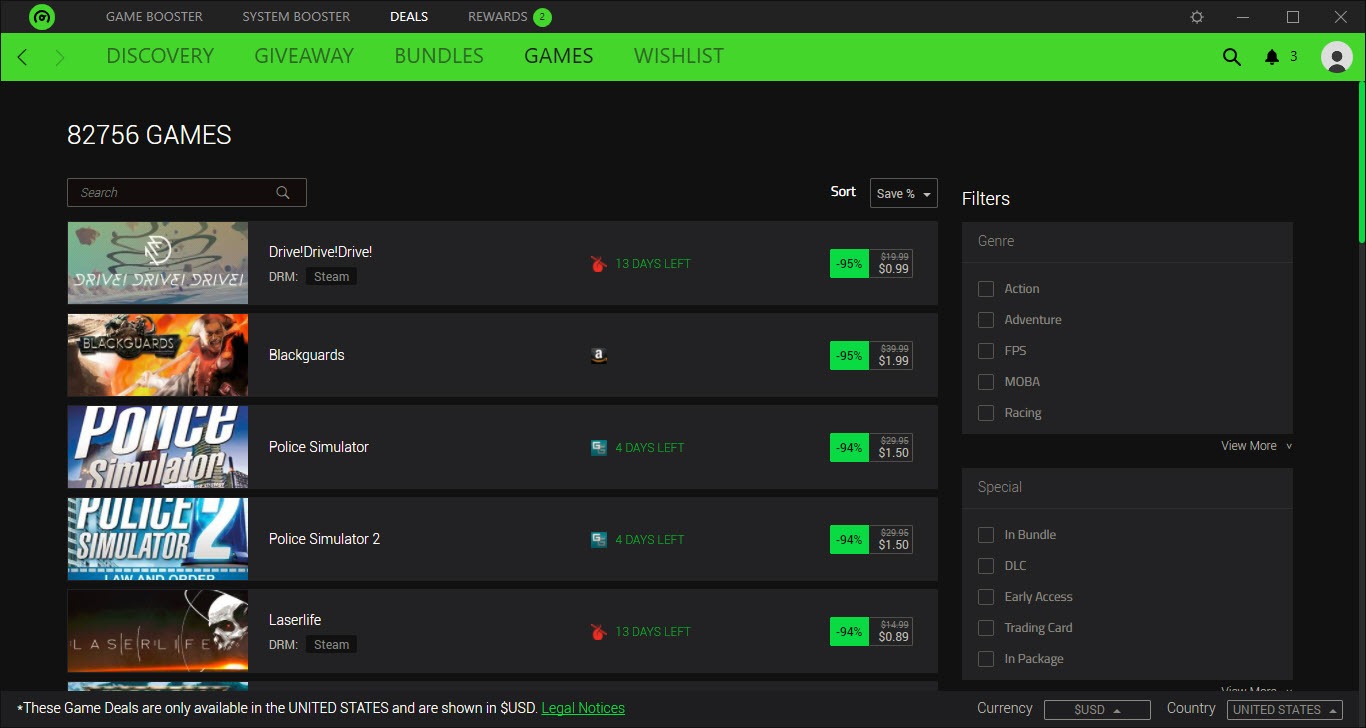
The application splits into roughly three working parts. Booster handles the close-everything-and-prioritize-the-game routine. Game Launcher acts as a unified library that pulls in games from Steam, Epic, GOG, Origin, Battle.net, Ubisoft Connect, and a few others.
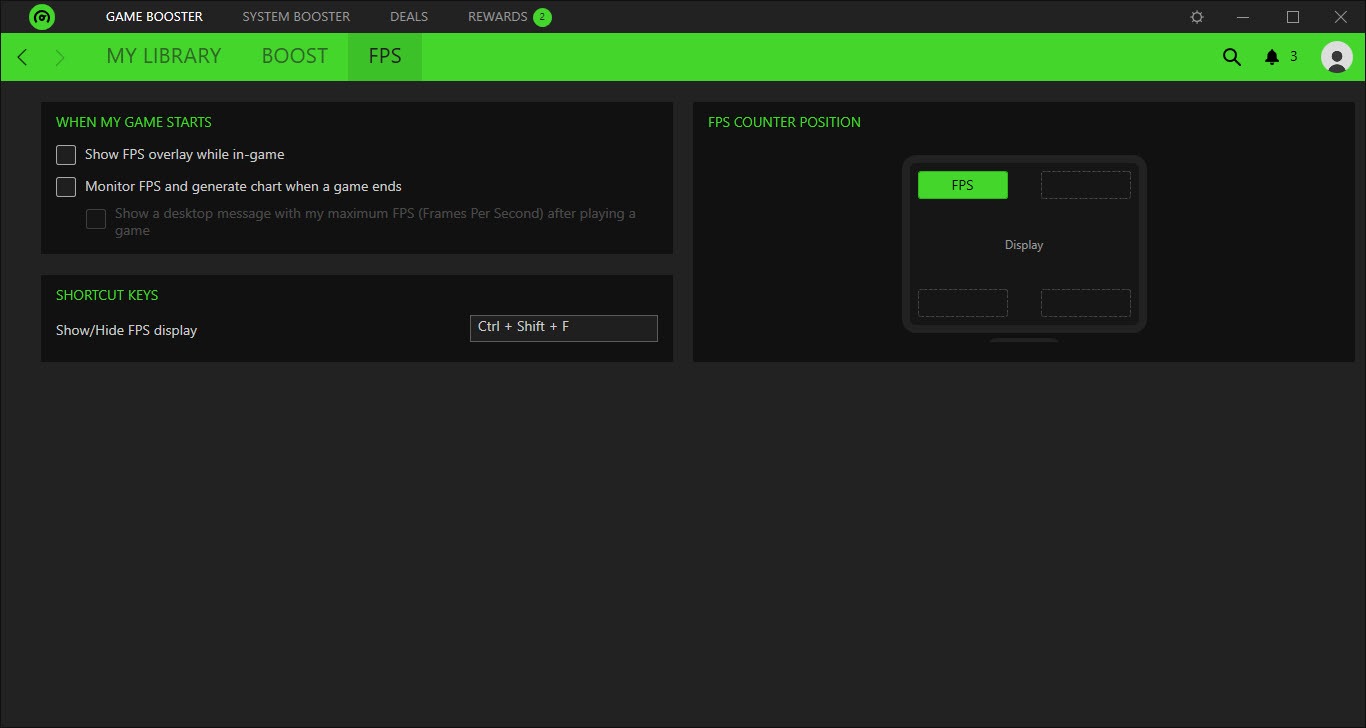
An in-game overlay shows FPS, CPU usage, GPU usage, and memory consumption while you play. The whole thing wraps in a dark-themed interface that looks deliberately like every other gaming-vendor utility shipped in the last several years.
What “boost” actually means in practice
This is the question worth tackling head-on because it shapes whether Razer Cortex is genuinely useful or mostly placebo for any given user. The application doesn’t have access to magic. It can’t squeeze frames out of your GPU that aren’t there. What it does is free up CPU cycles, memory, and disk I/O that other processes were consuming, then hand those resources to your game while it runs.
The honest reality is that on a clean, modern, well-specced gaming PC running Windows with sensible startup hygiene, the FPS difference between Razer Cortex boosted and not boosted is small.
We’re typically talking about single-digit percentage gains in CPU-bound titles, sometimes zero in GPU-bound ones, occasionally a few frames in heavily multitasked scenarios. Benchmark reviews consistently land in this range. If you expected a 20% lift, you’ll be disappointed.
Where the gains become meaningful is on systems with less headroom. An older laptop with limited RAM, a desktop bogged down by Chrome, Discord, Spotify, Steam, three different update services, and a handful of forgotten tray utilities, or a thermally throttled machine where every extra background process pushes the CPU hotter. In those scenarios, closing fifteen background applications before launching a game can genuinely improve the experience, sometimes substantially.
The boost is real, but it’s a boost from “your computer is doing too much” to “your computer is doing only what matters.” It’s not magic and the marketing language oversells it.
The Booster module and the background process kill list
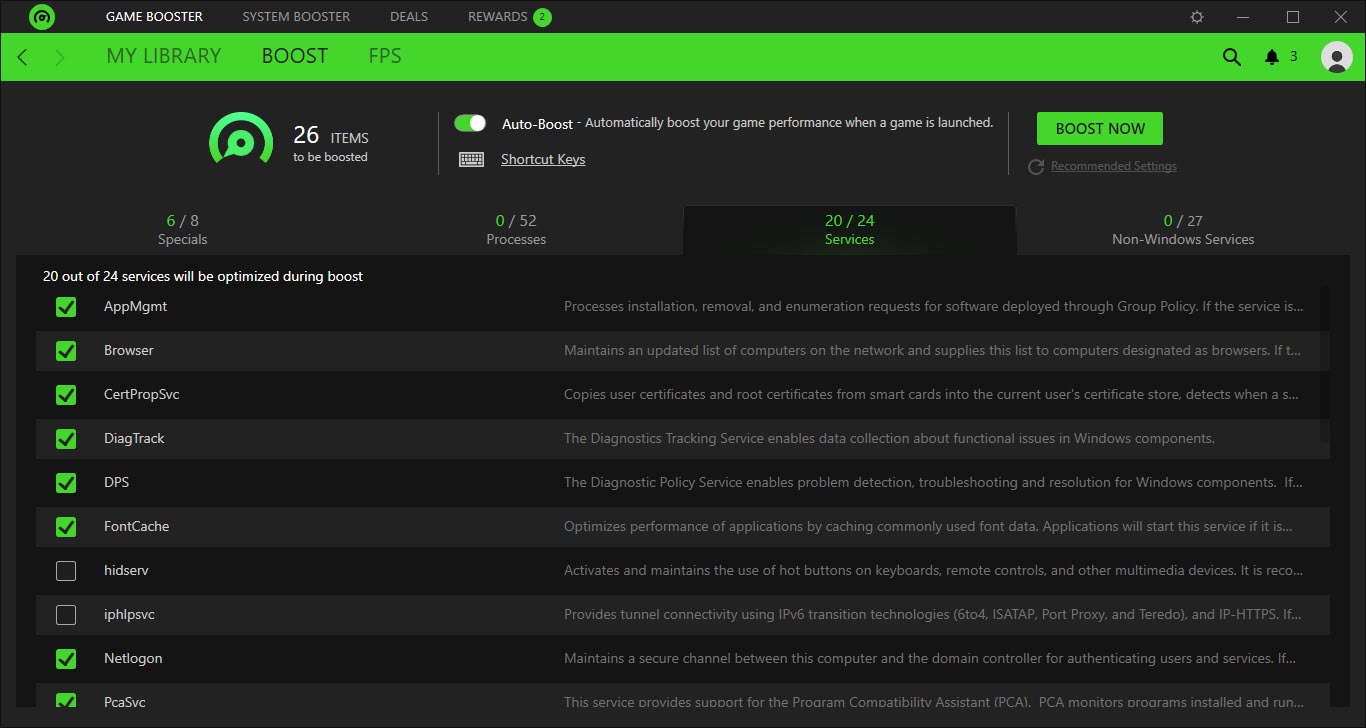
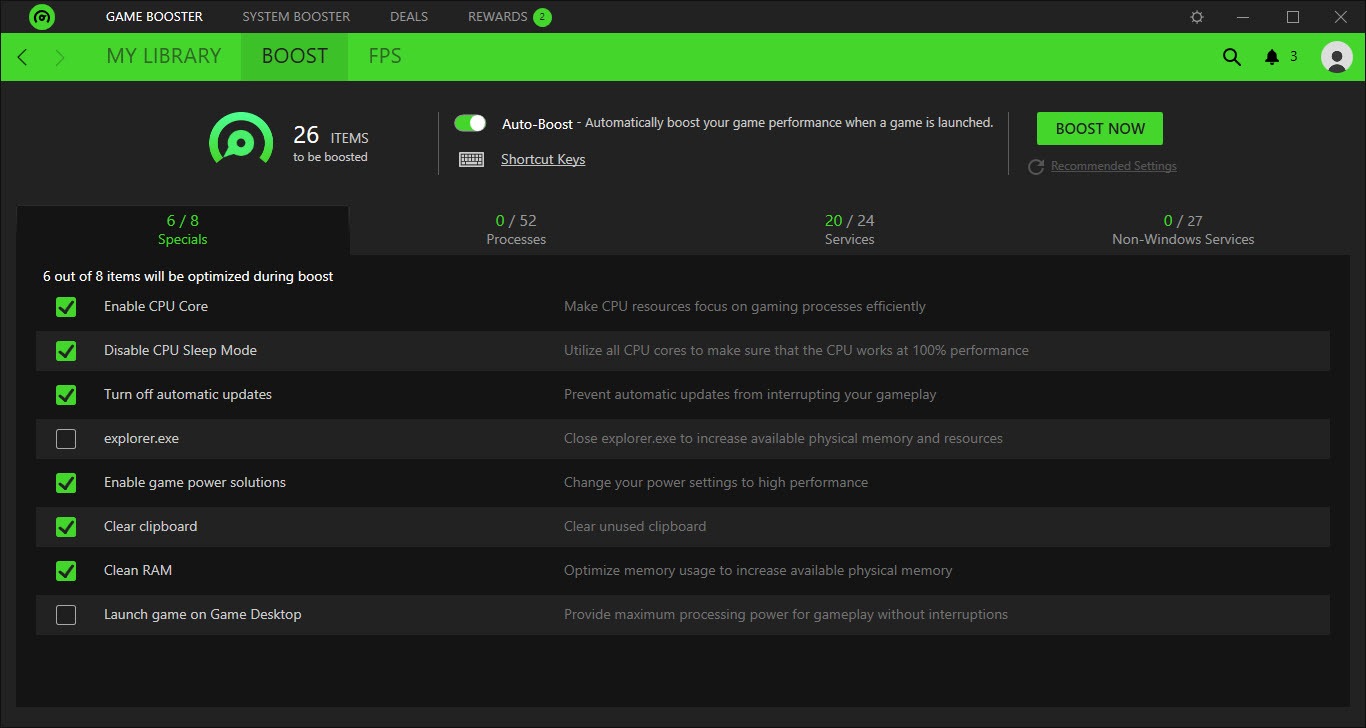
The Booster module is the core of the optimization story. When you launch a game through the Razer Cortex library (or when a configured rule detects a game starting), the Booster goes through a configurable list of background services and processes, suspends or closes them, frees up the memory they were consuming, optionally clears RAM caches, and signals Windows to prioritize the game process.
The default kill list is reasonable. Update checkers, indexing services, telemetry processes, browser background tasks, and a handful of vendor utilities that don’t need to run during gameplay.
You can review the full list before the boost runs and exempt processes you actually want to keep alive. There’s also a per-game configuration where you can set different boost profiles for different titles, useful if you stream and need OBS alive for some games but not others.
After the game closes, the suspended processes restart. The transition back to normal desktop use is generally clean. Occasionally a process that was killed mid-task (like a half-finished download) will come back in an odd state, but in practice this is rare with the default targets.
What it doesn’t do is overclock anything, tune GPU settings, change driver parameters, or modify graphics options inside games.
Those tasks belong to tools like MSI Afterburner, NVIDIA GeForce Experience, or AMD Radeon Adrenalin depending on your hardware. Razer Cortex stays out of the GPU stack entirely. The optimization happens at the OS process and memory level.
The unified Game Launcher and what it imports
The Game Launcher pulls installed games from multiple storefronts into one library view. Out of the box it detects Steam, Epic Games Store, GOG Galaxy, EA App (formerly Origin), Battle.net, Ubisoft Connect, Xbox/Microsoft Store, and a few smaller storefronts. There’s also support for manually adding executables for games installed outside a storefront, including emulator ROM launches if you set them up.
The library view shows cover art, playtime, and recent activity across all sources. Launch a game from the Razer Cortex library and it routes through the appropriate store’s launcher (which still has to start, since DRM and authentication require it), with Booster triggering before the game window appears.
This is a real convenience if your library is genuinely spread across services, which most people’s libraries are. Compared to Playnite, which is the open-source reference for unified game libraries, Razer Cortex is less customizable and less skinnable but more polished out of the box. Playnite gives you metadata scrapers, plugin extensions, and theme freedom.
Razer Cortex gives you a working library with less effort. Different priorities.
What Razer Cortex doesn’t do that some libraries handle is import save games, manage cloud sync across non-native services, or treat the library as a database you can query. It’s a launcher pane, not a library manager in the deeper sense.
The in-game overlay and FPS counter
While a game is running, an overlay can display FPS, CPU usage percentage, GPU usage percentage, GPU temperature, and current memory consumption. The overlay is repositionable, can be sized small or large, and can be turned off per-game.
The FPS counter itself is accurate enough for casual reference. For benchmarking or precise frame-time analysis, tools like Fraps for raw FPS logging or RivaTuner Statistics Server with its detailed customization are still the technical choices. The Razer Cortex overlay is fine for “is my framerate okay right now” but not for “what was my 1% low across this benchmark run.”
The overlay can record short clips of gameplay, take screenshots, and produce highlight reels with some basic auto-detection of action moments. The recording quality is acceptable but the configurability is limited. Streamers and content creators will still prefer dedicated capture software like OBS for serious work.
A minor annoyance: the overlay occasionally conflicts with overlays from other applications (Steam, Discord, GeForce Experience) in ways that produce visual glitches or input lag. Disabling competing overlays before launching helps, and the Razer Cortex overlay can be turned off entirely if it causes problems with a specific game.
System tweaks beyond the game launch
Beyond the per-game boost, there’s a system-wide optimization side that runs outside of gaming sessions. This covers disk cleanup (temp files, browser caches, log files), service tuning (suggesting Windows services that can be safely set to manual or disabled for gaming), and a memory-cleaning routine that can be triggered on demand or on a schedule.
These features overlap heavily with general cleanup tools. The cleanup is more conservative than what a dedicated cleaner would do, which is probably good for stability but limits the impact.
The service tuning suggestions are sensible but cautious, with safety-first defaults that won’t break anything but also won’t squeeze the system as hard as a manual configuration. If aggressive optimization is the goal, dedicated tweaking tools handle it more thoroughly.
For most users the system-wide side is a “set it and forget it” weekly cleanup that keeps things tidy without requiring deep system knowledge. Useful, but not the main reason to install the application.
Booster Prime and what the premium tier adds
The free version of Razer Cortex covers Booster, Game Launcher, and the overlay. A premium tier called Booster Prime adds a few features on top: more aggressive boost profiles that go deeper into system services, additional overlay customization, deeper system tweaks, and some quality-of-life additions like cloud-synced settings across machines.
Whether the premium tier is worth it depends entirely on whether the free version’s results justify wanting more of the same. If the free version produces measurable gains on your specific hardware and workload,
Booster Prime probably extends those gains further. If the free version produces minimal gains because your system is already well-tuned, Booster Prime is unlikely to change that picture significantly.
Where the gains actually show up (and where they don’t)
Aggregating the realistic use case, Razer Cortex is most valuable for users in these scenarios. First, anyone whose desktop is constantly cluttered with background applications and who hasn’t manually managed startup processes. The single-click “kill everything for gaming” workflow is genuinely faster than disabling things by hand.
Second, anyone whose library is spread across four or five storefronts who wants one entry point. Third, anyone who likes a visual overlay during gameplay and doesn’t already have a preferred tool.
It’s less valuable for users who keep a clean system anyway, who use one or two storefronts and don’t need a unified library, who already have GPU monitoring set up through NVIDIA Control Panel or MSI Afterburner, or who are already FPS-limited by GPU rather than CPU/memory (where Booster has the least impact).
There’s also the meta-question of whether running Razer Cortex itself, which is not a tiny application, eats some of the resources it was supposed to free up. The overhead is real but small. On a system that benefits from the Booster’s process cleanup, the net effect remains positive. On a system that doesn’t, the application becomes another background process competing with everything else.
Conclusion
Razer Cortex is most useful for gamers whose systems collect background clutter faster than they can manage manually, and who want a single launcher view for libraries spread across multiple storefronts.
The Booster module’s process cleanup is genuinely effective at its core job, and the unified library is a real quality-of-life improvement if your games live in four different places. The in-game overlay is competent enough for casual performance monitoring without needing a separate tool.
The honest framing is that the FPS gains are smaller than the marketing language suggests, and on a well-maintained gaming PC the difference is often within margin of error. Users who already run a clean system, who stick to one storefront, or who handle their own background process management won’t see much benefit from the Booster side.
The Game Launcher and overlay can still justify the install on their own merits, but treating Razer Cortex as a magic FPS multiplier sets up expectations the application can’t realistically meet.
Pros & Cons
- Genuinely one-click background process cleanup before game launch
- Unified library pulls games from major storefronts into a single view
- Per-game boost profiles let you customize behavior per title
- In-game overlay shows FPS, CPU, GPU, and memory at a glance
- Free version covers the core features without restrictions on game count
- Reasonable defaults that won't break anything on a typical system
- FPS gains on a clean modern system are small and oversold by marketing
- Overlay occasionally conflicts with Steam, Discord, or GPU vendor overlays
- Library is less customizable than dedicated tools built around game collections
- Doesn't touch the GPU stack, so no overclocking or driver-level tuning
- Premium tier value depends heavily on whether the free version helps in your setup
- System cleanup features overlap with dedicated cleaning tools without matching their depth
Frequently asked questions
Razer Cortex is a gaming optimization and library application. It closes background processes before you launch a game, organizes games from multiple storefronts into one library, and overlays performance information (FPS, CPU, GPU, memory) on top of gameplay.
By suspending or closing background processes, freeing up the memory and CPU cycles they were consuming, and signaling Windows to prioritize the running game. The application doesn't modify GPU drivers, overclock anything, or change in-game graphics settings, so the gains come entirely from reducing background system load.
It depends on how cluttered your system is. On a clean modern PC with sensible startup hygiene, the difference is typically a few percent or less. On systems running many background applications, older laptops with limited RAM, or thermally constrained machines, the gains can be noticeably larger.
They target different layers. NVIDIA GeForce Experience focuses on GPU driver updates, in-game graphics setting recommendations, and Shadowplay recording, all at the GPU level. Razer Cortex focuses on the OS process and memory level. The two can coexist on the same system without conflict, though their overlays sometimes interfere with each other and only one should be active at a time.
Yes. The Game Launcher pulls installed games from Steam, Epic Games Store, GOG Galaxy, EA App, Battle.net, Ubisoft Connect, Xbox/Microsoft Store, and several smaller storefronts into a unified library view. Launching from the Razer Cortex library still routes through each store's own launcher for DRM and authentication.
It maintains the boost (with background processes suspended), runs the in-game overlay if enabled, and can record clips or screenshots of gameplay. When the game closes, the previously suspended processes restart automatically.
No. Razer Cortex doesn't touch hardware tuning. For GPU overclocking and tuning, dedicated tools like MSI Afterburner or NVIDIA Profile Inspector handle that layer. For CPU tuning, vendor-specific tools like AMD Ryzen Master or Intel XTU are the relevant ones.
Yes. The overlay can display FPS, CPU usage, GPU usage, GPU temperature, and memory consumption. It's repositionable, sizable, and can be disabled per-game. Conflict with other overlays is possible, so running it alongside Steam, Discord, or vendor overlays sometimes requires disabling one or the other.


