

Moto Contacts Tool
About Moto Contacts Tool
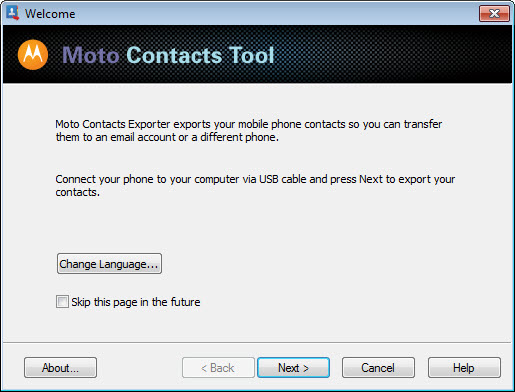
Moto Contacts Tool copies the phonebook out of an old Motorola feature phone and saves it as a file on the computer. Connect the handset with its data cable, pick the model from a list, choose whether to read the phone memory, the SIM card or both, point at a folder, and press Export Contacts. A CSV file appears with every name and number, in the plain comma-separated format that spreadsheets, mail programs and online contact services all read. That is the entire program, and it exists because those phones had no other way out for the one thing on them that mattered.
The handsets it supports are the flip and candy-bar models from before smartphones, among them the RAZR, the SLVR, the KRZR and a handful of their relatives, which still turn up in drawers with a lifetime of numbers inside them.
Moto Contacts Tool reads the contacts those phones hold and does nothing else, no messages, no photos, no calendar, and it supports only the models on its list. For anyone holding one of those handsets and wanting the numbers on a current phone, it is the shortest path, and the CSV it writes is the bridge.
Exporting from phone, SIM or both
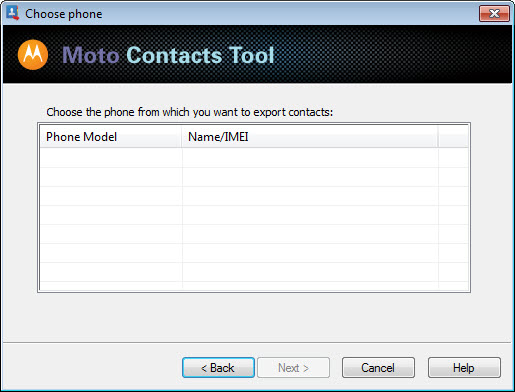
The window asks three questions. Which model is connected, from a dropdown of the supported handsets. Where the contacts should be read from, the phone’s own memory, the SIM card or both together, which matters because the older handsets split a phonebook between the two depending on how numbers were saved. And where on the computer the file should go. Export writes the CSV and reports the count, and the whole operation takes well under a minute on a phonebook of a few hundred entries.
Getting the cable connection recognised
The phone has to be connected to Moto Contacts Tool by its data cable, in the mode that lets the computer talk to it rather than treating it as a storage device, and the drivers for that connection come from the handset’s own software package rather than from this tool. Getting the cable connection recognised is where most of the effort goes, and once the model appears in the list the export itself is a click.
On a current machine the driver from the handset’s package may need to be installed in compatibility mode, since it was written for operating systems of its own time, and a USB port on the machine itself tends to work where a hub does not.
For later Motorola handsets the driver side is handled by Motorola Device Manager, which this tool predates.
From CSV to a current phone
The file is the point. Open it in LibreOffice or any spreadsheet to tidy names, merge duplicates and drop the numbers nobody has dialled in years, then import it into an online contacts service, which accepts CSV directly. From there the contacts synchronise to any current phone signed into the same account, and the old handset’s phonebook arrives on a new one without typing a single number. A mail program that keeps its own address book imports the same file.
That two-step route, export here and import there, is why the tool writes CSV rather than a format of its own. The format is readable by everything, including the next tool that replaces whatever is current today, which makes the file a long-term backup as well as a transfer.
Where it stops
The Moto Contacts Tool supported list is short and old, and a Motorola smartphone from any later generation is not on it, since those phones synchronise contacts through their account and need no cable tool. Nothing but contacts is exported. The program is a small 32-bit executable with a plain dialog, and the cable drivers it leans on come from the same period as the handsets.
Owners of old Nokia handsets have the same problem in a different shape, and a backup file explorer for those phones solves it from the backups that phone’s suite made.
Conclusion
Moto Contacts Tool suits anyone who has found an old Motorola flip phone with a phonebook they still want, and who would rather export it in a minute than retype it over an afternoon. The three-question window and the CSV output do exactly that, and the file imports anywhere.
It is tied to a short list of ageing handsets and depends on cable drivers from the same period, so getting the phone recognised is the real work. Install the handset’s drivers first, choose phone and SIM together, and the names come across in one pass.
Pros & Cons
- Exports a feature phone's contacts to CSV in one click
- Reads from phone memory, SIM card or both
- CSV imports straight into spreadsheets, mail programs and online contact services
- Tiny program with a three-question window
- Supports only a short list of old Motorola feature phones
- Exports contacts only, with no messages, photos or calendar
- Depends on cable drivers written for older operating systems
- Phone must be connected in data mode, which takes some setup
Frequently asked questions
A short list of Motorola feature phones from before smartphones, including the RAZR, SLVR and KRZR families. Later smartphones are not supported and do not need it.
No. It exports contacts only, from the phone memory, the SIM card or both, as a CSV file.
Import the CSV into an online contacts service, which accepts the format directly, and the contacts synchronise to any phone signed into that account.
The handset needs its data cable drivers installed and must be connected in data mode rather than as a storage device. On a current machine the driver may need compatibility mode.


