

Flashget
About Flashget
Flashget is a download manager. It takes a file link, splits the download into several connections, pulls the pieces at once and reassembles them, which is where the speed comes from. It also resumes a transfer that dropped at 80 percent instead of starting over, queues hundreds of links, and runs them on a timer overnight. The same window handles HTTP and FTP links, BitTorrent and eMule transfers, and the MMS and RTSP streaming addresses that browsers cannot save at all.
That puts it beside Internet Download Manager and Download Accelerator Plus. It once led that group. Today it trails on one point that decides everything for most people, which is how it hooks into a browser, and that point comes up below.
Split downloads and the drop zone
Each task can be split into up to ten connections. On a server that throttles per connection, that turns a crawl into something close to your line speed. On a server that already serves one connection at full rate, it changes nothing, and Flashget is honest enough to show the per-thread speeds so you can see which case you are in. Interrupted downloads resume from the last byte if the server allows it, and most do.
The Drop Zone is a small square that floats above everything else on screen. Drag a link onto it and the download starts, or a dialog asks for a category and folder, depending on how you set it. Clipboard monitoring does the same for copied links that end in a known file extension. Both are older ideas than browser extensions and both still work with any browser, which matters here.
Categories, a scheduler and speed limits
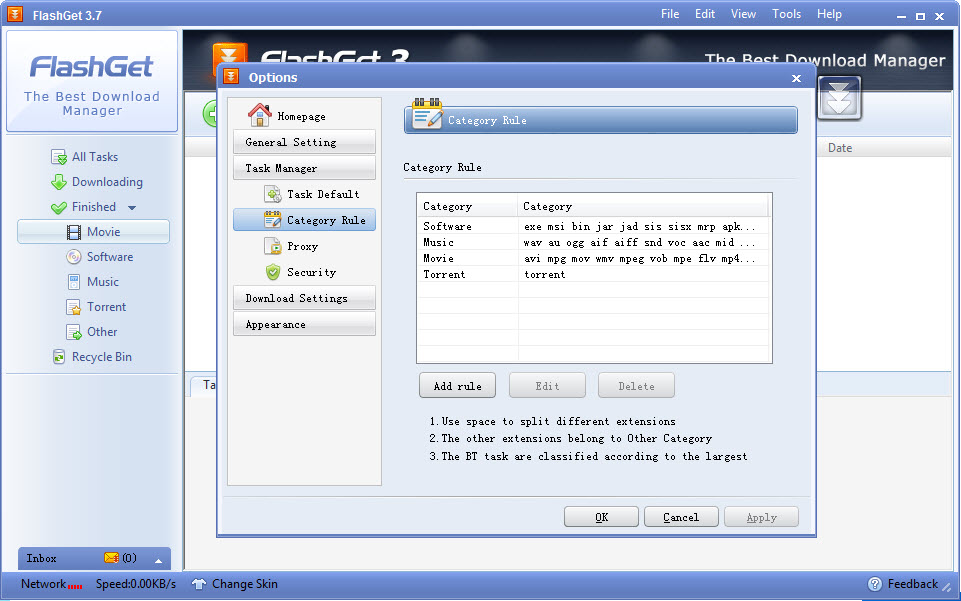
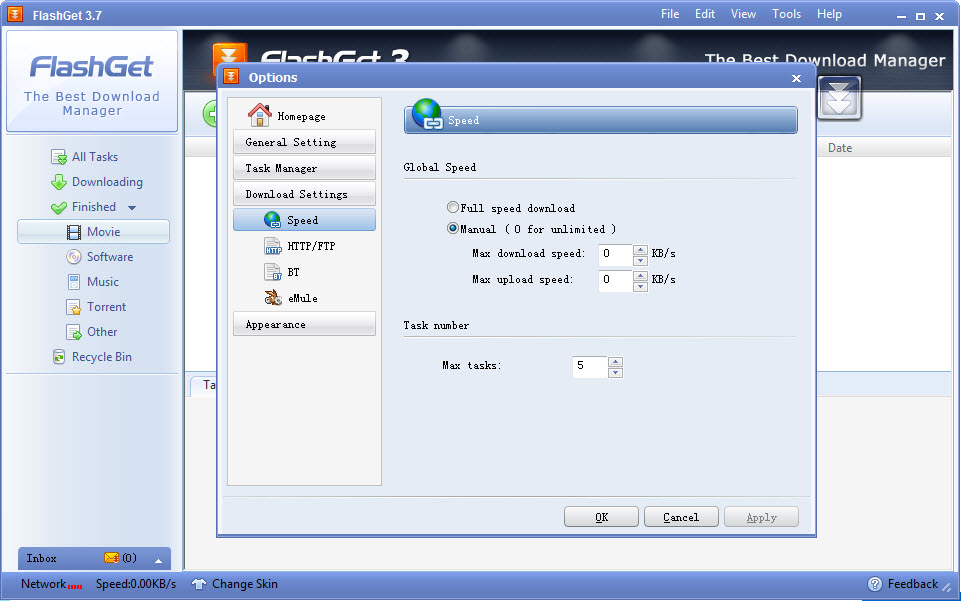
Downloads land in categories, each tied to a folder, so installers, video files and documents sort themselves as they arrive. You can add as many as you like and set rules that route a link by extension. The scheduler starts and stops the queue at set times, useful when a connection is metered or shared in the daytime. A global speed limit keeps a big download from choking a video call, and the limit can be scheduled too.
Finished downloads can be handed to whichever antivirus is installed for a scan before the file is opened. The queue can also hunt for the same file on other servers and pull parts from each, though on today’s web that turns up far less than it once did.
Site Explorer and the peer-to-peer side
Press F7 and Site Explorer opens a site as a folder tree, which is the fastest way to grab every file in an FTP directory or every image linked from a page. Tick what you want and it queues. The BitTorrent and eMule support sit in the same task list as ordinary downloads, with the usual peer and seed counts. They work, but they are basic, with no sequential download, no per-torrent speed limits and no tracker editing. Anyone serious about torrents will keep a client with a proper torrent feature set and use this only for direct links.
The browser problem
Here is the part to know before installing. Flashget integrates with browsers through an older mechanism. It picks up links from Internet Explorer and from Firefox with a small add-on, and the Drop Zone and clipboard catch everything else. What it cannot do is intercept downloads inside Chrome or the Chromium-based browsers, because it accepts no command-line link from an extension. The extensions that claim to bridge the gap only work with far older builds.
So on a modern desktop the workflow is copy link, let the clipboard monitor catch it. That is fine for a handful of files and tiresome for fifty. If you want a manager that takes over the browser’s download button, a manager with current browser extensions does that and covers the same protocols. There is also advertising in the main window, in a panel along the bottom, which cannot be switched off.
Conclusion
Flashget is for someone who downloads large files from direct links and FTP servers, wants them split into threads, queued and scheduled, and does not mind copying links by hand. On a slow or metered connection the scheduler and the speed limits still earn their keep.
Anyone who lives in Chrome and expects the manager to take over every download will be frustrated within an hour, and should pick a manager with a current extension. The engine here is fine. The bridge to the browser is what aged.
Pros & Cons
- Splits downloads into up to ten connections with per-thread speed shown
- Resumes interrupted transfers and queues hundreds of links
- Drop Zone and clipboard monitoring work with any browser
- Site Explorer queues whole FTP directories or every link on a page
- Scheduler and speed limits for metered or shared connections
- No download interception in Chrome or Chromium browsers
- Basic torrent and eMule support with no per-task limits
- Advertising panel in the main window
- Multi-server search rarely finds alternative copies now
Frequently asked questions
It has no extension for Chromium browsers and does not accept links from the ones that exist. Copy the link and let the clipboard monitor pick it up, or drag it onto the Drop Zone.
Up to ten, set per task or as a default. More connections only help on servers that limit speed per connection. Some servers refuse more than a few and the extra threads simply fail.
Into the folder attached to the category you chose, under the download root set in Options. Change the category's folder and every new download in it follows.


