

DNS Jumper
About DNS Jumper
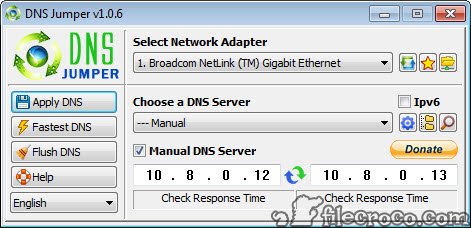
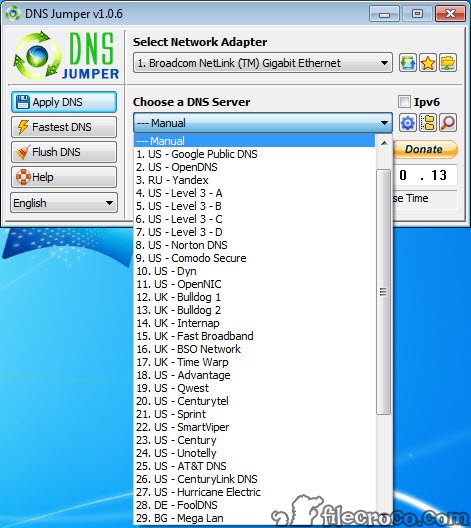
DNS Jumper is the small portable utility that lets you change which DNS server your computer uses without diving into network adapter properties through Control Panel or Settings. The application maintains a built-in list of popular DNS servers covering Google’s 8.8.8.8, Cloudflare’s 1.1.1.1, OpenDNS, Quad9, and various others, with the “Apply” button switching your computer’s active DNS to whichever server you select.
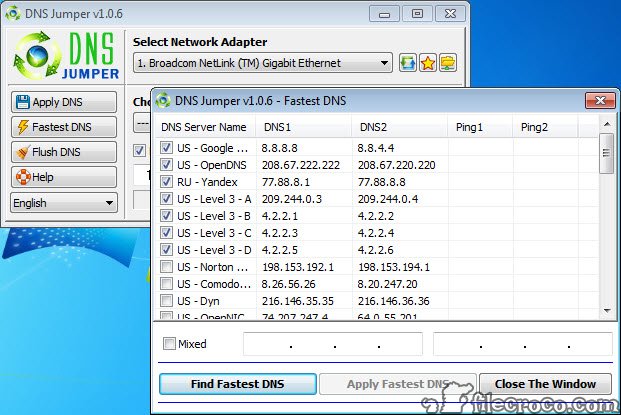
Beyond simple selection, the application includes a “Fastest DNS” benchmark that measures latency to dozens of DNS servers from your specific location and ranks them by response time, which lets you choose based on actual performance rather than guessing which provider serves your region best.
For users wanting basic DNS switching capability without the complexity that broader network management tools accumulate, this single-purpose approach matches the actual scope of the task. Active development continues with periodic updates that keep the built-in DNS server list current and address compatibility with newer Windows versions, though the development pace is genuinely slow because the underlying functionality has been stable for years.
Why people actually change DNS servers
Understanding why DNS changing matters is worth a moment because the reasoning isn’t always obvious. Your operating system uses DNS to translate domain names (like example.com) into the IP addresses that actual network connections need. The default DNS server is typically whatever your internet service provider runs, which works fine for basic functionality but produces specific issues that motivate switching.
ISP-provided DNS servers are sometimes slower than third-party alternatives, particularly for users in regions where the ISP doesn’t operate local DNS infrastructure efficiently. Google’s 8.8.8.8 and Cloudflare’s 1.1.1.1 maintain global server networks specifically for DNS, with substantial investment in performance optimization that smaller ISPs can’t match. Switching to these alternatives sometimes produces noticeable improvements in how quickly websites start loading, though the actual difference depends on your specific ISP and your specific geographic location.
ISP DNS servers also sometimes block specific domains for various reasons including legal compliance, parental control settings, or commercial decisions. Users wanting access to blocked content sometimes find that switching DNS to providers without those blocks restores access.
The legal status varies by jurisdiction and circumstance, with users responsible for understanding what they’re actually doing when bypassing ISP-level blocks.
Privacy considerations also motivate DNS switching for some users. ISPs see every DNS query you make, which produces a record of what domains you access. Privacy-focused DNS providers like Cloudflare’s 1.1.1.1 and Quad9’s 9.9.9.9 explicitly commit to not logging this information for advertising or tracking purposes, which provides some privacy protection for users who care about who sees their browsing patterns.
The protection is partial because your traffic still flows through your ISP after DNS resolution, but it removes one specific data collection point.
For users who want broader privacy protection beyond just DNS, dedicated VPN tools handle the broader scenario by encrypting all traffic between your device and the VPN provider’s servers. The trade-offs differ from DNS switching, with VPNs producing more comprehensive protection at the cost of trusting the VPN provider with your traffic instead of just your DNS queries.
The Fastest DNS feature
The Fastest DNS test is what genuinely distinguishes the application from simpler DNS changers. Click the button, and the application pings dozens of DNS servers (the built-in list plus various others) and measures response times from your specific location. The results sort by latency, with the fastest servers appearing at the top of the list along with their measured response times in milliseconds.
The practical value comes from the location dependence of DNS performance. A DNS server that produces 5 ms responses for users in one region might produce 80 ms responses for users in a different region, depending on which physical servers handle each region’s traffic.
Without measuring from your actual location, choosing optimal DNS becomes guesswork. The benchmark provides actual data about what works fastest from where you are.
The test typically completes in 30-60 seconds, with the application pinging each server multiple times to filter out anomalous individual measurements. The results aren’t necessarily stable across different times of day or different network conditions, with the fastest server during your test possibly being different from the fastest server an hour later if network routing or server load conditions change. For users wanting reliable optimization, running the test periodically rather than once produces more representative selection.
For users who specifically care about a particular DNS provider regardless of speed (perhaps for privacy reasons or specific feature support), the test results help understand the speed cost of choosing that provider versus alternatives.
Cloudflare’s 1.1.1.1 might be 20 ms slower than your fastest option in your specific location, with the choice between them being yours based on whether the privacy commitments justify the latency difference.
The built-in DNS server list
The application ships with dozens of DNS servers preloaded, organized into categories that make selection easier than scrolling through a flat list. Public DNS providers like Google, Cloudflare, and OpenDNS appear with their standard primary and secondary IP addresses. Family-friendly DNS providers that block adult content appear separately for users wanting basic content filtering at the DNS level. Various other categories cover ad-blocking DNS, malware-blocking DNS, and various specialized purposes.
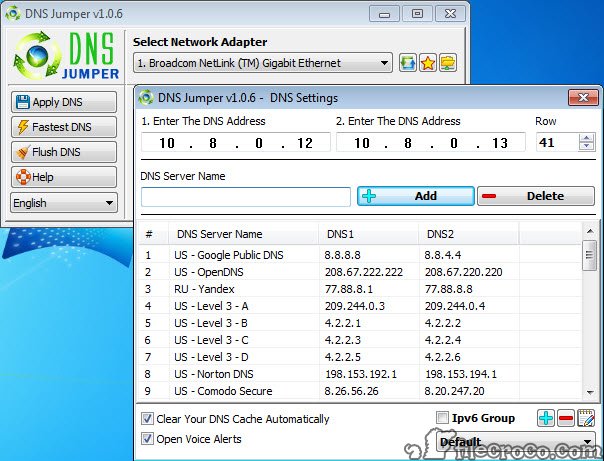
The list is curated rather than comprehensive. It doesn’t include every DNS provider in existence, but it covers the providers most users actually consider. Adding custom DNS servers beyond the built-in list works through a dedicated interface for users who want providers not in the default selection. Custom entries persist in the configuration and appear alongside the built-in options for ongoing use.
For users wanting content filtering through DNS rather than software-based blocking, family-friendly DNS providers like CleanBrowsing and OpenDNS Family Shield handle the basic case. The DNS-level approach catches access attempts before the request reaches the actual server, which makes it harder to bypass than browser-based content filtering. The trade-off is that DNS-level filtering applies to all applications on the computer rather than just web browsers, which sometimes produces unexpected blocks in applications that connect to legitimate but flagged services.
For more comprehensive DNS-level filtering specifically aimed at blocking adult content for child-safe browsing, dedicated tools like DNS Angel handle that specific use case with simpler workflows than general-purpose DNS changers. The two tools complement each other rather than replacing each other, with DNS Jumper handling general DNS switching while specialized tools handle specific filtering scenarios.
Per-adapter configuration
Modern computers often have multiple network adapters active simultaneously. Wired Ethernet for desktop systems. Wi-Fi for laptops. Sometimes both at once for systems that prioritize one connection type but keep the other available. Various virtual adapters from VPNs, virtual machines, and various other software add to the count.
The application lets you configure DNS settings independently for each adapter rather than forcing the same settings across all of them. Set Cloudflare DNS for Wi-Fi while leaving the Ethernet adapter on its current settings. Configure different DNS for VPN-related adapters that handle traffic going through the tunnel versus direct adapters that handle local network traffic. The granularity matches how multi-adapter systems actually need to be configured rather than treating all adapters as identical.
The configuration interface shows each adapter with its current DNS settings, which makes auditing your network configuration straightforward. You can see at a glance which adapters use which DNS servers, identify any that have unexpected configuration, and make changes selectively rather than across-the-board.
For users with VPN configurations, the per-adapter capability matters because VPNs create their own virtual adapters that handle VPN-tunneled traffic. Configuring DNS appropriately for these adapters affects whether DNS queries leak outside the VPN tunnel (a privacy concern that motivates VPN use in the first place) or stay within the tunnel as the VPN configuration intends.
Portable execution and the Sordum design philosophy
The application is genuinely portable. Download the ZIP file, extract it to any folder, and run the executable. No installer modifies system files. No registry entries get created beyond what the application needs for its own settings. No Start menu entries appear unless you create them yourself. The whole thing runs as a self-contained tool that you can keep on a USB drive and use across multiple computers without leaving installation traces on each one.
The portable approach matters for specific scenarios. IT support technicians carrying utility USB drives benefit from tools that work without installation. Users who don’t have administrator rights on their computers can run portable applications from user-writable locations.
Users with corporate computers that prevent software installation through standard channels can sometimes use portable applications that don’t require those channels.
The Sordum design philosophy across their tools emphasizes this portability and simplicity. Their applications typically include a single executable, optional language files, and a simple ini or registry-based configuration storage. The deliberate simplicity contrasts with the trend toward installer-based distribution and elaborate update mechanisms that other developers prefer.
For users who appreciate this approach, Sordum’s catalog includes various other utilities worth exploring. Tools for controlling Windows Defender, managing administrator privileges, blocking specific keys on the keyboard, and various other narrow-purpose utilities all share the same portable single-executable approach.
Building a collection of these tools produces a set of utilities for various specific situations without elaborate software footprint on your systems.
DNS over HTTPS and the modern protocol gap
The application’s approach to DNS configuration handles classic DNS over UDP/TCP, which is the original DNS protocol that DNS servers have used since the 1980s. The protocol works but has known limitations including lack of encryption (anyone monitoring your network sees your DNS queries) and lack of authentication (DNS responses can be spoofed by network attackers).
DNS over HTTPS (DoH) and DNS over TLS (DoT) are newer protocols that address these limitations by encrypting DNS queries between your device and the DNS provider. Modern browsers (Firefox, Chrome, Edge) include built-in DoH support that bypasses operating system DNS configuration entirely, with the browser handling DNS resolution through encrypted connections regardless of what DNS server the operating system is configured to use.
The implication for DNS Jumper is that the application configures classic DNS settings that affect operating system-level DNS resolution but don’t necessarily affect what your browsers do. Users wanting DoH protection need to configure DoH within their browsers rather than expecting operating system-level DNS configuration to provide encrypted DNS for browser traffic. The application doesn’t currently handle DoH configuration directly, which matters for users specifically wanting encrypted DNS as their primary motivation.
For users primarily wanting performance optimization through faster DNS servers rather than encryption, the classic DNS configuration this application handles produces real benefits regardless of DoH considerations. The latency improvements that come from choosing faster DNS servers affect all applications that use operating system DNS, not just browsers, which means email clients, instant messaging applications, and various other software all benefit from optimized DNS configuration even though browser traffic potentially uses DoH separately.
Backup and restore capabilities
The application includes backup and restore functionality for current DNS settings, which produces a safety net for users who want to experiment with DNS changes without losing their original configuration. Click Backup before making changes, and the current DNS settings get saved to a configuration file that the application can restore later if you decide the changes weren’t beneficial.
The restore functionality returns DNS settings to their backed-up state through one click. For users who try various DNS providers across days or weeks of testing, having the original ISP-provided DNS settings backed up means returning to known-working defaults stays straightforward regardless of how much experimentation happens between.
The backup files are simple text-based configuration that you can edit manually if needed. The format isn’t proprietary or encrypted, which means understanding what specific DNS settings each backup represents stays straightforward.
For users wanting version control of their DNS configurations across computers, copying these backup files between systems lets you maintain consistent DNS settings without manually reconfiguring each device.
DNS cache flushing
Beyond changing DNS servers, the application includes a flush DNS cache button that clears your computer’s local cache of DNS lookups. The local cache speeds up repeated lookups by storing recent results, but stale cache entries can produce issues when DNS records change (websites moving to new servers, content delivery networks changing IPs, various other scenarios).
The flush operation runs the appropriate operating system commands to clear the cache, which forces fresh DNS lookups for any subsequent connections. For users debugging connectivity issues that might involve cached DNS results pointing to old servers, this flush capability handles the scenario without requiring command-line commands or operating system administrative tools.
The flush functionality also addresses scenarios where you’ve just changed DNS servers but are still seeing results consistent with the previous DNS server. Cached results from the previous DNS server remain valid until they expire or get flushed, with the flush operation immediately switching all subsequent lookups to use the new DNS server.
Considerations and limitations
The application requires administrator privileges to actually change DNS settings, since modifying network adapter configuration affects system-wide network behavior. Users without administrator access on their computers can run the application but can’t apply changes, with the practical result being that the tool needs IT department involvement on managed corporate systems.
The built-in DNS list reflects choices made during the application’s development, with some providers being weighted more heavily than others. Users wanting comprehensive testing across all DNS providers in existence need to add providers manually beyond the built-in list. The built-in list covers most users’ actual selection scope, but specific niche DNS providers may not appear without manual addition.
The interface design reflects the Sordum aesthetic across their tools, which means it works functionally but doesn’t match current desktop application design trends. The visual style is dense and utilitarian rather than spacious and refined, which fits the tool’s purpose but feels different from polished consumer applications. Users coming from current software find the experience notably different in design generation.
DNS changes don’t affect every aspect of how applications connect to internet services. Modern browsers may bypass operating system DNS through DoH, as discussed. Some applications cache DNS results internally and don’t refresh based on operating system DNS changes until they’re restarted. Various other scenarios produce situations where DNS changes don’t immediately affect application behavior, with the actual changes taking effect after specific applications restart or various caches expire.
The development pace is slow compared to actively-evolving software. The 2.3 version has been current for years with relatively minor refinements rather than substantial new features. For users wanting cutting-edge DoH support, encrypted DNS, or various other modern features, alternatives with more aggressive development sometimes cover those scenarios better. For users wanting stable proven functionality without bleeding-edge features, the slower development pace doesn’t matter much.
Conclusion
For users wanting straightforward DNS switching without diving through operating system network settings, DNS Jumper delivers a focused tool that handles the actual scope of casual DNS configuration. The combination of preloaded DNS servers, location-aware speed testing, per-adapter configuration, and portable execution from a single executable produces a workflow that takes minutes rather than requiring sustained engagement.
For users who care about DNS optimization but don’t want to become networking experts, the application packages enough capability to make informed choices without exposing technical complexity that doesn’t help.
The reasons to consider alternatives are mostly about specific scenarios. Users wanting encrypted DNS through DoH or DoT need tools that explicitly support those protocols rather than this software’s classic DNS configuration. Users wanting comprehensive privacy protection beyond just DNS find dedicated VPN tools covering broader scenarios at the cost of trusting VPN providers with traffic.
Users specifically wanting DNS-level content filtering for family-safe browsing find dedicated tools like DNS Angel handling that specific scenario through simpler workflows. Users on managed corporate systems where administrator privileges aren’t available can’t actually apply changes through this software regardless of capability. But for users with home computers and casual DNS optimization needs, this software remains one of the more accessible options in its category.
Pros & Cons
- Built-in list of popular DNS servers including Google, Cloudflare, OpenDNS, and Quad9
- Fastest DNS benchmark measures latency to dozens of servers from your specific location
- Portable single-executable distribution requires no installation
- Per-adapter configuration handles systems with multiple network adapters
- Backup and restore functionality preserves original DNS settings before experimentation
- DNS cache flushing addresses cached lookup issues without command-line commands
- Free without commercial restrictions
- Active development from Sordum continues with periodic updates
- Family-friendly DNS options for users wanting basic content filtering
- Doesn't directly handle DNS over HTTPS or DNS over TLS configuration
- Modern browsers may bypass operating system DNS through their own DoH implementations
- Requires administrator privileges, which limits use on managed corporate systems
- Built-in DNS list isn't comprehensive and may not include specific niche providers
- Visual design reflects the Sordum aesthetic rather than current desktop application trends
- Development pace has been slow with major features rare across recent years
Frequently asked questions
This software is a portable Windows utility from Sordum that switches between DNS servers without requiring you to navigate Control Panel or Settings to modify network adapter properties. The application includes a built-in list of popular DNS servers, a Fastest DNS benchmark that measures latency to dozens of servers from your specific location, per-adapter configuration for systems with multiple network adapters, backup and restore functionality, and DNS cache flushing capabilities through one interface.
Run the application (no installation required, just extract and execute the file). Choose a DNS server from the dropdown list of preloaded options, or click Fastest DNS to benchmark and select the lowest-latency server for your location. Choose which network adapter to apply the change to if your system has multiple adapters. Click Apply DNS to make the change take effect immediately. Use Backup before changes if you want to preserve current settings for later restoration.
The benchmark sends multiple test queries to each DNS server in its database and measures response times from your specific location. After testing completes (typically 30-60 seconds), the servers appear ranked by latency with measured response times shown in milliseconds. The fastest server for your location appears at the top, which lets you choose based on actual performance from where you are rather than guessing which provider serves your region best.
The built-in list covers public DNS providers including Google (8.8.8.8 and 8.8.4.4), Cloudflare (1.1.1.1 and 1.0.0.1), OpenDNS, Quad9 (9.9.9.9), and various others. Family-friendly DNS providers that block adult content appear in a separate category for users wanting basic content filtering. Custom DNS servers beyond the built-in list can be added through a dedicated interface for users who want providers not in the default selection.
DNS changes affect only how domain names get resolved to IP addresses, which can improve speed and bypass DNS-level blocks but doesn't encrypt your traffic or hide your IP address. VPNs encrypt all traffic between your device and the VPN provider's servers, which provides substantially more comprehensive protection at the cost of trusting the VPN provider with your traffic. DNS switching handles narrow scenarios while VPN handles broader privacy requirements.
Modern browsers including Firefox, Chrome, and Edge include built-in DNS over HTTPS support that bypasses operating system DNS configuration entirely. The browser handles DNS resolution through encrypted connections to providers like Cloudflare regardless of what DNS server the operating system uses. To change browser DNS, configure DoH settings within the browser itself rather than relying on operating system-level DNS configuration. The two configuration layers are independent.
Yes, the per-adapter configuration handles VPN-related adapters separately from physical adapters. Configure DNS for VPN adapters to control whether DNS queries from VPN-tunneled traffic stay within the tunnel or leak outside. Different VPN configurations produce different requirements, with the granular per-adapter setup matching what these scenarios actually need. Some VPNs override DNS configuration regardless of what this software sets, with the VPN's behavior taking precedence in those cases.
Click Restore Backup if you used the Backup function before making changes. The application returns DNS settings to their previously-saved state through one click. If no backup exists, manually select the DHCP option in the application's interface, which restores the default behavior of accepting DNS settings from your router (typically your ISP's DNS configuration). Apply the change to revert from any custom DNS back to defaults.
Changing DNS settings modifies network adapter configuration, which affects system-wide network behavior. The operating system requires administrator privileges for changes to system-wide configuration as a security measure that prevents non-administrative users from making changes that could affect all users on the same computer. Without administrator privileges, the application can run and display information but can't actually apply DNS changes.
Your computer maintains a local cache of recent DNS lookups to speed up repeated requests for the same domains. Flushing the cache clears all entries from this cache, which forces fresh DNS lookups for any subsequent connections. This addresses scenarios where stale cache entries point to old IP addresses for websites that have moved to new servers, or scenarios where you've just changed DNS servers and want immediate effect rather than waiting for cached entries to expire naturally.


