

Win10 Settings Blocker

About Win10 Settings Blocker
Win10 Settings Blocker puts a lock on the system’s configuration screens without asking you to learn policy editors or registry paths. It hides individual pages of the Settings app, shows only the pages you approve, or shuts the whole thing down, and it does the same for classic Control Panel applets. One small window, a list of what is off limits, and a save button.
The audience is easy to picture. A family computer where a curious child keeps discovering the display settings, a shop counter machine nobody should reconfigure, a relative’s laptop you maintain remotely and would like to stay the way you left it.
In every case the goal is the same, keep hands off the controls without taking the computer away.
Three modes, one list
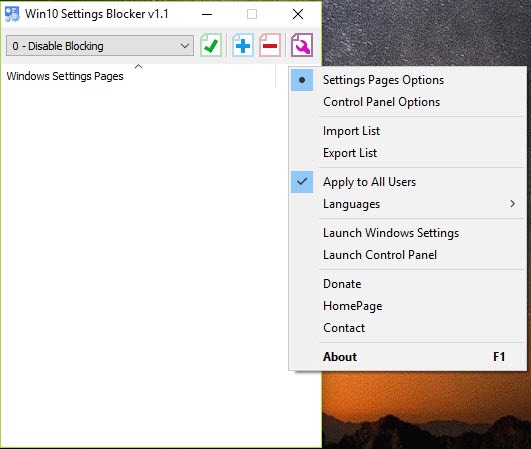
Everything in Win10 Settings Blocker starts from a drop-down with three blocking modes, plus a fourth that switches blocking off. Hide Pages removes the pages you list and leaves everything else visible. Show Only Pages flips the logic, so the Settings app displays your approved pages and nothing more. Block Settings Pages slams the door entirely, so the Settings app and the Control Panel simply refuse to open.
The middle mode is the one experienced admins reach for. Listing the three pages someone legitimately needs (sound, printers, display brightness, say) is far shorter and far safer than trying to enumerate every page they should not touch.
When a whole section empties out because all of its pages are hidden, the category itself vanishes from the main screen, so the result looks tidy rather than gutted.
Picking pages without memorising codes
Under the hood, each settings page has a technical address, and the native way to hide one involves typing those addresses into a policy string by hand, one typo away from silently doing nothing. The tool replaces that with a picker. Press the plus button, choose pages from the list, add them, and press the save button, and the change appears in the Settings app immediately with no reboot.
Entries can be unticked temporarily or deleted from the right-click menu, handy when someone needs a hidden page for five minutes. Untick, save, let them in, tick it again. The whole round trip takes less time than explaining why the page is hidden.
Control Panel gets the same treatment
The classic Control Panel is the back door most settings lockdowns forget, and Win10 Settings Blocker remembers it, since many of the same options still live there in older dress. A separate options view in the program lists Control Panel applets and hides the chosen ones the same way, closing the gap that would otherwise let a determined user walk around the lock.
Your block lists can also be exported to a file and imported elsewhere. Configure one machine carefully, save the list, and every other computer in the house or office receives the identical lockdown in seconds, instead of being rebuilt from memory.
What it is, and what it is not
Be clear about the strength of this lock. It hides and blocks through the same policy mechanism the system provides, and anyone with an administrator account can reverse it, either with the program or by editing the policy directly.
Against a child or a casual user on a standard account it is a solid wall, and against an administrator it is a curtain. Pair it with a limited user account for anyone who should not be tinkering, otherwise you are locking a door and handing over the key.
The program also runs without installation, so a single folder on a USB stick serves a whole household. If you want to steer what the machine does beyond its settings pages, a dedicated update blocker decides when updates arrive.
For everything else, a broader tweaking suite reaches hundreds of hidden options in one place.
Conclusion
Win10 Settings Blocker is for people who share or manage computers and want certain settings left alone. Parents, small offices and anyone looking after a relative’s laptop get a lockdown that takes two minutes to set up, shows its effect immediately and can be copied to every other machine with one exported file.
It is a tidy front end to the system’s own policy mechanism rather than a security product, and an administrator account will see straight through it. Used with a standard account, though, it keeps settings exactly as you left them, which is all most people ever wanted from it.
Pros & Cons
- Hide, show-only and full-block modes cover every lockdown scenario
- A page picker replaces typing technical page addresses by hand
- Changes appear in the Settings app immediately, with no restart
- Control Panel applets can be hidden too, closing the usual back door
- Block lists export and import for identical setups on other machines
- Runs without installation
- Anyone with administrator rights can undo the blocks
- Works only on the pages and applets the system's policy mechanism exposes
- No password protection on the program itself
Frequently asked questions
Yes. Choose Hide Pages, add the page with the plus button, and save. Everything else stays visible, and the hidden page disappears from the Settings app at once.
Switch the mode to Show Only Pages and add the pages that should remain. Every other page is hidden, and sections with nothing left in them vanish from the main screen.
A standard user cannot. Anyone with administrator rights can reverse the blocks, so pair the tool with a limited account for people who should not change settings.
Yes. A separate options view lists Control Panel applets, and the chosen ones are hidden the same way, so the old panel cannot serve as a back door.


