

AOMEI Backupper
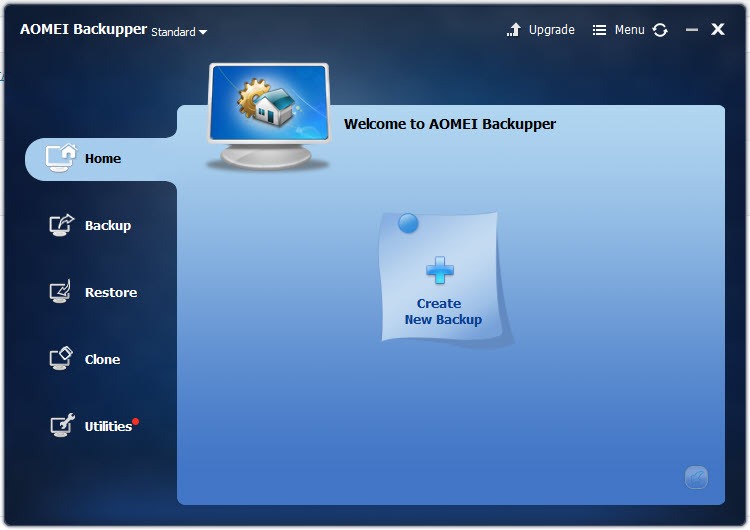
About AOMEI Backupper
Backup software occupies a strange place in most people’s lives. Everyone knows they should be backing up their data, almost nobody actually does it consistently, and the moment something goes wrong (a failed drive, a ransomware infection, an accidental deletion of an entire folder) the conversation suddenly becomes very serious.
AOMEI Backupper is one of the better-known names in this category, with a long history of providing solid backup capability through a free tier that genuinely covers most home use cases plus paid editions for users who need more advanced features.
This software has built a substantial international following, with particularly strong adoption in the US, Germany, Japan, France, and Italy. The product line spans from a Standard free edition through Professional, Workstation, and Server versions, each adding capabilities aimed at progressively more demanding use cases.
For home users who simply want reliable backups without paying anything, the free version handles the essentials. For technicians and small businesses, the paid versions add features like universal restore, command-line operation, and advanced scheduling that genuinely matter in those scenarios.
System backup and recovery as the core feature
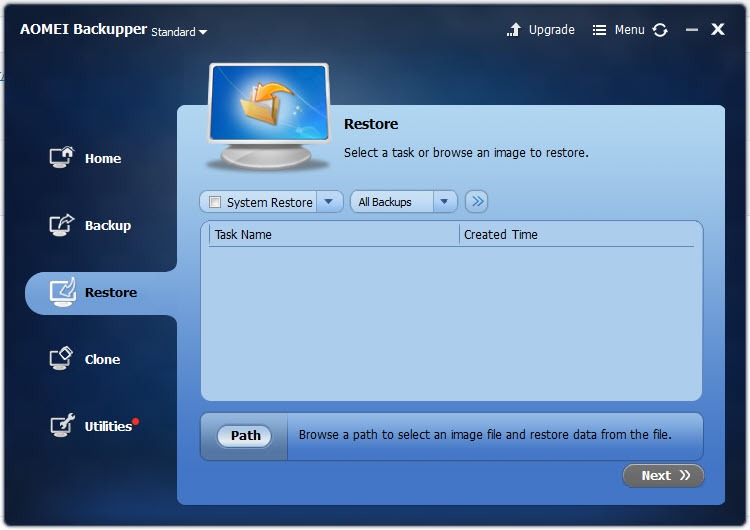
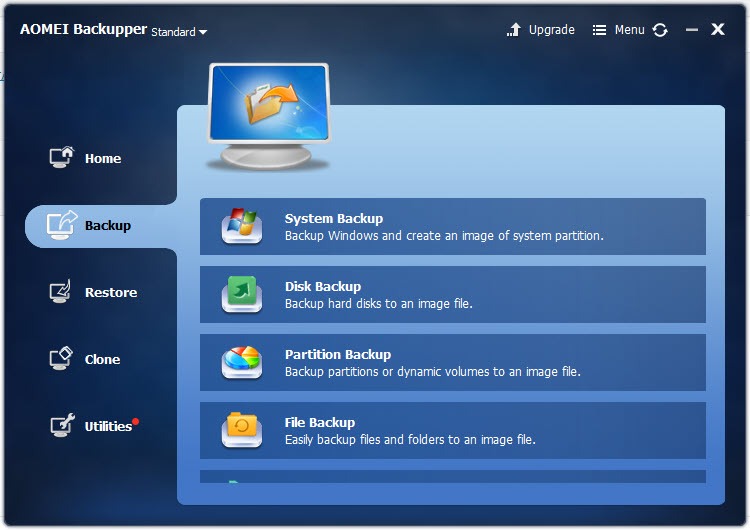
The headline capability of AOMEI Backupper is system backup, which captures your entire Windows installation including the operating system, installed applications, settings, and personal files into a single image file. When something goes wrong (a corrupted Windows update, malware infection, failed drive, or just the kind of slow degradation that affects every computer over time) you restore from the backup and your system returns to exactly the state it was in when the backup was made.
The whole-system approach matters because partial backups leave gaps. Backing up only your documents folder doesn’t help if Windows itself becomes corrupted, since you’d need to reinstall the operating system, reinstall all your applications, and reconfigure everything before you could restore your files. A full system image captures everything in one operation, and recovery puts you back to a working state without any of that intermediate work.
The application creates these images efficiently, with smart compression that keeps file sizes reasonable, and the restore process handles the various complications that come up in practice.
Recovering to a different drive, restoring after a complete drive failure, or bringing back a system to its previous state after a botched update all work through the same straightforward interface.
Disk and partition operations beyond backup
Beyond system backup, the application handles a range of operations on disks and partitions that frequently come up alongside backup work. Cloning a hard drive to a new SSD when you upgrade your storage, copying a partition to another disk for migration purposes, or creating exact bit-for-bit copies of an entire drive all work through the same interface as the backup features.
For users who just bought a new SSD and want to migrate their existing Windows installation rather than starting fresh, the disk clone feature is the standard recommendation.
You connect both drives, select the source and destination, and the application copies everything across including the boot configuration that makes the new drive bootable. After cloning, you swap the drives physically and your system boots from the new SSD with everything in place exactly as before.
The partition operations cover similar ground at a smaller scale, useful for situations where you need to move a single partition rather than an entire drive.
Combined, these features make the software a general-purpose disk utility in addition to a backup tool, which adds value for users who would otherwise need separate applications for these tasks.
File and folder backup for granular protection
Not every backup scenario calls for whole-system images. Sometimes you just want to protect specific folders containing important documents, project files, or media collections. AOMEI Backupper handles file-level backup through a separate workflow that lets you specify exactly which folders to include, what filters to apply, and how often to run the backup.
The file backup approach is more efficient than full system images for users who only need to protect particular data, since the backup files are much smaller and the operations complete much faster. For users with limited backup destination space, or for users who want to back up to cloud storage where bandwidth and storage costs matter, file-level backup keeps the protected data set focused on what actually matters.
The scheduling options let you configure file backups to run automatically on whatever cadence you prefer, from continuous protection through daily, weekly, or monthly runs. Combined with the various retention policies for managing old backup versions, this lets you set up a backup routine and then forget about it while the software handles the actual work in the background.
Incremental and differential backup strategies
Running a full system backup every time would be wasteful, since most of the data hasn’t changed since the last backup. The application supports both incremental and differential backup modes that capture only what has changed, dramatically reducing the time and storage space each subsequent backup requires.
Incremental backups capture changes since the last backup of any kind, producing the smallest possible backup files but requiring the entire chain of previous backups to perform a restore. Differential backups capture changes since the last full backup, producing slightly larger files but allowing restoration with just the original full backup plus the latest differential.
For most users, incremental backups make sense as the default, with periodic full backups (perhaps monthly) as a baseline. The application handles the chain management automatically, including consolidating older backups when the chain gets too long and managing the retention rules so that storage usage stays under control.
Schedule automation that actually works reliably
The scheduling system handles the practical challenge of running backups when they should without requiring user attention. You set up a schedule (daily at 2am, weekly on Sundays, before each shutdown, on plug-in of a particular USB drive, or various other triggers) and the application handles execution from there.
For users who have ever set up backup software that quietly stopped running months ago without notification, the reliability of this scheduling matters. The application logs each backup operation, alerts you when scheduled backups fail, and provides reasonable visibility into the backup history without requiring you to actively check on things.
Backup software that runs silently and reports problems clearly is exactly what you want, and this tool generally delivers that consistency.
Bootable rescue media for system failures
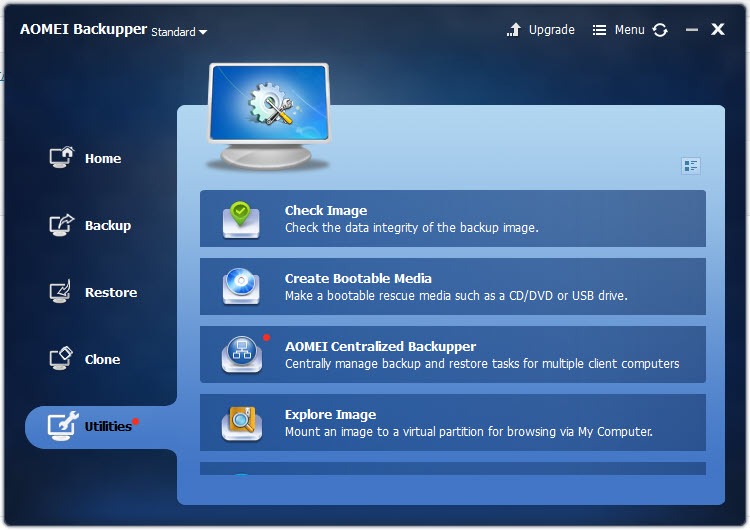
When your computer won’t boot at all, restoring a system image requires a bootable environment from which to launch the recovery. AOMEI Backupper can create bootable rescue media on USB drives or CDs that contain a minimal Windows or Linux environment along with the application itself, ready to run on any machine that won’t boot normally.
This rescue media is essential infrastructure for full disaster recovery scenarios. If your system drive fails completely or Windows becomes too corrupted to start, you boot from the rescue USB, run the application, and restore from your backup to a replacement drive. Without this kind of bootable recovery environment, full system backups would be much less useful, since you’d have no way to actually restore them when the original system can’t boot.
The rescue media creation is straightforward and worth doing right after installing the software, even before you make your first backup. Having that bootable USB ready in advance means you’re prepared for the scenarios where you’d actually need it most.
Cloud backup and synchronization features
Recent versions have added cloud backup destinations alongside the traditional local and network backup targets. You can back up to various cloud storage providers (with the supported list varying by edition) for offsite protection that survives even physical disasters affecting your primary location.
Synchronization features handle a different scenario, keeping folders mirrored between locations rather than creating versioned backups. For users who want a particular folder identical between their desktop and an external drive, or between local storage and cloud storage, the sync mode handles this with various options for handling conflicts and deletions.
These features overlap somewhat with dedicated cloud backup services and synchronization tools, and dedicated tools often handle their specific scenarios better. But having reasonable cloud and sync support in the same application that handles your local backups means fewer separate tools to manage and more consistent workflow across different protection scenarios.
Free vs Professional vs Workstation editions
The edition lineup can be confusing initially, but the practical differences come down to specific features and use case scope. The Standard edition (free) covers system backup, disk backup, file backup, basic scheduling, and disk cloning, which is genuinely sufficient for most home users who just want reliable protection.
The Professional edition adds incremental file backup, real-time sync, command-line operation, dynamic disk support, and several other features aimed at power users with more demanding requirements. For most home users, these aren’t essential, though some specifically want features like the command-line operation for scripting purposes.
The Workstation edition adds licensing for commercial use along with additional enterprise-relevant features, while the Server edition extends the same capabilities to Windows Server installations. For home use, the Standard and Professional editions are the relevant choices, with Standard being the right starting point and Professional only worth the upgrade if specific paid features matter for your particular needs.
Considerations and limitations
The interface, while functional, has accumulated features over years of development and can feel cluttered for new users. The variety of backup modes, sync options, clone operations, and other features all share dashboard space, which means initial navigation requires some learning. For users who just want simple backups and don’t care about the broader feature set, the variety might feel like unnecessary complexity.
Backup encryption is available but optional, and users who specifically need encrypted backups (for sensitive business data or personal information) need to enable encryption explicitly during backup creation. The default settings produce unencrypted backups, which may or may not match your security requirements depending on where the backup files are stored.
The cloud backup integrations work but aren’t as seamlessly integrated as dedicated cloud backup services. If cloud backup is your primary protection strategy, dedicated services like Backblaze or iDrive may serve better, with this tool being more appropriate when local backups are primary and cloud is supplementary.
Conclusion
AOMEI Backupper has earned its reputation as one of the better backup solutions available by combining capable functionality with a generous free tier that genuinely meets most home users’ needs. The combination of system imaging, disk operations, file backup, and scheduling delivers comprehensive data protection through a single application rather than requiring multiple specialized tools.
It’s not the absolute best in any single dimension, since Macrium Reflect arguably has cleaner technical implementation and Acronis offers more depth at higher cost, but the balance of capability and accessibility makes it a practical recommendation for users who want reliable backup without spending money on commercial alternatives.
For home users, technicians, and small businesses building proper backup strategies, AOMEI Backupper delivers exactly what’s needed to actually follow through on the backup intentions that everyone has but few people execute consistently.
Pros & Cons
- Free Standard edition covers essential backup needs without artificial limitations
- System imaging captures complete Windows installations for full disaster recovery
- Disk and partition cloning handles drive upgrades and migrations cleanly
- Incremental and differential backups efficiently capture only changed data
- Reliable scheduling system handles automated backup execution
- Bootable rescue media enables recovery from completely failed systems
- File and folder backup for users who need protection without full system images
- Sync features for keeping folders mirrored between locations
- Interface complexity can feel overwhelming for users who want simple backup workflow
- Cloud backup integrations less seamless than dedicated cloud services
- Some advanced features require paid Professional or Workstation editions
- Default backup encryption is off, requiring explicit enabling for sensitive data
- Documentation occasionally inconsistent across versions and editions
Frequently asked questions
This software creates backups of your computer that you can restore later if something goes wrong, including full system images, individual disk and partition backups, and file-level backups for specific folders. It also handles related operations like disk cloning for drive upgrades and synchronization between locations, providing a comprehensive set of data protection capabilities in one application.
The Standard edition is genuinely functional and covers most home backup scenarios completely. System backup, disk cloning, file backup, basic scheduling, and bootable rescue media are all included without artificial limits. Some advanced features (incremental file backup, real-time sync, command-line operation) are reserved for paid editions, but the free version handles essential backup needs without crippling restrictions.
You use the bootable rescue media to boot the failed computer into a recovery environment containing the application. From there, you can access your backup file (whether on an external drive, network location, or another internal drive) and restore the system to a replacement drive or back to the same drive after fixing whatever caused the original failure.
Incremental backups produce the smallest backup files but require the entire chain of previous backups to perform a restore, while differential backups produce slightly larger files but allow restoration with just the original full backup plus the latest differential. For most users, incremental backups make sense as the default, with periodic full backups providing a clean baseline that resets the chain.
Yes, network locations including NAS devices, mapped drives, and UNC paths work as backup destinations alongside local drives and external storage. This provides flexible options for where backups are stored, which matters for both reliability (separate physical location) and capacity (NAS devices typically offer more space than external drives).
All three are capable backup solutions with overlapping core features. Macrium Reflect is generally considered the most polished free option with particularly clean technical implementation, while Acronis offers the broadest feature set at higher cost. This tool sits between them, offering more features than Macrium's free version while costing less than Acronis. The right choice depends on specific needs and budget considerations.
The application logs the failure and can alert you through email notifications or visible warnings on the dashboard. The next scheduled backup proceeds normally, attempting to capture changes since the last successful backup rather than getting stuck because of one failed run. Investigating the logs typically reveals the cause (full destination drive, network unavailable, source location inaccessible) so you can address the underlying issue.


