

PCI-Z


 (14 votes, average: 3.36 out of 5)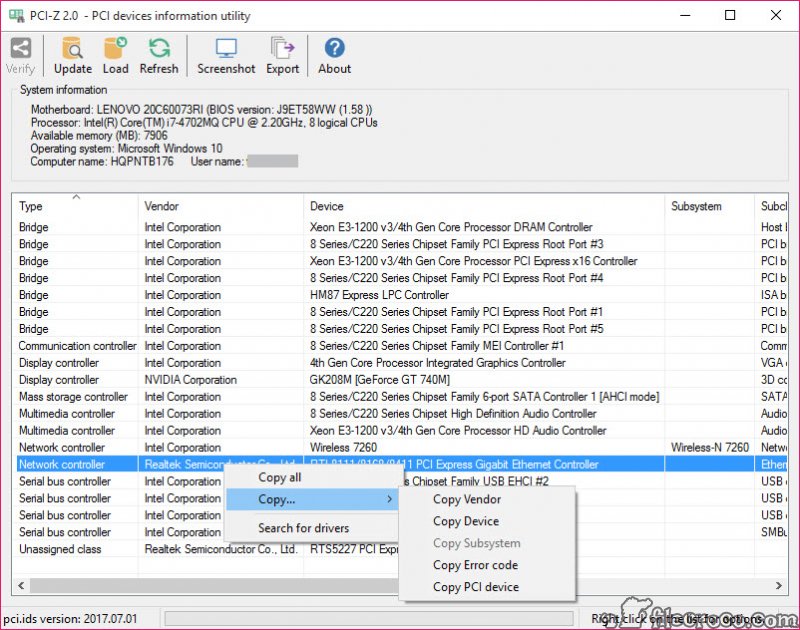
About PCI-Z
PCI-Z is a tiny detection utility that answers one stubborn question better than almost anything else on your system. What is that unknown device sitting in your hardware list with a yellow exclamation mark next to it? It scans every PCI, PCI-E, and PCI-X component plugged into your motherboard and tells you the vendor, the device name, and enough technical detail to actually go find a driver for it.
The trick is that it works even when your operating system has no idea what the hardware is. Run a scan with PCI-Z after a fresh install and you stop seeing a wall of generic entries. Network controller. Multimedia audio controller. Unknown device.
That is useless when you are trying to track down the right driver. PCI-Z reads the raw vendor and device IDs straight off the bus and matches them against its bundled copy of the hardware ID database, so instead of cryptic codes you get readable names you can search for.
It does this with no network connection, which means you can name every controller on a freshly imaged machine before it has ever touched the internet, then go fetch drivers from a computer that has one, by hand or through a scanner like DriverHub.
How does it identify hardware the system can’t?
Every PCI device carries a pair of numeric IDs burned into it. A vendor ID and a device ID. Your operating system uses those to load the correct driver, but if no driver is installed yet, those numbers are all it has, and it shows you nothing useful. The application reads those IDs directly and cross-references them against an offline copy of the PCI ID Repository, the same public database of vendor, device, and subsystem codes that the well-known lspci command relies on.
So a line that your system labels as a meaningless string becomes something concrete. A Realtek audio codec. An Intel gigabit network adapter. A specific Broadcom wireless chip. Once you have the real name, finding the driver is straightforward.
Where a dedicated reader like GPU-Z drills deep into a single graphics card, this one casts the widest possible net across the whole bus. This is the whole reason the tool exists, and it nails it.
A familiar layout that gets out of your way
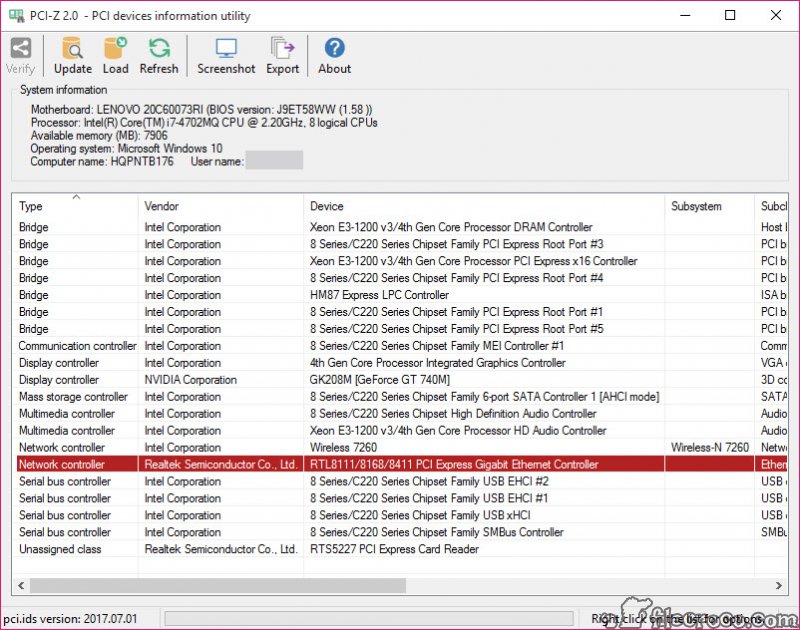
The interface is a single scrollable list. Each row is one device, with columns for vendor, device, class, and the underlying IDs. No tabs to dig through, no settings panels to configure, no wizard asking you questions before it does anything. You run it and the report is right there.
Right-click any entry and you get the options that matter. Copy a single field, copy the whole row, or copy everything. If you have ever tried to read a hardware ID off a screen and type it into a search box by hand, you know why this matters. One wrong character and you are looking at the wrong driver. Being able to copy the exact string removes that risk entirely.
PCI-Z also offers a command-line mode for anyone who wants to script the process or pull a report without opening a window. That mirrors how the lspci command behaves, and it is a nice touch for technicians who handle many machines and would rather pipe output into a log than click through a GUI.
Exporting and sharing your hardware list
You can export the full device list to a file, which turns out to be handy in more ways than you might expect. A help desk can ask a user to run PCI-Z, export the list, and send it over. From that single file the technician can identify every device without ever touching the machine. For anyone supporting computers remotely, that is a real shortcut.
The export also doubles as a record. If you build PCs or maintain a fleet of them, having a saved snapshot of what hardware is actually in each box saves time later. You are not guessing what wireless card went into that build two jobs ago.
Conclusion
For a tool that does one thing, PCI-Z earns its place on a technician’s USB stick. It takes the most frustrating part of setting up or repairing a computer, that pile of unidentified controllers in the device list, and turns it into a clean set of names you can actually act on. The portable, offline design means it works precisely when you are most stuck, on a bare system with no network and no drivers.
It will not hold your hand through the next step of fetching and installing those drivers, which is where something like Snappy Driver Installer takes over, and the interface is strictly business.
But if you spend any time around hardware that the operating system refuses to recognize, this little utility will pay for the few seconds it takes to run, over and over again.
Features & benefits
Pros & Cons
- Identifies PCI, PCI-E, and PCI-X devices even when the system shows them as unknown
- Reads raw vendor and device IDs and matches them to readable names
- Runs as a single portable file with no installation
- Works offline using a local copy of the hardware ID database
- Copy and export options make finding drivers and sharing reports easy
- Includes a command-line mode for scripting and bulk work
- It identifies hardware but does not download or install drivers for you
- The plain list interface looks utilitarian and will not win any design awards
- It only covers PCI-family devices, so USB and other buses are out of scope
- Matches depend on the ID database, so a brand-new chip may show up incompletely until the database catches up
Frequently asked questions
It detects anything on the PCI, PCI-E, or PCI-X bus, including network cards, audio chips, wireless adapters, storage controllers, and graphics cards, whether they are add-in cards or built into the motherboard.
Yes. That is the main point of the tool. It reads hardware IDs directly off the bus, so it can name a device even on a freshly wiped system with nothing installed.
In most cases, yes. As long as the device reports valid PCI IDs, the tool can match them against its database and show you a real vendor and device name.
No. It identifies hardware and gives you the exact names and IDs you need, but downloading and installing the actual driver is a separate step you handle yourself.
Yes. You can export the full list to a file, which is useful for remote support or for keeping a record of what is inside a given machine.


