

iSpring Cam
About iSpring Cam
Most screen recorders assume you want to broadcast something. iSpring Cam assumes you want to explain something, which is a different job with different priorities, and it shows in what the program bothers to include.
Choosing what to capture
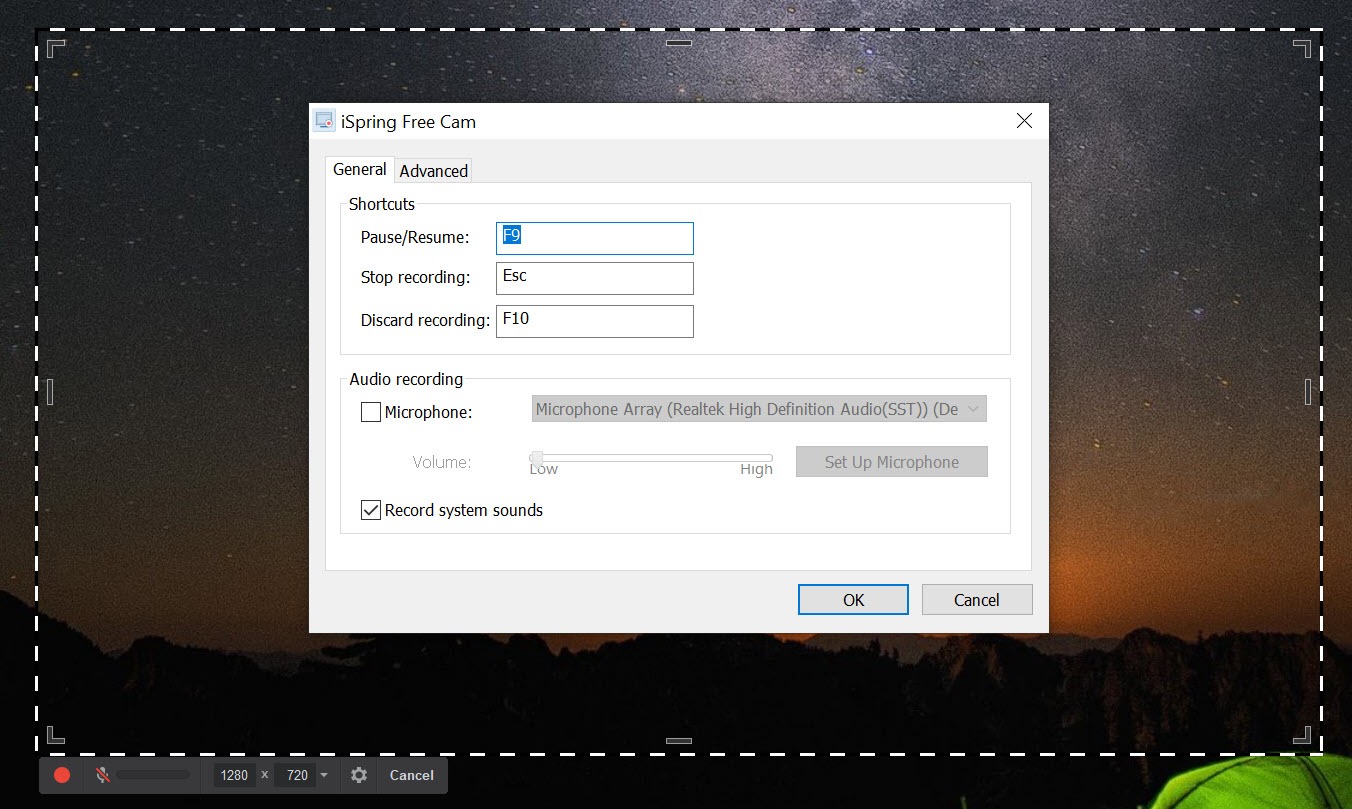
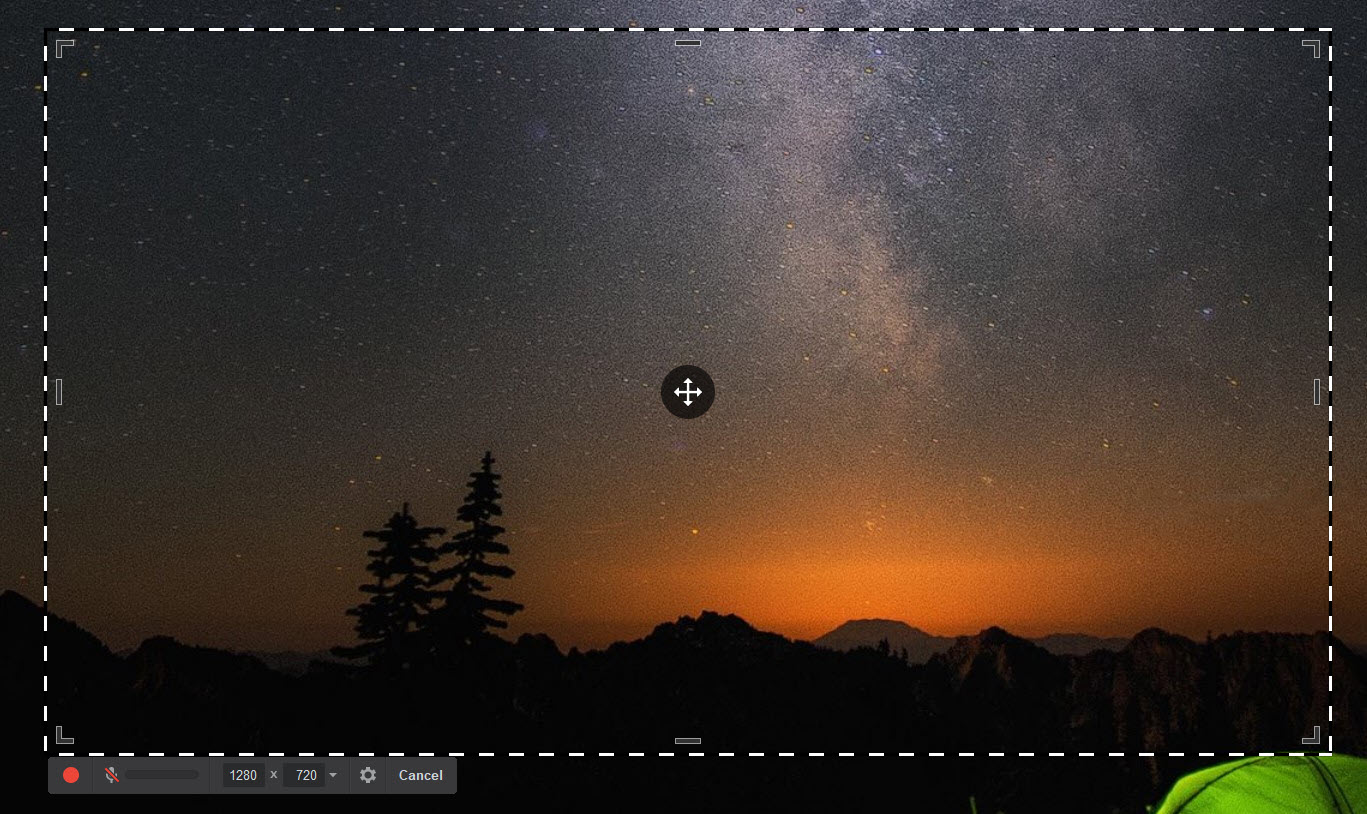
Recording starts by choosing the area. The whole screen, a single window, or a region you drag out, with preset frames for the common aspect ratios sitting alongside a custom option. The frame can be repositioned before you begin.
Escape stops the recording and drops you straight into a preview rather than into a file browser, which is a small thing that turns out to matter when you are recording the same explanation for the fourth time.
It also stays light on the processor while capturing, so the recording itself does not become the reason the demonstration stutters.
The audio half is the strong half
This is where the program pulls ahead of most of its peers. Microphone and system audio record simultaneously, so a narrated walkthrough captures both your voice and whatever the application is doing, and background music can be laid underneath if the recording needs it.
The editing that follows in iSpring Cam is almost entirely audio work, and it is well chosen. Background noise can be stripped from the entire clip in one action, which matters because a home office narration always has a fan or a road in it somewhere. Individual spans can be silenced, volume adjusted, fades applied at either end.
That covers the common repairs. Anything beyond them, meaning equalisation, compression, or repairing a badly clipped recording, wants an audio editor with real processing tools and a separate pass.
Built for tutorials, up to a point
Two touches make iSpring Cam noticeably better for instructional recordings. The cursor can be highlighted so viewers can actually follow where you are pointing, and mouse clicks can be given an audible tick so a viewer knows when something was pressed rather than merely hovered over.
Then the gaps in iSpring Cam arrive, and they are significant. There is no webcam recording, so a face cannot appear in the corner. There are no annotations, no text overlays, no arrows, no callouts, and no transitions between segments. Whatever was on screen is what the viewer gets, unedited except for what you cut out.
For instructional video where annotation is the point rather than a nicety, ActivePresenter covers the same ground with the drawing and captioning layers this one omits.
The higher tier of this program adds webcam and annotation support, so the capability exists, just not in the version most people install.
One format, one resolution
Output is a single video format at 720p. That is the sentence that will decide this for most people, because a recording of a modern display downscaled to that resolution turns small text into mush, and a tutorial where the viewer cannot read the menu you just clicked is a failed tutorial.
Recording length is uncapped and nothing is stamped onto the picture, which removes the two most common irritations elsewhere. Uploading straight to a video hosting account works with one click, or the file saves locally.
Since the format is narrow, HandBrake is the natural second step for anyone who needs something more widely accepted.
And if the resolution ceiling is the dealbreaker rather than the container, a capture tool that records at native resolution sidesteps the problem entirely.
Conclusion
iSpring Cam suits somebody producing internal explainers, classroom material or a quick walkthrough for a colleague, where clarity of narration matters more than production values. The audio handling is better than the program’s modest reputation suggests, and the cursor and click cues solve a real problem in tutorial video that flashier recorders often ignore.
The resolution ceiling is what will send people elsewhere. Recording a large display down to 720p is fine for a slide deck and poor for anything with small interface text in it, which is most software tutorials.
Check what your own screen looks like at that size before committing to it, because everything else here is pleasant and that one limit is not negotiable.
Pros & Cons
- Microphone and system audio record together, with background music available underneath
- Background noise removal across the whole clip in one action
- Cursor highlighting and audible mouse clicks make actions easy for viewers to follow
- Recording length is unlimited and nothing is stamped onto the finished picture
- Trim, silence, volume and fades cover the edits a screencast usually needs
- Preview opens immediately after recording rather than sending you hunting for a file
- Output is capped at 720p, which blurs small text captured from a larger display
- Only one video format is produced, so conversion is often a required extra step
- No webcam recording, so narrated tutorials cannot show a presenter
- No annotations, text overlays or transitions of any kind
- Video editing is limited to cutting, with the real capability sitting on the audio side
Frequently asked questions
Not in the standard version. A face cannot be placed in the corner of a screencast here, and that capability belongs to the higher tier of the same product.
A single video format, at 720p. It plays widely enough for internal use, though anything destined for broader distribution is usually converted afterwards.
Neither. Recordings run as long as you have storage for, and nothing is overlaid on the finished picture, which is unusual in this part of the market.
Yes, and it is one of the better reasons to use it. Background noise removal works across the whole clip in one action, and individual sections can be silenced or have their volume adjusted separately.


