

Biniware Run
About Biniware Run
The Windows desktop has been the same essential idea for decades: a screen full of icons, files, and shortcuts that gradually accumulate into chaos as you add more applications and bookmarks. Most users develop their own coping strategies, from elaborate folder structures to taskbar pinning to keyboard shortcuts, but the underlying problem of “where did I put that thing I need quickly” never quite goes away.
Biniware Run takes an unusual approach to this problem with a small floating circle that sits on your desktop, holding all your shortcuts in one consolidated, drag-and-drop accessible place.
Developed by Biniware as a portable utility for Windows users who want a quick-access launcher without the complexity of larger productivity suites, this software has built a small but loyal following among power users who appreciate its specific combination of simplicity and customization.
The interface is genuinely unusual compared to most software, but once you’ve used it for a while, the underlying design starts to feel obvious.
A floating circle as the central hub
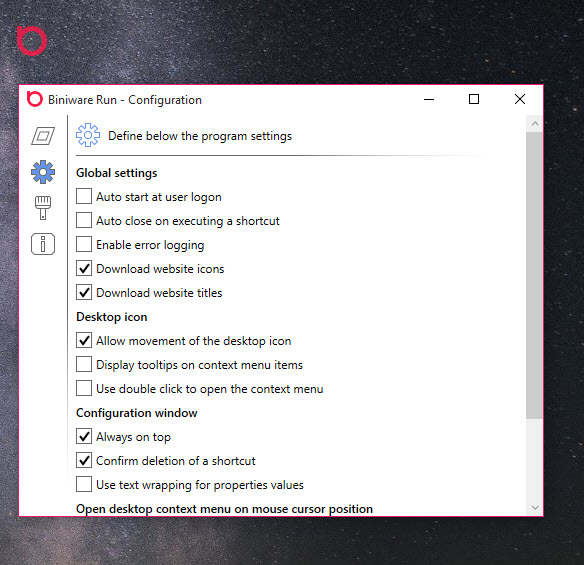
The defining feature of Biniware Run is the colorful circle that appears on your screen after launch. By default it sits at the top-center of your display and stays on top of other windows, so it’s always accessible regardless of which application currently has focus. The circle can be moved anywhere you want, resized to whatever size suits your workflow, and adjusted for opacity so it’s as prominent or subtle as you prefer.
This persistent visibility is what separates the launcher from traditional Start menu approaches. You don’t need to click Start, navigate menus, or remember keyboard shortcuts to access your shortcuts. The circle is right there, waiting, ready to either receive a new shortcut you’re creating or launch an existing one with a click.
For users who find the standard Windows launcher experience scattered across the Start menu, taskbar, and desktop, this consolidated approach delivers a single point of access for everything you might want to quickly open.
Drag-and-drop to add shortcuts
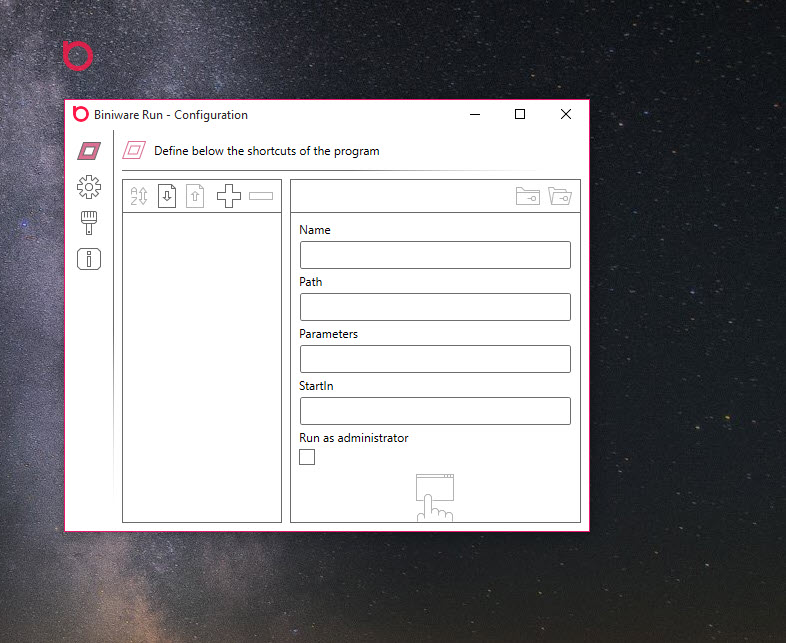
Adding new shortcuts to your collection is as simple as dragging items onto the circle. Drag a file from File Explorer, a folder, or a URL from your browser address bar, and the application creates an appropriate shortcut entry.
There’s no separate configuration step, no menu navigation to add items, just direct manipulation that matches how you already work with files on the desktop.
The drag-and-drop approach extends to organization as well. You can drag items between categories, reorder shortcuts within a list, and build multi-level structures that group related items together.
For users who organize their work mentally by category (work projects, personal documents, research links, frequently used applications), this drag-based organization scales naturally as the collection grows.
Multi-level structure and categories
Beyond just a flat list of shortcuts, the launcher supports a multi-level structure where shortcuts can be organized into categories and subcategories. This matters because once your shortcut collection grows beyond a few dozen items, a flat list becomes nearly as unmanageable as the desktop chaos you were trying to escape.
With categories, you might have a top-level “Work” category that expands into subcategories for specific projects, each containing the relevant files, folders, and websites. Personal items live in their own structure, browsing references in another, and so on.
The hierarchical organization lets the tool scale to substantial shortcut collections without becoming overwhelming.
Global keyboard shortcuts and search
For users who prefer keyboard-driven workflows, the application includes global keyboard shortcuts and a search function triggered by Ctrl+F. Pressing the search shortcut from any application opens the launcher’s search interface, where you can type to find any shortcut by name without navigating through categories.
This search-driven access matters once your collection has grown to the point where browsing through categories is slower than just typing what you want. For users with hundreds of shortcuts organized into deep category structures, the search function becomes the primary access method, with the visual circle reserved for casual browsing and management.
The global hotkey system lets you assign keyboard shortcuts to specific items, providing instant access to your most frequently used shortcuts without needing the search dialog at all. For a handful of essential items, dedicated hotkeys offer the fastest possible access path.
Portable design with no installation
A particularly useful aspect for power users is the portable nature of the application. The entire program runs from a single executable without requiring installation, which means you can carry it on a USB drive and use it on any Windows computer with your shortcuts and configuration intact.
For users who work across multiple computers, this portability eliminates the configuration overhead that usually comes with using new machines. Plug in your USB drive, run the executable, and your familiar shortcut environment is immediately available with all the items and organization you’ve built up over time.
The configuration file uses XML format, which makes it easy to edit manually, back up, or migrate between systems. Users who want to make bulk changes or programmatic modifications to their shortcut collection can work with the XML directly rather than going through the GUI.
Customization for visual preferences
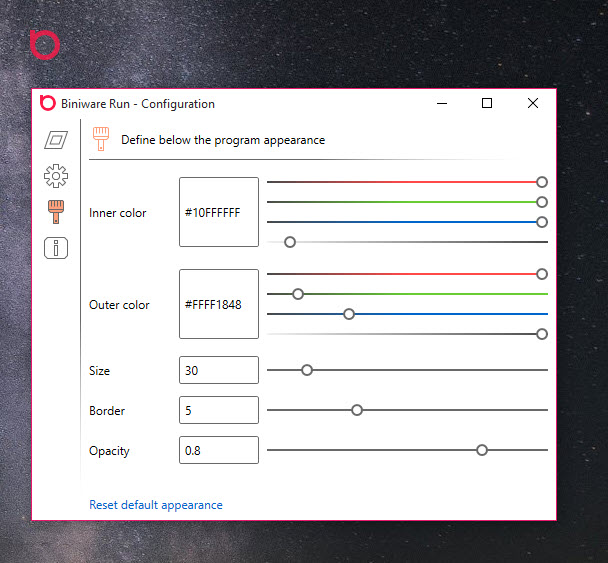
The visual design is highly customizable, addressing the reasonable concern that a colorful circle on your desktop might not suit everyone’s aesthetic preferences.
Size, opacity, color schemes, and various other appearance options let you tune the launcher to fit your visual style and the rest of your desktop environment.
For users who want the launcher to be visually prominent (so they remember to use it), maximum opacity and size work well. For users who want it to fade into the background until needed, low opacity and a small size keep it accessible without becoming visual clutter.
This appearance flexibility matters because the persistent visibility that makes the launcher useful also means you’re looking at it constantly during work. Getting the visual presentation right affects whether the tool feels helpful or distracting.
HTML bookmark import and dynamic discovery
For users with substantial existing browser bookmark collections, the application supports importing HTML bookmark files directly. This means you can take years of accumulated bookmarks from your browser and bring them into the launcher’s organization system without manually recreating each shortcut.
The dynamic discovery feature scans specified folders for files and creates shortcuts automatically, which is useful for users who want their launcher to stay synced with the contents of specific folders rather than requiring manual updates whenever folder contents change.
Run as administrator support
Some applications need to run with elevated privileges to function correctly, and the launcher includes options for running specific items as administrator without requiring the standard UAC right-click navigation each time. For users who frequently launch admin-required tools, this saves the small but recurring friction of the elevation process.
This integration is particularly useful for IT professionals or power users whose daily work involves running multiple administrative tools.
Configuring those tools to launch elevated through the launcher means they’re available with the same single-click access as everything else, without the additional dialog interaction.
Conclusion
Biniware Run offers an unusual approach to the perennial problem of accessing the things you actually use frequently on a Windows system. The floating circle interface is genuinely different from how most launchers work, and for users willing to spend a little time setting up their shortcut collection, it delivers a fast and consolidated alternative to the scattered standard Windows access patterns.
It’s not for everyone, particularly users who prefer minimalist desktops or those who already have launcher workflows they’re satisfied with. But for users frustrated with the chaos of accumulated shortcuts, browser bookmarks, and Start menu entries, Biniware Run offers a structured alternative that scales surprisingly well as your collection grows.
The portability, customization, and unique interface combine into a tool that occupies a niche the mainstream alternatives don’t quite address.
Pros & Cons
- Persistent floating circle provides constant access without menu navigation
- Drag-and-drop creation makes adding shortcuts effortless
- Multi-level category structure scales to large shortcut collections
- Global search with Ctrl+F finds any shortcut from any application
- Portable executable runs without installation from USB drives
- XML-based configuration easy to edit, back up, or migrate
- HTML bookmark import preserves existing browser collections
- Customizable appearance adapts to different visual preferences
- Run-as-administrator support eliminates UAC friction for elevated tools
- Floating circle interface won't appeal to users who prefer minimalist desktops
- Initial setup time required to organize categories and import existing shortcuts
- Limited integration with system features beyond launching shortcuts
- Smaller user community compared to mainstream launcher alternatives
- Visual style may clash with carefully designed desktop themes
Frequently asked questions
This software provides a centralized launcher for accessing your favorite files, folders, websites, and applications through a customizable circle that sits on your desktop. Items are added through drag-and-drop and can be organized into multi-level category structures, with optional keyboard shortcuts and search for fast access.
The Start menu organizes installed applications by name and recent usage, while this launcher gives you direct control over what appears in your launcher and how it's organized. You can mix files, folders, websites, and applications in the same structure, organize them by your own logic rather than alphabetical or recency-based ordering, and access everything from a persistent visible interface.
Yes, the launcher supports importing HTML bookmark files exported from browsers. This lets you bring substantial existing bookmark collections into the launcher's organization without manually recreating each entry. Major browsers all support exporting bookmarks in the HTML format the import feature expects.
Yes, the launcher includes both global hotkeys for specific items and a Ctrl+F search function that finds any shortcut by name from any application. For frequently used items, dedicated hotkeys provide instant access. For larger collections, the search function is typically faster than browsing category structures.
By default the circle stays on top of other windows, providing constant visibility for quick access. You can adjust its position, size, and opacity to fit your workflow. For users who find constant visibility distracting, lower opacity makes it visually subtle while keeping it accessible. The circle can also be hidden when not needed.
Yes, the launcher includes run-as-administrator support that eliminates the UAC right-click step for specific shortcuts. For users who frequently need elevated tools, configuring them to launch elevated through the launcher saves the recurring small friction of the standard elevation dialog interactions.
The multi-level category structure lets you organize items hierarchically, with categories containing subcategories that contain shortcuts. For substantial collections, building a logical structure based on your work patterns (work projects, personal items, references, applications) typically scales well even to hundreds of items.
The XML configuration is straightforward enough to manually edit or recover from backups. For users who want to be cautious, regularly backing up the XML file provides protection against any corruption or accidental changes. The simple format also means external tools or scripts can manipulate the configuration if needed.
The floating circle is itself a desktop element, so users who strongly prefer minimal desktops may find the constant visibility counterproductive. Adjusting opacity, size, and position helps make the launcher less visually prominent, although it inherently requires some screen presence to function as a constant-access launcher.


