

Cmder
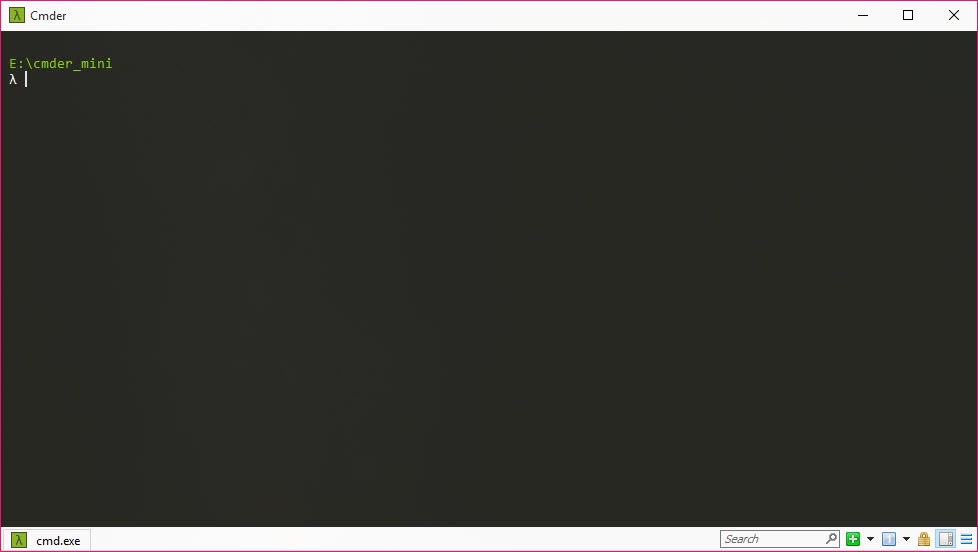
About Cmder
Anyone who has spent serious time at a Windows command line knows the standard Command Prompt is, to put it diplomatically, not great. The window is small by default, copy-paste behaves strangely, the colors are limited, there are no tabs, and the overall experience feels like it hasn’t been seriously updated since the early 2000s, because it largely hasn’t.
PowerShell improves things somewhat but doesn’t fundamentally change the experience. Cmder exists to fix this gap, providing a console emulator that brings Windows command-line work into the same century as the modern terminals available on macOS and Linux.
Built as an enhancement layer on top of ConEmu (the underlying console emulator that powers most of the features), this software combines a polished terminal experience with bundled developer tools that make it particularly useful for software developers, system administrators, and anyone who spends meaningful time at a command line on Windows.
The free, open-source distribution comes in two versions, with the Full version including a complete Git for Windows installation alongside Unix-style command-line utilities, while the Mini version provides just the terminal without the additional tools.
A terminal that actually works like a modern terminal
The defining feature of Cmder is that the basic experience finally works the way users coming from macOS or Linux expect. Multiple tabs let you work in different shells simultaneously, with each tab maintaining its own state and command history. Copy-paste works through standard Ctrl+C and Ctrl+V (the way every other application handles it) rather than requiring the bizarre right-click menu approach of the native Command Prompt.
Window sizing and resizing actually behaves correctly, with the terminal content reflowing to fit whatever dimensions you choose. The text rendering is crisp, supports a wide range of fonts (including programming-friendly options like Fira Code, JetBrains Mono, and Cascadia Code), and handles Unicode properly without the encoding mishaps that plague the older console environments.
These improvements sound like minor quality-of-life adjustments, but they accumulate into a fundamentally different experience. Time spent at the command line stops being a constant series of small irritations and becomes something closer to actually pleasant, which matters when command-line work is part of your daily routine.
Bundled Git and Unix tools in the Full version
The Full version of Cmder includes a complete Git for Windows installation along with a substantial collection of Unix-style command-line utilities like ls, grep, sed, awk, less, and dozens of others. For developers working on Windows who want the standard Unix toolkit available natively, this saves the work of installing and configuring those tools separately.
The integrated Git installation is particularly valuable since Git is essentially required for modern software development, and configuring it on Windows can involve more friction than ideal for new developers. Having Git ready to use the moment you launch the terminal eliminates one of the standard setup steps for any new development environment.
The Unix utilities matter for cross-platform work where commands written for Linux or macOS environments need to function similarly on Windows. Having a working ls, grep, and sed available means scripts and command sequences from other platforms often work directly without translation, which simplifies workflows that span multiple operating systems.
Customizable prompt with Git integration
The default prompt configuration in this software shows your current directory along with relevant Git information when you’re inside a Git repository. The current branch name appears, along with indicators showing whether you have uncommitted changes, untracked files, or unpushed commits. For developers working with Git constantly, having this information visible at all times eliminates the need to run git status repeatedly to check the current state.
The prompt configuration is customizable, with users able to adjust colors, displayed information, and overall appearance to match their preferences. For users who want a different prompt style entirely, the configuration system supports substantial customization without requiring deep technical knowledge of the underlying scripting.
This kind of contextual information in the prompt has been standard in modern Linux and macOS terminals for years, and having it available naturally in a Windows terminal removes one of the persistent reasons developers preferred working on Unix-like systems for Git-heavy workflows.
Tab management and split panes
Multiple tabs handle the common scenario of running several command-line operations in parallel, with each tab providing an independent shell session. You can have a Git tab in one project directory, a build tab running a development server, a Python REPL in another tab, and so on, all within the same window without cluttering your taskbar with multiple terminal windows.
Beyond simple tabs, the software supports split panes within a single tab, letting you divide one tab vertically or horizontally into multiple sub-shells. This matters for workflows where you want to see two related operations side by side, like a build process running in one pane while you edit code in another, all within the same logical workspace.
The keyboard shortcuts for tab and pane management feel natural and match patterns established by modern terminals on other platforms, which means users coming from those environments don’t have to relearn entirely different keyboard conventions.
Multiple shell support beyond cmd
Despite the name suggesting Command Prompt, Cmder doesn’t lock you into using cmd as your shell. The application supports launching tabs with different shells based on what you have installed, including PowerShell, bash (through Git for Windows or WSL), Python interactive sessions, Node.js REPLs, or any other command-line interpreter you have available.
For users who prefer PowerShell’s syntax for Windows administration but want bash for development work, having both available through tabs in the same terminal eliminates the choice between them. You can run whatever shell makes sense for the immediate task without switching applications, which keeps the workflow focused on the work rather than tool management.
The shell selection happens at tab creation through a menu, with default shell preferences configurable through settings. New tabs can default to whichever shell you use most often, while alternative shells remain accessible when needed.
Aliases and custom commands
The software supports user-defined aliases that translate short commands into longer expanded versions, similar to the alias functionality on Unix-like systems. You can define an alias for a long Git command sequence, a complex docker invocation, or any other command that you find yourself typing repeatedly, then invoke it through the short alias.
For workflows involving repeatedly typed command sequences, this aliasing dramatically reduces typing while keeping the actual commands visible and editable through the alias definitions file. The configuration travels with the portable installation, so your aliases follow you across machines using the same instance.
This kind of customization, while available in the underlying shells through their own alias systems, gets centralized through the application’s configuration in a way that works consistently across whichever shell you’re currently using.
Comparison with Windows Terminal and other alternatives
The terminal landscape on Windows has evolved significantly since this software first appeared. Microsoft’s Windows Terminal (released in 2019) provides much of what users previously needed third-party terminals for, including tabs, modern rendering, and proper keyboard handling. WSL (Windows Subsystem for Linux) gives users a complete Linux environment for situations where Linux compatibility matters.
Cmder still occupies a useful niche by bundling everything together in a portable package, particularly for users who want the included Git and Unix tools without separate installation work. Windows Terminal requires you to install your shells and tools separately and configure them yourself, which is more flexible but more work. WSL provides actual Linux but comes with the overhead of running a Linux environment alongside Windows.
For users who want a single installation that includes a polished terminal, Git, and Unix utilities ready to use, this software remains a practical choice despite the increased competition. For users who specifically prefer Microsoft’s official solutions, Windows Terminal plus separate tool installations work well. The right choice depends on whether you value the bundled approach or prefer assembling your environment yourself.
Considerations and limitations
The development pace has slowed compared to its peak years, with releases becoming less frequent and some features lagging behind what newer terminals offer. The community-maintained status means improvements happen when contributors have time, which is sustainable but doesn’t match the velocity of commercially-developed alternatives.
The bundled Git for Windows in the Full version may not be the latest release at any given moment, with updates depending on when the application package gets refreshed. For users who want the absolute latest Git, installing Git for Windows separately and pointing this software at it ensures you always have current versions.
Some advanced terminal features available in newer alternatives (like GPU-accelerated rendering for very large outputs, advanced text shaping, or tighter integration with modern operating system features) aren’t present in this software’s older codebase. For most users this doesn’t matter, but power users who push terminals to their limits may notice the differences.
Conclusion
Cmder has earned a long-standing place in the toolkit of Windows developers and command-line users by addressing the genuine inadequacies of the native Command Prompt in a way that just works. The combination of modern terminal features, bundled developer tools, and portable design delivers a complete command-line environment that requires minimal setup before becoming useful for serious work.
It’s not the only good option anymore, with Windows Terminal having matured significantly and various other terminals competing for attention. But for users who appreciate the bundled approach, the convenience of having Git and Unix tools immediately available, and the portability that comes with the design, Cmder continues to deliver what it always promised: a Windows terminal that doesn’t make you wish you were using a different operating system.
Pros & Cons
- Modern terminal experience with tabs, proper copy-paste, and clean rendering
- Bundled Git for Windows and Unix utilities in the Full version
- Customizable prompt with Git status information visible at all times
- Multiple shell support including cmd, PowerShell, bash, and others
- Tab and split pane management for parallel workflows
- Portable design runs without installation, suitable for USB deployment
- User-defined aliases reduce typing for repeated command sequences
- Free and open-source with no licensing restrictions
- Development pace has slowed compared to actively-maintained alternatives
- Bundled tools may not be the latest versions when you download the package
- Some advanced features available in newer terminals aren't present here
- Configuration system involves multiple files in different formats
- Performance with very large terminal outputs can lag behind newer alternatives
Frequently asked questions
This software is a terminal emulator for the command line that provides modern features like tabs, proper copy-paste, customizable appearance, and Git integration. The Full version also bundles Git for Windows and Unix utilities, providing a complete command-line environment in a single download.
Both provide modern terminal experiences with tabs and clean rendering, but the bundling differs. Microsoft's Windows Terminal is purely a terminal emulator that requires you to install shells and tools separately. This software bundles Git, Unix utilities, and ready-to-use configurations in the Full version, providing a more complete out-of-the-box experience at the cost of being less customizable in how those tools integrate.
The Full version includes Git for Windows and Unix utilities, making it appropriate for developers and users who would otherwise install those tools separately. The Mini version provides just the terminal without the bundled tools, suitable for users who already have their tools installed and just want the terminal experience. For most developers, the Full version saves setup time.
Yes, the application supports launching tabs in PowerShell along with cmd, bash (through bundled Git for Windows or WSL), and any other shells you have available. You can configure your default shell, create tabs in different shells through the menu, and mix shells across tabs as needed for different tasks.


