

GlassWire
About GlassWire
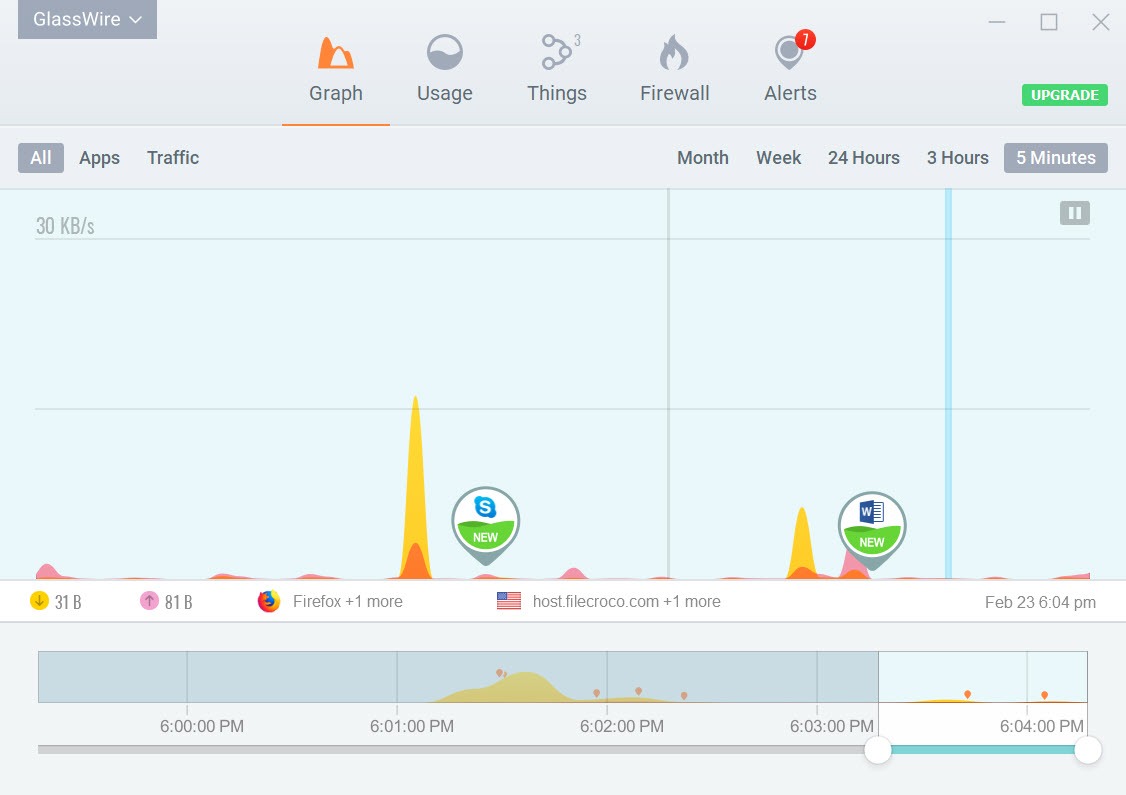
GlassWire is a network monitor and firewall that turns your computer’s network activity into a visible thing. The main interface is a real-time graph showing every byte going in and out of your machine, color-coded by application, with a timeline that scrolls back through your full history.
Click any point on the graph to see exactly which applications were transmitting data at that moment. Spot a spike from yesterday afternoon? You can drill down to find which process caused it, what hosts it was talking to, and whether anything about that traffic looks suspicious. The visual approach turns network monitoring from a Task Manager exercise into something closer to looking at a stock chart, where patterns and anomalies become obvious at a glance.
The application combines this monitoring layer with a built-in firewall that sits on top of the Windows Filtering Platform, plus an alert system that warns you when new applications first try to access the internet. The combination matters because it changes how you relate to your computer’s network behavior.
Most users have no idea what their machines actually do online. Background services, telemetry, software updates, cloud sync, applications you forgot you installed, all silently exchanging data without your awareness.
GlassWire makes that activity visible and gives you the tools to block what you don’t want, all through an interface that doesn’t require networking expertise to understand. The free tier handles the core monitoring and firewall use cases, while paid tiers add features like remote monitoring, longer history retention, and additional connection alerts.
The real-time network graph
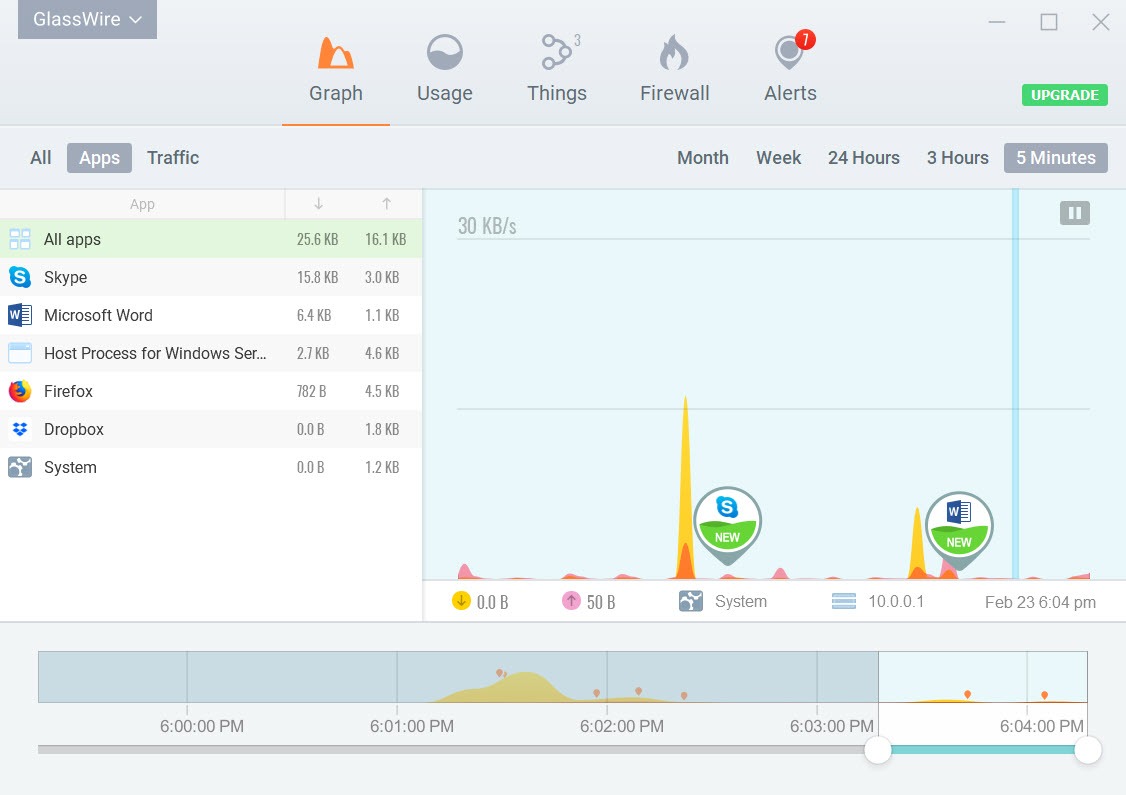
The signature feature is the visualization itself. Where Task Manager shows you a single thin bandwidth line and Resource Monitor shows you tabular data that requires interpretation, GlassWire displays a stacked area graph with each running application as its own colored band. The total height represents total bandwidth at any moment, the colored portions show which applications contributed which slices, and the timeline scrolls smoothly through history.
The interaction model rewards exploration. Hover over any peak to see what was happening at that exact moment. Click an application’s color in the legend to isolate just its traffic. Zoom into specific time windows to see fine-grained activity, or zoom out to see patterns across days.
The visual approach catches anomalies that tabular tools miss because human visual processing is built for pattern recognition in this kind of data. A spike at 3 AM when your computer should have been idle pops out immediately as something to investigate.
The graph keeps history for as long as the application has been running, with the free tier retaining several days and the paid tiers extending substantially further back. For diagnosing bandwidth issues that happened earlier in the week or investigating something you noticed retroactively, the historical view matters substantially.
Most network monitoring tools either show you live data only or require you to set up logging in advance. This application records everything continuously and lets you go back to anything within the retention window.
Firewall built on the Windows Filtering Platform
The built-in firewall isn’t a replacement for the Windows firewall. It works alongside it, providing a more accessible interface to the same underlying Windows Filtering Platform that the OS uses. The integration means rules you set through the application get applied at the OS level, which means they survive reboots and continue working even when the application isn’t actively running.
The default firewall mode is “Click to Block,” which lets all traffic through but flags applications visually so you can decide which ones to block. Switching to “Ask to Connect” mode produces a prompt every time a new application tries to access the network, with options to allow once, allow always, block once, or block always.
The interactive mode is similar to what hardcore firewalls like Comodo or ZoneAlarm offer, but with an interface that doesn’t require networking expertise to navigate.
For users who want stricter control, the firewall supports per-application rules, per-port rules, and various other granular controls. You can let a browser access port 443 but block it from port 80, or allow specific applications to talk only to specific hosts.
The depth available exceeds what casual users typically need but matches what security-conscious users want.
New connection alerts
Beyond the visual monitoring, the alert system catches changes in network behavior automatically. When a new application accesses the internet for the first time, you get a notification telling you what’s happening. When an existing application starts connecting to a new host it hasn’t talked to before, that also triggers an alert. The alerts run in the background without requiring you to be actively watching the graph.
For detecting unwanted software, this matters substantially. Malware often establishes network connections to command-and-control servers shortly after installation. If something suspicious gets onto your system through whatever route, the alert system catches the moment it tries to call home. Even legitimate software that you didn’t realize was network-active gets surfaced.
That printer utility you installed three years ago that’s now sending telemetry to a domain you don’t recognize? The alert tells you about it.
Users can configure alert sensitivity to balance signal against noise. Aggressive settings produce many alerts and require active management. Conservative settings flag only major changes and stay out of the way more.
The right balance depends on how much active engagement you want with your network monitoring versus wanting alerts only for things that genuinely matter.
Per-application tracking and bandwidth limits
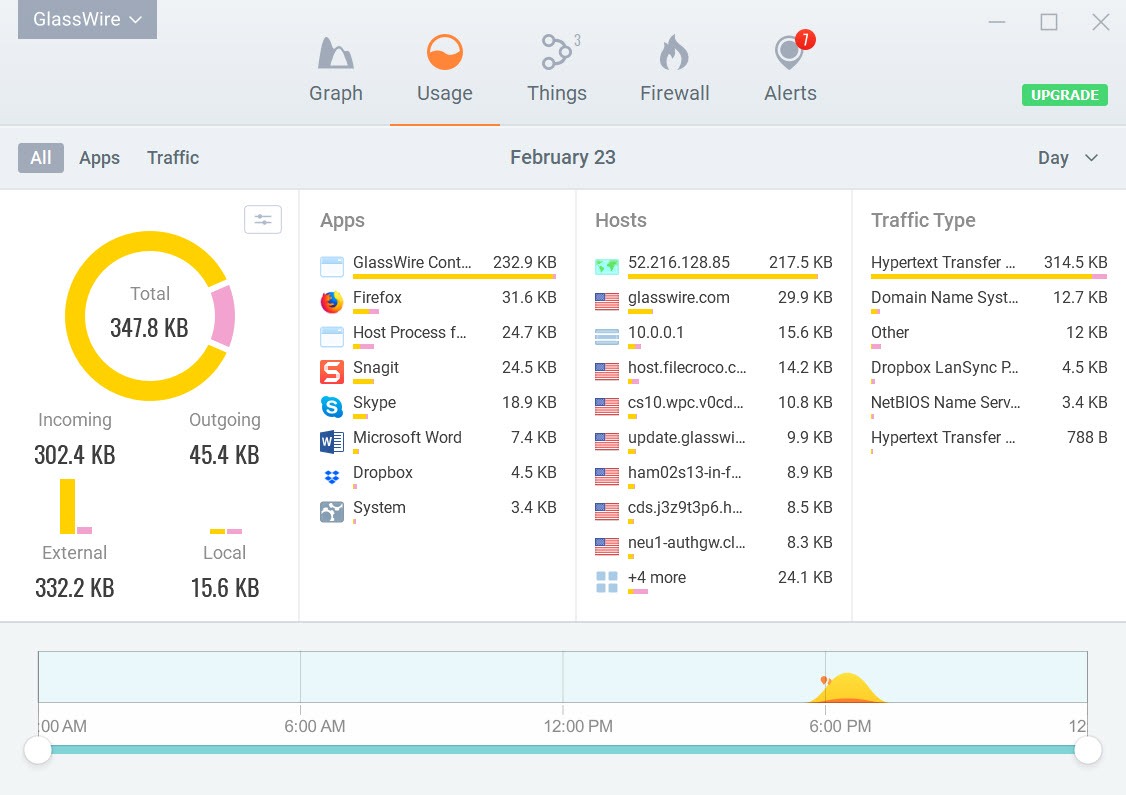
The Usage view aggregates network activity by application, showing exactly how much data each one has sent and received over various time windows. For users investigating whether a specific application is consuming disproportionate bandwidth, this view answers the question immediately. Sort by total transfer to see your top consumers, sort by recency to see what’s been active lately, or filter to specific applications to track their behavior over time.
For users on metered connections (mobile hotspots, capped home internet plans, traveling on hotel Wi-Fi), this granular tracking lets you identify what’s eating your bandwidth budget and take action.
The application doesn’t directly enforce bandwidth limits at the OS level, but the visibility it provides makes it possible to identify and disable bandwidth-heavy applications you don’t actually need.
Mobile data tracking exists on the Android version, which integrates with the desktop application through your account. For users who want to track network behavior across both desktop and mobile devices through a single interface, this cross-device support produces a unified picture that platform-specific monitoring tools can’t match.
The Things feature for local network devices
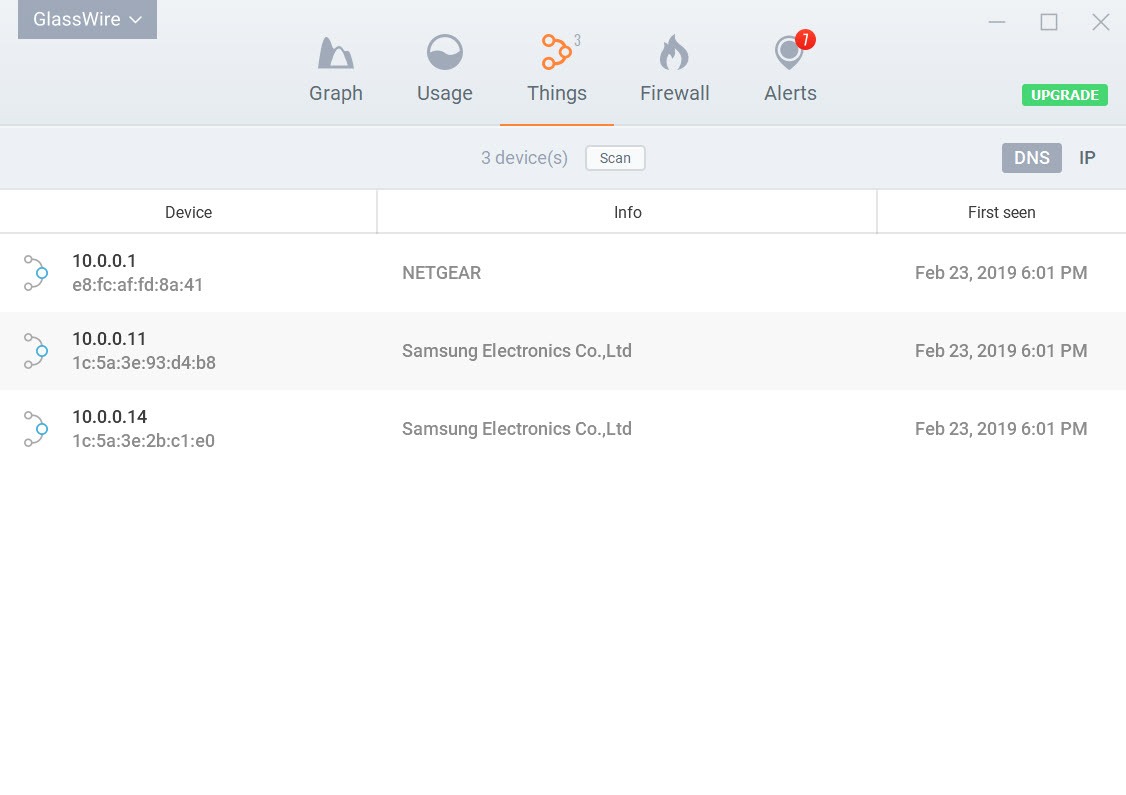
The Things feature scans your local network and inventories all the devices currently connected to it. Smartphones, smart TVs, printers, IoT devices, security cameras, smart speakers, anything with a network connection gets discovered and listed. New devices joining your network trigger alerts so you know when something unfamiliar shows up, which is useful for both security awareness (catching unauthorized devices on your network) and household management (knowing when guests’ devices have connected).
For each discovered device, the application shows MAC address, IP address, manufacturer (looked up from the MAC vendor prefix), connection time, and various other identifying details. The information helps you figure out which device is which, particularly useful when you have many connected things and aren’t sure which IP belongs to what.
The Things feature works best when the application runs on a desktop or laptop that’s connected to the same network you want to monitor. For users running multiple separate networks, you’d need the application running on each network to monitor each one. The discovery is local-network only, with no cloud-based aggregation across different networks.
Remote monitoring through GlassWire account
Paid tiers enable remote monitoring through your GlassWire account. Install the application on multiple machines, log into the same account on all of them, and the desktop interface lets you switch between viewing any of them remotely. For users with multiple home computers, family members’ machines you administer informally, or small business setups with several employee workstations, this centralized view consolidates monitoring without requiring complex enterprise tools.
The remote view shows the same graphs, alerts, and firewall controls as if you were sitting at the remote machine directly. You can investigate suspicious traffic on someone else’s computer, adjust their firewall rules, and respond to alerts they may not have noticed. For technical users supporting non-technical relatives’ machines, this saves substantial time compared to remote access tools that require taking over the screen.
The account-based architecture has privacy implications worth understanding. Network metadata about your monitored machines flows through GlassWire’s servers as part of enabling remote access.
The data is encrypted in transit, but the architecture is fundamentally different from the local-only model that pure offline monitoring tools use. Users who specifically want to avoid any cloud component should stick to the offline tier and skip the remote features.
Comparison with the alternatives
The competitive context shapes how to think about this software. NetLimiter focuses on bandwidth limiting and quality-of-service controls, with monitoring as a secondary feature rather than the primary one. GlassWire has stronger visualization but weaker per-connection traffic shaping.
Wireshark provides protocol-level packet capture and analysis at a depth this software doesn’t approach, but at the cost of an interface that requires substantial networking expertise. Wireshark is for users who want to read individual packet contents. GlassWire is for users who want to see network behavior patterns without reading packets.
Little Snitch is the closest comparable tool, but only available on a different operating system. For users specifically wanting Little Snitch-style network monitoring with a refined interface and alert system, GlassWire fits the same conceptual space. The execution is somewhat different (the visual graph is more prominent here, the per-connection prompts are more prominent in Little Snitch), but the user populations overlap substantially.
ZoneAlarm and Comodo Personal Firewall are deeper-featured firewalls with more granular control but rougher interfaces. They appeal to users who want maximum firewall capability and don’t mind learning complex configuration.
GlassWire appeals to users who want approachable monitoring with reasonable firewall capability through an interface they can actually use.
For users running enterprise security tools (commercial endpoint protection, network monitoring platforms, etc.), this software is mostly redundant with what those tools already provide. The application targets home users, small businesses, and technically curious individuals rather than enterprise security operations centers.
Considerations and limitations
The interface beauty has costs. Maintaining the smooth graph rendering and the various alert systems consumes more system resources than minimal monitoring tools, though typical consumption stays modest enough that most users won’t notice. On older or constrained systems, the impact might be more visible, with the application competing for resources alongside whatever else you’re running.
The free tier has real limitations that push users toward paid tiers. Limited history retention, fewer simultaneous remote machines, restricted alert types, and various other gaps mean the free version provides a taste rather than the full experience. Users who genuinely benefit from extended history, broader alert coverage, or remote monitoring across multiple machines need the paid tiers to access those capabilities.
Some advanced firewall scenarios produce friction. The application’s interface doesn’t expose every Windows Filtering Platform capability, which means users who need very specific advanced firewall behavior may need to fall back to the built-in Windows firewall interface for some configurations. The friendly interface trades some power for accessibility, with the trade-off being acceptable for most users but limiting for advanced ones.
The Android mobile version is more limited than the desktop version. Per-application data tracking works, but the firewall functionality is constrained by what the mobile operating system allows third-party applications to do. Users wanting full firewall control on Android need the OS-level firewall support that Android doesn’t fully provide.
Some users have raised concerns over the years about the application’s own network behavior. A program that monitors network traffic naturally has internet access itself, which produces some philosophical complications about trusting the monitor. The development team has been responsive to these concerns and the application has a track record of behaving as advertised, but the fundamental tension exists for any network monitoring tool that isn’t entirely offline.
Conclusion
For users who want to understand and control what their computer is doing on the network, GlassWire delivers that through an interface that doesn’t require networking expertise. The combination of visual monitoring, firewall integration, and behavioral alerts produces a tool that catches anomalies most users would never notice with built-in operating system tools alone.
The free tier is enough to demonstrate the value, with paid tiers extending capabilities for users who find the basic experience worth investing further in.
The reasons to look at alternatives are mostly about specific advanced needs. Users wanting protocol-level packet analysis need Wireshark or similar specialty tools. Users wanting maximum firewall capability with hardcore configuration options find Comodo or ZoneAlarm offering more depth.
Users in enterprise environments typically have commercial security suites that already provide network monitoring functionality. But for the home and small business use case the application targets, the combination of visual approachability, useful alerting, and reasonable firewall capability makes it one of the more practical options available.
Title: Network monitor and firewall with real-time traffic visualization
Pros & Cons
- Real-time network activity graph makes traffic patterns visually obvious
- Built-in firewall sits on top of the Windows Filtering Platform with friendly interface
- Alerts trigger when new applications first access the network or contact new hosts
- Per-application bandwidth tracking helps identify what's consuming your data
- Historical data review lets you investigate past activity within the retention window
- Things feature inventories devices on your local network with new-device alerts
- Remote monitoring through paid tiers consolidates multiple machines in one view
- Free tier covers basic monitoring and firewall use cases adequately
- Active development with regular updates and improvements
- Free tier history retention and feature scope are limited compared to paid tiers
- Resource consumption higher than minimal monitoring tools
- Some advanced firewall scenarios require falling back to native Windows tools
- Remote monitoring routes metadata through cloud infrastructure
- Android mobile version is constrained by mobile operating system restrictions
- Less suitable for users wanting protocol-level packet analysis
- Trust considerations apply to any network monitoring tool that isn't entirely offline
Frequently asked questions
This software is a network monitor and firewall application that visualizes your computer's network activity through real-time graphs and provides built-in firewall controls on top of the Windows Filtering Platform. It tracks bandwidth per application, alerts when new applications access the internet, and inventories devices on your local network through the Things feature.
The application monitors network traffic at the operating system level using Windows networking APIs and the Windows Filtering Platform. Every byte transferred by every application gets recorded and aggregated into the visual graph. The firewall component intercepts connection attempts at the OS level, applying rules you've configured through the application's interface. The alert system watches for changes in network behavior including new applications going online and existing applications connecting to new hosts.
It shows you what your computer is doing on the network in a visually clear way, alerts you when network behavior changes, and gives you firewall controls to block applications you don't want accessing the internet. It tracks per-application bandwidth use, retains history so you can investigate past activity, scans your local network to inventory connected devices, and supports remote monitoring of multiple machines through paid tiers.
Wireshark provides protocol-level packet capture and analysis at a depth this software doesn't approach. It shows individual packets with their full contents, headers, and metadata, useful for network engineers debugging protocol issues. GlassWire focuses on visual network behavior monitoring rather than packet-level analysis. It shows you traffic patterns and bandwidth aggregations in a way that doesn't require networking expertise to understand. The two tools target different user populations and use cases. Network engineers often want Wireshark. Home users wanting to understand their network typically prefer this software.
The Things feature scans your local network and inventories all connected devices. Smartphones, smart TVs, printers, IoT devices, security cameras, smart speakers, and anything else with a network connection gets discovered and listed. For each device, the application shows MAC address, IP address, manufacturer, connection time, and other details. New devices joining the network trigger alerts so you know when something unfamiliar appears.
The built-in firewall sits on top of the Windows Filtering Platform, the same underlying technology that the Windows firewall uses. Rules you configure through this application get applied at the OS level, which means they persist across reboots and continue working even when the application isn't running. The firewall complements rather than replaces the Windows firewall, providing a more accessible interface to the same underlying capabilities.
Find the application in the Firewall view or click its colored band on the main graph, then click the firewall icon next to it to switch from allowed to blocked. The blocked status applies immediately, with the application losing network access until you re-enable it. For more granular control, the per-application settings let you allow specific ports or hosts while blocking others, useful for applications that need partial network access but not full connectivity.
The application uses standard Windows networking APIs combined with the Windows Filtering Platform. Network statistics come from the OS performance counters, while traffic interception happens through the same kernel-level filtering that the Windows firewall uses. This native approach produces accurate data without requiring custom drivers or low-level packet capture, with the trade-off being that very deep packet analysis isn't available through this approach.


