

Windows Firewall Control
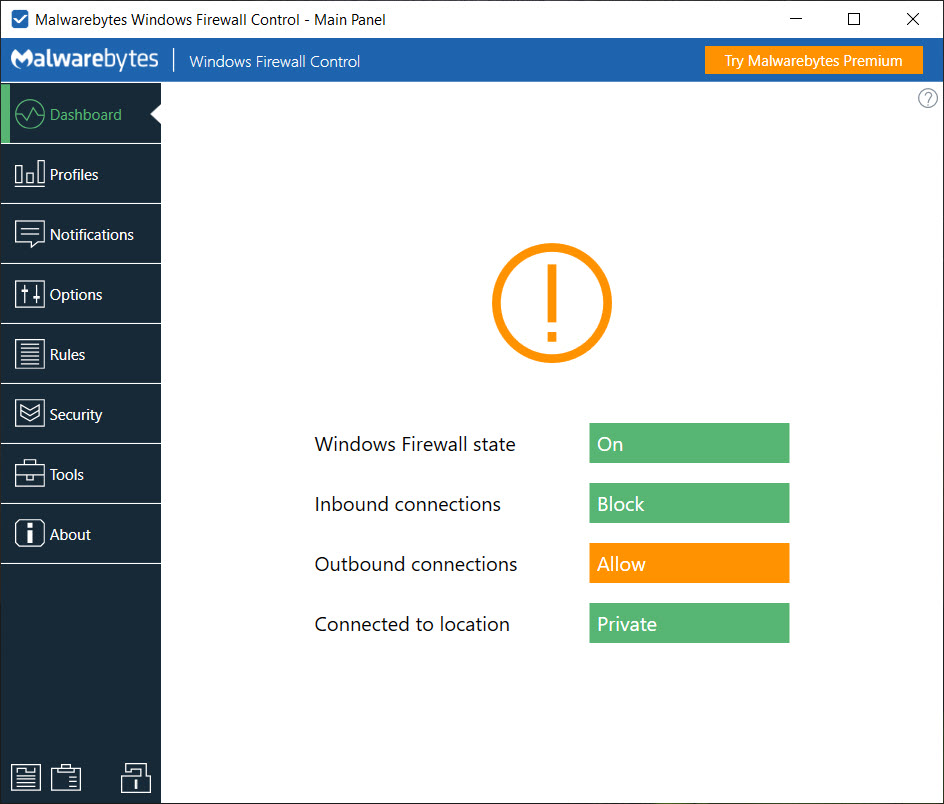
About Windows Firewall Control
Windows Firewall Control is a front end for the firewall already built into the system. It does no filtering of its own. What it adds is the part the built-in firewall lacks, a way to see and decide. A pop-up when a program tries to connect out and is blocked.
A rules window that reads like a list of programs rather than a wall of policy entries. A connections log whose right-click turns any line into a rule, and four filtering levels you switch from a tray icon. The blocking is still done by the firewall in the system, using rules this program writes for it.
That design puts it in a different place from simplewall or Fort Firewall, which install their own filtering layer. Windows Firewall Control adds nothing to the network stack and cannot conflict with it, and if you remove the program the rules it made stay in place and keep working.
What you lose is the chance of a filtering engine smarter than the one the system ships. For most people the one the system ships is fine and the problem was always the interface.
Four filtering levels from the tray
The Windows Firewall Control profiles tab, also on the tray menu, sets one of four levels. High Filtering blocks every connection in both directions, which is a panic button for a machine you suspect. Medium Filtering blocks any outbound connection that does not match an allow rule, so only programs you have approved can reach the internet.
That is the mode the program exists for. Low Filtering allows anything not explicitly blocked, which is how the system behaves on its own, with the option of blocking a chosen program. No Filtering turns the firewall off.
A timer can revert to a chosen profile after a set number of minutes, so a drop to Low Filtering to get an installer through does not quietly become permanent.
The service enforces that revert even if the profile was changed outside the program, which closes a hole that the older versions had.
Notifications and learning mode
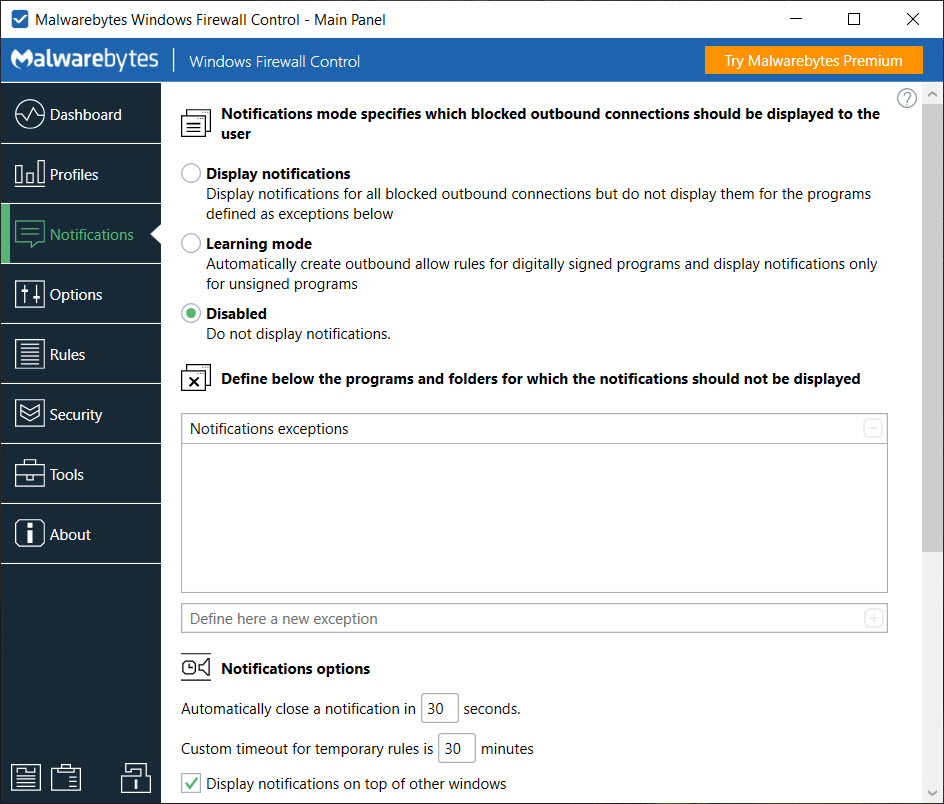
In Medium Filtering, an outbound connection with no rule is blocked silently by the firewall, and Windows Firewall Control watches the security log and raises a dialog for it. The dialog names the program, its path, the address and port, and offers to allow it, block it, allow it temporarily or make a rule that covers only this address. Notifications can be set to High, which reports everything including system processes, Medium, which skips the system processes that everyone allows anyway, or Low.
Low is the learning mode. Any program carrying a valid digital signature is allowed automatically and only unsigned programs prompt, which cuts the noise from dozens of dialogs a day to a handful. It is the right setting for the first week, and the moment to switch to full notifications is when the rule set has settled.
An exceptions list keeps chosen programs from ever prompting, and the notification timeout, its sound and its always-on-top behaviour are all adjustable. Notifications are off by default, which surprises people who install the program for them.
The rules panel
The system’s own rule editor is a management console with hundreds of entries in several languages of jargon. The Windows Firewall Control rules panel is a flat, sortable list with columns for program, direction, action, protocol, profile, and a search box. Rules can be created, edited, duplicated, deleted, or merged when they differ only in port or address.
The panel highlights invalid rules whose program no longer exists and duplicate rules that cover the same thing. Temporary rules expire on a timer or on the next restart, and are the sane way to let an installer through.
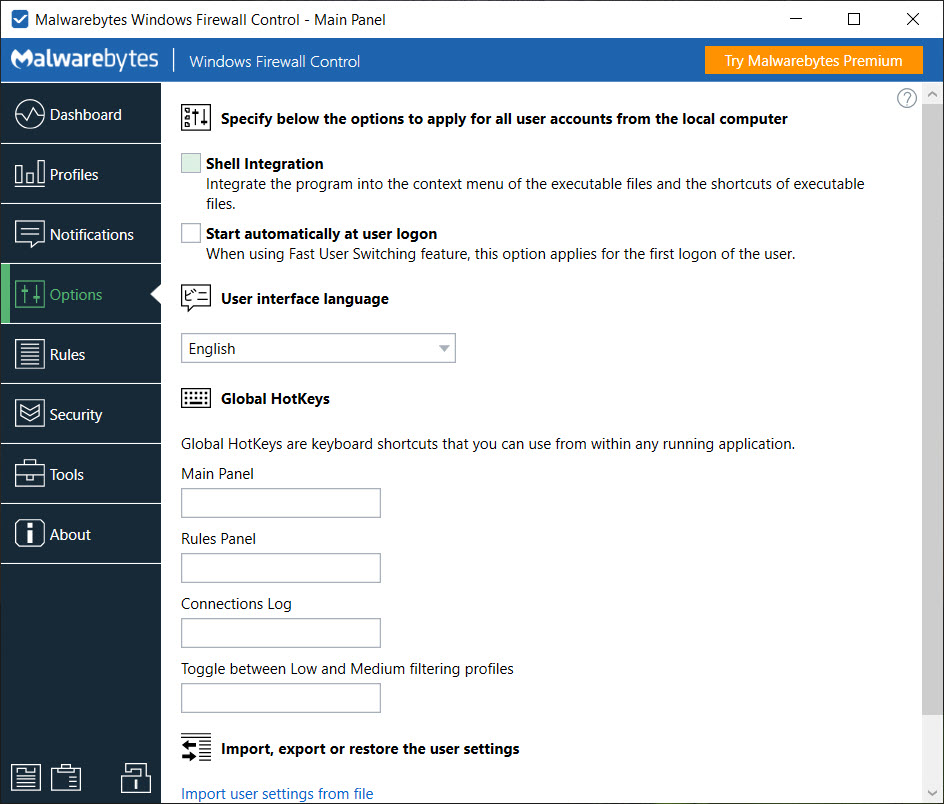
Import and export handle the whole policy or a selection, so a rule set can be carried to a second machine or backed up before an experiment. Shell integration adds an entry to the right-click menu of any executable to allow or block it on the spot. And because the rules are ordinary firewall rules, anything created here is visible in the system’s own tools and survives the program’s removal.
Connections log and secure rules
The Windows Firewall Control connections log reads the firewall’s own security log and lists recent allowed and blocked connections with the program, the address, the port and the time. Right-click a blocked entry and a rule allowing it appears in one step, which is how a program that failed silently, with no dialog because notifications were off, gets fixed after the fact.
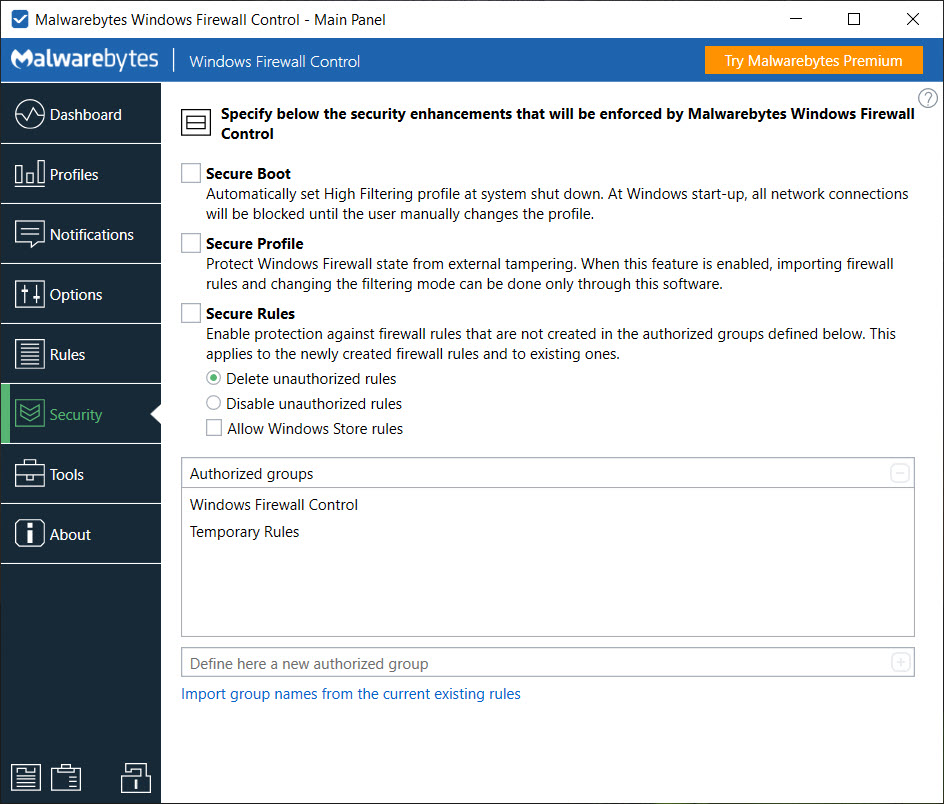
Secure rules is a switch that watches the rule set and removes any rule not created through this program, which stops installers and other software adding their own allow rules behind your back. It is a strong setting and it breaks things that legitimately add rules, so it suits a machine that has been configured and is not expected to change.
A password can lock the program’s state and the firewall together, and uninstallation can be protected as well, so a shared computer keeps the policy its owner set.
Where it needs care
The program runs a service and a tray application, and the tray part runs without elevation until you ask for it, so some actions show a request button first. And the built-in firewall logs only what it blocks and allows at the level of a program and an address. There is no per-connection bandwidth, no history graph and no country lookup on a map. Anyone who wants to watch traffic rather than gate it will prefer a network monitor with graphs and a firewall attached.
The other thing to know is that a Medium Filtering rule set takes a fortnight to settle. Every program you own will ask once, some services twice, and a machine used by someone who clicks Block on everything will stop updating quietly.
That is the nature of an outbound firewall, not a fault in this one, but it decides who should install it.
Conclusion
Windows Firewall Control is for the person who wants to know which programs on their machine talk to the internet and to decide each one, without installing a second filtering layer to do it. Medium Filtering with learning mode for the first week, then full notifications, turns the silent built-in firewall into one that asks.
Anyone who wants traffic graphs, or who will not tolerate a fortnight of prompts, should look at the monitors and the friendlier outbound firewalls instead. For everyone else this is the interface the built-in firewall should have had, and it asks nothing extra of the system to run.
Pros & Cons
- Adds outbound notifications and a readable rules list to the built-in firewall
- Four filtering levels switched from the tray, with a timed revert
- Learning mode auto-allows signed programs and prompts only for unsigned ones
- Connections log turns any blocked entry into a rule in one click
- Secure rules and password lock stop other software altering the policy
- Rules remain in the system firewall if the program is removed
- No filtering engine of its own, so it inherits the built-in firewall's limits
- Notifications are off by default and must be enabled
- Medium Filtering needs weeks of prompts before it settles
- No bandwidth monitoring or traffic history
Frequently asked questions
They are disabled by default. Open the Notifications tab and choose Display notifications or Learning mode. Notifications only appear in the Medium Filtering profile, since the other profiles do not block unmatched outbound connections.
No. It writes and manages rules for the firewall already in the system and reads its log. All blocking is done by that firewall, and the rules stay in place if the program is uninstalled.
A notification level that automatically allows programs with a valid digital signature and prompts only for unsigned ones. It reduces the flood of dialogs when Medium Filtering is first enabled.
Check the rules panel for a second, older block rule for the same program, since block rules take precedence over allow rules. The connections log shows which rule stopped it.


