

DiskDigger
About DiskDigger
DiskDigger is a file recovery tool that fits in a single portable executable and does one thing with unusual clarity. It digs deleted files out of hard drives, USB sticks, and memory cards, and it lets you preview everything it finds before you commit to recovering a single byte. No installation step exists, which sounds like trivia until you remember that installing software onto the very drive you’re trying to recover from can overwrite the files you came for.
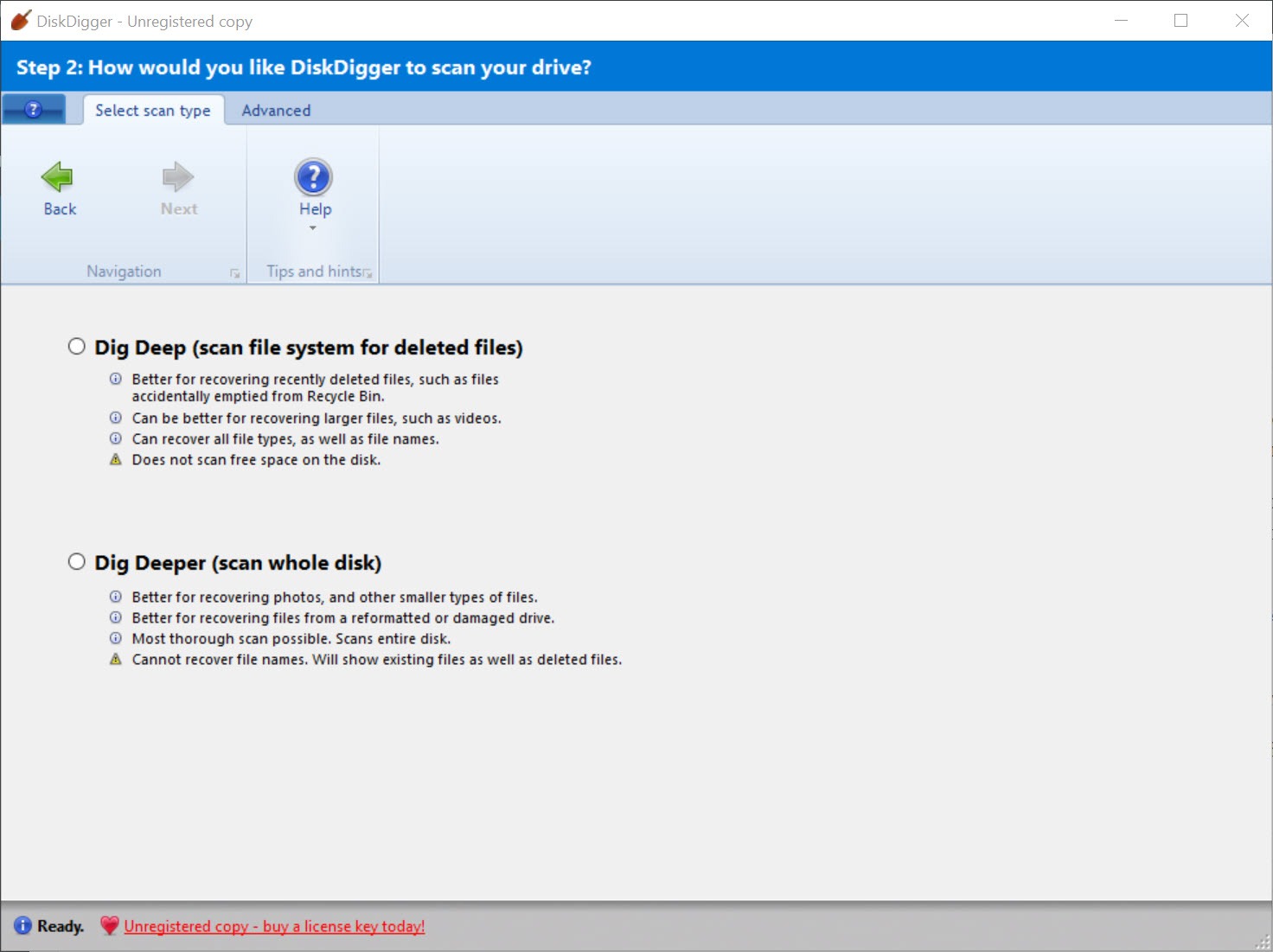
The whole product hangs on a choice between two scan modes, and understanding that choice is understanding the tool. Dig deep reads the file system’s own records to resurrect recently deleted files with their names intact.
Dig deeper ignores the file system entirely and combs the raw disk surface for recognizable file signatures, which works even on formatted or corrupted media, at the cost of losing every original filename.
Next to Recuva, the interface here is plainer and the pace more deliberate, but the deep-carving mode reaches places the friendlier competitor gives up on.
Dig deep, the five-minute undelete
The first mode in DiskDigger scans FAT, exFAT, and NTFS records for entries marked as deleted, and it’s fast because it reads bookkeeping rather than the whole disk. Files come back with names, paths, and dates, so recovering an accidentally emptied folder feels like browsing a slightly ghostly version of the original. This is the mode for the classic scenario, the file deleted an hour ago from a healthy drive.
Success depends entirely on how much has happened since the deletion. File systems recycle the space of deleted files without sentiment, and every write to the drive is a chance to destroy what you want back. So the rule is old but absolute.
Stop using the affected drive, run the scan from another location, and save whatever you recover to a different disk.
Dig deeper, when the file system is gone
The second mode is the interesting one. It reads the drive sector by sector and looks for the signatures that mark the start of known file types, several dozen of them, covering JPG, PNG, TIFF, and camera RAW formats alongside documents, MP3 and MP4 media, and ZIP archives. Because no file system is consulted, a card that was formatted, a stick that asks to be formatted, or a drive with a mangled partition table can still give up its contents.
The trade-offs are real and the tool doesn’t hide them. Recovered files arrive with generic names, so a thousand photos come back as a thousand numbered JPGs. Fragmented files, ones the file system had scattered across non-adjacent sectors, often come back broken, since signature carving assumes files occupy continuous space. And the scan takes hours on large drives, because every sector gets read.
For a full weekend rescue of a dead partition structure rather than individual files, TestDisk works at the partition level and pairs naturally with this tool.
Previews that prevent wasted hope
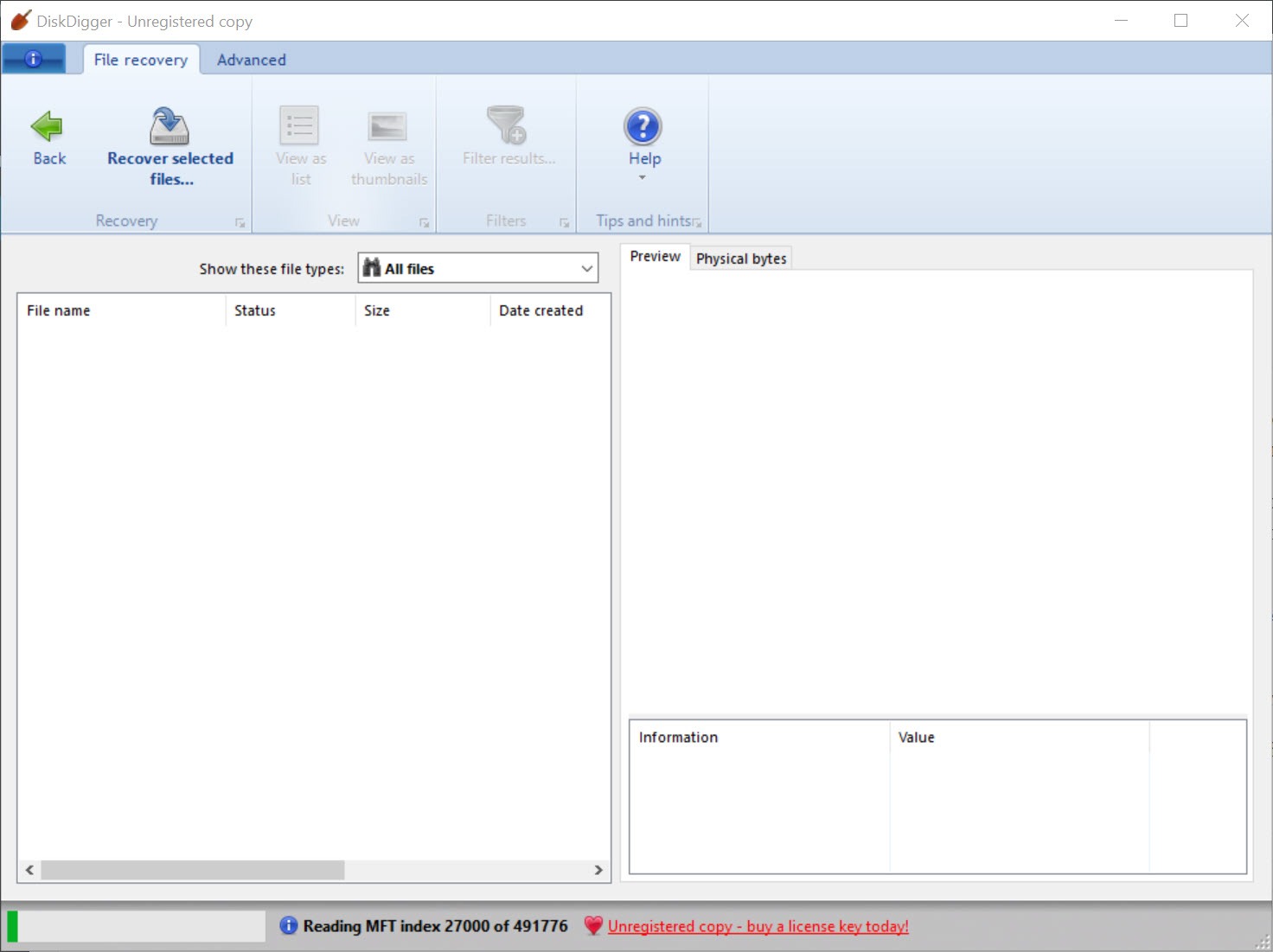
Every file DiskDigger finds can be previewed before recovery, and for photos the thumbnail grid with EXIF details turns triage into quick visual work. This matters more than it sounds. Carving scans produce plenty of false positives and half-overwritten files, and the preview separates the recoverable from the corrupted junk before you spend time saving it. Filters by file type and size cut the list further, since screening out every image under 100 KB removes browser cache thumbnails from a photo hunt in one stroke.
Recovered files save to any local drive, to a network location, or straight to an FTP destination, and the only firm rule is never saving onto the drive being scanned.
The honest limits
Two scenarios sit largely outside anyone’s reach, this tool included. Deleted files on a TRIM-enabled SSD are typically zeroed by the drive itself within moments of deletion, so internal solid-state drives rarely return anything.
And physically failing hardware, the clicking drive, the card no reader detects, is a job for cloning first and software second. Checking the drive’s health in CrystalDiskInfo before a long scan tells you which situation you’re in, and a drive showing reallocated sectors deserves an image, not an eight-hour read marathon.
For memory cards specifically, the carving approach here overlaps with a dedicated tool like Card Recovery, though DiskDigger covers far more file types than photo-centric utilities. On the everyday USB stick and camera card cases, it recovers as much as tools many times its size.
Conclusion
DiskDigger belongs in the toolkit of anyone who handles memory cards and USB sticks, which in practice means photographers, students, and every family’s designated computer person. The portable format and the preview-first workflow make it a calm way through a stressful moment, and the carving mode rescues cases that simpler undelete tools abandon.
Owners of failing hardware or wiped SSDs need different remedies, and no software changes that. For everything in between, this small tool digs remarkably deep for its size.
Pros & Cons
- Runs portably from a single small executable without touching the damaged drive
- Two scan modes cover both quick undeletes and formatted or corrupted media
- Thumbnail previews with EXIF data make photo triage fast and certain
- Signature carving recognizes dozens of formats including camera RAW files
- Recovered files can be saved to any drive or a network destination
- Deep scans lose original filenames and folder structure entirely
- Fragmented files usually come back corrupted from signature carving
- Full-disk scans of large drives take hours
- Little can be recovered from TRIM-enabled solid-state drives
Frequently asked questions
Start with dig deep if the drive still works and the deletion was recent, since it keeps filenames. Switch to dig deeper when the media was formatted, shows errors, or the first mode finds nothing.
The deeper scan identifies files by their content signatures, not by file system records, and original names live in those records. The photos themselves are intact, only the labels are gone.
Usually yes, if nothing new was written to the card afterward. The deeper scan ignores the fresh empty file system and carves the old contents directly from the card's sectors.
Modern solid-state drives erase deleted data themselves through TRIM, often within seconds. No recovery software can read back cells the drive has already cleared.
Never. Writing to the scanned drive can overwrite files you haven't recovered yet. Point the output at a different disk, a network share, or an FTP location.


