

HandBrake


 (43 votes, average: 3.58 out of 5)
About HandBrake
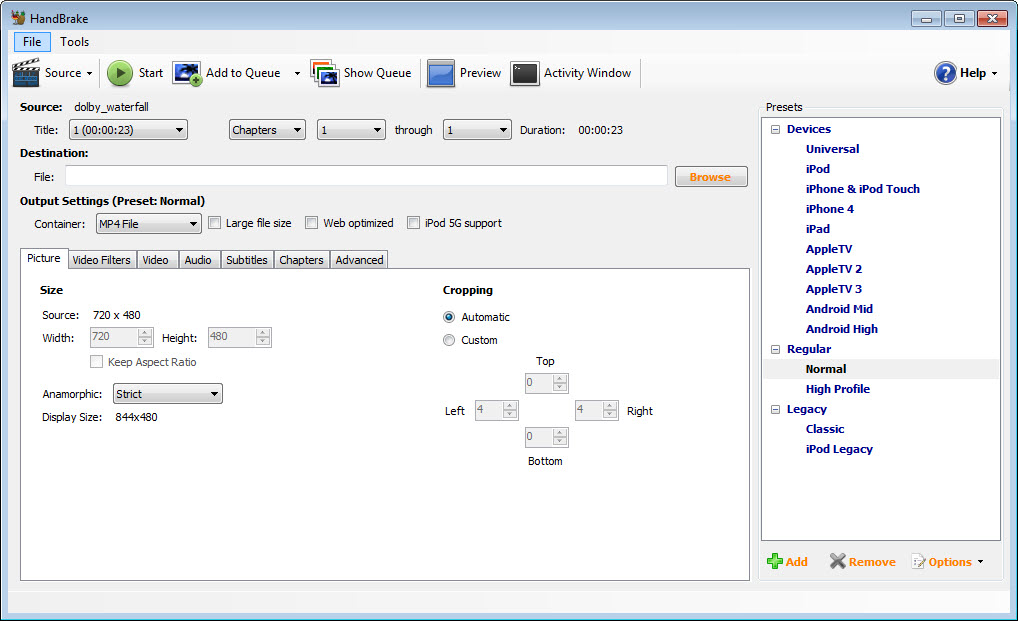
HandBrake shrinks and converts video, and it has become the default answer to that need for one reason above the raw capability. It made good encoding decisions optional. Open a video, pick a preset from the sidebar, one for a phone, a tablet, a television, the web, a general quality tier, and press start.
Behind that single click sits a fully tuned configuration of codec, quality, audio, and dimensions that someone competent already argued over, which means the person who knows nothing about video gets a result that looks right and plays everywhere.
The depth is all still there for people who want it. The presets just mean nobody is forced to learn it first.
The conversions themselves target the formats that matter now. HandBrake takes practically anything as input, old camcorder files, phone clips, obscure downloads, unprotected discs, and outputs modern, efficient video in MP4, MKV, or WebM containers with current codecs doing the compression. The headline use case is exactly what it sounds like.
A bloated file becomes a dramatically smaller one that looks essentially the same, a whole archive of mixed old footage becomes a tidy, consistent library, and a video that some device refuses to play becomes one it accepts.
It’s free in the real sense, no ads, no bundled extras, no locked tiers, which combined with the preset-first design explains why it’s the most recommended name in its category and the one the rest get measured against.
The quality slider that changes how you think
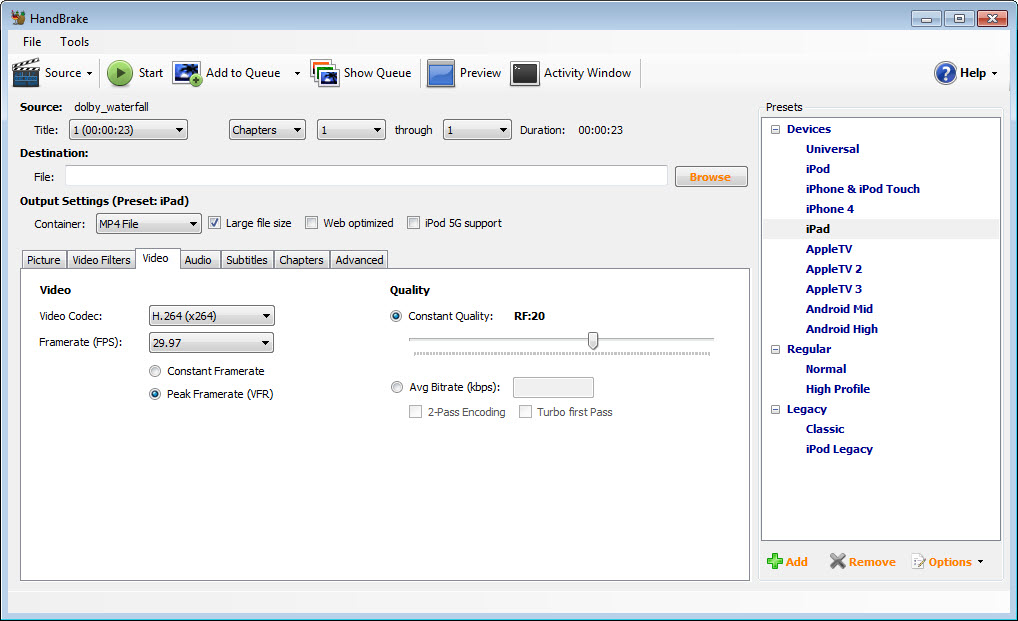
One idea inside HandBrake is worth learning even if you never touch another setting, because it produces better files than the way most people instinctively convert. Instead of choosing a bitrate, guessing how many megabits a video deserves, the default approach is constant quality, a single slider that tells the encoder how good the picture should look and lets the file size land wherever that requires. Simple scenes spend few bits, complex scenes spend many, and every second of the video comes out at the visual standard you asked for.
The practical payoff is consistency without waste. A talking-head recording and an action film converted at the same quality setting produce wildly different file sizes, and both are correct, each spending only what its content needs.
Nudging the slider a couple of points changes size dramatically, so finding your personal sweet spot, the setting where you stop seeing a difference from the original, takes one evening of experiments and pays off on every conversion after.
It’s the single best lesson this software teaches, and it teaches it just by being designed around it.
Filters, subtitles, and the practical toolkit
Around the core encoding sits the equipment for real-world footage. Auto-crop trims black bars off letterboxed sources, deinterlacing untangles the comb artifacts of older camera and TV material, and denoise visibly rescues grainy low-light video, often shrinking the file in the bargain since noise is expensive to compress. Rotation fixes the sideways phone clip, and dimension controls resize a huge source down to something a tablet can actually be asked to play.
Subtitles and audio get proper treatment too. Subtitle tracks can ride along as selectable tracks or be burned permanently into the picture for devices that ignore soft subtitles, external SRT files can be pulled in, and multiple audio tracks can be kept, converted, or passed through untouched. Chapter markers survive the trip.
The batch queue ties it together for volume work, stacking conversions to grind through unattended, which is precisely how an old family archive gets modernized over a weekend of the computer talking to itself.
What it deliberately is not
The boundaries are firm and worth respecting. HandBrake is not an editor. Beyond selecting a range to convert, there’s no trimming, joining, or cutting worth the name, and a job like removing a commercial or splicing clips belongs in something like AviDemux before the file ever reaches the encoder. It also won’t circumvent copy protection on commercial discs, a legal line the project doesn’t cross, so its disc input applies to unprotected material.
The subtler boundary is the one that wastes the most disk space when misunderstood. Re-encoding always costs some quality and lots of time, so when the video stream is already fine and only the packaging is wrong, wrong container, missing subtitles, tracks to remove, the correct tool is a remuxer like MKVToolnix, which repacks in minutes with zero loss.
The working rule is simple. Change the video itself, size, codec, quality, filters, and it’s a job for this encoder. Change what’s around the video, and encoding is the wrong hammer.
Speed, hardware, and the patience question
Encoding done properly is slow, and honesty requires saying so. The software encoders that produce the best quality per megabyte work the processor hard and take their time, a feature-length file at high quality being an hours-not-minutes affair on ordinary hardware.
HandBrake also speaks to the dedicated encoding hardware in modern graphics chips and processors, which multiplies speed several times over at a modest quality-per-size cost, the sensible trade for bulk conversions and the wrong one for a single archival copy you’ll keep forever.
Anyone who outgrows the interface has places to go. The tinkerer who wants every dial exposed graduates to MediaCoder territory, scripters go straight to FFmpeg underneath everything, and people who found even the presets intimidating retreat happily to Format Factory.
The remarkable thing is how few people ever need to leave. The presets plus the quality slider cover such a wide middle that the exits mostly stay unused.
Conclusion
HandBrake earned its reputation the honorable way, by making the correct result the easy one. The presets let anyone convert video competently in one click, the constant quality approach quietly teaches better habits than most paid tools encourage, and the filter and subtitle toolkit handles the messy reality of actual footage. Everyone from the one-time converter to the weekend archivist fits inside its audience.
Its refusals are as well-chosen as its features, no editing pretensions, no protected-disc adventures, no container sprawl, and the only real tax it charges is encoding time, which is physics more than software. As free tools go, it’s one of the standards the whole category is graded against, and it keeps deserving that.
Features & benefits
Pros & Cons
- Device and quality presets produce correct results with a single click
- Constant quality encoding spends file size only where the picture needs it
- Deinterlacing, denoise, crop, and rotation handle real-world messy footage
- Flexible subtitle and audio handling, including burn-in and passthrough
- Free and clean, with no ads, bundles, or locked features anywhere
- Not an editor, with only crude range selection and no cutting or joining
- Quality software encoding is genuinely slow on ordinary hardware
- Output limited to MP4, MKV, and WebM containers
- Will not convert copy-protected commercial discs
Frequently asked questions
Start with a preset matching your target, a device preset for a specific gadget or a general quality preset otherwise, and change nothing else. The presets encode competent decisions about everything, and most conversions need nothing more.
Use the constant quality slider rather than setting bitrates. Convert a short test at the default, nudge the value until you find where you stop noticing a difference from the original, and use that number from then on. Size follows quality automatically.
Because high-quality software encoding is heavy computation by nature. Enabling the hardware encoder your machine offers speeds things up several times over at a small efficiency cost, which is usually the right trade for anything except a treasured archival copy.
Yes, either as selectable subtitle tracks or burned permanently into the picture for stubborn devices, and it can import external SRT files alongside subtitles already in the source.
Only if the video itself also needs changing. If the stream is fine and just the packaging is wrong, a remuxing tool repacks it losslessly in minutes, while re-encoding spends hours and a little quality to achieve the same practical result.


