

Text Editor Pro

 (28 votes, average: 3.96 out of 5)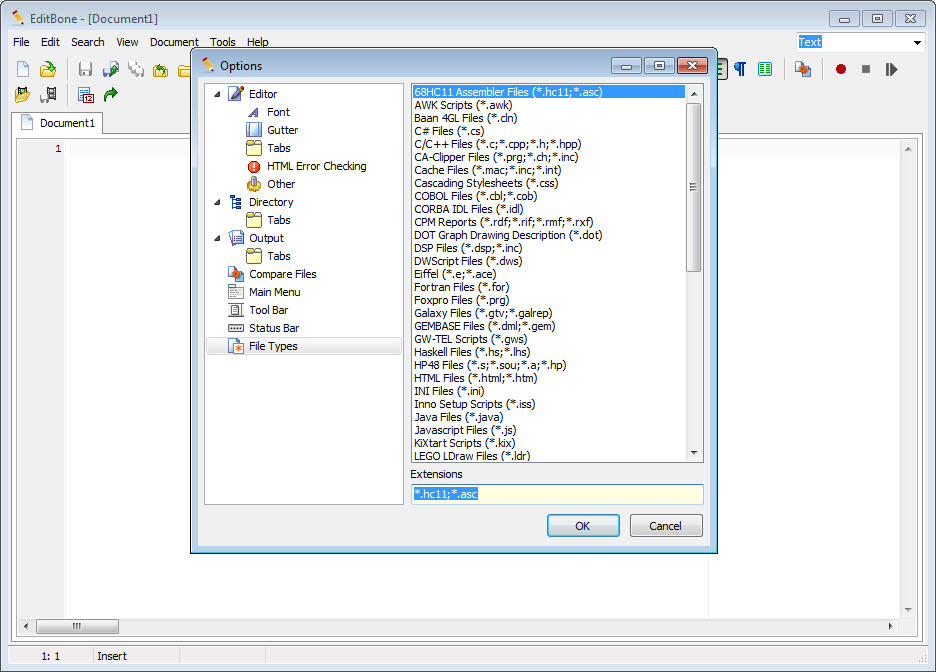
About Text Editor Pro
The text editor space on Windows has split into roughly three camps over the years. At the most basic level sit tools like Notepad, perfectly adequate for quick edits but lacking essentially every feature a serious user might want. At the other extreme sit full IDEs like Visual Studio, with capabilities that are overkill for users who just want a capable text editor without the full development environment overhead.
Text Editor Pro sits in the middle ground that has historically been occupied by tools like Notepad++ and Sublime Text, offering serious editing capabilities without becoming a full IDE.
Developed by Lasse Markus Rautiainen since 2010, this software has built a steady following among users who want a feature-rich text editor for everything from quick note editing to programming, configuration file management, and various text manipulation tasks.
Syntax highlighting across hundreds of formats
The defining feature of any serious text editor is syntax highlighting, and Text Editor Pro supports an extensive list of programming languages, scripting languages, configuration formats, and markup languages.
The highlighting goes beyond simple keyword colorization, with proper handling of nested structures, string interpolation, language-specific features, and the various edge cases that distinguish capable editors from basic ones.
For users who work across multiple languages, having one editor that handles all of them with consistent quality is significantly more practical than switching between language-specific tools.
The supported list covers everything from current popular languages like Python, JavaScript, and Rust through legacy languages, configuration formats, and various specialized syntaxes.
Multi-caret and synchronized editing
A particularly useful capability for users editing structured text is multi-caret editing, which lets you place multiple cursors throughout the document and edit at all of them simultaneously. Need to add a prefix to twenty different lines? Place a caret at the start of each line and type once. Need to change a variable name that appears in different contexts? Place carets at each occurrence and edit them together.
Synchronized editing extends this concept further, automatically maintaining matching changes across related text. For users who frequently make repetitive edits across structured content, these features eliminate the small but recurring time cost of doing the same edit manually multiple times.
Code, tag, and text folding
The folding capability lets you collapse sections of code, markup tags, or arbitrary text blocks to focus on the parts you’re currently working with. For long files where you only care about specific sections, folding away the irrelevant parts dramatically reduces visual clutter and makes navigation faster.
The folding works at multiple levels of granularity. You can fold individual functions in code, collapse entire HTML sections in markup, or fold custom-defined regions in plain text.
Combined with proper outline support, the editor makes long files manageable in ways that simpler editors don’t.
Over 600 customization options
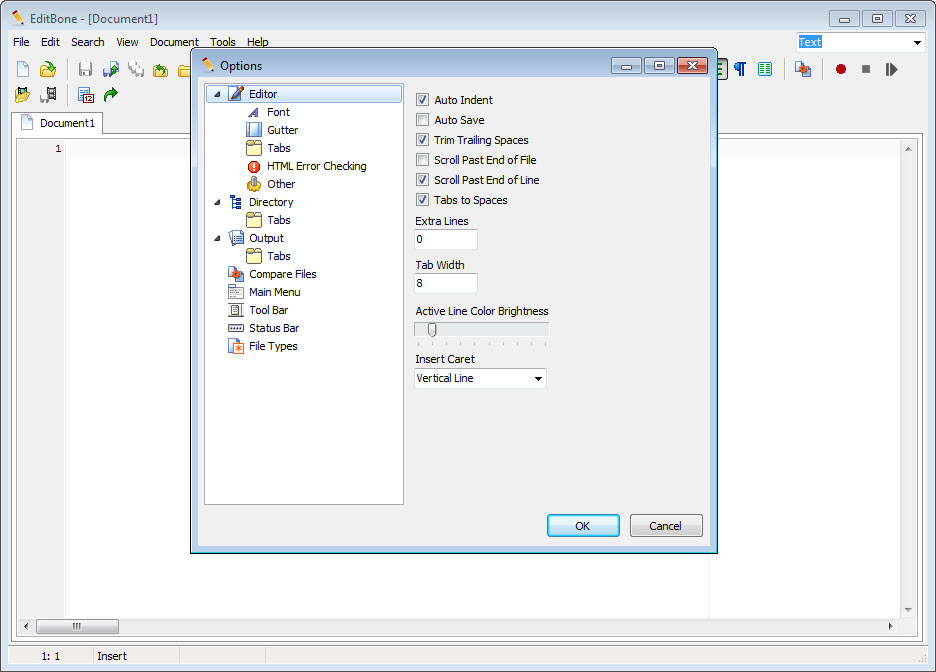
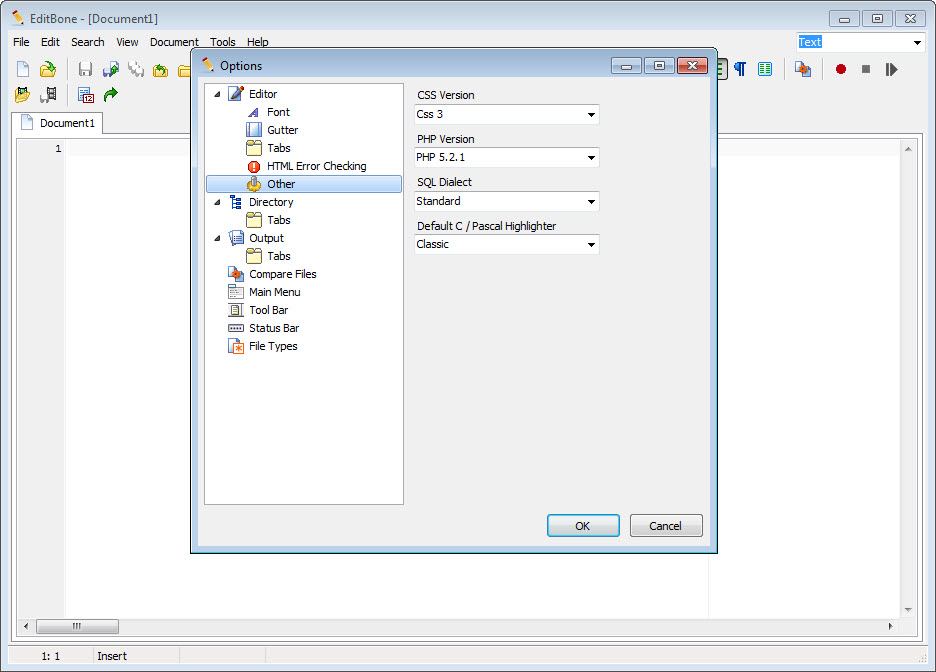
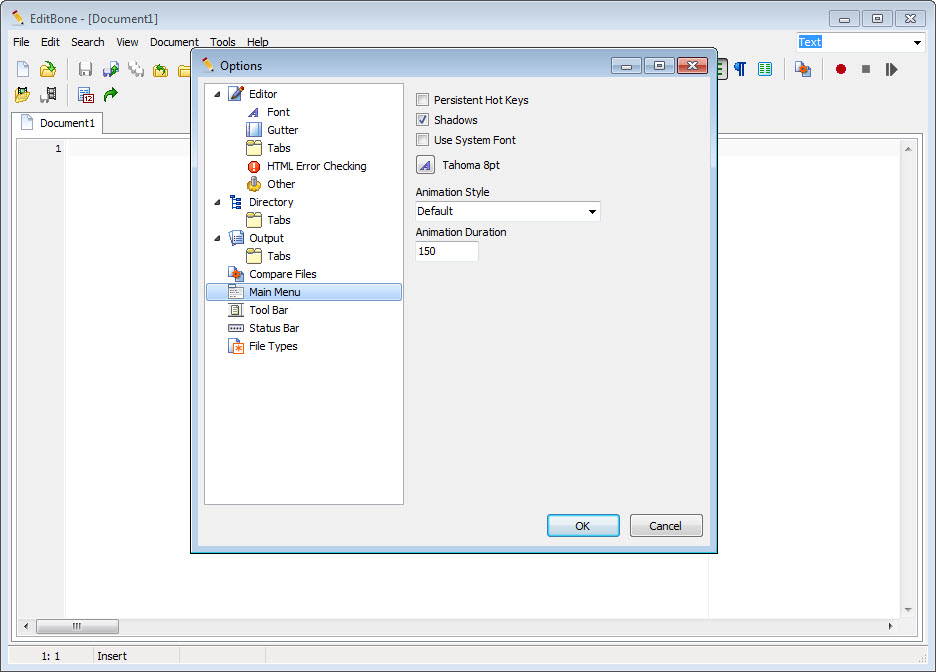
A defining characteristic of this editor is the depth of customization available. The software exposes over 600 options spanning visual appearance, editing behavior, file handling, search functionality, and various other aspects of how the editor works.
For users who care about tuning their tools precisely to match their preferences, this depth is genuinely substantial. You can adjust everything from how cursor behavior works in specific edge cases to which file types open with which default encoding to how search results are highlighted and displayed.
The flip side is that this customization depth can be overwhelming for users who just want a working editor without extensive configuration. The defaults are reasonable for most users, but the available customization rewards users willing to invest time in tuning the editor to their exact preferences.
Over 100 included skins
The visual appearance can be changed through over 100 included skins, which adjust colors, accents, and various other visual elements. Dark themes, light themes, and various stylistic variations are all included, accommodating users with different visual preferences and lighting conditions.
For users sensitive to interface aesthetics or who prefer specific color schemes for reduced eye strain, having this variety built-in eliminates the need to install or configure third-party themes. The skin selection works across the entire interface rather than just the editor area, providing consistent visual experience.
AI Chat integration
A more recent addition reflecting current trends is the integrated AI Chat capability, which provides AI-powered assistance directly within the editor. For users who use AI tools for code explanation, content generation, or various other text-focused tasks, having this capability built into the editor eliminates the workflow disruption of switching to a separate browser-based AI tool.
The integration positions the editor among the modern text editors that have added AI features in response to changing user expectations. While not as elaborate as the AI capabilities in dedicated AI-focused editors like Cursor, the inclusion provides genuine functionality for users who occasionally need AI assistance during text work.
Built-in tools beyond text editing
Beyond core editing, the application includes various built-in tools that handle related tasks within the same interface. Spell checker for catching errors in prose content, image and PDF viewer for previewing related files, Markdown/RTF/SVG preview for seeing rendered output of various formats, character map for inserting special characters, and numerical unit conversion for quick calculations during work.
The text compare tool handles diff-style comparisons between files or text fragments, useful for identifying changes between versions of documents or code. The JSON, SQL, and XML formatters reformat structured content into clean, readable layouts. The JSON/XML converters transform between these common data formats, supporting various integration and migration scenarios.
For users who otherwise need separate tools for these auxiliary tasks, having them consolidated within the editor saves application-switching friction during typical work sessions.
SFTP and multi-directory support
A particularly useful capability for users working with remote servers is the built-in SFTP support, which lets you edit files on remote systems as easily as local files. Connect to a server, browse its directory structure, and edit files in place without manually downloading and uploading them around your local file system.
The multi-directory support handles the common scenario of working with files spread across multiple folders or projects, keeping them all accessible through the editor’s interface rather than forcing you to navigate the file system separately for each one.
Multiple architecture builds
The application is distributed in builds for 32-bit, 64-bit, and ARM 64-bit architectures, accommodating various hardware configurations. The 64-bit build is appropriate for most modern systems, while the ARM 64-bit build supports the increasingly common ARM-based laptops and tablets that don’t run x86 software efficiently.
For users on legacy 32-bit systems or ARM hardware, having appropriate native builds eliminates the compatibility issues that come from running x86 software through emulation. The same features work consistently across all architecture builds.
Conclusion
Text Editor Pro has earned its niche among Windows text editors by combining serious editing capabilities with the kind of feature breadth that lets it handle most text-related tasks within a single application.
The combination of syntax highlighting, multi-caret editing, code folding, extensive customization, integrated AI, and built-in auxiliary tools delivers genuine capability that goes beyond basic text editors without the overhead of full development environments.
It’s not the only option in this space, and tools like Notepad++ and Visual Studio Code occupy similar territory with their own strengths. But for users who want a comprehensive text editor with substantial customization depth, modern features like AI integration, and a long history of active development, Text Editor Pro delivers exactly that, with the kind of feature density that rewards users willing to explore what’s available.
Pros & Cons
- Comprehensive syntax highlighting across hundreds of programming and markup languages
- Multi-caret and synchronized editing speeds up repetitive edits
- Code, tag, and text folding manages long files efficiently
- Over 600 customization options for tuning the editor to specific preferences
- Over 100 included skins covering various visual preferences
- AI Chat integration provides modern AI-assisted editing
- Built-in tools include text compare, formatters, converters, and previewers
- SFTP support enables direct editing of files on remote servers
- Multiple architecture builds including ARM 64-bit support
- Active development with regular feature additions and refinements
- Customization depth can be overwhelming for users wanting simple defaults
- Interface design feels less modern than some recent editors like Visual Studio Code
- Smaller user community compared to mainstream alternatives
- Documentation could be more thorough for advanced features
- Some specialized features lack the polish of dedicated single-purpose tools
Frequently asked questions
This software is a feature-rich text editor for Windows that supports syntax highlighting across hundreds of programming and markup languages, advanced editing features like multi-caret and folding, extensive customization through over 600 options, and various built-in tools including text comparison, formatters, AI Chat, and SFTP support. It targets the middle ground between basic editors like Notepad and full IDEs.
Both target similar use cases as feature-rich text editors for Windows users who need more capability than Notepad without the overhead of full IDEs. This software offers more customization depth, more built-in tools, and integrated AI features, while Notepad++ has a larger plugin ecosystem and longer track record. Choice often comes down to personal preference and which specific features matter most.
Visual Studio Code is a more development-focused tool with a stronger ecosystem of extensions targeting programming workflows. This software is more general-purpose, suitable for users who do programming alongside other text editing tasks. For pure programming work, VS Code typically has more capability. For mixed use cases including general text editing, this software is often the better fit.
The editor handles substantial file sizes reasonably well, although extremely large files (multiple gigabytes) may benefit from specialized large-file editors. For typical files in the megabyte range or even hundreds of megabytes, performance remains acceptable through efficient handling and lazy loading techniques.
The integrated AI Chat provides functional assistance for typical use cases including code explanation, content generation, and various text-related tasks. It's not as elaborate as dedicated AI-first editors, but for users who want occasional AI help without switching tools, the integration provides genuine value within the existing editor workflow.
Yes, the built-in SFTP support lets you connect to remote servers and edit files in place without manually downloading and uploading. This is particularly useful for system administrators, web developers, and others who frequently work with files on remote systems where the round-trip of download-edit-upload becomes tedious.
Yes, a native ARM 64-bit build is provided for ARM-based Windows laptops and tablets. Running native ARM code rather than emulated x86 code provides significantly better performance on these systems, making the editor appropriate for the increasing number of ARM-based Windows devices.
The over 600 customization options cover essentially every aspect of the editor's behavior and appearance, from cursor blink rates to file encoding defaults to search highlight colors. For users who want their tools tuned exactly to their preferences, this depth is genuinely substantial. For users content with reasonable defaults, the customization is available but optional.
Yes, the editor handles general text editing tasks well alongside its programming-focused features. The spell checker, RTF preview, character map, and various other tools support prose editing scenarios, while the same syntax highlighting that helps with code also supports markdown, HTML, and various other formats relevant to general text work.


