

Jellyfin
About Jellyfin
The self-hosted media server space settled into a strange shape over the last decade. Plex started as open source, went proprietary, gradually added paid features, and now monetizes through Plex Pass subscriptions plus free ad-supported streaming. Emby went the same direction in 2018, locking previously open features behind a paid tier. Jellyfin is what happened next. A group of Emby contributors forked the open source codebase before the proprietary changes landed, continued development under the original spirit, and produced a self-hosted media server that does what Plex does without the subscription, the account requirement, the cloud dependency, or the ads.
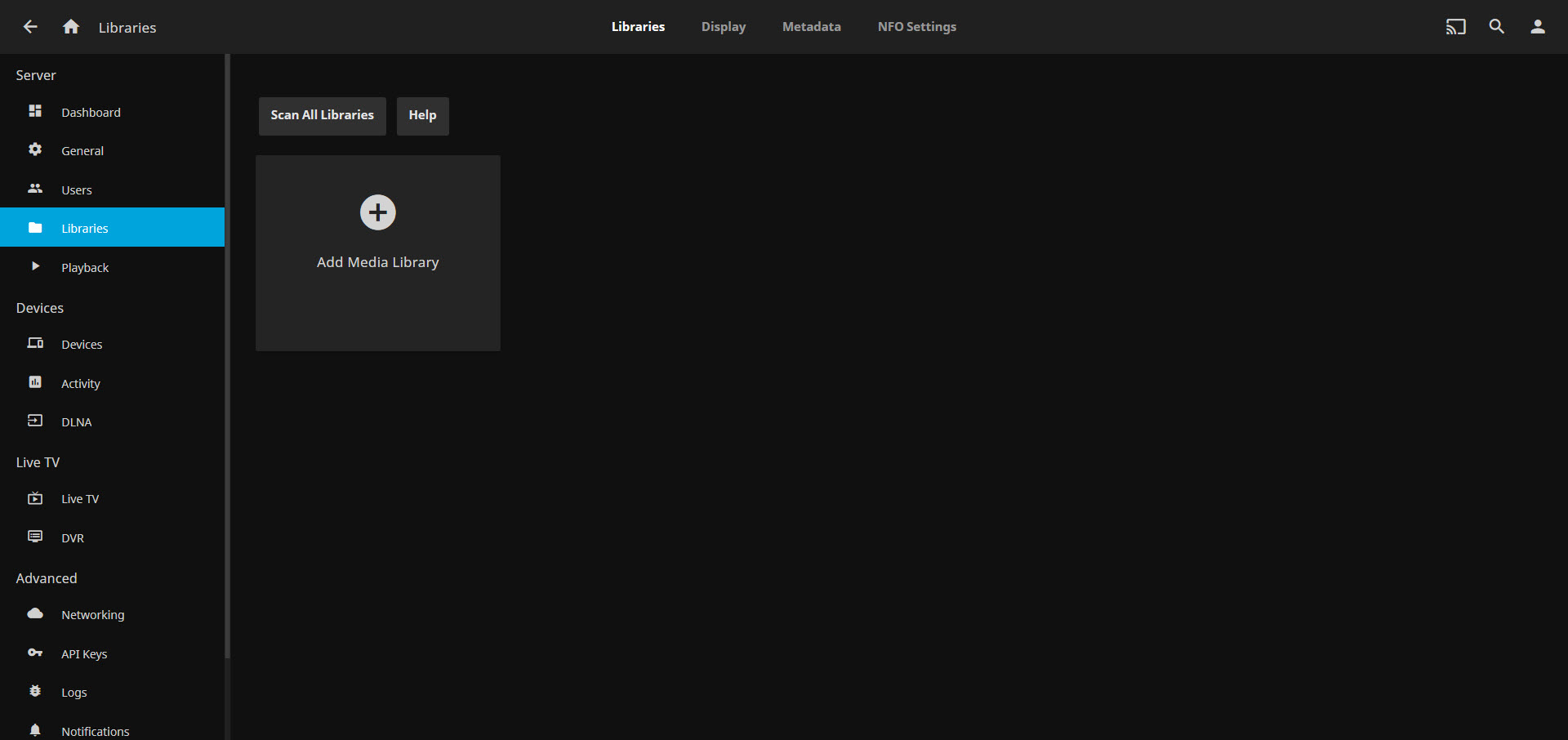
The application runs on Windows, Linux, macOS, Docker, and the major NAS platforms (Synology, QNAP, Unraid, TrueNAS). You point it at folders containing your media, it scans them, fetches metadata from TMDb and other sources, and serves the result through a web interface and a family of client applications across every platform you might want to watch on.
The clients exist for browsers, Android, iOS, Android TV, Apple TV, Roku, Fire TV, Samsung Tizen, LG webOS, PlayStation, Xbox, and as a Kodi addon. There is also a standalone desktop client called Jellyfin Media Player that handles direct-play scenarios better than the web interface.
The Plex comparison everyone is searching for
This question dominates discussion of the application and skipping it would be conspicuous. The two products do largely the same thing. Both serve your media library to clients, both transcode video for devices that cannot play the source format directly, both fetch metadata and provide a polished browsing interface. The differences are in the business model, the philosophy, and a handful of features that matter to different audiences.
Plex requires a Plex account to use the server, even for local-only viewing. Account authentication routes through Plex’s servers, your library metadata syncs to Plex’s cloud (with controls but the default is sync-on), and remote access uses Plex’s relay infrastructure if your server is not directly reachable. Jellyfin has none of this. No account, no cloud sync, no phone-home telemetry, no relay servers. Your media stays on your hardware, your watch history stays in your database, the connection between you and your server is whatever you configure it to be.
What Plex provides in exchange is convenience. Remote access works automatically through Plex’s relay even on networks where direct connections are blocked. Your account follows you to any client without configuration. Plex Pass adds hardware transcoding, mobile sync, and other features that are free with the alternative. Jellyfin‘s position is that the convenience is not worth the strings attached, and for users who agree, the application delivers exactly that.
The choice between Plex and this application depends on how much you value automatic remote access and frictionless multi-device account handling versus how much you value not having a third party in your media setup. Both positions are reasonable, and the existence of both products serves different user priorities.
Setup and the multi-platform server runtime
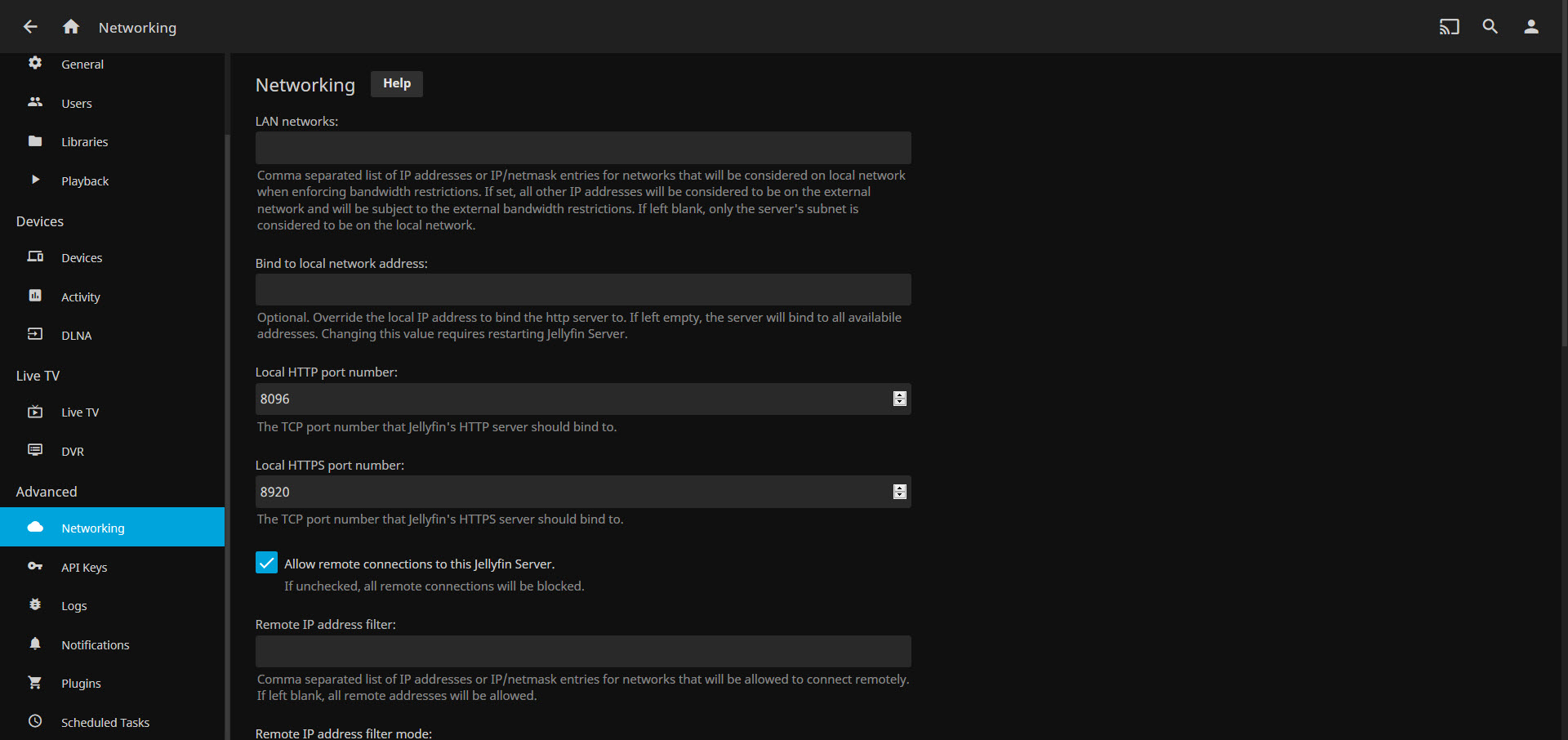
Installation on Windows uses a standard installer that registers the application as a Windows service. The default port is 8096 for HTTP and 8920 for HTTPS, both configurable. After installation, you point a browser at http://localhost:8096 and a setup wizard walks through creating the first administrator account, configuring media library locations, and choosing initial metadata providers.
Linux installations use distribution packages or Docker containers, and Docker is increasingly the recommended deployment. The official Docker image handles the .NET runtime, FFmpeg, and all dependencies in a single container, with volumes mapped to your media directories. For users running NAS hardware, native packages exist for Synology DSM, QNAP QTS, Unraid, and TrueNAS SCALE, with the same configuration interface across all of them.
The cross-platform nature of the server runtime is genuine. The same configuration files, plugins, and library structure work identically across operating systems. Moving a server from Windows to Linux to Docker is a matter of copying the configuration directory and pointing the new installation at the same media folders. This is less true with Plex, where the database structure carries platform-specific elements that complicate migration.
Library scanning and the metadata pipeline
After you tell the application where your media lives, the scanning process walks each folder, identifies files based on naming conventions, queries metadata providers, and downloads cover art, episode descriptions, cast information, and other library details. The default providers include The Movie Database (TMDb) for movies and TV, TheTVDB and TMDb for episode information, MusicBrainz for music, and OMDb for additional data.
The matching is good but depends on file naming. Standardized names (“The.Movie.Name.2024.1080p.BluRay.x264.mkv” or “Show Name – S01E01 – Episode Title.mkv”) match correctly almost always. Inconsistent or unusual naming (foreign titles, fan-named files, files with extra metadata in the name) sometimes mismatches and requires manual correction through the metadata editor. Tools like FileBot handle pre-organization of media files into the conventional naming patterns, which is the practical complement to a media server for anyone with a large existing library that grew organically.
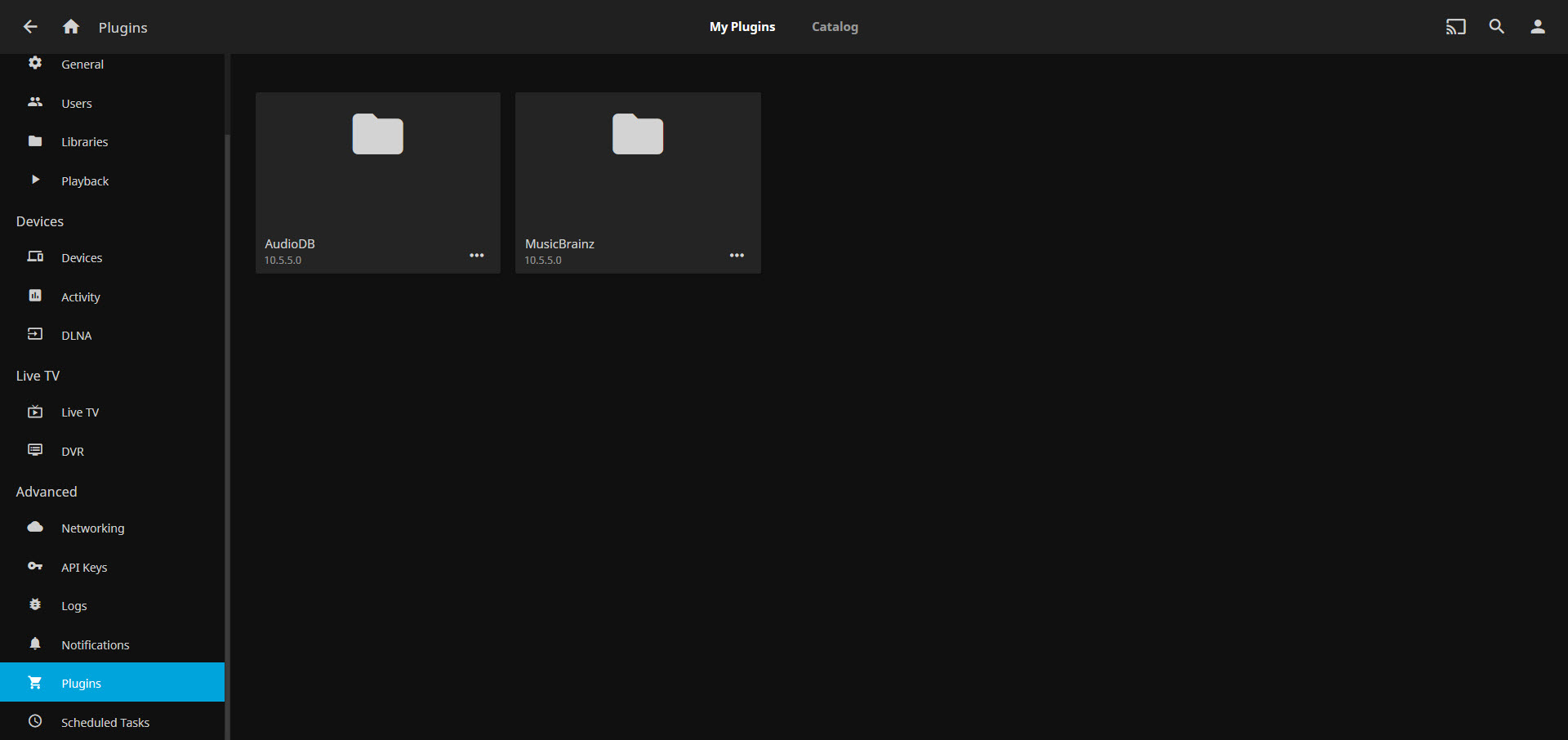
Plugins extend metadata sources. The plugin ecosystem includes adapters for anime-specific providers (AniDB, AniList), book and audiobook providers, additional music sources, and various enhancements. The plugin catalog is smaller than what some commercial alternatives offer, but the core providers cover most use cases without additional setup.
Hardware transcoding and the codec question
This is the technical feature that determines how the application performs at scale. When a client cannot play the source format (an HDR HEVC file streamed to a device that only handles SDR H.264, or a high-bitrate file being delivered over a slow connection), the server transcodes in real time to a format the client can play. Without hardware acceleration, transcoding consumes substantial CPU and limits how many concurrent streams a server can handle.
The application supports hardware transcoding on NVIDIA GPUs (NVENC), Intel CPUs and integrated GPUs (QuickSync via QSV and oneAPI), AMD GPUs (VAAPI on Linux, AMF on Windows), Apple Silicon and older Macs (VideoToolbox), and Raspberry Pi and similar ARM hardware (V4L2, RKMPP for Rockchip SoCs). Crucially, this is included free in the application, where Plex puts hardware transcoding behind a Plex Pass subscription.
The implementation uses FFmpeg under the hood, with configuration that exposes most of the relevant settings (codec selection, profile constraints, tone mapping for HDR-to-SDR, hardware decoding alongside encoding). Tone mapping in particular is well-handled, with multiple algorithms available (Hable, Reinhard, Mobius, BT.2390) for the case of an HDR source being delivered to an SDR client.
In practice, a server with a modern Intel CPU and QuickSync can transcode several concurrent 4K streams without breaking a sweat. A server with an NVIDIA card limited to two simultaneous NVENC sessions (the consumer-card cap) handles two transcoded streams beyond which it falls back to CPU for additional streams. For households with a few simultaneous viewers, modest hardware handles the load comfortably.
Quick Connect and the password question
This is a small feature that solves a real problem. Entering passwords on TV interfaces with remote controls is miserable. Quick Connect lets you authenticate a TV client by visiting the server’s web interface on a phone or computer, where you are already logged in, and approving the TV’s pending connection request with a single click. The TV client receives the authentication and logs in without you ever typing a password on it.
The feature works across all clients that support it, which is most of the major ones. For multi-device households where the same user logs in from multiple TV apps, mobile apps, and browsers, this removes a recurring source of friction.
Live TV, DVR, and the IPTV angle
The application includes Live TV and DVR functionality. Connect a TV tuner (HDHomeRun and similar networked tuners are well-supported) or point it at an IPTV provider’s M3U playlist, and the application acts as a unified guide and recording interface. Recordings save to a configured location with metadata, the EPG (electronic program guide) pulls from XMLTV sources or the application’s built-in lookup.
This is more functional than most casual users will need but valuable for users replacing cable subscriptions with a combination of over-the-air antenna and streaming services. For users who specifically want a media player without server complexity, Kodi covers that case with a different architecture (client-side library, plays from local or network sources directly without a separate server process).
SyncPlay and group watching
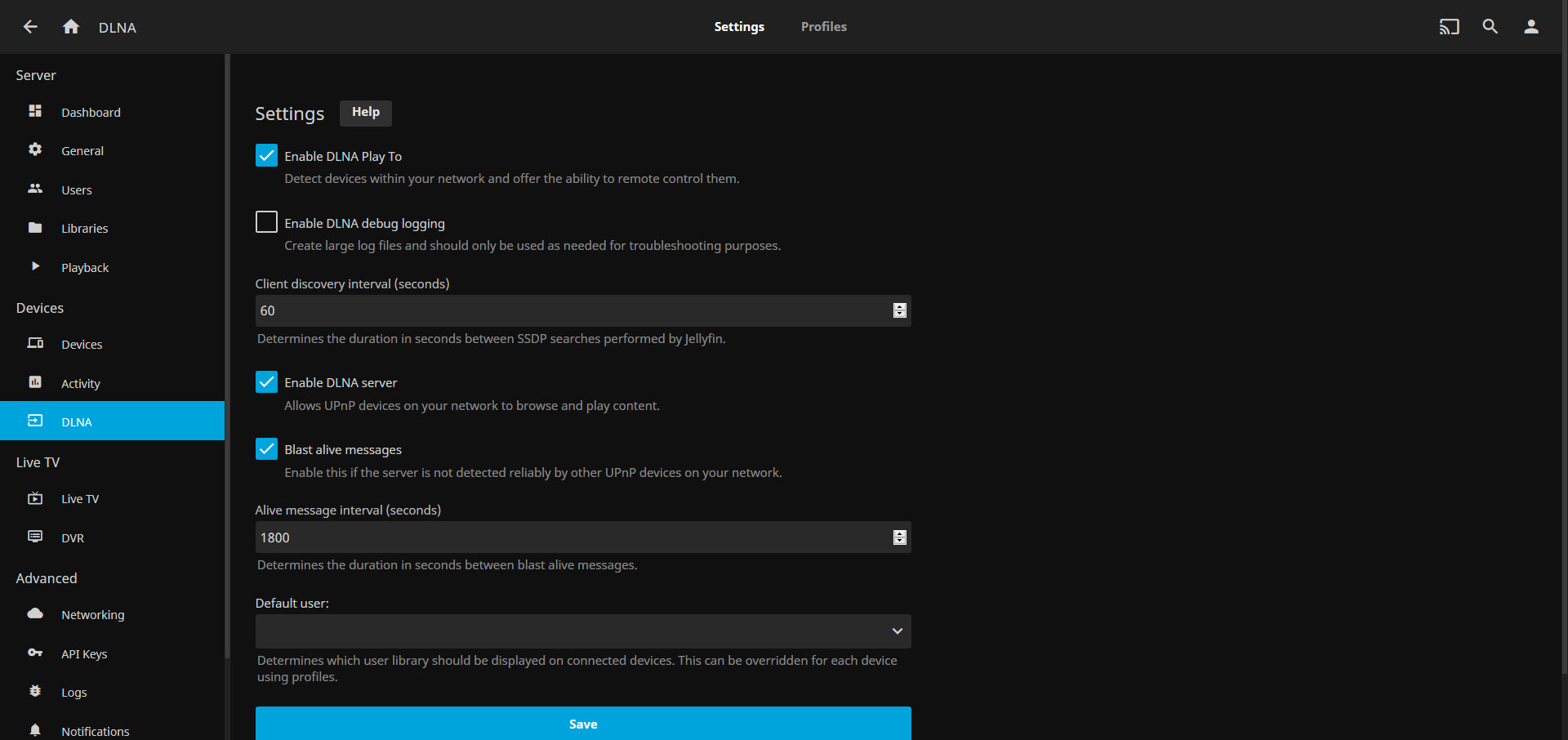
Multiple users on the same server can watch the same content in sync, with playback controls coordinated across their clients. This is the application’s answer to remote group viewing, where everyone who is part of a session sees the same frame at the same time and pause/play controls affect all participants.
The feature works across the clients that support it, including the web interface, mobile apps, and TV apps. Audio commentary, watch parties, and remote viewing with friends or family in different locations work through this. The implementation is less polished than dedicated streaming services like Disney+’s GroupWatch but covers the basic need without requiring third-party services.
Plugin ecosystem and the extension model
Plugins extend the application beyond its built-in functionality. The official catalog includes plugins for additional metadata providers, custom themes and skins, integration with subtitle services like OpenSubtitles, additional language packs, transcoding profile customization, and connectivity to tools like Sonarr and Radarr for automated download management.
One popular plugin worth highlighting specifically. Intro Skipper detects opening credits in TV episodes using audio fingerprinting and adds a skip button during playback. After scanning your library, episode openings get marked automatically and the skip button appears at the right moment in playback. For binge-watching shows with long openings, this saves visible time across a season.
The application pairs naturally with media automation tools. Sonarr for TV episode acquisition, Radarr for movies, Lidarr for music, Readarr for books. The typical self-hosted media stack involves the application as the front-end serving content that those tools have collected and organized, with the file management automated and the viewing experience polished.
Remote access and the configuration honesty
This is where the application requires more user effort than commercial alternatives. There is no built-in cloud relay. To access your server from outside your local network, you configure your own remote access through one of several approaches.
Port forwarding on your router exposes the server’s port to the internet. Reverse proxy through nginx or Caddy with a domain name and TLS certificate provides a polished setup. VPN access through WireGuard or Tailscale lets you connect to your home network from outside without exposing services to the public internet. Cloudflare Tunnel is increasingly popular as a no-port-forward option that handles TLS and traffic routing through Cloudflare’s network.
Each of these requires technical knowledge that Plex’s automatic relay does not require. The trade is meaningful. Plex users get plug-and-play remote access at the cost of routing through a third party. Users of this application configure their own access path with no third party involved but with the configuration burden falling on them. For users who want both privacy and convenience, Tailscale is the popular middle ground because it provides VPN-like remote access without the complexity of self-hosted VPN configuration.
Conclusion
Jellyfin is the right choice for users who want a self-hosted media server without external dependencies, account requirements, or recurring fees. Self-hosting enthusiasts, users with privacy concerns about cloud-connected media platforms, households with diverse client devices that want a unified library, and anyone who has watched the steady commercialization of competing platforms with concern will find the application well-matched to their priorities. The combination of complete functionality (including hardware transcoding) at no cost and full local control distinguishes it from every commercial alternative in the category.
What the application asks for in return is more setup effort, particularly around remote access. Users who want plug-and-play access from anywhere with minimal configuration will find Plex’s automatic relay more convenient even with its tradeoffs.
Users who are comfortable configuring a reverse proxy or VPN, or who are happy with local-network-only access, get a media server that does everything the commercial competitors do with none of the strings attached. For a category that has seen most of its commercial alternatives drift toward subscription and lock-in, the existence of a fully featured open source option that has not made the same compromises is genuinely valuable.
Pros & Cons
- Completely free with no paid tiers, subscription requirements, or feature paywalls
- Hardware-accelerated transcoding across NVIDIA, Intel, AMD, Apple, and ARM platforms included at no cost
- No mandatory account, no cloud sync, no telemetry, with all data staying on your hardware
- Client applications across browser, mobile, tablet, TV platforms, game consoles, and streaming devices
- Built-in Live TV and DVR functionality with tuner hardware or IPTV playlist support
- Quick Connect eliminates password entry on TV clients through approval from already-authenticated devices
- SyncPlay coordinates playback across multiple users for group viewing
- Plugin ecosystem covers metadata providers, intro detection, theme customization, and integration with media automation tools
- Active open source development under GPL-2.0 with substantial community contribution
- Remote access requires manual configuration (port forwarding, reverse proxy, VPN, or Cloudflare Tunnel) rather than working automatically
- Plugin ecosystem is smaller than commercial competitors, with fewer ready-made integrations available
- Mobile and TV client applications, while functional, are less polished than the corresponding Plex apps
- No built-in cloud sync for watch history or media availability across remote servers
- Metadata matching depends heavily on file naming conventions, with poorly named files requiring manual correction
- Documentation, while comprehensive, assumes technical familiarity for advanced configurations like reverse proxy setup
- Live TV configuration is more involved than dedicated DVR products for users who primarily want recording functionality
Frequently asked questions
Both serve media libraries to clients with similar core functionality. The application is completely free with no paid tiers, no required account, and no cloud dependency. Plex offers automatic remote access through its relay infrastructure and a more polished client experience in exchange for an account requirement and a paid Plex Pass tier for some features. The choice depends on whether you prioritize convenience or full control.
The application was forked from the Emby codebase in December 2018 when Emby moved to a proprietary model. The two share architectural ancestry but have diverged substantially since. This is the fully open source continuation of what Emby used to be, while current Emby is a separate proprietary product.
No subscription, no account, no payment of any kind is required. The application is free and open source under GPL-2.0. User accounts exist within your own server installation but no external authentication or cloud service is involved.
Yes, native client applications exist for Roku, Apple TV, Android TV, Fire TV, Samsung Tizen, LG webOS, PlayStation, Xbox, and Android/iOS mobile devices. A web browser client provides access from any device with a modern browser. The Jellyfin Media Player desktop application provides direct-play handling for Windows, macOS, and Linux.
Yes, hardware transcoding works on NVIDIA (NVENC), Intel (QuickSync), AMD (VAAPI/AMF), Apple (VideoToolbox), and ARM platforms (V4L2, RKMPP). Hardware transcoding is included in the free application, not behind any paid tier.
The application does not provide automatic remote access. You configure your own access through port forwarding, a reverse proxy with a domain name, a VPN like WireGuard or Tailscale, or Cloudflare Tunnel. Each approach involves more setup than the automatic relay services that Plex provides but keeps all traffic under your control.
Yes, with a compatible TV tuner (HDHomeRun and similar networked tuners are well-supported) or an IPTV provider, the application acts as a DVR with a unified electronic program guide. Recordings save to a configured location with metadata, and scheduling supports recurring recordings and series passes.
Quick Connect lets you authenticate a client device (typically a TV app) by approving its connection request from a browser or mobile app where you are already logged in. This avoids entering passwords on TV remotes. The feature works across most client applications.


