

Dexpot
About Dexpot
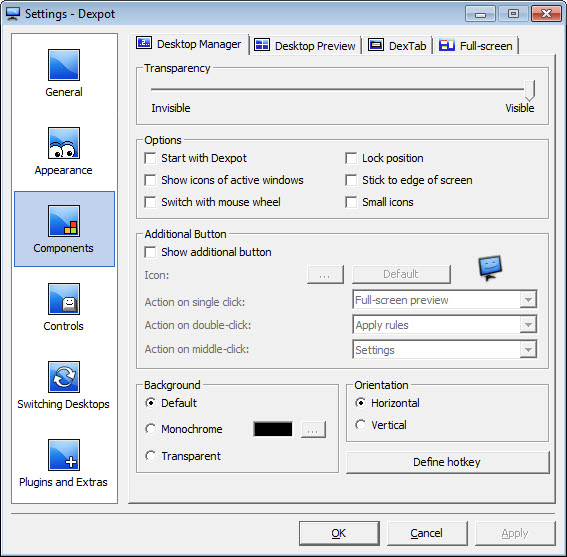
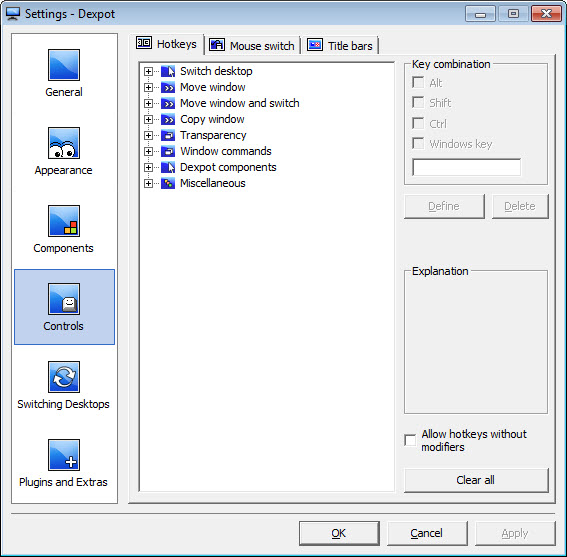
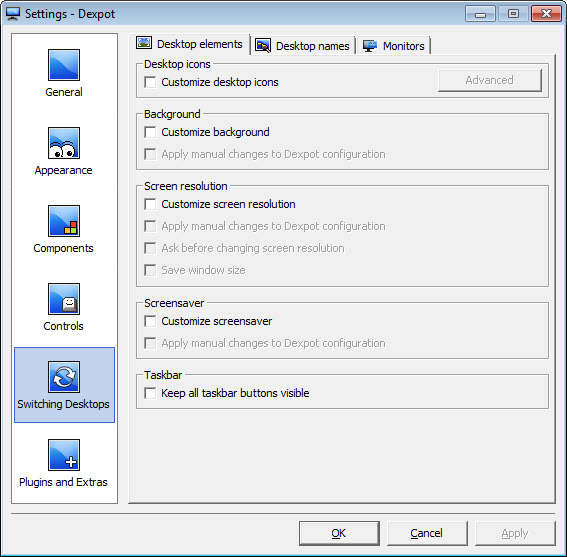
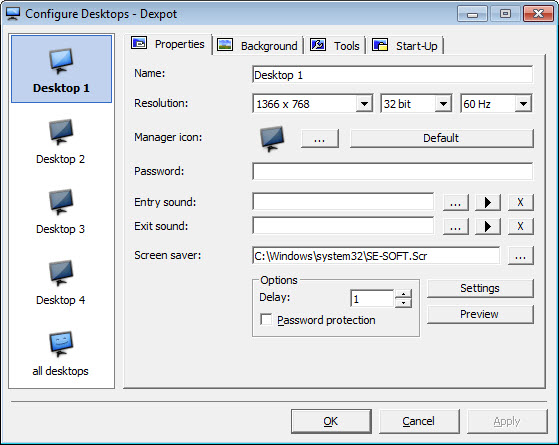
Dexpot is a virtual desktop manager from before the operating system had one, and the reason it still gets installed is everything the built-in version left out. Up to twenty desktops, each with its own wallpaper and its own set of desktop icons, rules that send a program to a particular desktop the moment it opens, hotkeys for every action, a full-screen overview where windows can be dragged or copied between desktops, and a monitor that can be excluded from switching so a reference screen stays put while the rest of the machine changes. The native feature does none of that. It gives you several desktops and a key to cycle them.
So the question is not whether you need virtual desktops but whether you need them organised. A desktop for mail with a calm wallpaper and the mail client pinned to it, a desktop for the project with its files on the desktop itself, a desktop for the browser that never leaks into the other two. Dexpot was built for that person, and it has not been updated in a long time, which brings its own set of considerations covered below.
Desktops that differ, not just multiply
Each desktop can carry a different wallpaper and a different arrangement of icons, which sounds cosmetic and is the opposite. The icons are the files you are working on, and keeping the project’s shortcuts on the project’s desktop means the mail desktop stays empty. Programs can be bound to one desktop, to all of them, or to whichever they were launched on, and a program can autostart when a desktop is first entered, so switching to the music desktop opens the player.
The Desktop Manager is a small resizable overview that sits anywhere on screen and shows each desktop with the icons of its windows. Alt plus a number switches by default, the pointer at a screen edge switches if you enable it, and a plugin turns the corners into triggers.
With a grid layout the desktops sit in rows and columns and windows move between neighbours with Ctrl, Alt and an arrow, which is the arrangement people who came from other systems recognise.
Rules that put windows where they belong
Power Rules watch for new windows and act on them. A rule matches a title or a program and then moves the window to a chosen desktop, sets it always on top, makes it transparent, or minimises it to the tray, all without a click. The chat client lands on desktop four every time. The video call goes on top. The download manager vanishes into the tray.
That is the single feature that justifies Dexpot on a system that already has virtual desktops, because the built-in version makes you move windows by hand every session. The rule editor is a dialog with more fields than it needs, and a rule that matches too broadly will send every window with “Document” in its title to the wrong place, so start specific.
Overviews, catalogues and moving windows around
The full-screen preview shows all desktops with live thumbnails of their windows, and windows are moved by dragging, copied with a modifier, closed or enlarged from the same view. The window catalogue tiles the windows of one desktop for picking.
DexTab replaces the Alt-Tab switcher with one that lists windows from every desktop and lets you drag between them. A right-click on any title bar offers to move the window elsewhere, and the title bar buttons can be given extra jobs such as rolling the window up or sending it to the tray.
Copies of a window, and a monitor that stays put
Copying a window rather than moving it is the odd Dexpot capability. A reference document that should be visible on three desktops is copied to all three, and closing one copy leaves the others. Multi-monitor setups get wallpapers per monitor and the option to exclude a monitor entirely, which is how the second screen keeps the dashboard while the first flips between tasks.
The age, and what it means now
Dexpot predates the native virtual desktops and the two do not know about each other. Running both is confusing rather than broken, so pick one and turn the other off. Store apps are handled less reliably than classic windows, the taskbar pager and the taskbar button plugin were built for an older taskbar and look it, and the 3D cube transition plugin is a novelty that was dated the day it shipped.
What has not aged is the core. Rules, per-desktop icons, hotkeys and the overview all work as they did, and for someone who wants a desktop setup that reassembles itself after every reboot, there is still nothing built in that comes close. AutoHotkey can script some of the window placement, in exchange for writing the script.
Conclusion
Dexpot suits someone who wants desktops that mean something, with their own wallpapers, their own icons and rules that put every window in its place without a thought. For that person the built-in version is a cycle key by comparison, and nothing newer has replaced the rule system.
Anyone content with several blank desktops and a shortcut to flip between them already has that and gains nothing here beyond the age and the plugin clutter. This is for the organiser, and it still does the organising.
Pros & Cons
- Up to twenty desktops, each with its own wallpaper and desktop icons
- Power Rules send new windows to a desktop, on top, transparent or to the tray automatically
- Full-screen overview with drag to move and a modifier to copy windows between desktops
- Hotkeys and screen edges for every switch, with a grid layout option
- A monitor can be excluded from switching entirely
- No longer updated, with plugins built for an older taskbar
- Store apps are handled less reliably than classic windows
- Conflicts in practice with the native virtual desktops, so use one or the other
- Rule editor is dense and easy to over-match
Frequently asked questions
Yes. Wallpaper and the icon layout are per desktop, so a project's shortcuts can live on the project's desktop only.
Yes. A Power Rule matching the program's window moves it to the chosen desktop on launch, and a program can be set to start when a desktop is first entered.
Not well. The two do not know about each other, so turn off the native desktops and let this tool manage switching, or the reverse.
Yes. Any monitor can be excluded from desktop switching, so a dashboard or reference screen stays visible while the main display flips between desktops.


